
Taxes
Turn on the taxes you charge, and choose which ones apply to room nights.
Taxes is the first Finance section. It is required. Estatell uses these taxes on room nights and, if you link them, on extras. You can open it as soon as Basics is done.
If your country is Malaysia, Estatell has already added two taxes for you, and both are turned off. You turn on what you charge. For another country, the table starts with one empty row, and you add your own taxes.
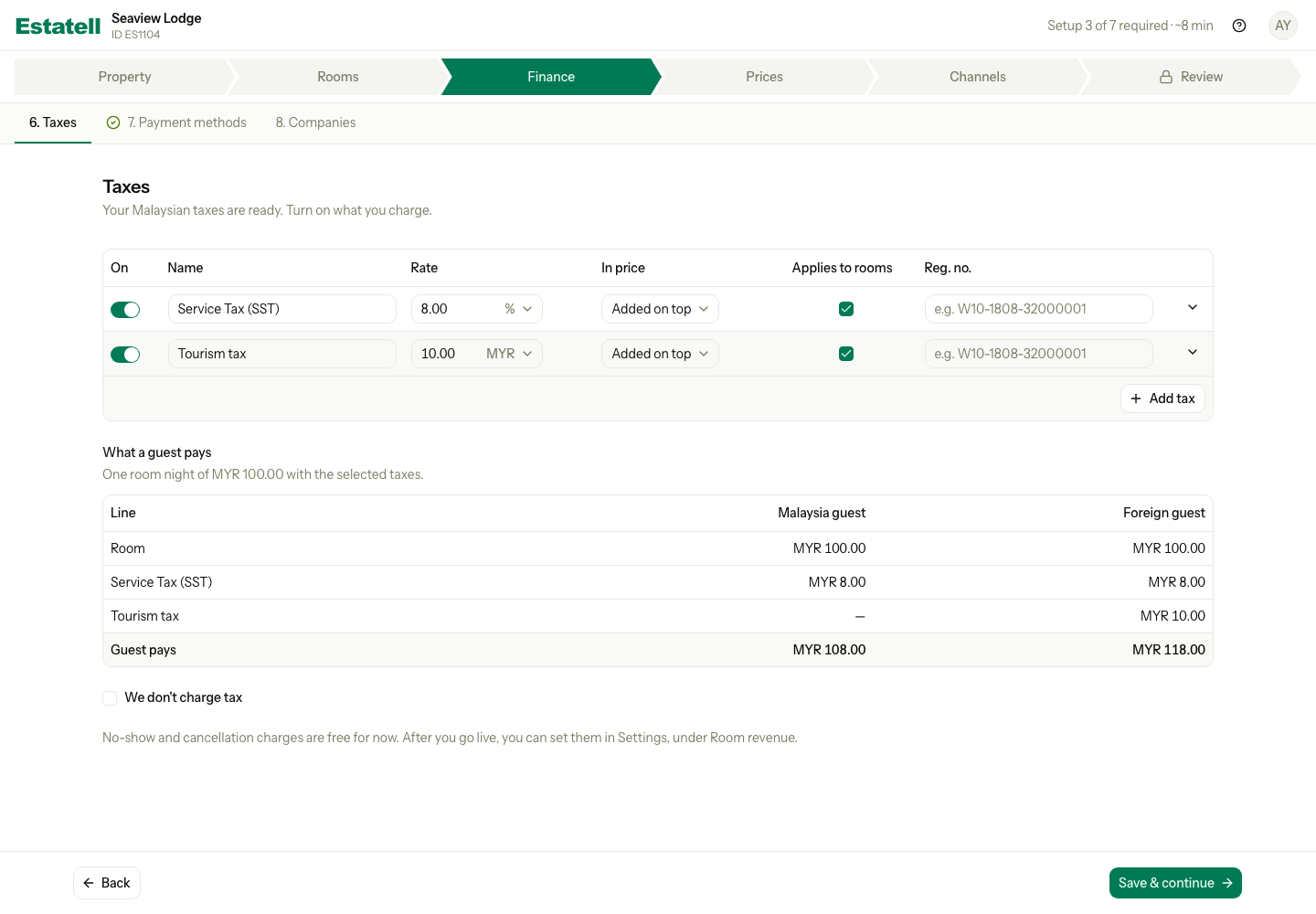
Turn on the taxes you charge
- For each tax you charge, turn on the switch in the On column.
- Check the Rate. Change it if your rate is different.
- Check In price. Choose Added on top if the tax is added to the room price, or Included if the price already has the tax in it.
- Check Applies to rooms. See Applies to rooms.
- If you have a tax registration number, enter it in Reg. no.
- Select Save & continue.
| Column | What to enter |
|---|---|
| On | Turn it on for a tax you charge. A tax that is off is never added to a bill. |
| Name | The name guests see on the bill. |
| Rate | The amount, and the unit. Choose % for a percentage, or the currency for a flat amount per night. |
| In price | Added on top or Included. |
| Applies to rooms | Whether the tax is added to room nights. |
| Reg. no. | Optional. Your tax registration number, for example W10-1808-32000001. |
| Estatell starts with | Rate | Who pays |
|---|---|---|
| Service Tax (SST) | 8% | Every guest |
| Tourism tax | MYR 10 per night | Foreign guests only |
A percentage tax must be more than 0 and at most 100. A flat tax must be more than 0. The table holds up to 20 taxes.
Taxes is done when at least one tax is turned on, or when you tick We don't charge tax.
Applies to rooms
Applies to rooms decides if a tax is added to room nights. Move your pointer over the column name to see the note: "Also used for no-show, cancellation, early departure and late check-out charges."
So when you tick Applies to rooms, the tax is also added to those charges. After you go live, you can set those charges in Settings, under Room revenue. In the wizard they are free for now.
A tax does not have to apply to rooms. For example, a service charge on food only. Clear the tick, and the row shows "Not applied to rooms. Link it to extras in Charge items →". Select the link to open Charge items. You can use it once Taxes is done. Charge items shows the tax in each item's tax menu.
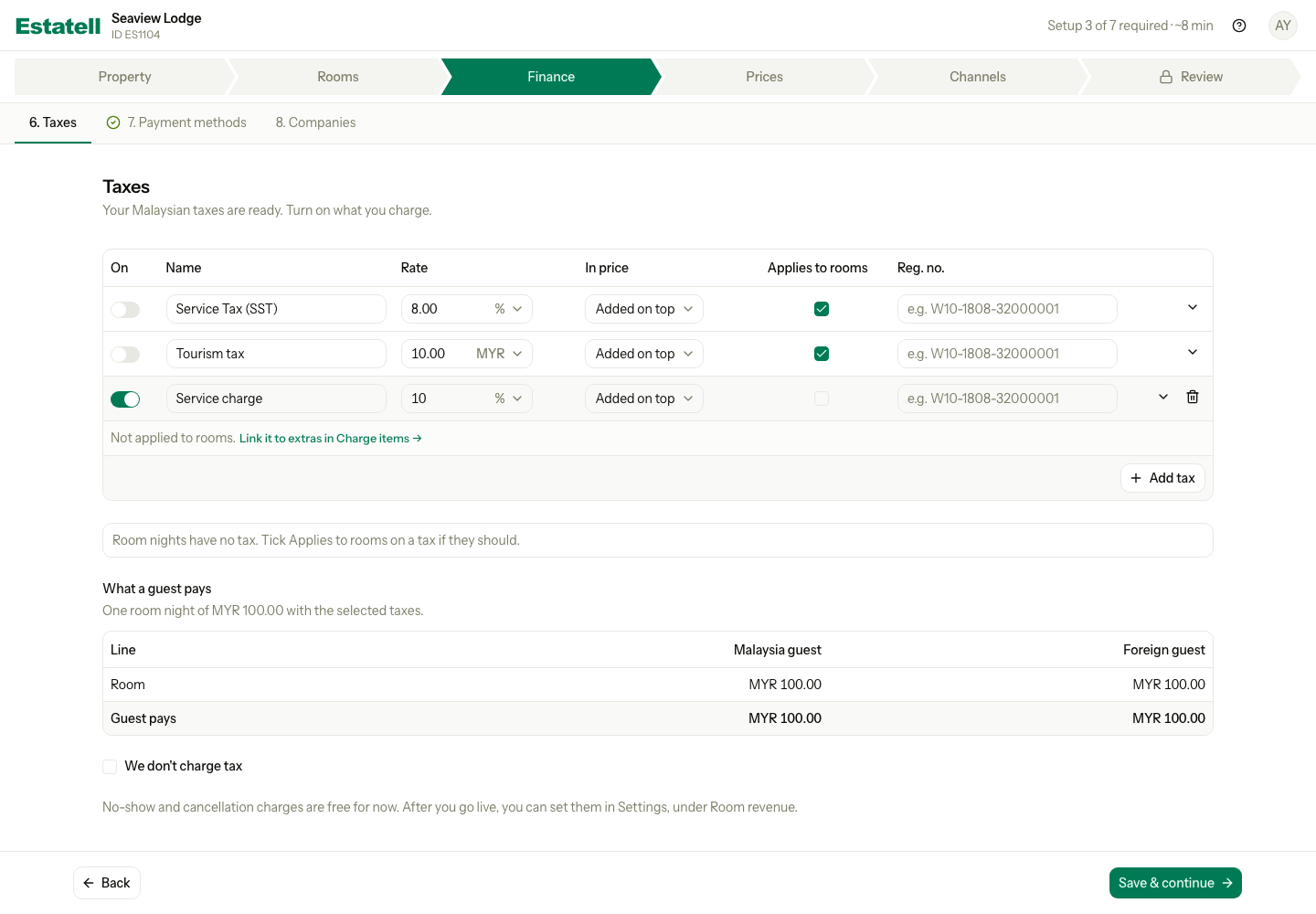
If no tax that is turned on applies to rooms, Estatell shows "Room nights have no tax. Tick Applies to rooms on a tax if they should." Check it is what you want. It does not stop you from going live.
Foreign guests and collect at check-in
Select the arrow at the end of a row to see more options.
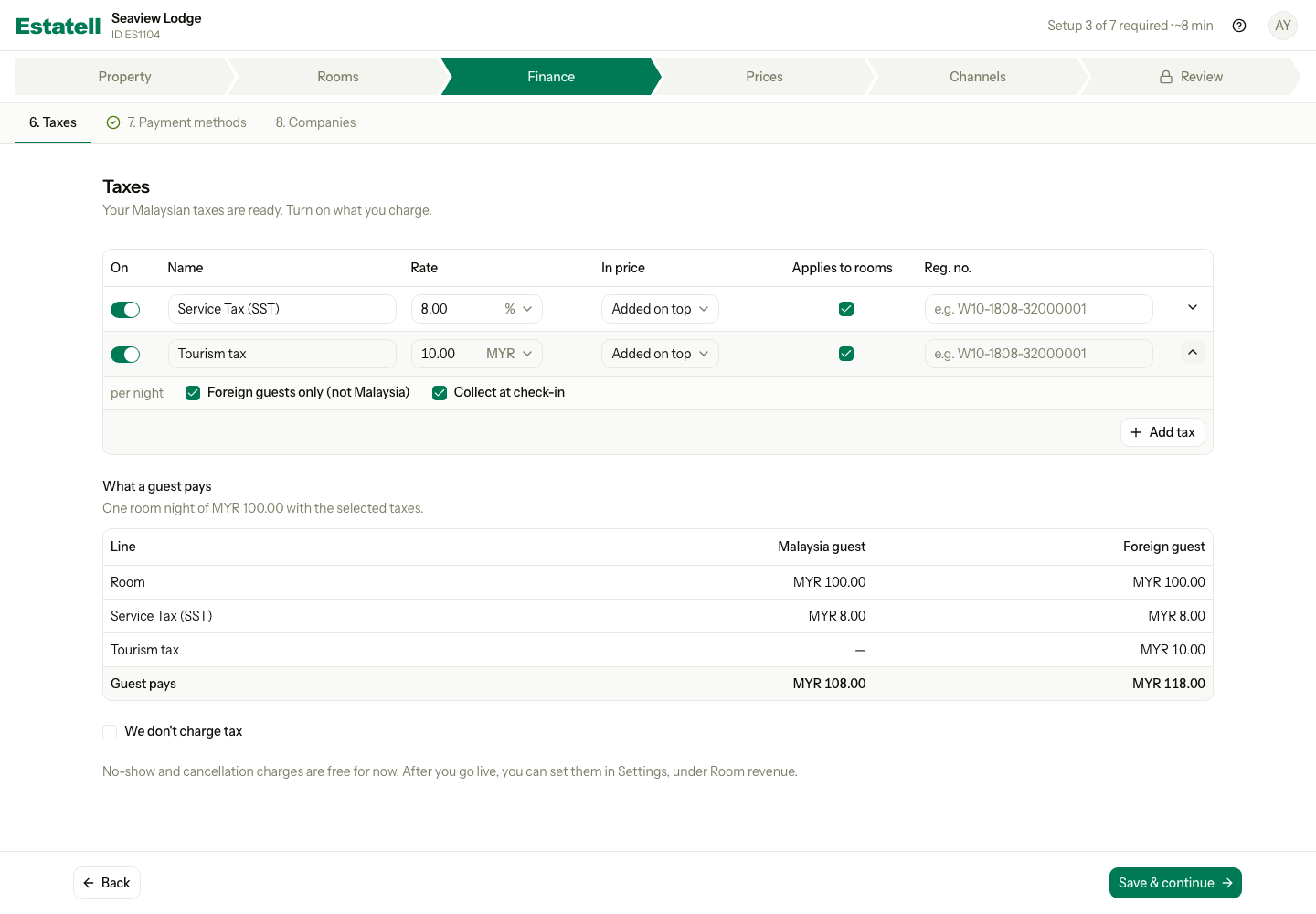
| Option | What it does |
|---|---|
| Foreign guests only | Estatell adds the tax only for guests who are not from your country. The text shows your country, for example "(not Malaysia)". |
| Collect at check-in | The check-in form adds this tax to the amount staff collect when the guest checks in. It does not change what the guest pays. |
A flat tax that applies to rooms shows "per night" next to the options.
Example: what a guest pays
Under the table, Estatell shows what a guest pays for one room night of 100.00. The table changes as you change the taxes, before you save. Estatell works out the numbers. The example below uses the two taxes from the first picture.
| Malaysia guest | Foreign guest | |
|---|---|---|
| Room | 100.00 | 100.00 |
| Service Tax (SST) 8% | 8.00 | 8.00 |
| Tourism tax | – | 10.00 |
| Guest pays | 108.00 | 118.00 |
The first column carries your country, for example "Malaysia guest".
Add, turn off or remove a tax
- To add a tax, select Add tax and fill in the new row. A new row starts turned on, with Applies to rooms ticked.
- Estatell's own taxes cannot be removed, because other parts of Estatell use them. Turn the switch off instead.
- You can remove a tax you added with the bin icon on its row. For a saved tax, Estatell asks "Remove Service charge?" with the name of your tax. Select Remove to confirm.
- Estatell refuses to remove a tax that a charge already uses. It shows "Service charge cannot be removed. Turn it off instead." with the name of your tax.
- Names must be different, and capital letters do not count. Estatell shows "Another tax in this table uses this name."
If you don't charge tax
Tick We don't charge tax. Estatell greys out the table and turns every tax off. Taxes is then done, and you can go on. The Skip button is not shown for Taxes, because this tick is the answer.
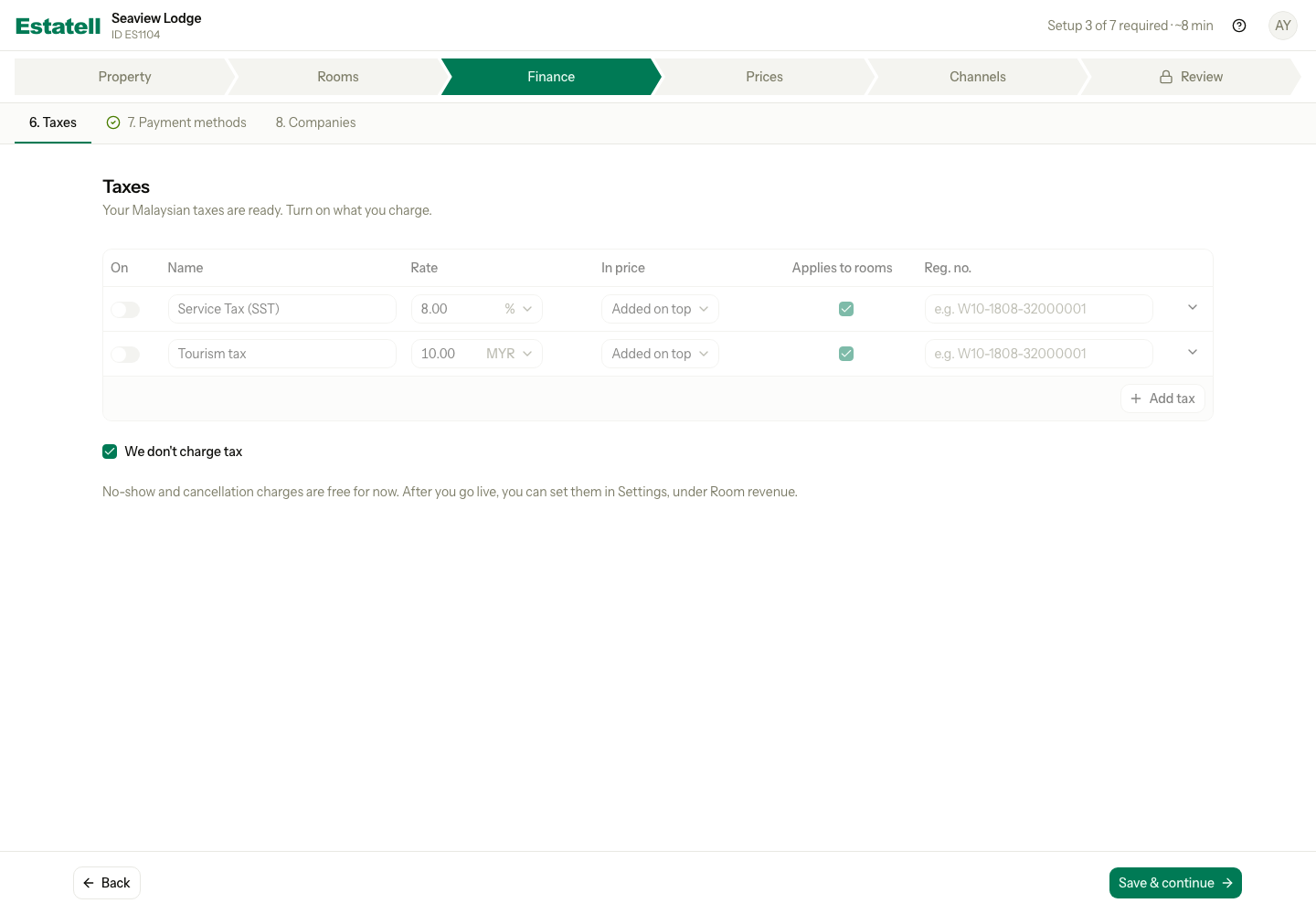
To charge a tax later, clear the tick, turn on a tax and save. Or add it in Settings after you go live.
What you do later in Settings
- The short code of a tax. Estatell makes one from the name.
- The charges for no-shows and cancellations. See Room revenue in Settings. See Taxes for how tax works on a bill.
- Which taxes each charge item uses. See Charge items.
Special cases
| Situation | What happens | What to do |
|---|---|---|
| You turn off every tax and do not tick We don't charge tax | Taxes is not done. | Turn on a tax, or tick We don't charge tax. |
| No tax that is turned on applies to rooms | Estatell shows "Room nights have no tax." You can still save. | Tick Applies to rooms on a tax, or leave it if room nights are free of tax. |
| A tax has a rate of 0 | Estatell shows an error under the rate. | Enter more than 0, or turn the tax off. |
| A percentage is more than 100 | Estatell shows "A percentage tax cannot exceed 100%." | Enter a lower rate. |
| Two taxes have the same name | Estatell shows "Another tax in this table uses this name." | Give each tax its own name. |
| You remove a tax that a charge uses | Estatell shows "Service charge cannot be removed. Turn it off instead." | Turn the tax off. |
| You choose a country that is not Malaysia | The table has one empty row. Estatell does not add SST or Tourism tax. | Add your own taxes. |
| You leave the section with unsaved changes | Estatell asks if you want to save them. | Save, or leave without saving. |
| You use a phone | Each row becomes a card, with Applies to rooms and more options inside. | Scroll down to see each field. |