
Rooms
Add your room types, then the room numbers and the type of each room.
The Rooms phase has two sections. Both are required. You add the kinds of rooms you sell first. Then you enter the room numbers and give each room its type.
| Section | Required? | Opens when |
|---|---|---|
| Room types | ✅ | Basics is done |
| Rooms | ✅ | Room types is done |
If a section is not open yet, it shows as a preview. A message at the top says "Preview. Finish Room types first to fill this in." Select Go to Room types → to open the section you need first.
Room types
A room type is a kind of room you sell, for example "Standard Double" or "Deluxe King". Rooms of one type share the same price.
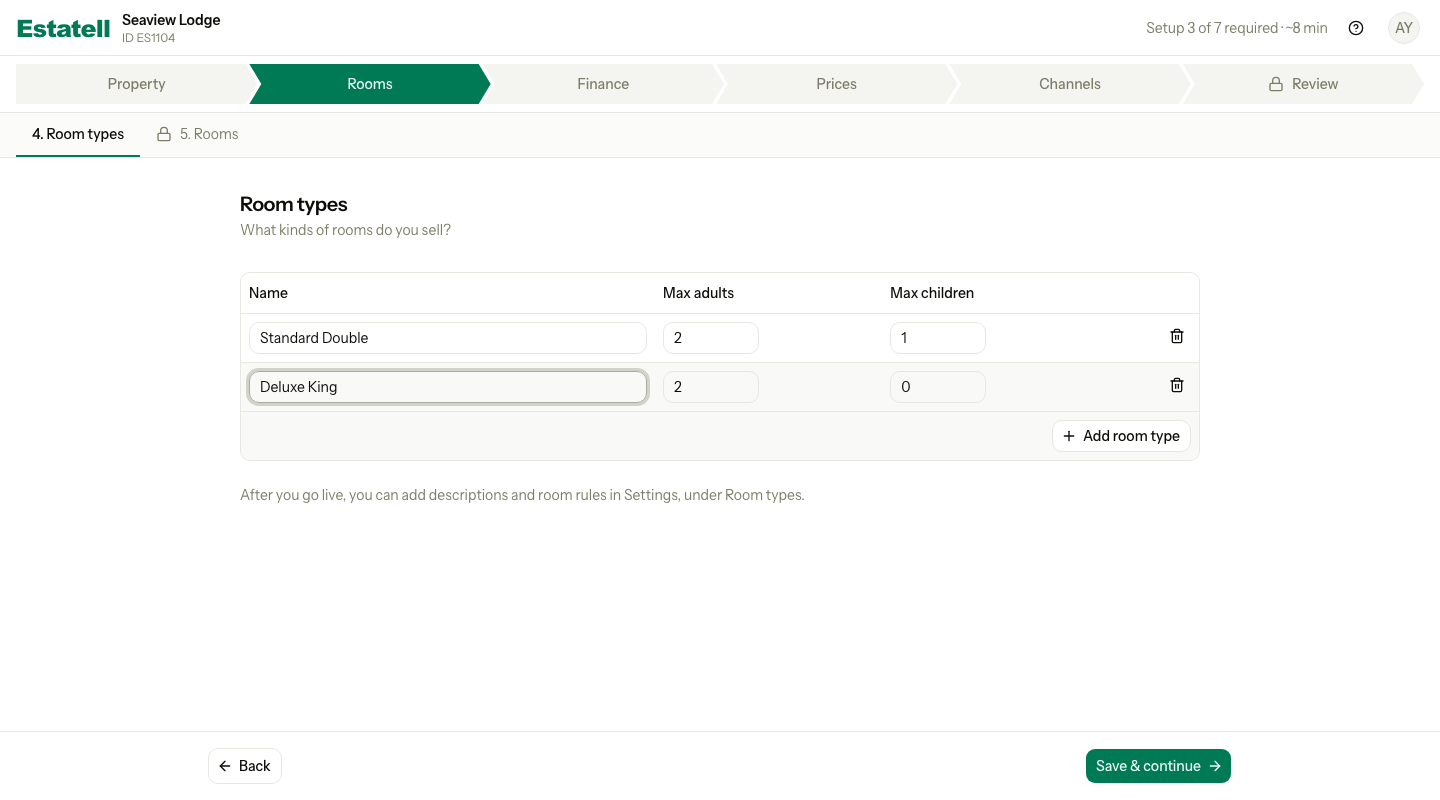
Add room types
- Enter the Name of the first room type.
- Check Max adults and Max children. New rows start with 2 adults and 0 children.
- Select Add room type for each other kind of room. You can add up to 50.
- Select Save & continue.
| Field | What to enter |
|---|---|
| Name | A name your guests and staff know. It must be different from the other room types. |
| Max adults | The most adults the room sleeps, from 1 to 50. |
| Max children | The most children the room sleeps, from 0 to 50. |
Estatell uses Max adults as the number of guests the room price includes. So the basic rate has no extra charge for adults.
Room types is done when you have saved at least one room type.
Change or remove a room type
- To rename a room type or change its numbers, edit the row and select Save & continue.
- To remove a room type, select the bin icon on its row and save. Estatell removes the room type and all its rooms. You can use the name and the room numbers again. The last row has no bin: you need at least one room type.
- The order of the rows is the order Estatell shows the room types in.
What you do later in Settings
The wizard asks only for the name and the number of guests. After you go live, you can add descriptions and room rules in Settings. See Room types.
The wizard makes room types sold by room. To sell dorm beds, add a room type sold by bed in Settings after go-live. See Beds. If your property already has a room type sold by bed, it shows in the table as a normal row. It stays sold by bed when you save.
Rooms
Rooms has two parts, one under the other:
- Room numbers: you type the numbers the way they run on each floor.
- Room types: you give each room its type on a grid of tiles.
This way, a floor where the types are mixed (101 Queen, 102 Twin, 103 Twin, 104 Queen) is still one line of numbers.
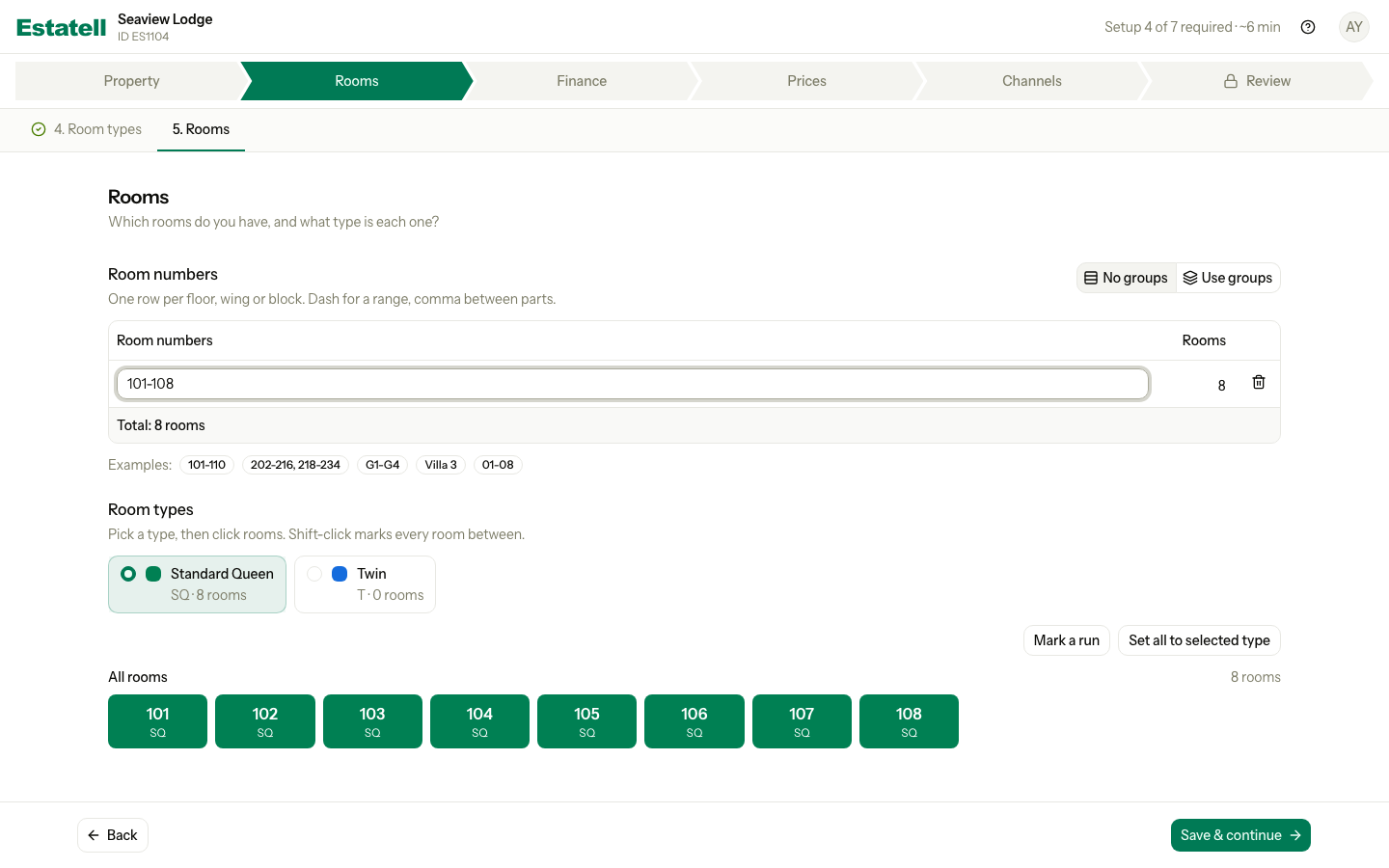
Step 1: Enter the room numbers
- In Room numbers, type the numbers of your rooms, for example
101-108. - Check the Rooms column. It shows how many rooms the line makes.
- Check the rooms on the grid under Room types.
| You type | Estatell makes |
|---|---|
101-110 | 101 to 110. A dash between two numbers is a range. |
202-216, 218-234 | 202 to 216 and 218 to 234. A comma separates the parts, so you can skip 217. |
G1-G4 or G1-4 | G1, G2, G3, G4. The letters before the first number are kept on every room. |
01-08 | 01 to 08. Estatell keeps the zeros of the first number. |
Villa 3 or 101A | One room with that name. A part that is not a range is one room. |
The Examples: row under the table shows these formats. Rooms keep the order you type. The housekeeping board and room assignment use the same order.
Room groups
A room group is a part of your property, such as a floor, a wing or a block. Groups help your team find rooms on the housekeeping board and the stay view.
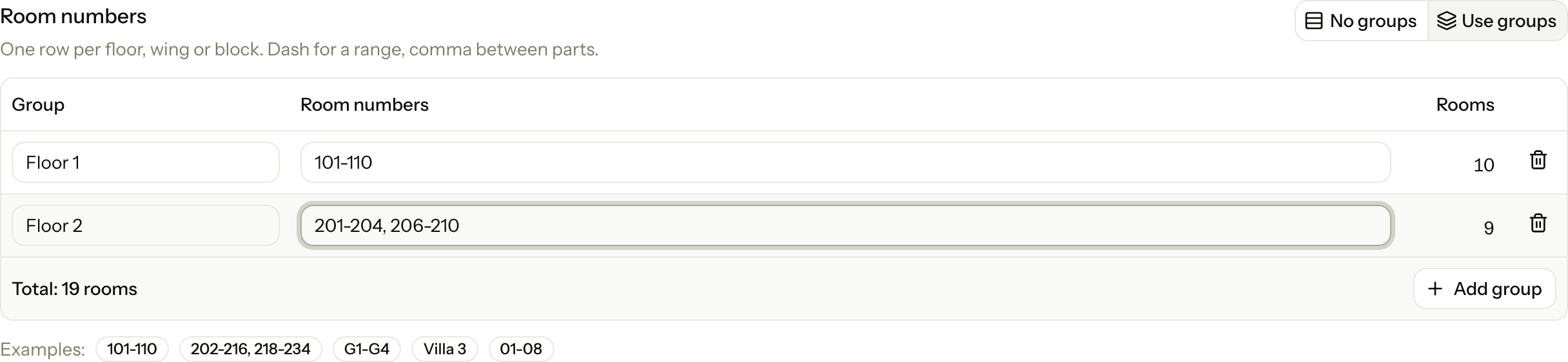
- Select Use groups. The default is No groups.
- Enter a name for the first group, for example "Floor 1", and its room numbers.
- Select Add group for each other group.
With groups, you type one line of numbers for each group. The order of the groups is the order Estatell uses first when it assigns rooms. Group names must be different, and capital letters do not count: "Garden" and "garden" are the same name. You can have up to 50 groups.
After you save a group, you cannot remove it in the wizard. The toggle stays on Use groups, and a saved group has no bin. You can remove groups in Settings after go-live. See Rooms and room groups.
Step 2: Give each room its type
Every new room starts with the first room type. Pick a type, then click the rooms of that type.
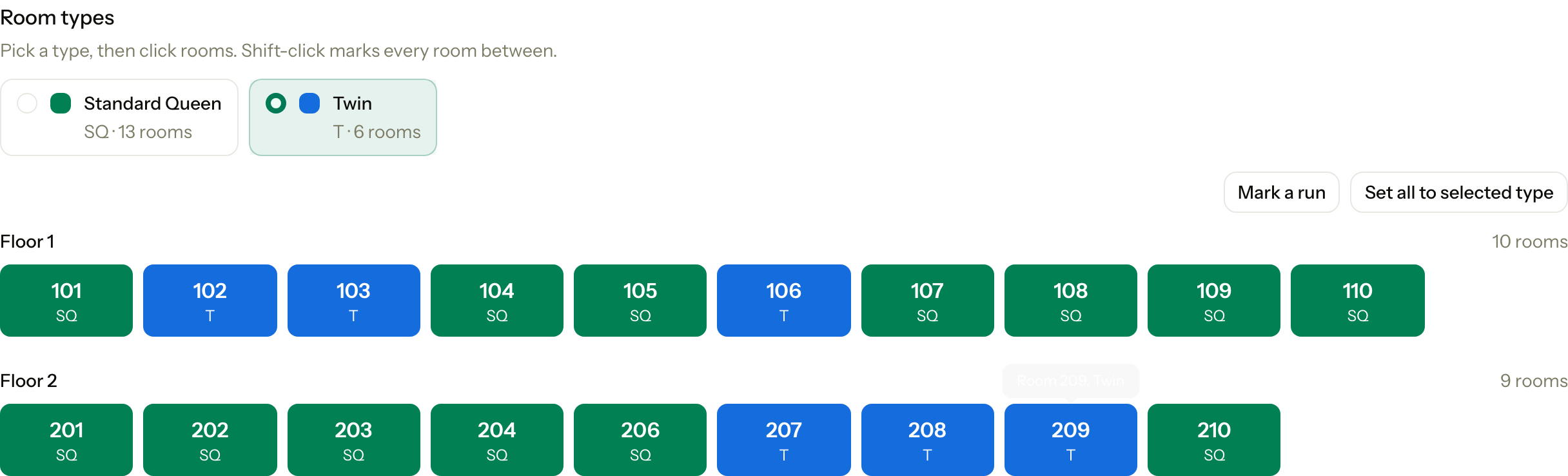
- Under Room types, select the tile of a room type, for example Twin.
- Click a room to give it that type. The room takes the colour of the type.
- To give the type to a run of rooms, click the first room. Then hold Shift and click the last room. Every room between them takes the type.
- Repeat for each other room type.
- Select Save & continue.
| Part | What it shows |
|---|---|
| Room type tile | The colour of the type, its name, its short label and how many rooms have it now. |
| Room tile | The room number and the short label of its type. Point at a room to see the full name. |
| Mark a run | For a touch screen. Tap Mark a run, tap the first room, then tap the last room. The button reads Tap the last room while it waits. |
| Set all to selected type | Gives every room on the grid the selected type. |
The short label is the first letter of each word of the type name, without the word "Room". "Standard Queen" is SQ, and "6-Bed Mixed Dorm" is 6BMD. The label is always on the tile, so you do not need to tell the colours apart.
Each room type keeps its colour by its place in the Room types list. If you change the order of the room types, the colours change too.
Dorm rooms
A room type sold by bed has a Sold by bed badge on its tile. The tile also shows how many beds its rooms will have.
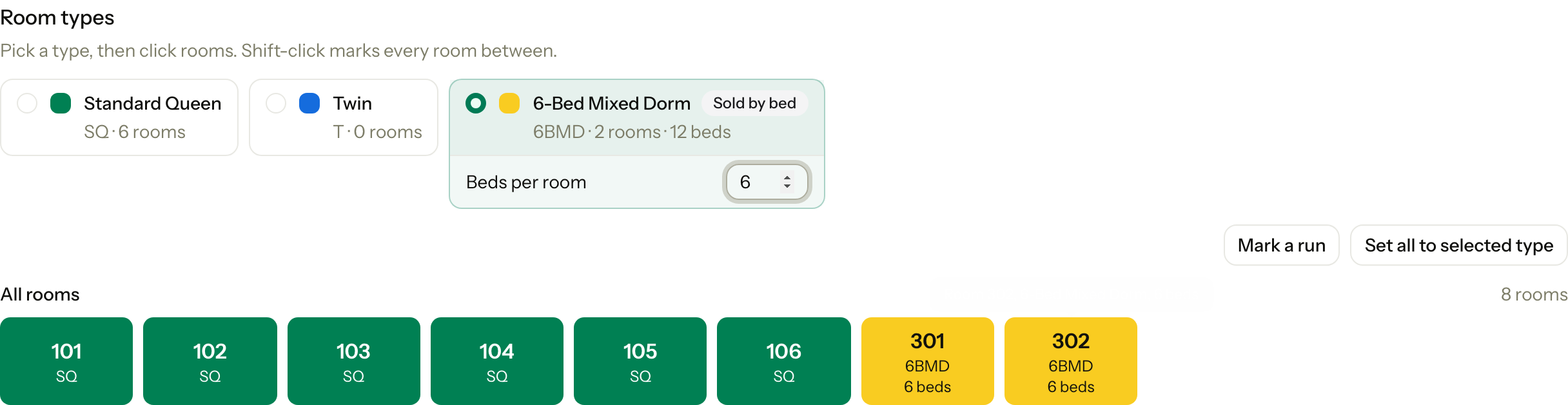
- Select the tile of the dorm type.
- Click the dorm rooms on the grid.
- In Beds per room, enter the number of beds in each dorm room, from 1 to 50. The field shows while the tile is selected.
- Select Save & continue.
When you save, Estatell adds that number of beds to each dorm room that has no beds yet. Rooms that already have beds keep them. To add, rename or remove beds later, use Settings after go-live. See Beds.
Come back to Rooms
When you open Rooms again, each group shows its saved numbers as ranges, for example 102-134, 140. The grid shows the saved type of each room.
- To add rooms, add their numbers to the line.
- To change the type of a room, pick a type and click the room.
- To move a room to another group, move its number to the line of that group.
- To remove a room, delete its number from the line. When you save, Estatell asks first.
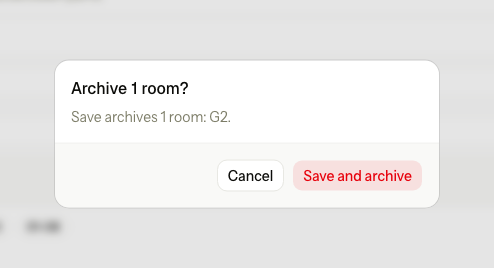
Select Save and archive to save and archive the rooms you removed. An archived room frees its number, so you can use it again.
With groups on, rooms that have no group show in a last line with no name. Give that line a name before you save.
When is Rooms done?
| State | When |
|---|---|
| Not started | No room type has a room yet. |
| In progress | Some room types have rooms, and some do not. |
| Done | Every room type has at least one room, and every dorm room has at least one bed. |
Special cases
Estatell checks the numbers while you type and shows the problem under the line.

| Situation | What happens | What to do |
|---|---|---|
| A range runs backwards | The line shows: "120-110" runs backwards. Put the smaller number first. The Rooms column shows "—". | Put the smaller number first. |
| A number is in the list twice | "210 is listed twice. Each number can be used once." The room shows red with "twice" on the grid, and you cannot click it. | Remove one of them. This also counts numbers in other groups, and capital letters do not count. |
| A range has two different prefixes | The line shows: "G1-H4" has two different prefixes. Use one, like G1-G4. | Use one prefix. |
| A line makes more than 200 rooms | "That is 240 rooms. One group takes at most 200." | Split the rooms into two groups. |
| A range number is longer than 6 digits | The line shows: "1000000-1000005" has a number longer than 6 digits. | Use shorter numbers, or type each room on its own. |
| A room number is longer than 30 characters | The line shows the part in quotes, then: is too long. A room number takes at most 30 characters. | Use a shorter name. |
| A line has numbers but no group name | "Enter a group name." | Name the group. |
| Two groups have the same name | "Another room group already uses this name." | Give each group its own name. |
| You save with no room numbers | "Add at least one room number." | Type at least one number. |
| An empty line | Estatell ignores it. | Nothing. |
| Beds per room is empty, 0 or more than 50 | "Enter 1 to 50 beds." Estatell does not save. | Enter a number from 1 to 50. |
| You click a saved room with beds while a type sold by room is picked | "301 has beds. Choose a room type that sells beds." | Pick a type sold by bed for that room. |
| A number is taken while you save | Estatell saves none of the rooms and shows "Some room numbers are already in use. Nothing was saved." | Check the numbers and save again. |
| You remove a room type | Estatell removes its rooms as well. | Add the rooms again and give them another type. |
| You use a phone | Each line becomes a card. The grid shows 5 rooms in a row. | Use Mark a run for a run of rooms. |