
Property
Tell Estatell about your property, set your check-in rules and add your team.
The Property phase has three sections. Basics and Check-in essentials are required. Team is optional.
| Section | Required? | Opens when |
|---|---|---|
| Basics | ✅ | Always open |
| Check-in essentials | ✅ | Basics is done |
| Team | ❌ | Basics is done |
Basics
Basics tells Estatell what kind of place you run and where it is. When you save it the first time, Estatell prepares the settings for your country: taxes, payment methods, charge items, a starter discount and the registration card terms.
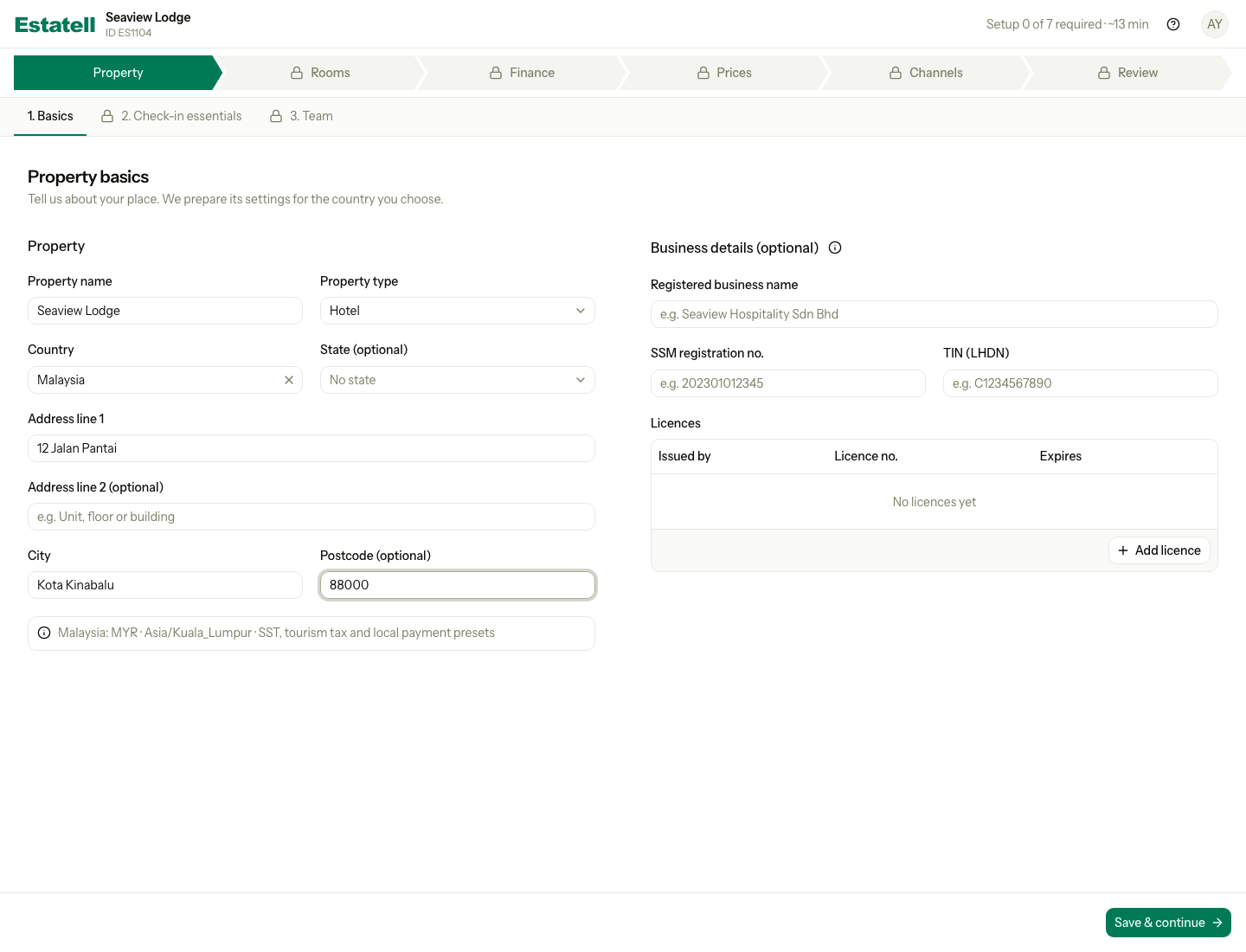
Fill in Basics
- Enter the Property name.
- Choose the Property type: Hotel, Hostel, Resort, Serviced apartment or Homestay.
- Check the Country. Malaysia is already chosen. To pick another country, search for its name.
- Choose the State. This is optional.
- Enter Address line 1 and the City. Address line 2 and the Postcode are optional.
- If you want, fill in the Business details. See Business details.
- Select Save & continue.
Basics is done when the property has a type, a name, the first address line, a city and a country.
If you signed up through a partner or the estatell team set up your account, the type and country may already be filled in. You can change them here.
Country, currency and time zone
The country decides which presets Estatell prepares. It also decides what you see on this screen.
| Malaysia | Any other country | |
|---|---|---|
| Currency | MYR. The field is hidden. | You choose it. Estatell suggests the main currency of the country. |
| Time zone | Asia/Kuala_Lumpur. The field is hidden. | You choose it. Estatell suggests a time zone of the country. |
| State | A list of the Malaysian states | Free text |
| Presets | SST, tourism tax and local payment methods | None. You add your own taxes in the Finance phase. |
| Box under the form | Information: "Malaysia: MYR · Asia/Kuala_Lumpur · SST, tourism tax and local payment presets" | Warning: "Malaysian presets don't apply. You'll add your own taxes in Finance." |
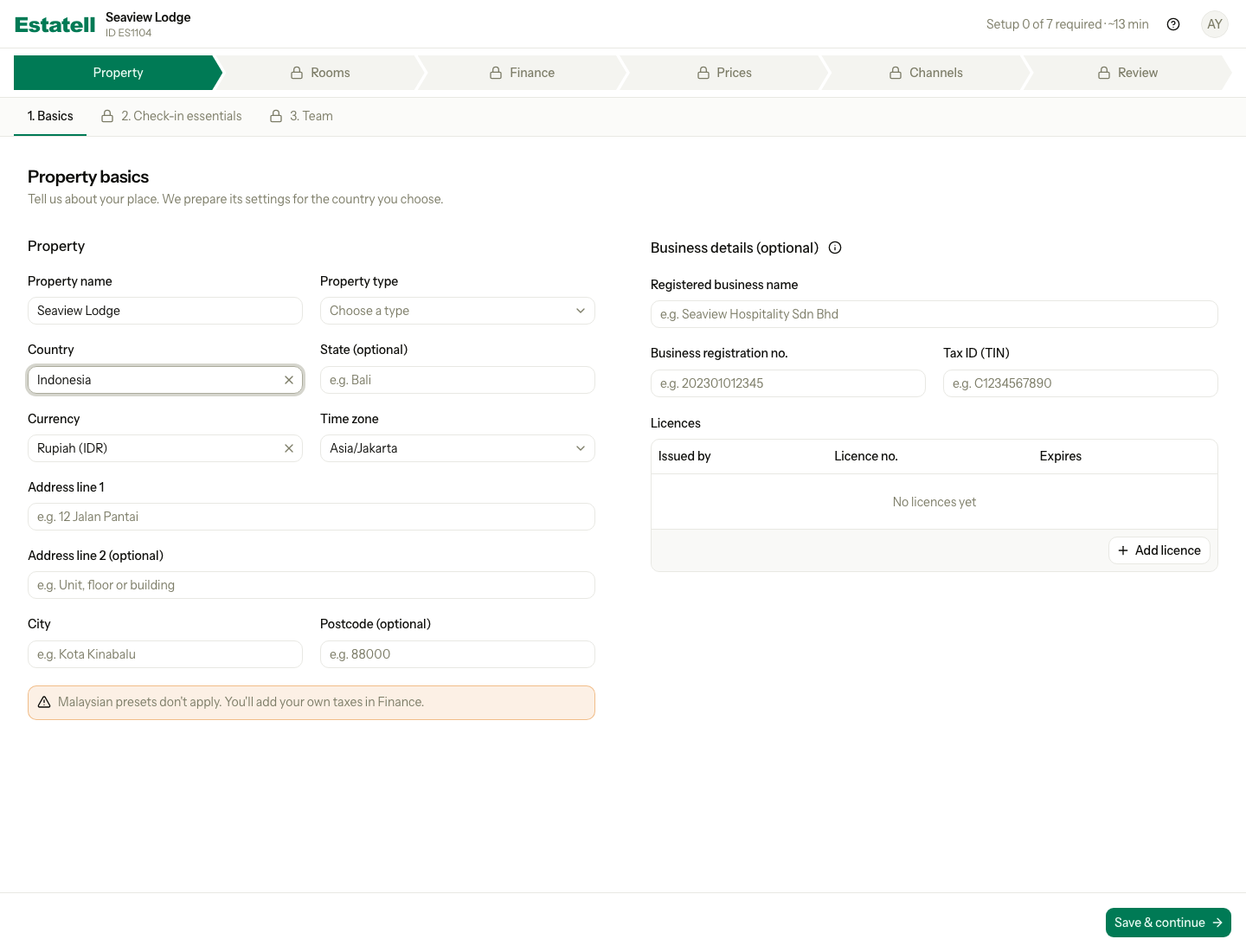
If Estatell does not offer the currency of your country, search for the currency you use. The field stays empty until you choose one.
Business details (optional)
Business details can appear on invoices, receipts and the registration card. They never block Basics.
| Field | What to enter |
|---|---|
| Registered business name | The legal name of your business, for example "Seaview Hospitality Sdn Bhd". |
| SSM registration no. | Your company registration number. Outside Malaysia the label is Business registration no. |
| TIN (LHDN) | Your tax identification number. Outside Malaysia the label is Tax ID (TIN). |
| Licences | One row per licence: who issued it, the licence number and an optional expiry date. Select Add licence to add a row. |
If a licence row has an issuer, it needs a licence number. You can add up to 20 licences.
Select the information icon next to Business details to see where these appear. After you go live, you choose which licences to show in Settings, under Printing.
Change the country after setup started
Country, currency and time zone are plain fields only while you have not started the other sections. Starting Room types, Rooms, Taxes, Basic rate, Charge items or Companies counts as started. Saving Check-in essentials, Payment methods, Discounts or Team does not count, because they do not depend on the country.
After that, the screen shows the country, currency and time zone as text, with a Change country button.
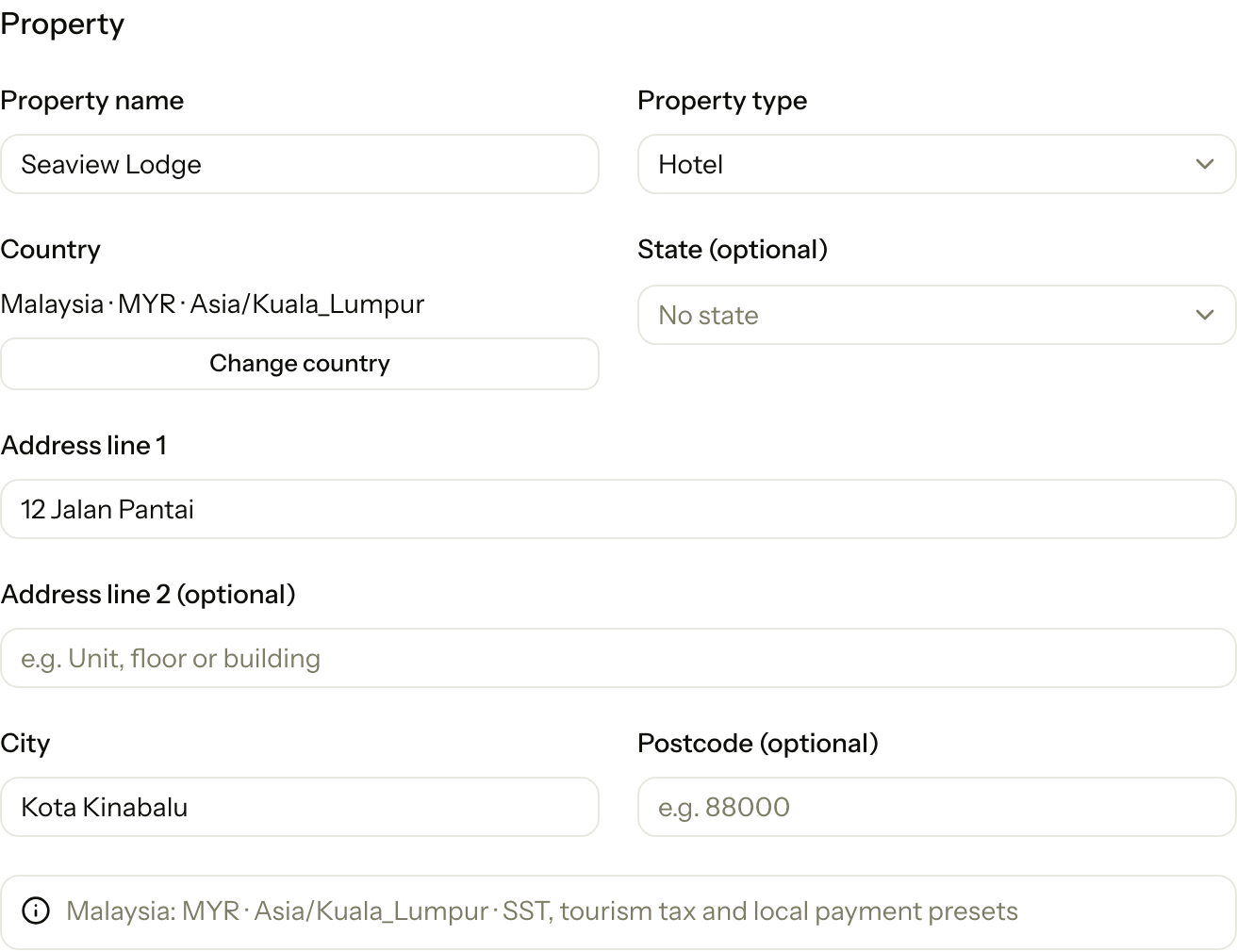
- Select Change country. A warning explains that taxes, payment methods and prices reset. Room types, rooms and team stay.
- Choose the new country. Check the currency and time zone.
- Select Save & continue.
- Read the counts in the dialog. They show what Estatell resets to the new country.
- Select Change country to confirm, or Cancel to keep things as they are.
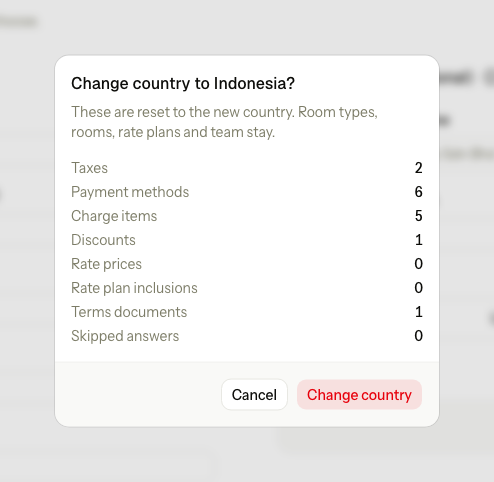
| What resets | What stays |
|---|---|
| Taxes, payment methods, charge items, discounts, rate prices, rate plan inclusions, terms documents and skipped answers | Room types, rooms, rate plans and team |
Select Cancel next to the warning to leave the change without saving.
You can change the country only before go-live. When you go live, the country, currency and time zone lock. If you sent the property for approval, withdraw the request first. See Go live.
Check-in essentials
This section sets the check-in and check-out times and the rules for the registration card. Estatell already fills in sensible values, so this section shows as done once Basics is saved. Select Next to check the values anyway.
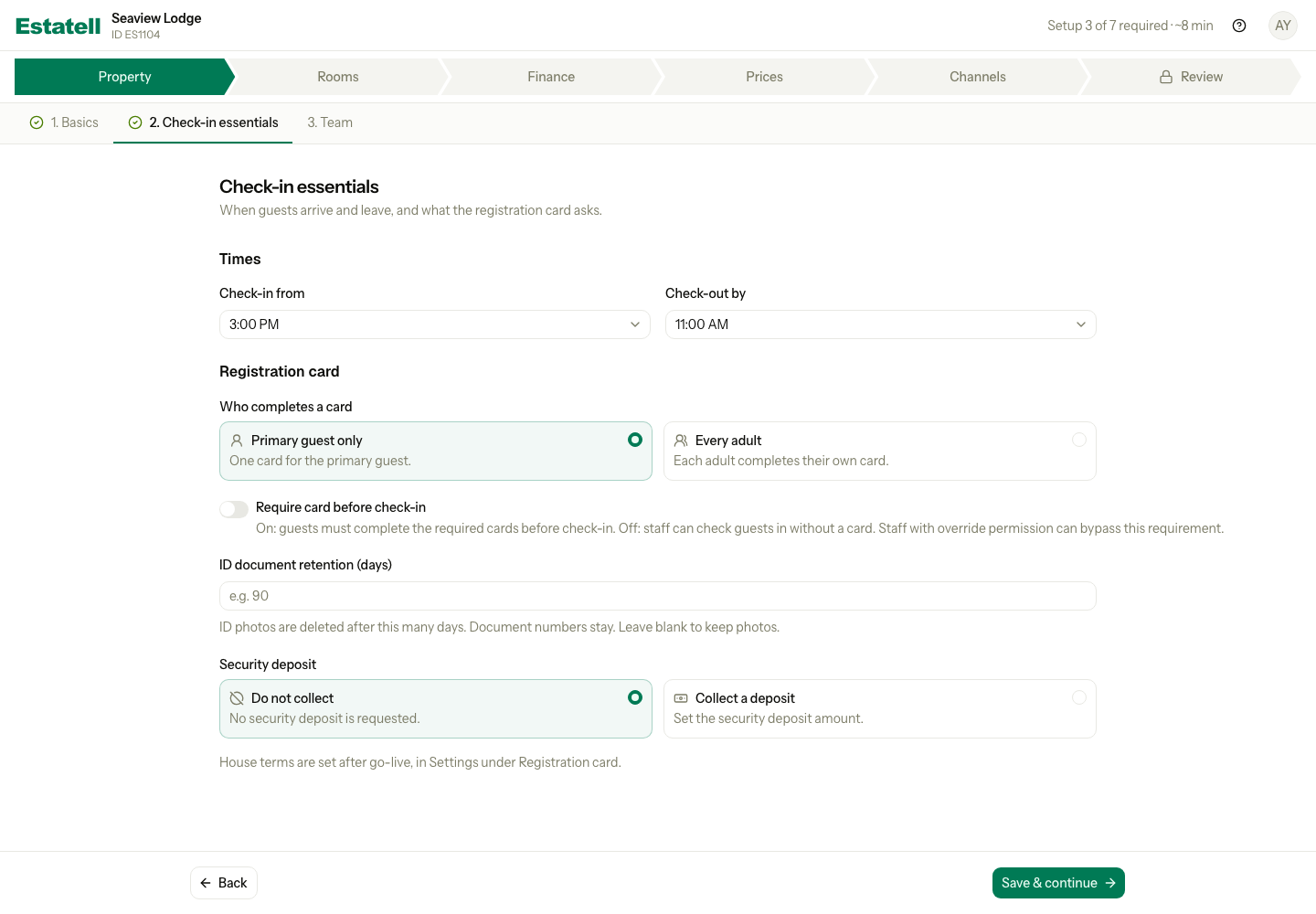
| Setting | What it does |
|---|---|
| Check-in from | The earliest time guests can arrive. The default is 3:00 PM. You can choose a time in steps of 30 minutes. |
| Check-out by | The time guests must leave. The default is 11:00 AM. |
| Who completes a card | Primary guest only gives one card for the primary guest. Every adult asks each adult for their own card. |
| Require card before check-in |
|
| ID document retention (days) | How many days Estatell keeps ID photos. Leave it empty to keep them. See more |
| Security deposit | Do not collect asks for no deposit at check-in. Collect a deposit shows the Deposit amount. Enter an amount greater than 0. |
ID document retention
An ID photo is personal data. Malaysian privacy law (PDPA) expects you to keep it only as long as you need it.
- Estatell deletes the front and back photos this many days after they were uploaded. It checks once a day.
- The ID number and the rest of the guest record stay.
- Use a number from 1 to 3650.
- If you leave the field empty, Estatell keeps the photos, and nobody deletes them for you.
House terms are not part of the wizard. Estatell adds default terms for your property type. After you go live, you can change them in Settings, under Registration card.
Arrival grace and automatic room assignment also stay in Settings.
Team
Add the people who work with you. Each person gets a temporary password and a role. You do not have to do this now: you can add staff in Settings after go-live. If you work alone, select Skip.
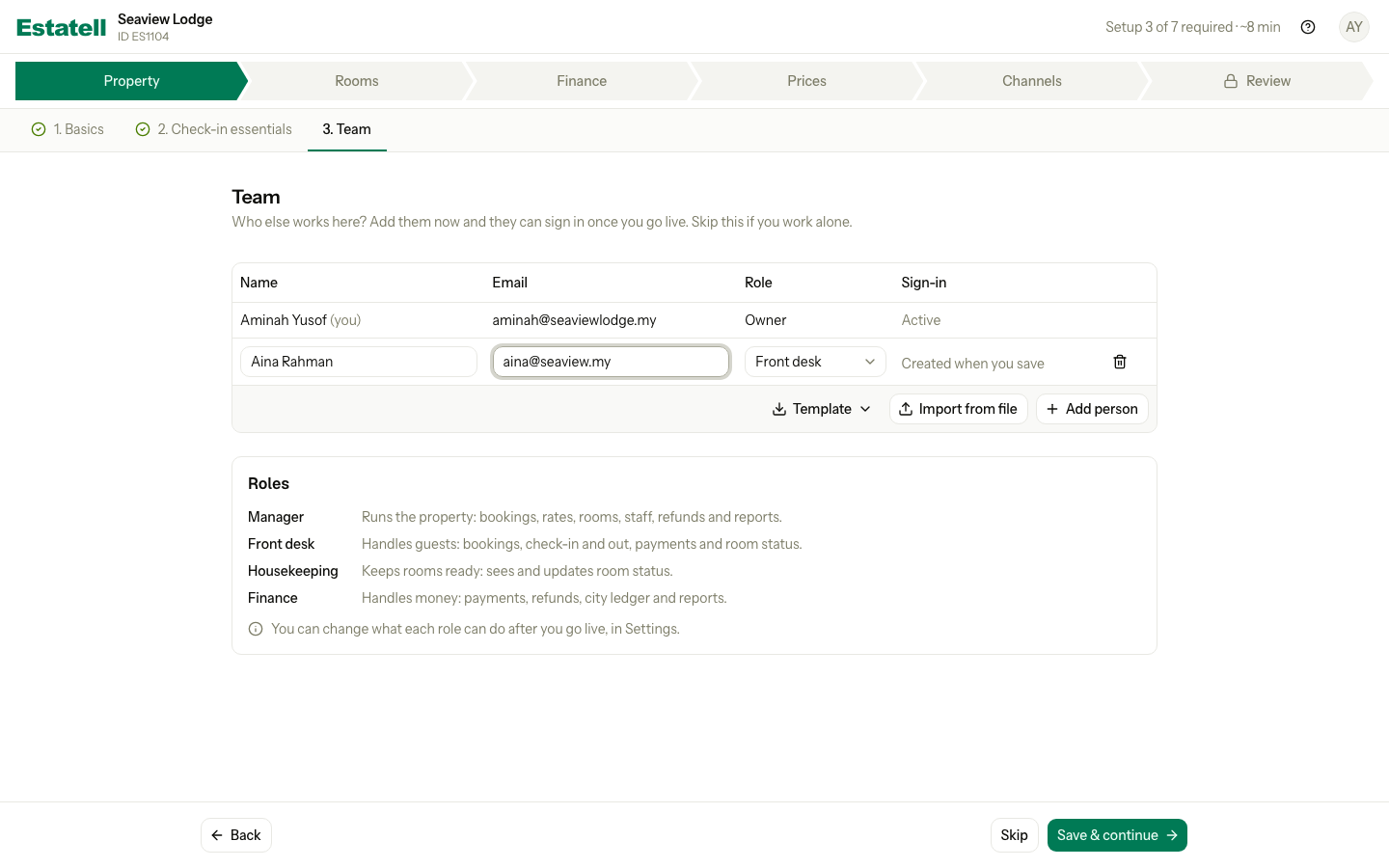
Add people
- Select Add person.
- Enter the name and the email address.
- Choose the Role. New people get Front desk.
- Add more people the same way.
- Select Save & continue.
Estatell creates all the accounts together. If one row has a problem, such as an email that is already in use, Estatell shows the error under that row and saves none of them.
To add many people at once:
- Select Template and choose CSV or Excel (XLSX). Fill in the columns name, email and role.
- Select Import from file and choose your file.
- Check the rows Estatell adds to the table. A row with an unknown role shows a problem.
- Select Save & continue. Nothing is saved before this.
Roles
| Role | What the person does |
|---|---|
| Manager | Runs the property: bookings, rates, rooms, staff, refunds and reports. |
| Front desk | Handles guests: bookings, check-in and out, payments and room status. |
| Housekeeping | Keeps rooms ready: sees and updates room status. |
| Finance | Handles money: payments, refunds, city ledger and reports. |
You are the Owner. The Owner role is not in the list. After go-live you can change what each role can do in Settings.
Sign-in details
| Column value | Meaning |
|---|---|
| Active | The person can sign in now. This is you. |
| Created when you save | The row is new. Estatell makes the account when you save. |
| Ready after go-live | The account exists, but the person cannot use it until you go live. |
Estatell does not show temporary passwords in the wizard. When you go live, every account gets a new temporary password that lasts 14 days. The go-live screen then helps you share the sign-in details. See After go-live.
Team is done when at least one active staff member who is not the Owner exists, or when you skip it.
Special cases
| Situation | What happens | What to do |
|---|---|---|
| You leave out the property type | Estatell does not save Basics and shows an error under the field. | Choose a type, then save again. |
| You choose a country that is not Malaysia | Estatell asks for the currency and the time zone and does not prepare Malaysian taxes. | Add your own taxes in the Finance phase. |
| You try to change the country after go-live | The country, currency and time zone are fixed. | Check them before you go live. |
| You try to change the country while a go-live request is waiting | Change country is not available. | Withdraw the request, change the country, then send it again. |
| You change the country and then change your mind | Nothing is saved until you confirm in the dialog. | Select Cancel in the warning or in the dialog. |
| A saved check-in time is not on a 30-minute step | Estatell adds that time to the list so it does not change. | Choose another time if you want one. |
| You choose Collect a deposit and enter 0 or nothing | Estatell shows an error under the amount. | Enter an amount greater than 0, or select Do not collect. |
| A team member signs in before go-live | They see a message that the property is still being set up and the name of the owner. | Wait for go-live. |
| You want to remove a person you saved | You cannot remove saved people in the wizard. | Remove them in Settings after go-live. You can remove a new row with the bin icon before you save. |
| You add or leave empty team rows | Estatell ignores a row with no name, no email and no role. Saving with no rows is fine. | Nothing. |
| You use a phone | The fields stack, and each team row becomes a card. | Scroll down to see each field. |