
Companies
Add the companies and travel agents that book with you and pay later.
Companies is the third Finance section. It is optional. Use it if companies or travel agents book with you and you send them an invoice later. If you do not, select Skip. You can add companies in Settings after you go live.
You can open Companies as soon as Basics is done. The table is empty at the start.
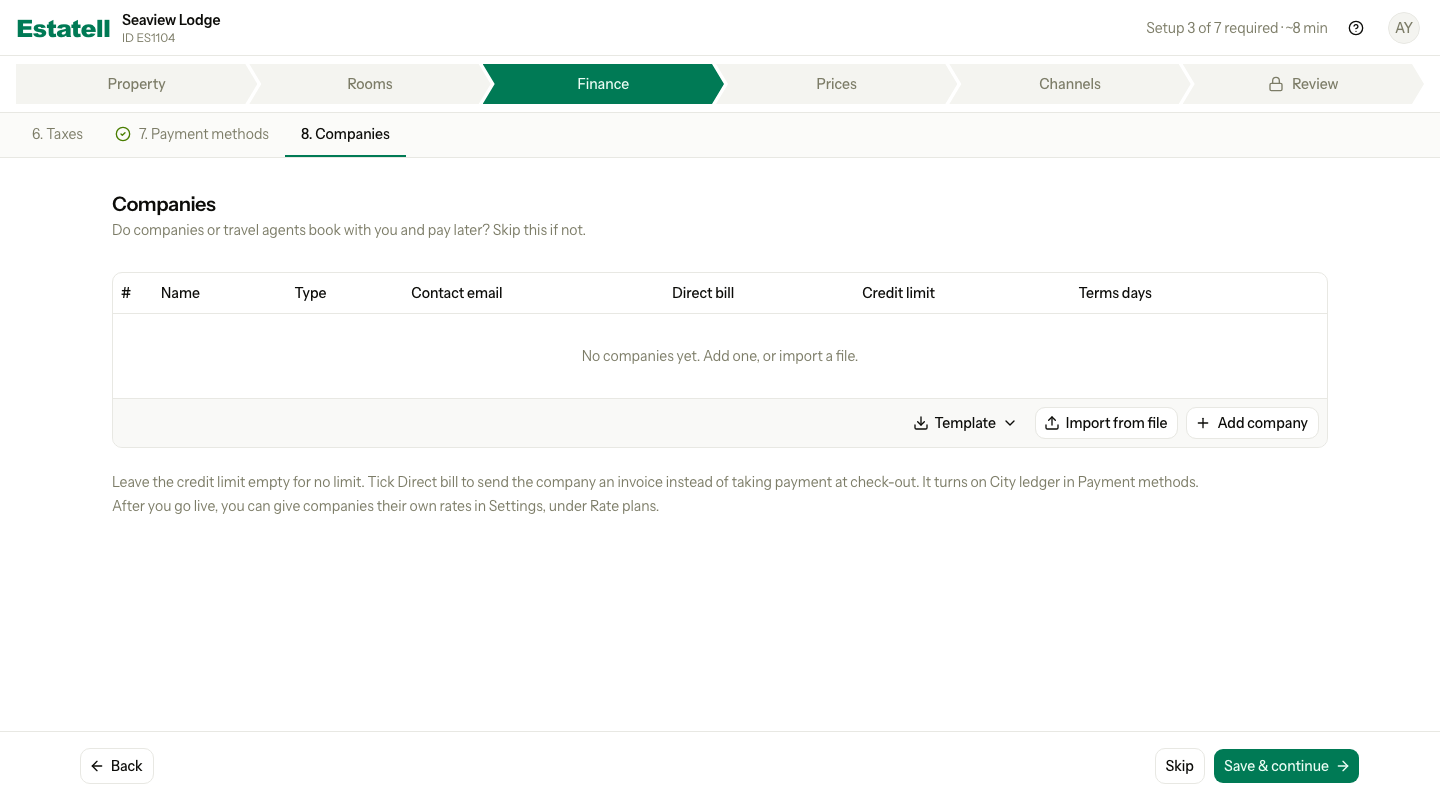
Add a company
- Select Add company.
- Enter the Name, for example "Petronas Carigali".
- Choose the Type: Corporate, Travel agent or Government. New rows start as Corporate.
- Enter the Contact email where you send invoices.
- Check Direct bill. New rows start with it ticked.
- Enter a Credit limit if you set one. Leave it empty for no limit.
- Enter the Terms days, the number of days the company has to pay.
- Select Save & continue.
| Column | What to enter |
|---|---|
| Name | The name of the company. It must be different from your other companies. |
| Type | Corporate, Travel agent or Government. |
| Contact email | The email for invoices. |
| Direct bill | Tick it to send the company an invoice instead of taking payment at check-out. |
| Credit limit | The most the company may owe you, in your property currency. Empty means no limit. |
| Terms days | How many days the company has to pay an invoice. |
Companies is done when you have saved at least one company, or when you skip it. The table holds up to 200 companies.
Direct bill and City ledger
When you save a company with Direct bill ticked, Estatell turns on City ledger in Payment methods. You see "Companies saved. City ledger turned on in Payment methods."
If you do not tick Direct bill for any company, City ledger stays off.
Company details
Select the arrow at the end of a row to see more fields. They are all optional.
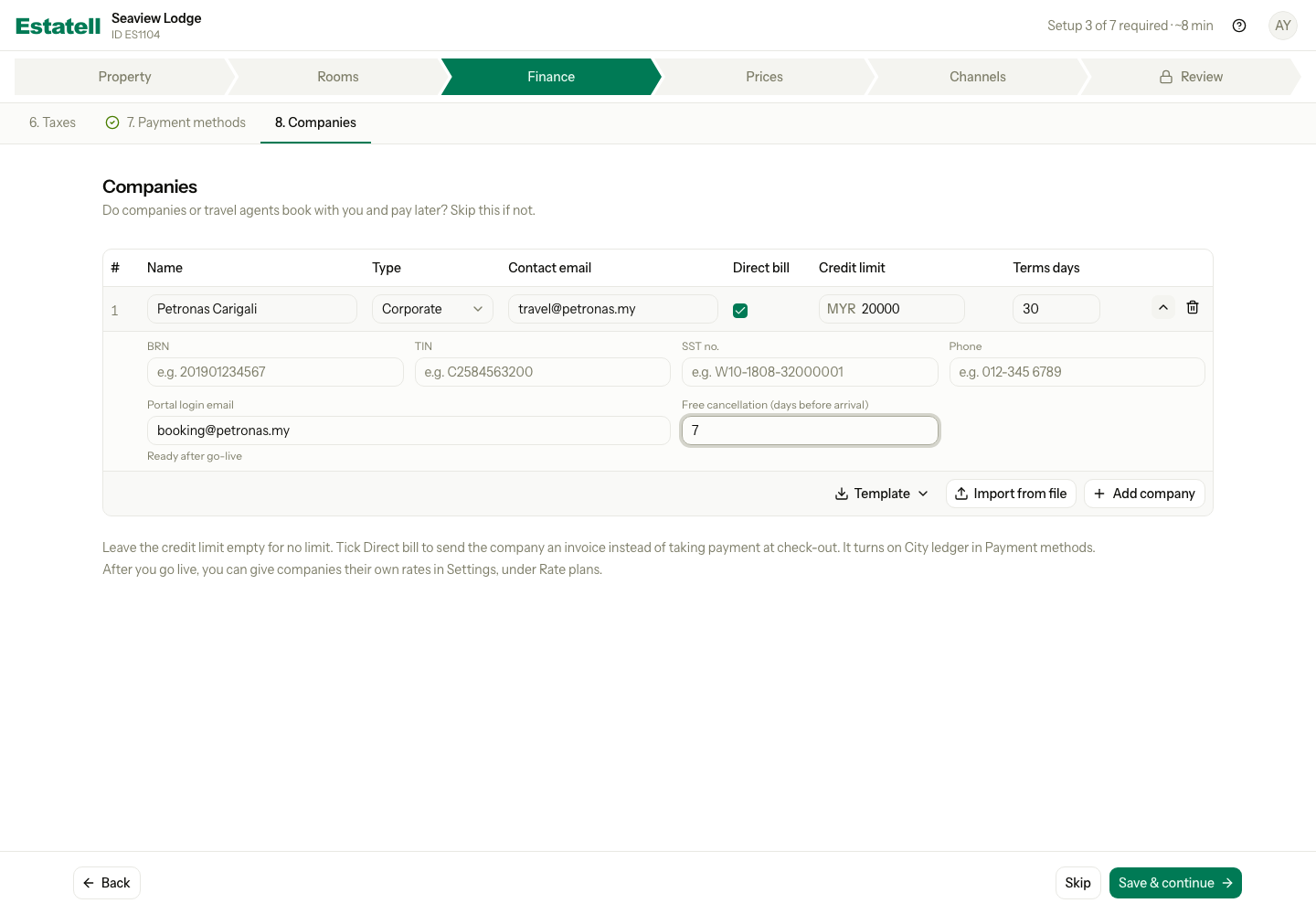
| Field | What to enter |
|---|---|
| BRN | The company registration number. |
| TIN | The tax identification number. |
| SST no. | The company's SST registration number. |
| Phone | A contact phone number. |
| Portal login email | The email the company uses to sign in to its portal. See Portal login. |
| Free cancellation (days before arrival) | How many days before arrival the company can cancel for free. |
The billing address is not in the wizard. You add it on the company's Details tab after you go live.
Portal login
A company can sign in to a portal to see its bookings. You can give each company one portal login email. Under the email, the row says "Ready after go-live".
The portal opens only after you go live. Estatell makes the sign-in details when you go live, and the go-live screen helps you share them. See Go live and After go-live.
Import from file
If you have many companies, import them.
- Select Template and download the file as CSV or Excel (XLSX).
- Fill in one row for each company.
- Select Import from file and choose the file.
- Check the rows that Estatell adds to the table.
- Select Save & continue.
Estatell does not save anything until you save the table.
Remove a company
To remove a company, select the bin icon on its row. For a saved company, Estatell asks "Remove Borneo Tours?" with the name of your company. Select Remove to confirm.
After you go live, you cannot delete a company. You suspend it in Settings.
What you do later in Settings
- Give a company its own rates, under Rate plans.
- Add the billing address on the company's Details tab.
- Suspend or reactivate a company.
Special cases
| Situation | What happens | What to do |
|---|---|---|
| You have no companies | Select Skip. Companies counts as done. | Add companies in Settings after go-live if you need them. |
| Two companies have the same name | Estatell shows "Another company in this table uses this name." Capital letters do not count. | Give each company its own name. |
| A saved company already has your name | Estatell shows "Another company already uses this name." | Choose another name. |
| You tick Direct bill | Estatell turns on City ledger in Payment methods. | Nothing. Check it in Payment methods if you like. |
| You leave the credit limit empty | The company has no limit. | Enter a number to set a limit. |
| You import a file | Estatell adds the rows to the table and saves nothing yet. | Check the rows, then select Save & continue. |
| You open Companies before Basics is done | The section shows as a preview and you cannot save. | Select Go to Basics →, finish Basics, then come back. |
| You use a phone | Each row becomes a card. | Scroll down to see each field. |