
Go live
Send your setup to Estatell support and open your property when it is approved.
Go live is the last step of setup. You send your setup to the Estatell support team. Support checks it. When support approves, your property opens and your staff can start to work.
Only the owner can send the request.
Before you start
- Every required section is done. Open Review to check. Send for approval stays off until nothing required is left.
- You have read the warnings on Review. They never stop you, but they point to things you may want to fix first.
Send the request
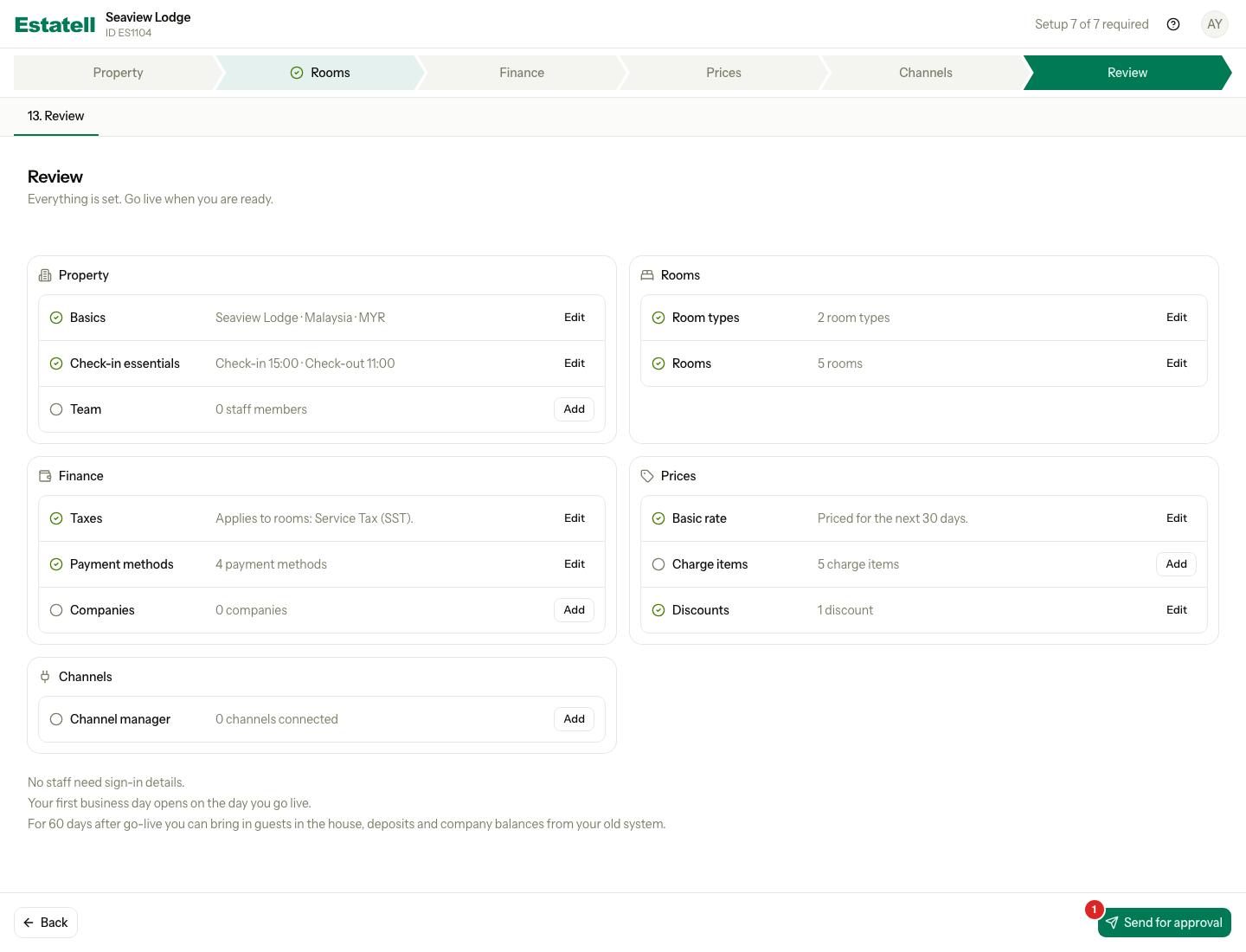
- Open Review.
- Select Send for approval at the bottom right.
- Read the box that opens. It says that nothing opens until support approves, and that country, currency and time zone can't be changed after that. If you added staff, it also shows how many get sign-in details.
- Select Send for approval in the box.
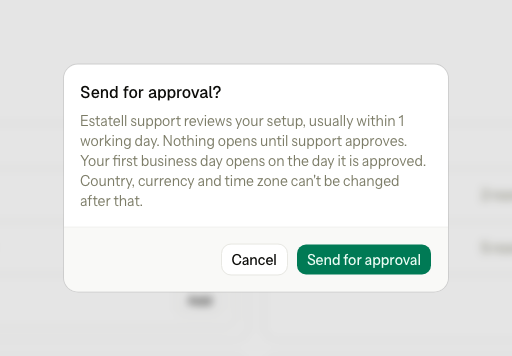
Nothing opens yet. Your property has no business day until support approves.
While you wait
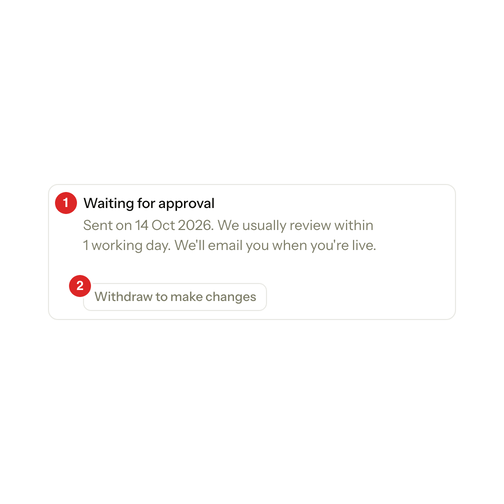
Review shows a Waiting for approval card. It has the date you sent the request.
| Number | What you see |
|---|---|
| 1 | The date you sent the request. Support usually reviews within 1 working day. |
| 2 | Withdraw to make changes. |
While you wait:
- Every section opens as a preview. You can read it but not change it. A message says "Waiting for approval. Withdraw to make changes."
- Estatell tells you when support decides.
- To change something, select Withdraw to make changes, then Withdraw. Your sections open again. Send the request again when you are ready. Withdrawing needs no note.
If support sends it back
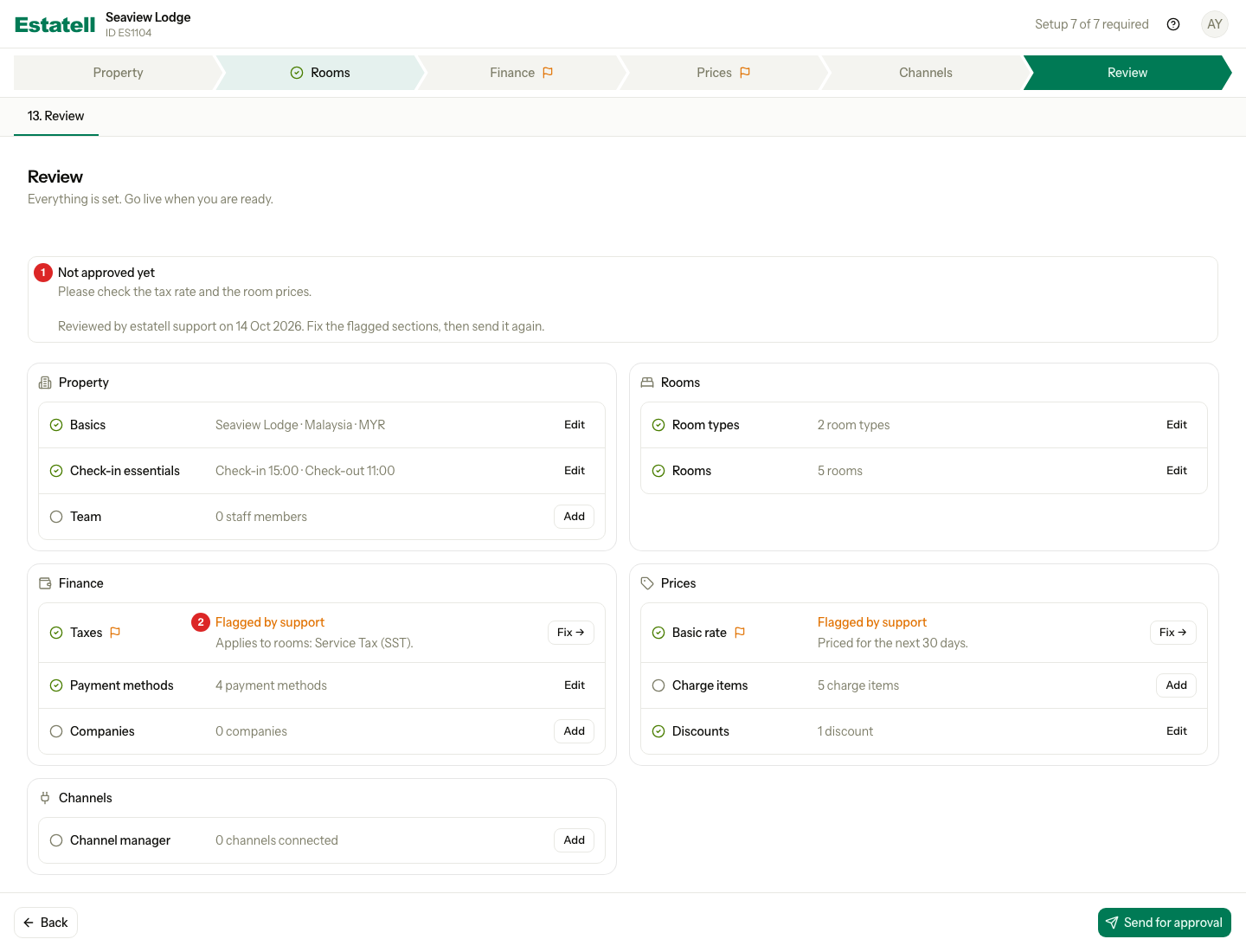
Support can send the request back when something needs a second look. You get a notification, and Review shows a Not approved yet card with the note from support.
| Number | What you see |
|---|---|
| 1 | The note from support and the date of the review. |
| 2 | A flagged section. It shows Flagged by support and a Fix button. |
- Read the note.
- Select Fix on each flagged section. A flag also shows in the phase bar at the top.
- Save the section.
- Go back to Review and select Send for approval again.
A flag does not lock anything. It stays until you send the request again.
When support approves
You get an email: your property is live. Sign in and open the dashboard. If you added staff, the You're live! card helps you share their sign-in details. See After go-live.
| When you send the request | When support approves | |
|---|---|---|
| Business day | None | The first business day opens |
| Country, currency and time zone | Can still change if you withdraw | Locked |
| Night audit | Does not run | Runs every night |
| Staff sign-in details | Not created yet | Created. Temporary passwords last 14 days. |
Special cases
| Situation | What happens | What to do |
|---|---|---|
| You want a different opening date | The first business day is today in the property time zone. You cannot pick a date. | If you need to add stays from before today, tell support before you send the request. Support can set an earlier date. It can never be a later one. |
| You send the request twice | Estatell keeps one pending request at a time. | Wait for the answer, or withdraw first. |
| Support sends it back twice | Each send is a new request. Estatell keeps both. | Fix the flagged sections and send again. |
| You change country, currency or time zone after approval | You cannot. These are locked. | Ask support. Change country before go-live in Property. |