
After go-live
Share sign-in details with your team and finish the recommended setup steps.
When support approves your request, your property is live. Two cards on the dashboard help you with what comes next. One shares sign-in details with your team. The other lists optional setup steps you may want to finish.
Where to find the cards
Both cards are on the Dashboard, on the Today tab. Select Dashboard in the left menu, then Today under the title. If you do not see the Today tab, the dashboard already opens on it.
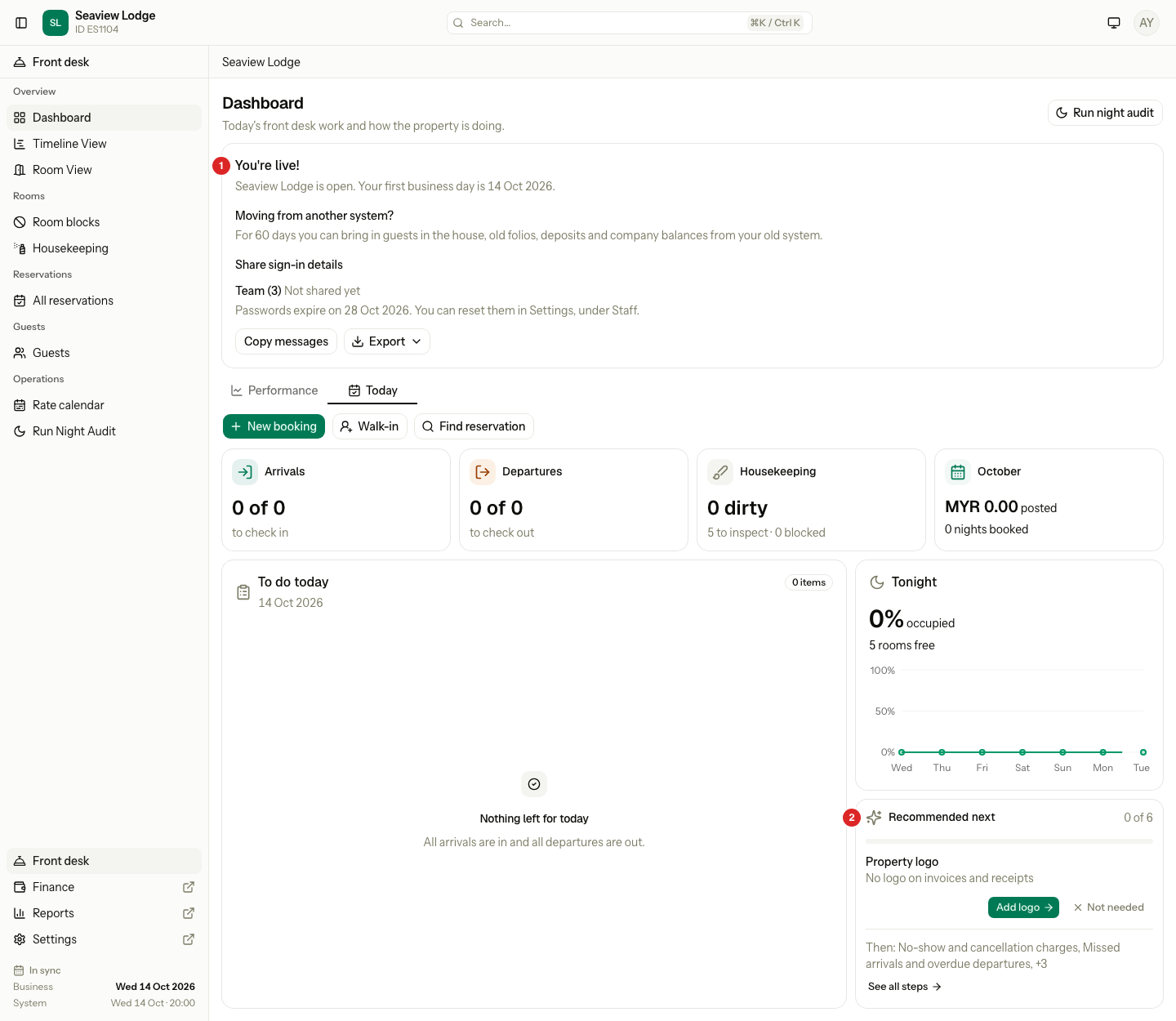
| Number | Card | Where |
|---|---|---|
| 1 | You're live! | Full width, at the top, above the tabs. |
| 2 | Recommended next | In the right column, under Tonight. |
The two cards show for different people. You're live! shows for people who can manage staff. Recommended next shows for people who can manage settings. The owner sees both.
The You're live! card
The card shows at the top of the dashboard for people who can manage staff. It shows when you added staff in the Team section and their sign-in details are not shared yet.
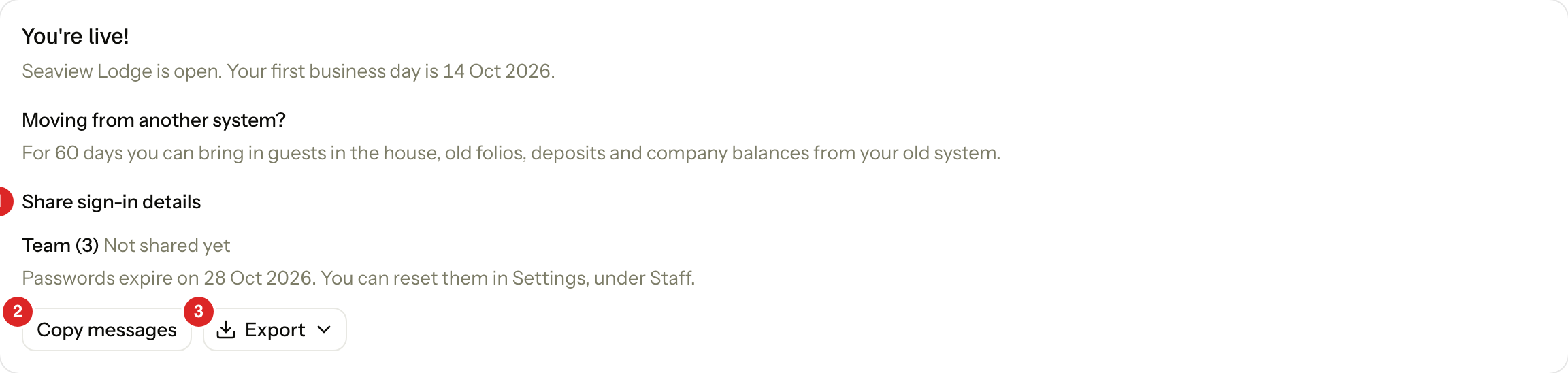
| Number | What you see |
|---|---|
| 1 | Share sign-in details. How many staff members have a temporary password, and whether you shared it. The line below shows the date the passwords expire. |
| 2 | Copy messages. Copies a sign-in message for each person. |
| 3 | Export. Downloads the sign-in details as a PDF or CSV file. |
The card also shows your first business day. If your account has a migration window, it adds a short note: for a number of days you can bring in guests in the house, old folios, deposits and company balances from your old system.
Share the sign-in details
- Select Copy messages or Export.
- Send each person their message or slip.
- Estatell marks them as shared. The row reads "Shared" with the date, and the button changes to Copy again.
Temporary passwords last 14 days after go-live. Each person must change the password when they sign in. To make a new one, reset the password in Settings, under Staff.
The card is gone on your next visit, once everyone on it has been shared. It also goes when the passwords expire.
The Recommended next card
The card shows on the dashboard, under Tonight, for people who can manage settings. It lists steps that are not needed to run the property, but that most properties want. It shows how many steps are done, a progress bar and the next open step.
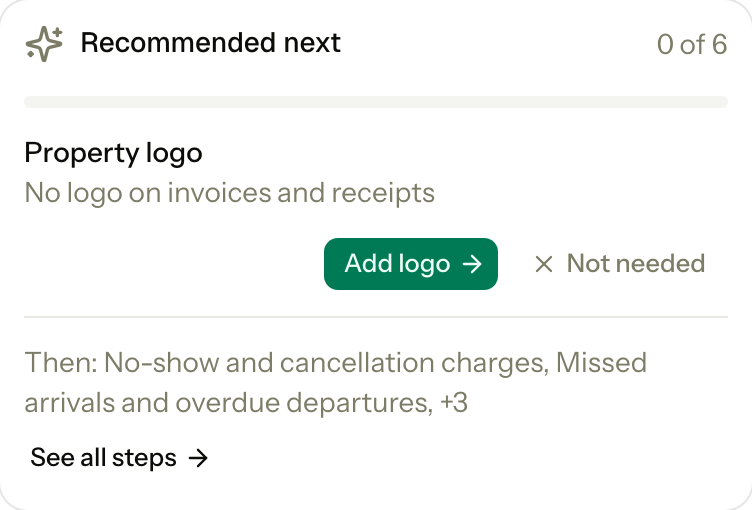
Select See all steps to open every step in a side panel. Done steps show a tick and Done.
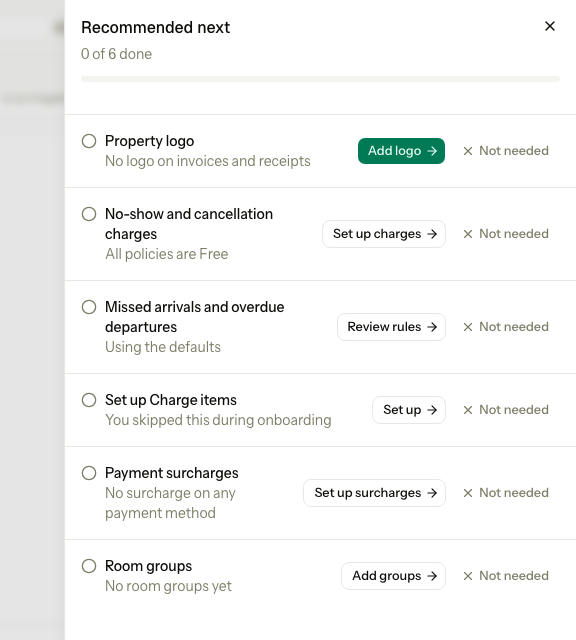
| Step | Done when | Opens |
|---|---|---|
| Property logo | The property has a logo. | Settings, Profile |
| No-show and cancellation charges | A room revenue policy charges for a cancellation or no-show. | Settings, Room revenue |
| Missed arrivals and overdue departures | You select Not needed. The default rules are valid, so this step only asks you to look. | Settings, Operations |
| Set up and the name of a section | One step for each optional section you skipped. It is done when the section has data. | That section in Settings |
| Payment surcharges | A payment method has a surcharge. | Settings, Payment methods |
| Room groups | The property has a room group. | Settings, Room groups |
The number of steps depends on what you skipped. In the screenshot, the owner skipped Charge items, so the card shows Set up Charge items.
Hide a step
Every step has Not needed, the logo step too. A property without a logo prints invoices without one, and the card must be able to finish. Estatell remembers your choice for the property.
The card is gone when every step is done or marked Not needed. There is no button to hide the whole card.
Special cases
| Situation | What happens | What to do |
|---|---|---|
| You added no staff in Team | The You're live! card does not show. | Add staff in Settings, under Staff. |
| Some staff are shared and some are not | The line reads, for example, "2 not shared yet". | Select Copy messages or Export for the rest. |
| The passwords expire before you share them | The card is gone. | Reset the password in Settings, under Staff. |
| You added company users | The card counts staff only. Company sign-in details are not on it yet. | See Companies. |
| You skipped an optional section | It shows as a step on Recommended next. | Select Set up. |
| The channel manager | It is not on the list. The estatell team connects your channels. | See Channels. |