
Channels
Give the estatell team the logins of the online travel agencies you sell through.
Channels is the last section before Review. It has one section, called OTA lists. It is optional. An OTA is an online travel agency, for example Agoda or Booking.com. Here you give the login for each OTA you sell through. You can open it as soon as Basics is done.
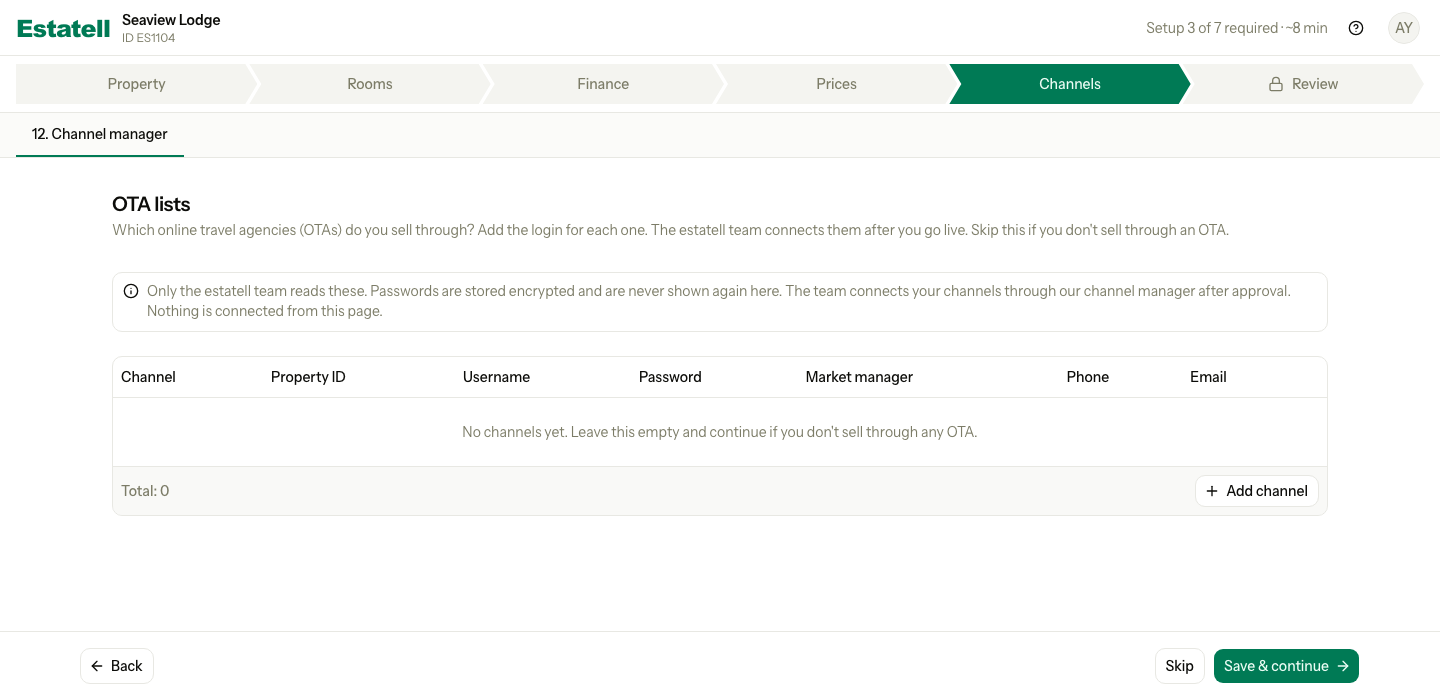
Estatell does not connect anything from this page. The estatell team connects your channels after you go live. Only the team reads these logins. Passwords are stored encrypted and estatell never shows them again on this page.
If you do not sell through an OTA, select Skip, or select Save & continue with an empty table. Both count as skipped.
Add your OTA logins
- Select Add channel.
- Choose the Channel.
- Enter the Property ID, Username and Password from your OTA account.
- Add a market manager if you have one.
- Repeat for each OTA.
- Select Save & continue.
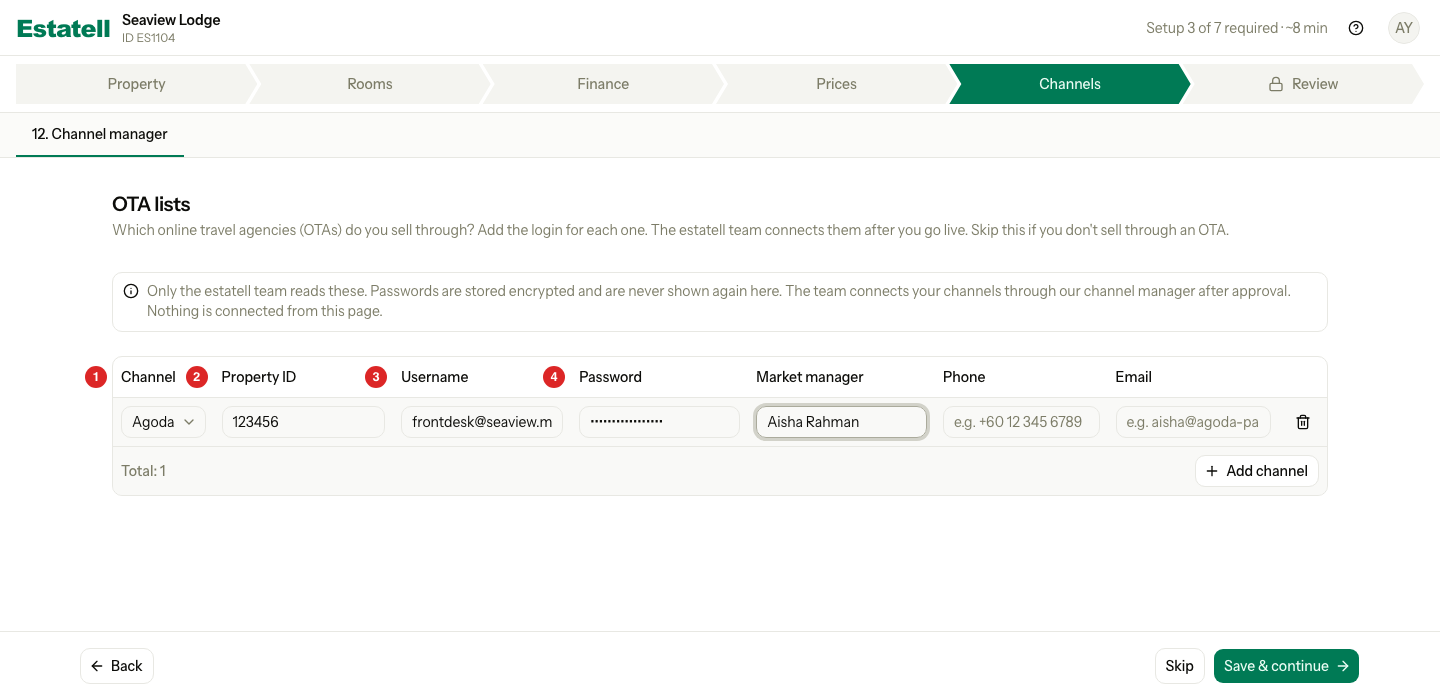
| Number | Field | What to enter |
|---|---|---|
| 1 | Channel | The OTA. The list has Agoda, Booking.com, Hostelworld, Expedia, Airbnb and Other. This field is required. |
| 2 | Property ID | The code of your property on that OTA. |
| 3 | Username | The login you use on the OTA extranet. |
| 4 | Password | The password for that login. |
| Channel name | Only for Other. The name of the OTA, for example "Traveloka". This field is required. | |
| Market manager, Phone, Email | Optional. The person at the OTA who looks after your property. |
After you save
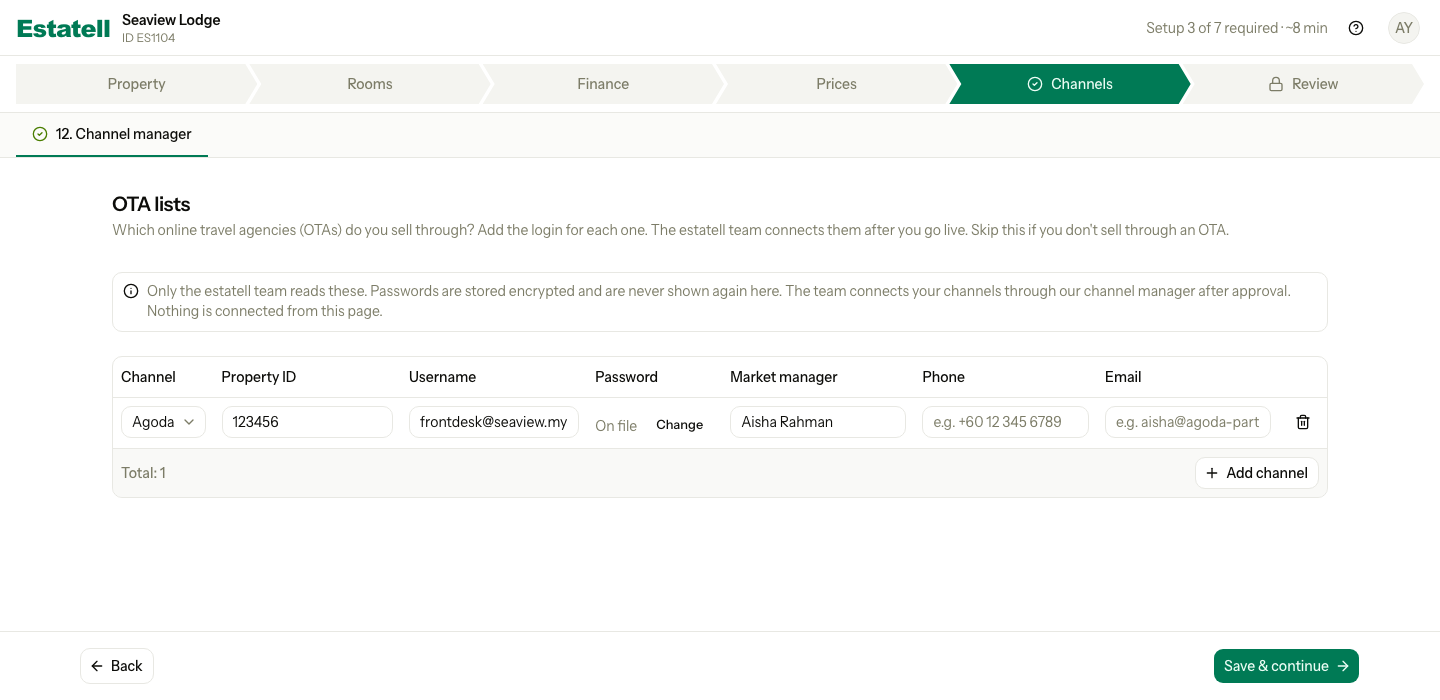
A saved row shows On file where the password was. Select Change to type a new password. Select Keep saved, or leave the field empty, to keep the old one.
Each channel you save also becomes a booking source. Staff can then choose it on the booking form.
When is Channels done?
Channels never stops you from going live. It is done when at least one row is saved, or when you skip it.
Special cases
| Situation | What happens | What to do |
|---|---|---|
| You add the same channel twice | Estatell shows an error on the row. You can have one row for each channel. | Remove the extra row. |
| You choose Other twice with the same name | Estatell shows an error. The check ignores capital letters. | Use a different name, or remove the row. |
| You choose Other and leave the name empty | Estatell shows an error. | Enter the name of the OTA. |
| You chose the wrong channel on a saved row | You cannot change the channel of a saved row. | Remove the row and add a new one. |
| You remove a row | The row is deleted. Its booking source stays, so old bookings keep their source. | None. |
| You want to see a saved password | Estatell never shows it again. | Select Change and type a new one. |
| You sell through an OTA that is not in the list | There is no row for it. | Choose Other and enter its name. |
| You use a phone | Each row becomes a card. | Scroll down to see each field. |
After you go live
You can keep the same list in Settings, under OTA lists. Only the owner can open it. It adds a Status column:
| Status | Meaning |
|---|---|
| Pending | The estatell team has not connected this channel yet. |
| Processed | The estatell team has connected this channel. |
If you change a password, the row goes back to Pending. If you remove a Processed row, estatell asks you to tell the estatell team to disconnect the channel.