
Add staff
Invite people by email, add them with a temporary password, or add many at once.
You add people from the Add staff menu on the Staff screen. There are three ways. Pick the one that fits the person.
| Way | Use it when | What the person gets |
|---|---|---|
| Invite by email | The person has a working email address. | An email with a link. They choose their own name and password. The link works for 7 days. |
| Add with temp password | The person has no email, or you want to give the sign-in details yourself. | A temporary password. You pass it on. They set their own password at first sign-in. |
| Bulk add | You add a whole team, or a class of trainees. | A temporary password each. You copy or export all the messages at once. |
Before you start
- Permission: Manage staff. Owners and managers have it by default.
- Each person needs an email address that has no account yet. See Special cases.
- Only an Owner can give the Owner role. Other people see the other roles only.
Open the menu
- Open Settings, then Staff.
- Select Add staff.
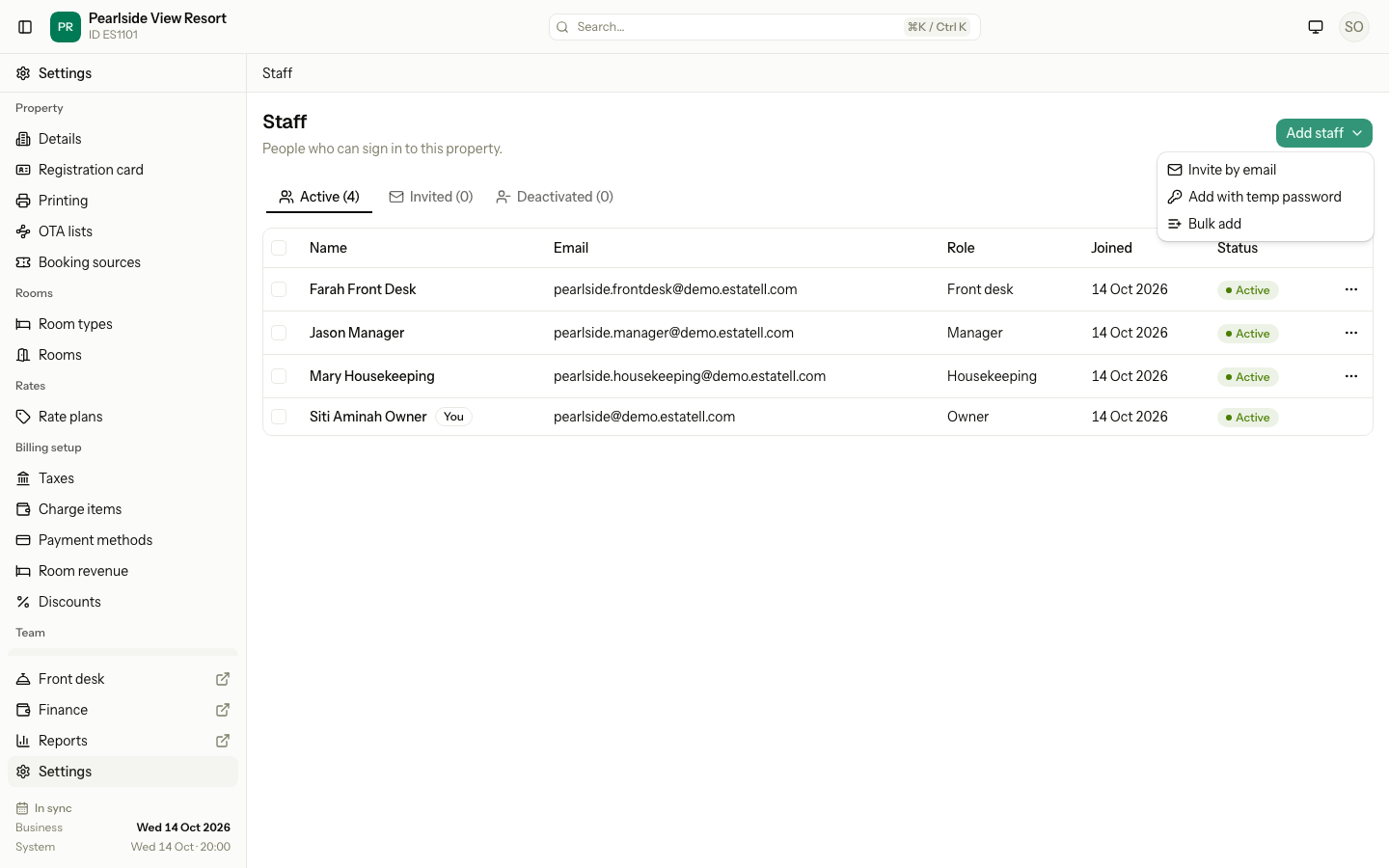
Invite by email
- Select Invite by email.
- Enter the Email.
- Choose the Role.
- Select Send invitation.
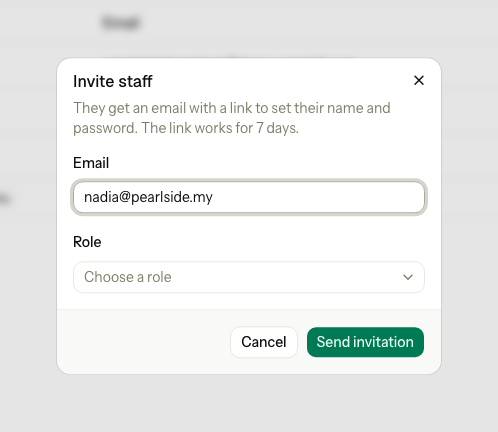
Estatell sends the invitation and shows "Invitation sent to" the address. The person is on the Invited tab until they accept. They open the link, enter their Name and a Password, and select Accept and sign in. Then they move to the Active tab.
If the person does not accept in 7 days, the invitation expires. See Manage staff.
Add with a temporary password
No email is sent. Estatell makes the password and you pass it on.
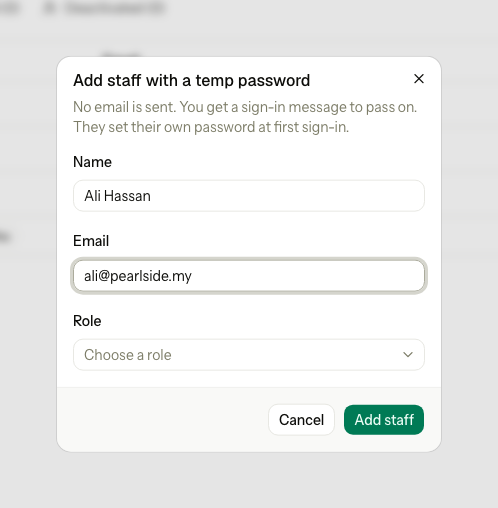
- Select Add with temp password.
- Enter the Name and the Email.
- Choose the Role.
- Select Add staff.
- In the Sign-in message dialog, select Copy.
- Send the message to the person yourself, for example on WhatsApp.
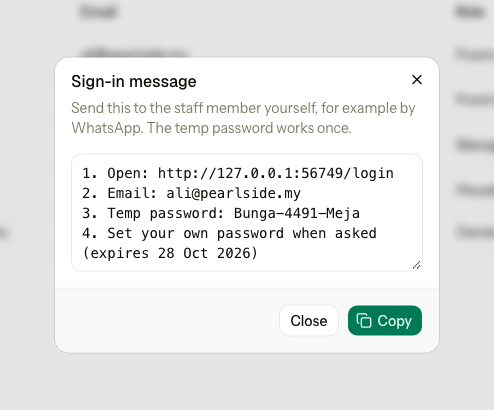
The message has four lines: the login address, the email, the temporary password and the date it expires. A temporary password has two words and four digits. It works for 14 days and once only: the person must set their own password when they sign in. See First sign-in.
The email does not have to be real, for example for a training account. Estatell does not check it. Use a real one if the person may need to reset a forgotten password.
Bulk add
Use this to add up to 200 people in one go.
- Select Add staff, then Bulk add.
- Fill in one row for each person: Name, Email and Role. Select Add row for more rows.
- Or select Upload CSV / XLSX to fill the rows from a file. Select Template to download an empty file to fill in.
- Fix any row that shows an error.
- Select Create and the number of people, for example Create 3 staff.
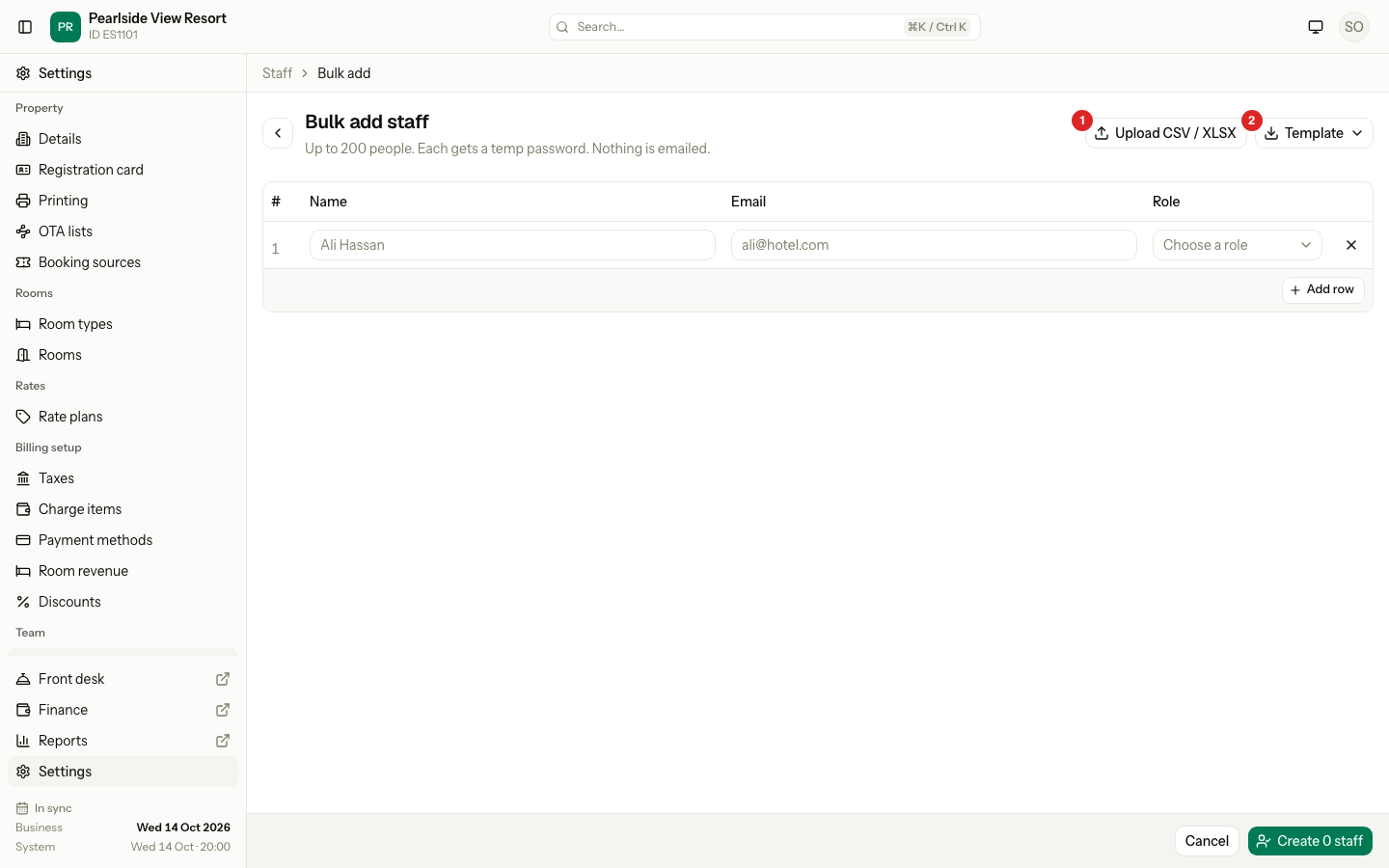
Nothing is saved until you select Create. If one row has an error, Estatell saves none of the rows. Fix the row and try again.
The upload file
| Rule | Detail |
|---|---|
| File type | CSV or XLSX, up to 1 MB |
| Columns | name, email and role. Capital letters and spaces in the headings do not matter. |
| Role | The name of a role, for example Front desk. Capital letters do not matter. An unknown role leaves the cell empty, and the row shows an error. |
| Rows | Up to 200. Blank lines are skipped. |
| Passwords | Not in the file. Estatell always makes them. |
The rows from the file are added after the rows you already filled in.
After you create the accounts
The screen shows the people you added and says "Each has a temp password that works for 14 days." Use these buttons:
| Button | What it does |
|---|---|
| Copy all | Copies one sign-in message for each person, with a blank line between them. |
| Export | Downloads the sign-in details as CSV, XLSX or PDF. The PDF has one slip for each person, ready to cut. |
| Done | Goes back to the Staff screen. |
You can do the same later for anyone who still has a temporary password. See Manage staff.
Special cases
| Situation | What happens | What to do |
|---|---|---|
| The email already has an account, at this or another property | • Estatell shows "This email already has an account or an open invitation." | • Use a different email. A person needs a separate account for each property. |
| The email already has an open invitation | • The same message shows. | • Resend the invitation, or revoke it and invite again. See Manage staff. |
| The email is in the bulk list twice | • The second row shows "This email is in the list twice." | • Remove one row. |
| A bulk row has no role | • The row shows "Choose a role." | • Choose a role. If you are not an Owner, you cannot choose Owner. |
| The person does not accept the invitation in 7 days | • The invitation shows Expired on the Invited tab. The link no longer works. | • Select Resend. |
| The person opens an old invitation link | • The page says "Invitation not valid". | • Send a new invitation. |
| You lost the temporary password | • Nobody can read it again. | • Reset the password. |
| The temporary password is older than 14 days | • The person cannot sign in. The login page says it has expired. | • Reset the password and send the new message. |
| You are not an Owner and you try to give the Owner role | • Estatell says "Choose a role you are allowed to give." | • Ask an Owner to add the person. |
| The Staff screen has no Add staff button | • You do not have Manage staff. The button is also hidden while Estatell support is signed in to your property. | • Ask an Owner. |