
Manage staff
Change a role, give a new password, deactivate someone, and look after invitations.
The Staff screen has three tabs. Active lists the people who can sign in. Invited lists invitations that nobody has accepted yet. Deactivated lists people who can no longer sign in.
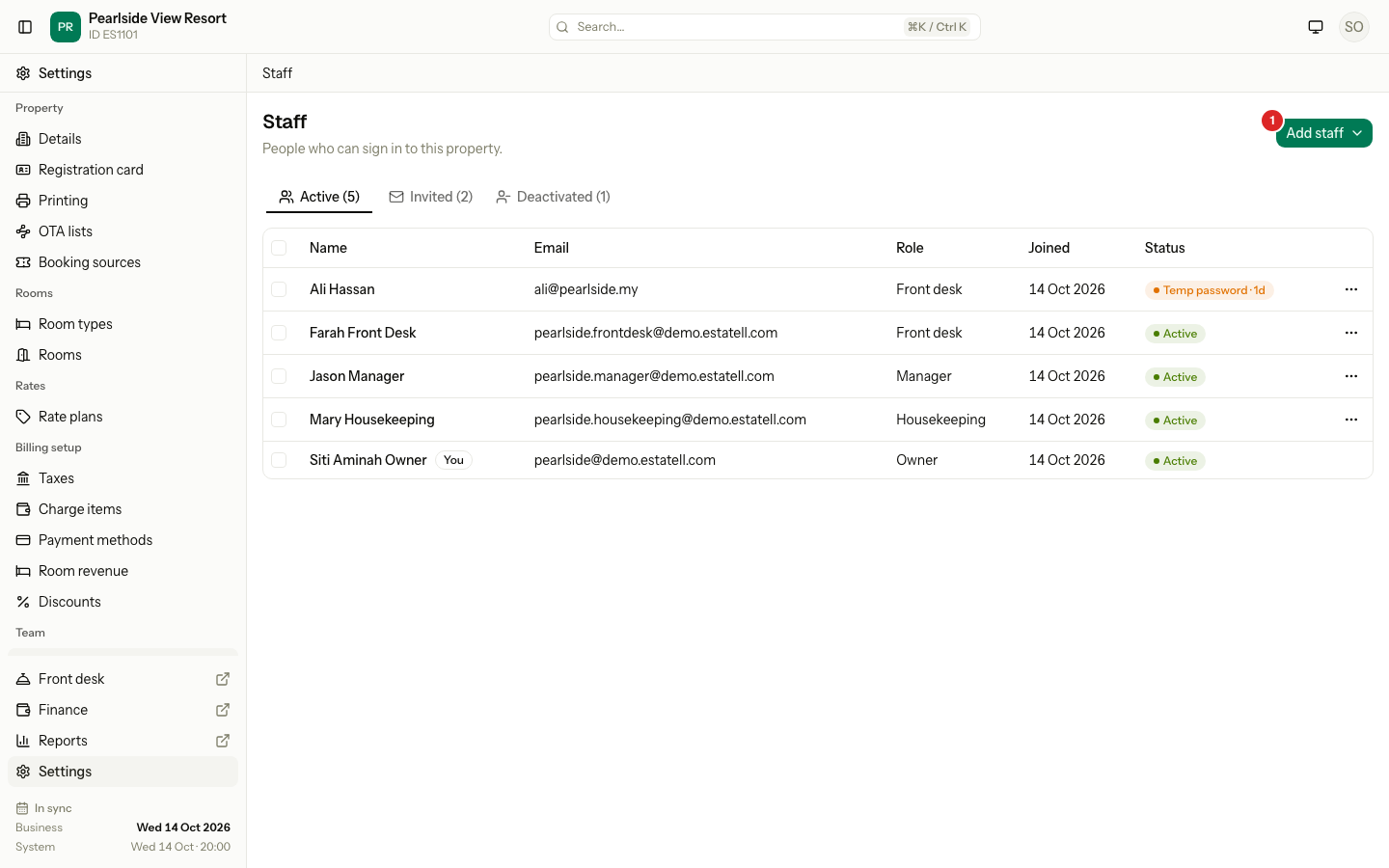
The number in each tab name is how many people it holds. To add people, see Add staff.
Before you start
- Permission: View staff to open the screen. Manage staff to change anything. Owners and managers have both by default.
- You cannot change your own account. Your row has no menu and shows You.
The Active tab
| Column | What it shows |
|---|---|
| Name | The person's name. |
| The email they sign in with. | |
| Role | Their role. |
| Joined | The date they joined. |
| Status | Active, Temp password · 9d (days left) or Temp password expired. |
A person has a temporary password until they sign in and choose their own. Then the status changes to Active.
Select the ⋯ menu on a row to see what you can do with that person.
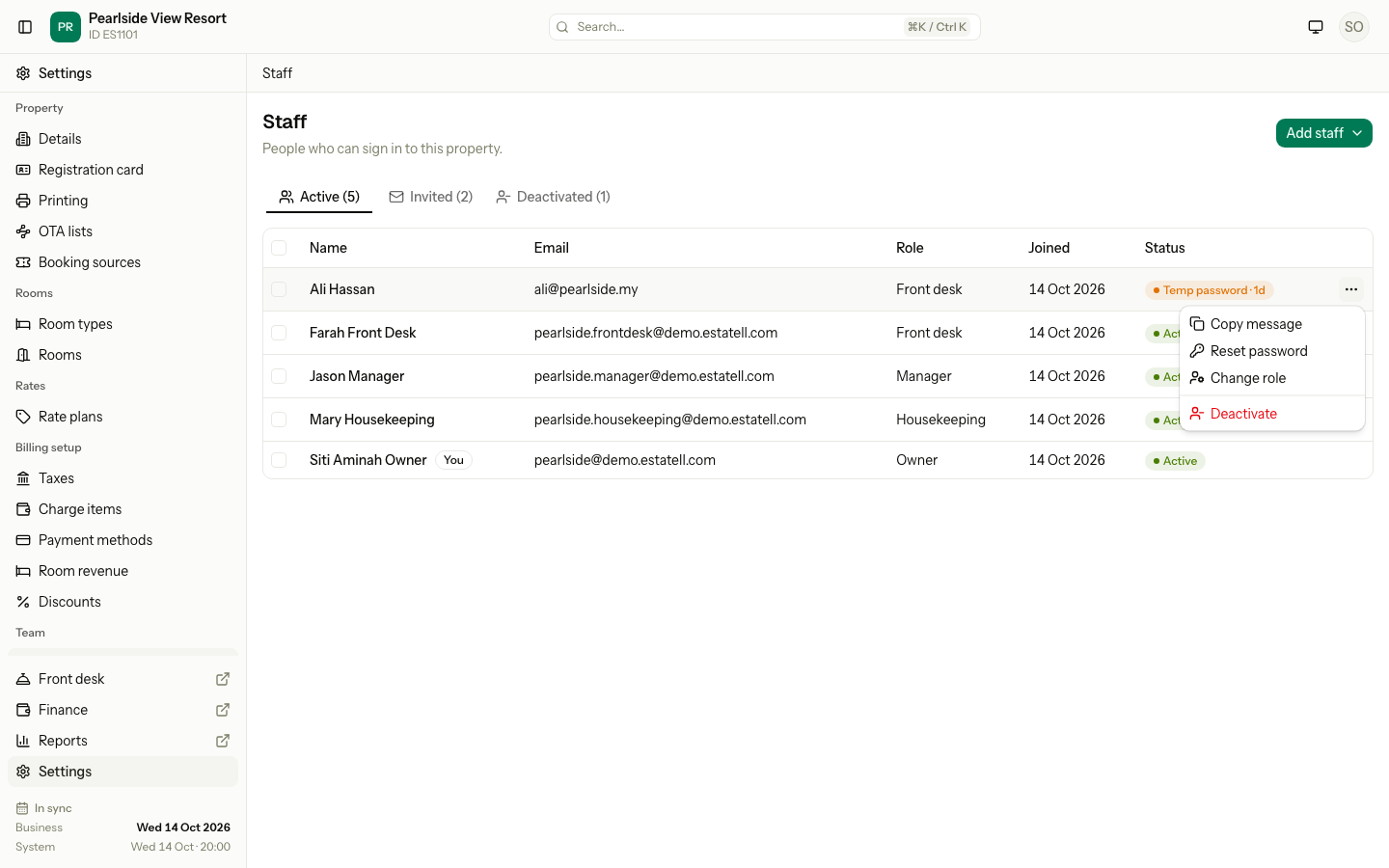
| Menu item | Shows for | What it does |
|---|---|---|
| Copy message | A person with a temporary password that is still valid | Shows the sign-in message to copy. |
| Reset password | Everyone except Owners | Makes a new temporary password. |
| Change role | Everyone | Gives the person another role. |
| Deactivate | Everyone | Stops the person signing in. |
Change a role
- On the Active tab, select the ⋯ menu on the person's row.
- Select Change role.
- Choose the new Role.
- Select Save role.
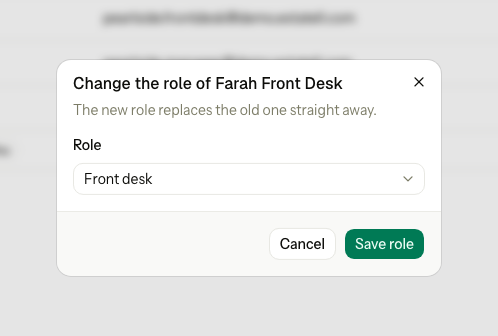
The new role replaces the old one straight away. A person has one role at a time. Estatell shows "Name is now Role." when it is done.
You can also make your own role with its own permissions. See Roles and permissions.
Send sign-in details again
Use this when a person lost their temporary password, or forgot the password they chose and has no working email.
- Select the ⋯ menu on the person's row.
- Select Reset password.
- Read the message, then select Reset password to confirm.
- In the Sign-in message dialog, select Copy and send the message to the person.
The old password stops working at once, and the person is signed out everywhere. The new temporary password works for 14 days. The person sets their own password when they sign in. See First sign-in.
If the person still has a valid temporary password and only lost the message, select Copy message instead. It shows the same message again and changes nothing.
Do many people at once
- Tick the box in each row. Tick the box in the header to select everyone.
- Use the bar at the bottom of the page.
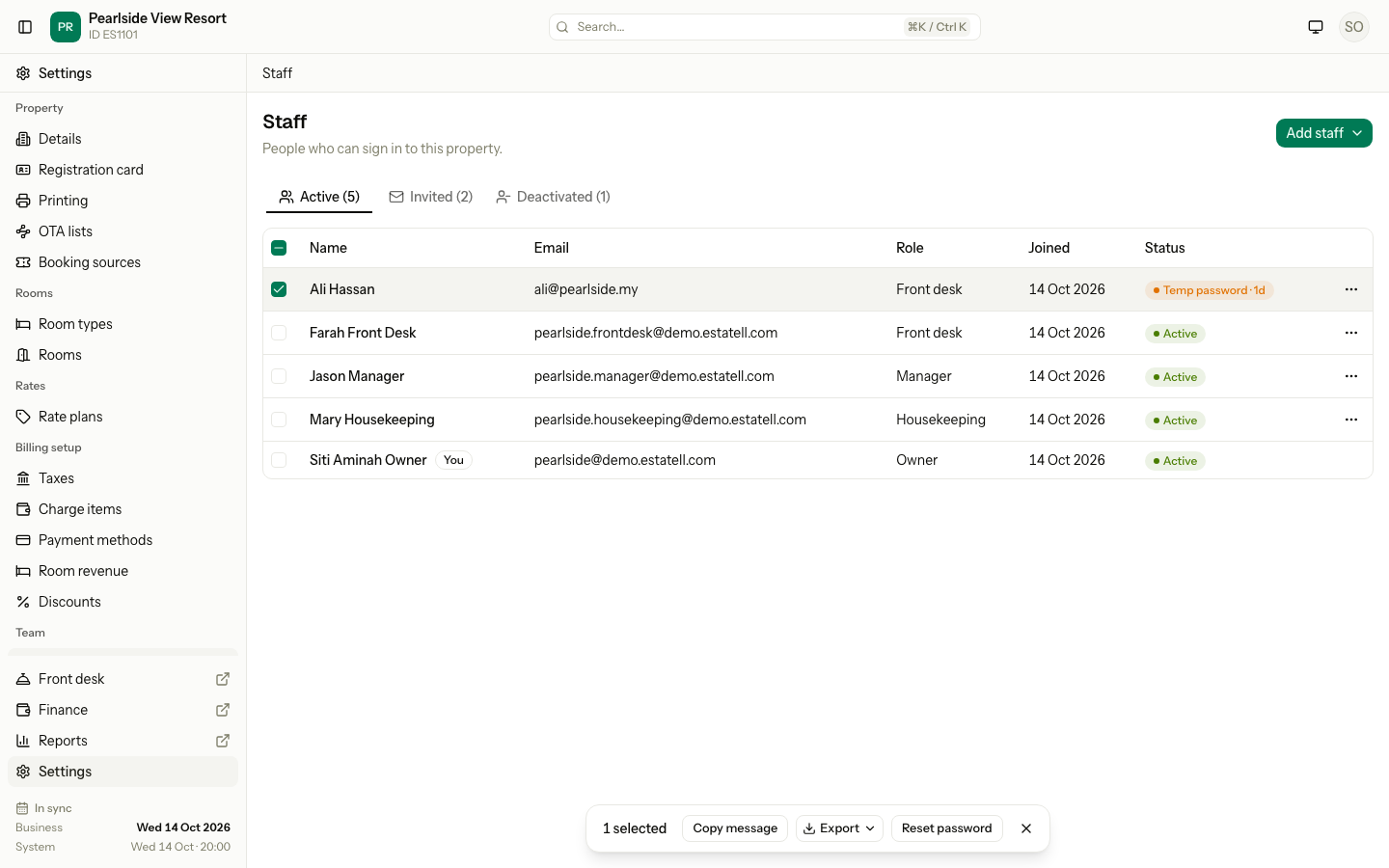
| Button | What it does |
|---|---|
| Copy message | Copies one sign-in message for each person. |
| Export | Downloads CSV, XLSX or PDF. The PDF has one slip for each person. |
| Reset password | Makes a new temporary password for each person. |
Copy and export use only people whose temporary password is still valid. Estatell skips the others and says, for example, "1 skipped: no temp password." If nobody qualifies, it says "None of the chosen staff has an unexpired temp password." Reset skips Owners, deactivated people and you.
Deactivate someone
Deactivate a person who has left. The account and its history stay, so you do not lose any records.
- Select the ⋯ menu on the person's row.
- Select Deactivate.
- Select Deactivate to confirm.
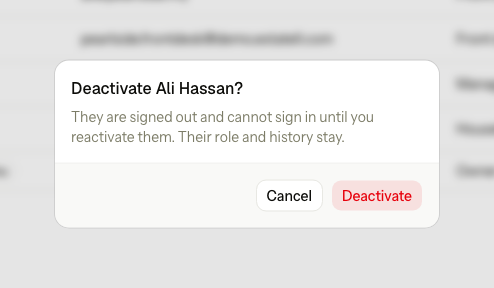
The person is signed out on their next click and cannot sign in again. If they try, the login page says "Your account is deactivated. Ask the property owner to reactivate it." They keep their role. They move to the Deactivated tab.
The Deactivated tab
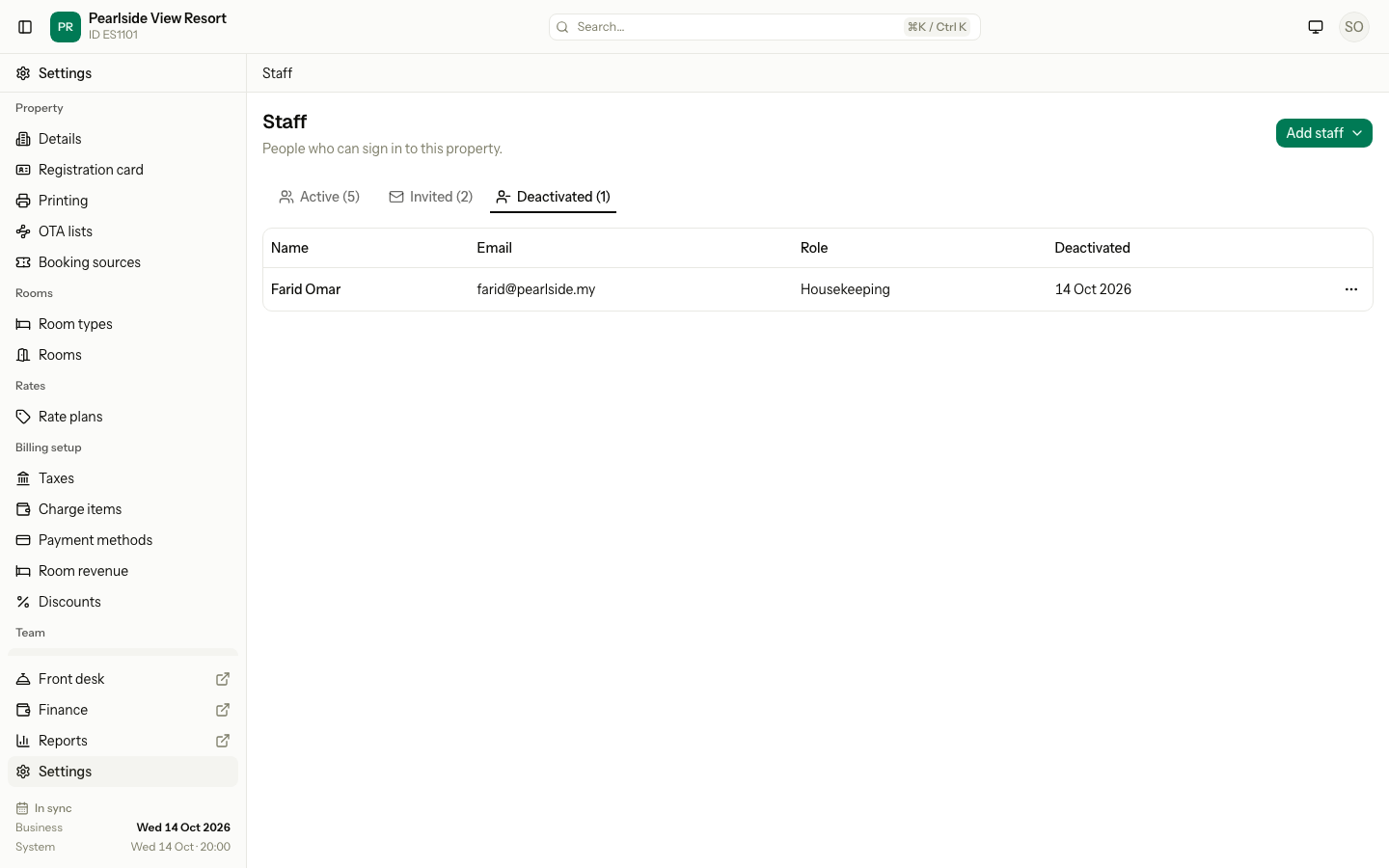
The tab shows the Name, Email, Role and the date Deactivated. To let a person sign in again, select the ⋯ menu, then Reactivate. They keep their old role and the password they had. If their temporary password expired in the meantime, reactivate them first, then reset the password.
Invitations
The Invited tab lists each invitation that nobody has accepted: the Email, Role, who it was Invited by, when it was Sent, and when it Expires.
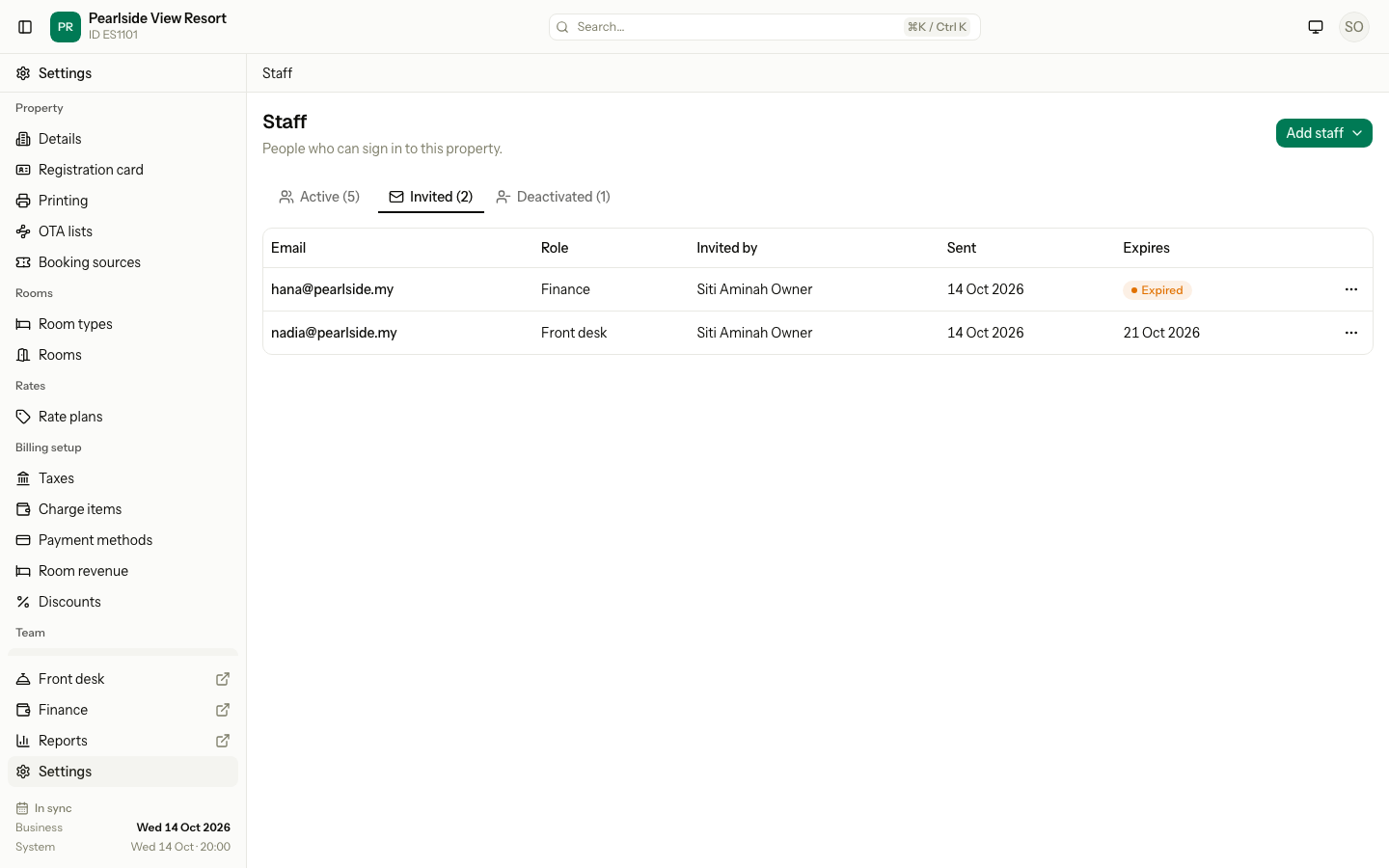
An invitation works for 7 days. After that it shows Expired, and you can still resend or revoke it.
| Menu item | What it does |
|---|---|
| Resend | Sends a new email with a new link that works for 7 days. The old link stops working. |
| Revoke | Cancels the invitation. The link stops working. You can invite the same email again later. |
To revoke, select Revoke, then Revoke invitation to confirm.
An accepted invitation leaves this tab. The person shows on the Active tab.
Special cases
| Situation | What happens | What to do |
|---|---|---|
| You deactivate the last active Owner | • Estatell says the person cannot be deactivated. A property always keeps one active Owner. | • Give the Owner role to someone else first. |
| You change the role of the last active Owner | • Estatell says "The role of Name cannot be changed." | • Give the Owner role to someone else first. |
| You are a manager and you change or deactivate an Owner | • Estatell refuses. Only an Owner can change an Owner. | • Ask an Owner. |
| A person is signed in when you deactivate them | • They are signed out on their next click. | • Nothing. |
| A person has a temporary password that expired | • The status shows Temp password expired. They cannot sign in. | • Select Reset password. |
| A person forgot the password they chose | • They can use Forgot your password? on the login page if their email works. | • If it does not, select Reset password. |
| An invitation expired | • The Invited tab shows Expired. The link no longer works. | • Select Resend. |
| A person opens the link of an invitation you revoked | • The page says "Invitation not valid". | • Invite them again. |
| You revoke an invitation that was just accepted | • Estatell says "This invitation is no longer open." | • Nothing. The person is on the Active tab. |
| You reset the password of an Owner | • The menu has no Reset password for Owners. | • An Owner uses Forgot your password? on the login page. |