
Booking sources
Keep the list of places your bookings come from, such as phone, WhatsApp or an online travel agent.
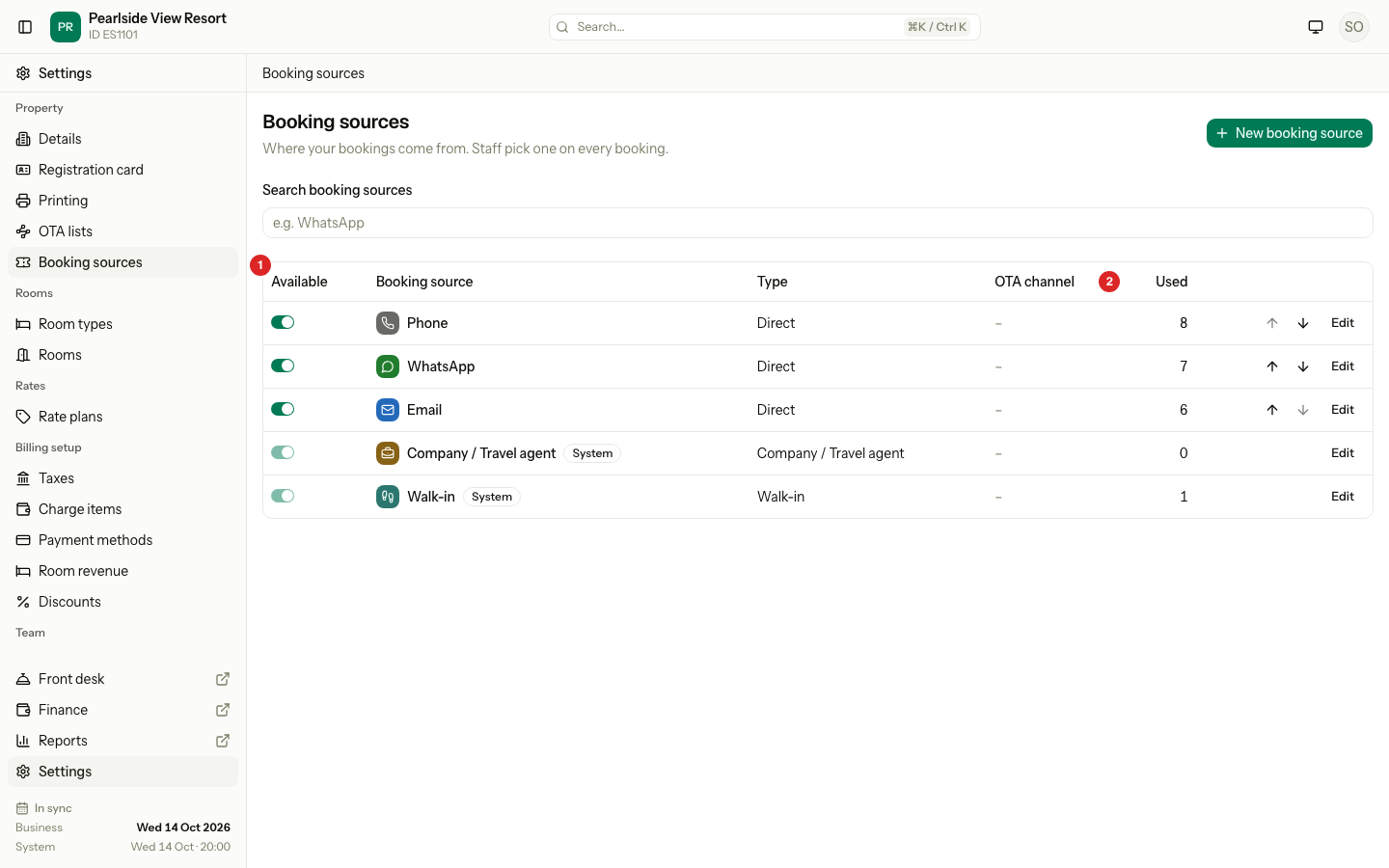
A booking source says where a booking came from. Staff pick one on every booking. The dashboard and the reservations list then show how many bookings each source brings.
Open Settings, then Booking sources.
Before you start
- Permission: Manage property settings. Owners and managers have it by default.
- For an online travel agent (OTA), the Estatell team sets up its login in OTA lists. Estatell adds a source for each OTA you set up.
The list
| Column | What it shows |
|---|---|
| Available | A switch. Off hides the source from the booking form. It saves at once. |
| Booking source | The badge and the name. |
| Type | Direct, OTA, Company / Travel agent or Walk-in. |
| OTA channel | The agent, for an OTA source. |
| Used | How many bookings use the source. |
Every new property starts with these sources:
| Source | Type | You can change |
|---|---|---|
| Phone | Direct | Everything |
| Direct | Everything | |
| Direct | Everything | |
| Company / Travel agent | Company / Travel agent | The badge and color only |
| Walk-in | Walk-in | The badge and color only |
Company / Travel agent and Walk-in have a System tag. They are always available, and you cannot rename, move or delete them.
The types
| Type | Use it for | What a booking needs |
|---|---|---|
| Direct | Phone, WhatsApp, email, your website, a partner | Nothing extra |
| OTA | An online travel agent such as Booking.com | An External reference, the agent's booking number |
| Company / Travel agent | A booking from a company or travel agent | A company on the booking |
| Walk-in | A guest at the desk with no booking | A room or bed for every unit. Only the walk-in form uses it. |
You can add Direct and OTA sources. Estatell keeps the other two for you.
Add a booking source
- Select New booking source.
- Type the Name, for example "WhatsApp".
- Choose the Type: Direct or OTA.
- If the type is OTA, choose the OTA channel. If you choose Other, type the Channel name. It becomes the name.
- Choose the Badge: select Icon and pick one, or select Letter and type one or two letters.
- Choose a Color.
- Check the Preview, then select Create booking source.
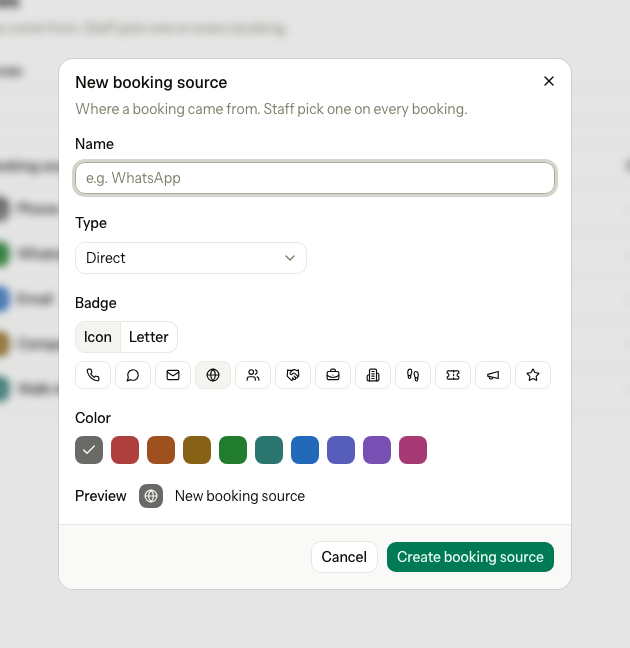
The new source goes to the end of the list.
Change a booking source
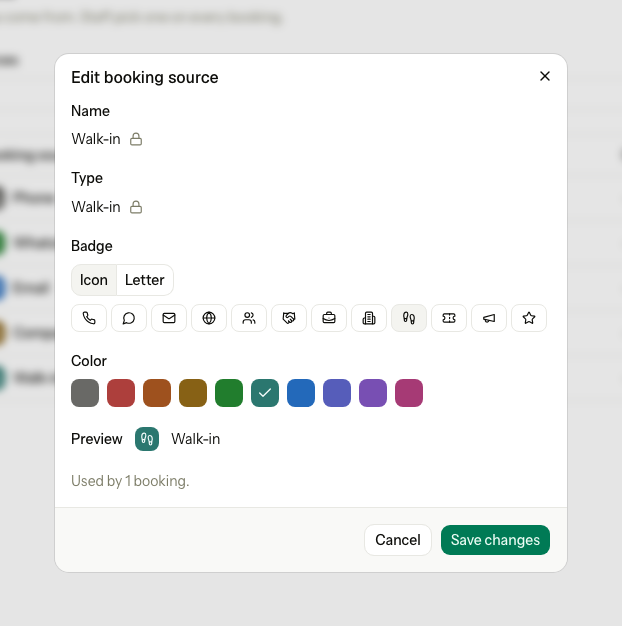
- Select Edit on the row.
- Change the Name, the Badge or the Color.
- Select Save changes.
A new name shows on every booking that uses the source.
To hide a source, switch Available off. The source leaves the booking form. Old bookings keep it, and the list filter still shows it. A switched-off source shows Inactive and has no arrows. Switch it on again and it goes to the end of the list.
To change the order, select the up or down arrow on a row. The booking form shows the sources in this order. Use the search box to find a source by name, type or OTA channel.
Delete a booking source
- Select Edit on the row.
- Select Delete booking source.
- In the box, select Delete booking source again.
You can delete a source only while no booking uses it. A source in use says "In use by 3 bookings. Turn it off with Available." Switch it off instead.
Special cases
| Situation | What happens | What to do |
|---|---|---|
| A booking uses the source | Type and OTA channel lock. You cannot delete it. | Switch Available off. |
| You use a name that exists | "Another booking source already uses this name." Capital letters do not matter. | Choose another name. |
| An OTA already has a source | "This property already has a booking source for" that agent. | Use the source you have. For an agent not on the list, choose Other. |
| You pick OTA and no channel | "Choose an OTA channel." | Choose one. |
| You leave the name empty | "Enter a name." | Type a name. |
| You pick no icon and no letters | "Choose an icon or type one or two letters." | Choose one of them. |
| You edit Company / Travel agent or Walk-in | Only the badge and color can change. | Nothing else is possible. |
| A booking is from an OTA | The booking asks for the External reference. | Type the agent's booking number. |
| Another person changed the list while you worked | "The booking sources changed. Reload the page and try again." | Reload the page and try again. |
| A source was deleted by mistake | You cannot restore it. | Add it again. |
| The search finds nothing | "No matching booking sources". | Change the search, or add a new source. |