
Printing
Choose the fonts, letterhead and layout of every PDF Estatell makes, such as receipts, invoices and reports.
Printing sets how every PDF of your property looks: receipts, invoices, statements and reports. You set it once, and each new document follows it.
Open Settings, then Printing. It has three tabs: General, Header and Documents. There is no Save button. Every change saves by itself, and the top right says Changes save automatically. A text box saves when you click out of it.
Before you start
- Permission: Manage property settings. Owners and managers have it by default.
- Add your logo, address and registration number first. The letterhead uses them, and the Header tab links to where you set them. See Property details.
- Add the tax registration numbers on the Taxes screen if you want them on your invoices. See Taxes.
The three tabs
| Tab | What it sets |
|---|---|
| General | Font style, font size and the footer text |
| Header | The lines at the top of each document: logo, address, contact, registration numbers and tax numbers |
| Documents | What the booking summary, folio invoice and AR invoice show |
Each tab has a preview on the right. It shows a sample as you change a setting. Select Open sample PDF under the preview to see a real PDF with sample data.
The preview is close to the printed PDF, but the fonts can look a little different. Check the sample PDF before you rely on a look.
Steps
Choose fonts and a footer
- Open the General tab.
- Under Font style, select a style: Office, Modern, Fancy or Handwritten.
- Under Font size, select Small, Medium or Large.
- In Footer text, type a line for the foot of every page, for example "Thank you for staying with us."
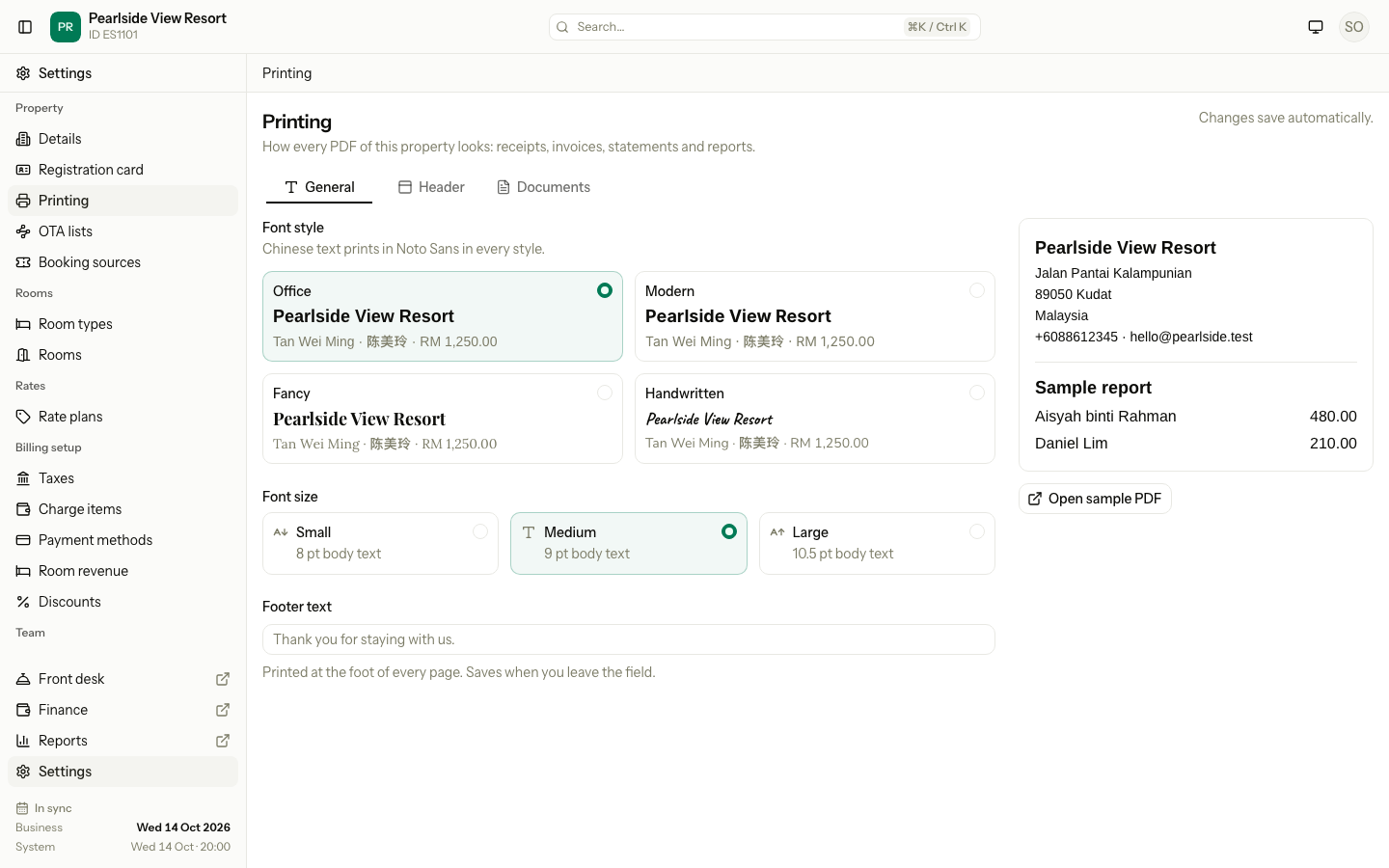
| Font style | Headings and the property name | Text and tables |
|---|---|---|
| Office | Arimo Bold | Arimo |
| Modern | Inter Bold | Inter |
| Fancy | Playfair Display Bold | Lora |
| Handwritten | Caveat Bold | Nunito |
| Font size | Text size |
|---|---|
| Small | 8 pt |
| Medium | 9 pt |
| Large | 10.5 pt |
Chinese text prints in Noto Sans in every style. Thai, Tamil and Jawi text do not print correctly yet.
Choose the header lines
- Open the Header tab.
- Under Header lines, switch each line on or off: the logo, the address, the phone and email, the registration number and the tax ID.
- Under Tax numbers, switch on each tax whose registration number you want on your documents.
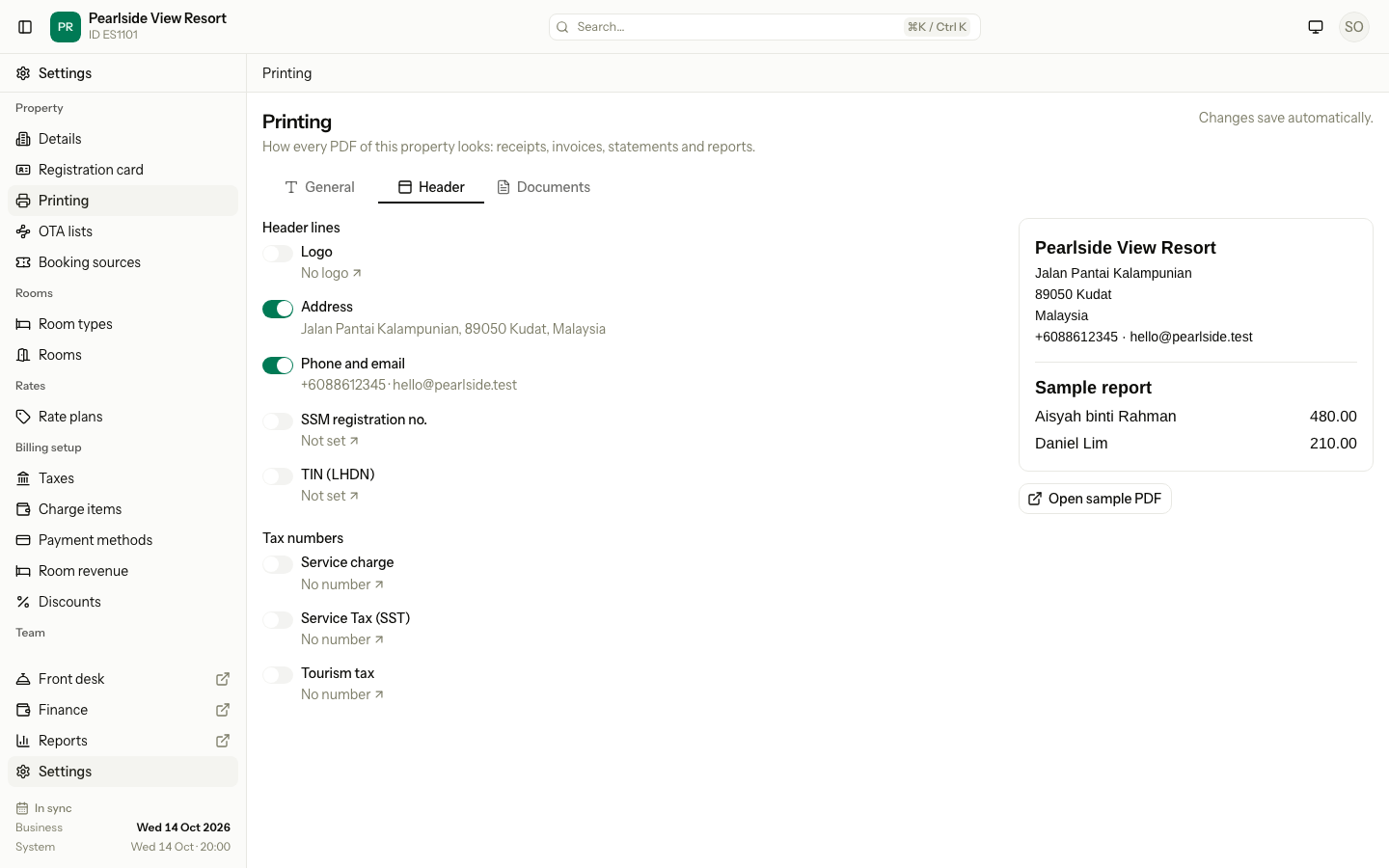
A line with no value is switched off and cannot be changed. It shows Not set or No logo. Select it to go to the Profile tab and add the value. A tax with no number shows No number. Select it to go to the Taxes screen.
Choose what documents show
- Open the Documents tab.
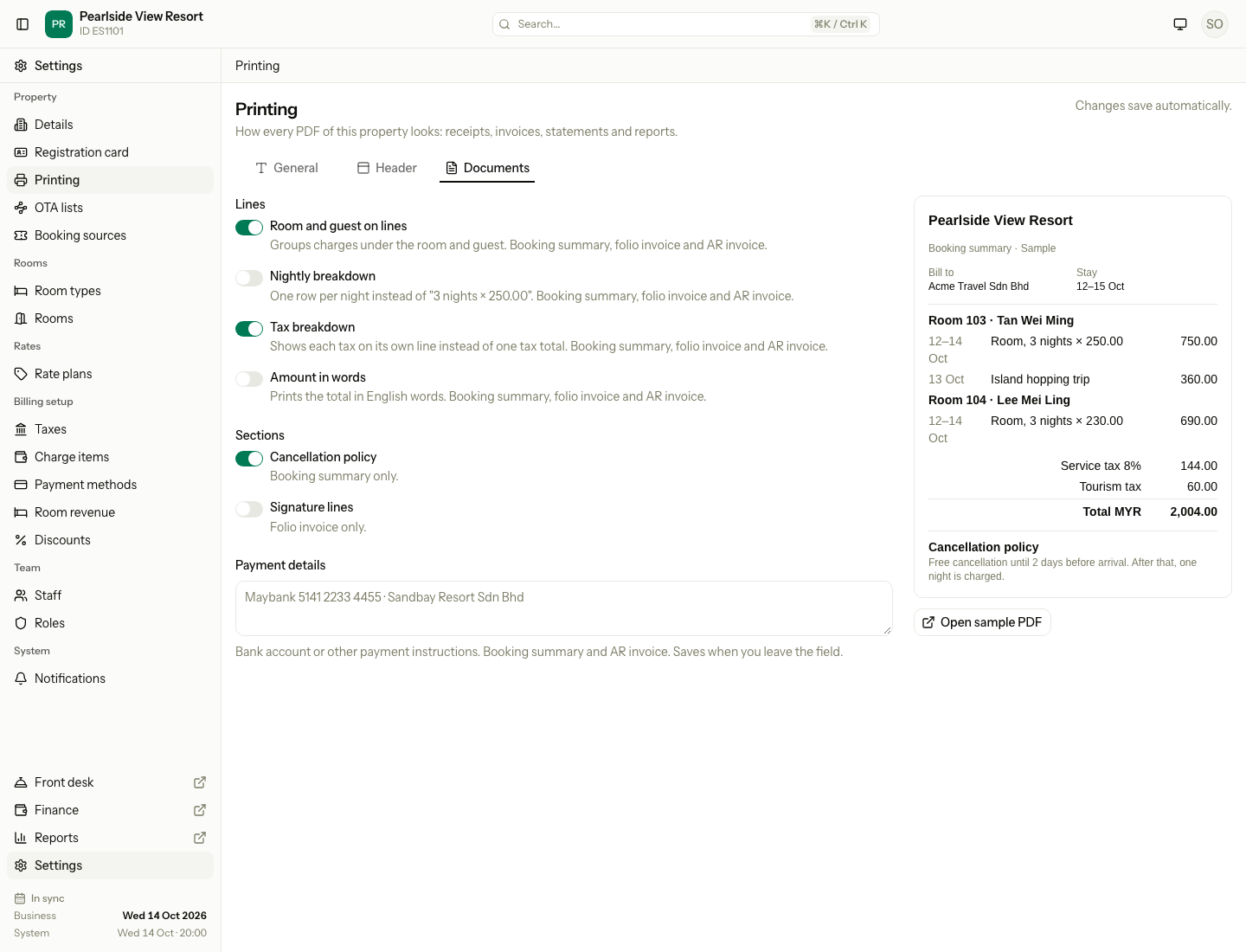
- Under Lines, switch on what you want to see on the charge lines.
- Under Sections, switch on the sections you want.
- In Payment details, type your bank account or other payment instructions.
| Switch | What it does | Documents it changes |
|---|---|---|
| Room and guest on lines | Groups the charges under the room and the guest, for example "Room 103 · Tan Wei Ming". Off shows one list by date, with a Room column when there is more than one room. | Booking summary, folio invoice, AR invoice |
| Nightly breakdown | Shows one row for each night. Off shows "3 nights × 250.00". | Booking summary, folio invoice, AR invoice |
| Tax breakdown | Shows each tax on its own line. Off shows one tax total. | Booking summary, folio invoice, AR invoice |
| Amount in words | Prints the total in English words under the total. | Booking summary, folio invoice, AR invoice |
| Cancellation policy | Prints your cancellation policy. | Booking summary only |
| Signature lines | Adds lines for signatures. | Folio invoice only |
| Payment details | Prints the text you typed. | Booking summary and AR invoice |
The voucher, the receipts, the AR statement and the reports do not use these switches. They use the General and Header tabs only.
What always prints
Some facts print on an invoice whatever the switches say. An invoice always shows its number and date, Bill to, the tax amounts with the tax registration number, and the total. An AR invoice also names the guests who stayed. The registration card and the temporary password slips keep their own look and do not use the letterhead.
Special cases
| Situation | What happens | What to do |
|---|---|---|
| The property has no logo | The Logo switch is off and shows No logo. The header starts with the property name. | Upload a logo on the Profile tab of Property details. |
| The address or the registration number is empty | The line shows Not set and cannot be switched on. | Fill it in on the Profile tab. |
| A tax has no registration number | It shows No number and cannot be switched on. | Add the number on the Taxes screen. |
| A tax is switched off in Taxes | The Header tab shows it as "(off)". Its number still prints if you picked it. | Switch it off here too if you do not want the number. |
| The tax ID (TIN) is off | The default is off, so it does not print. | Switch it on under Header lines when a customer needs it. |
| A saved setting is refused | An error message shows and the form goes back to the saved copy. | Try again. |
| The amount has cents | "Amount in words" ends with the cents, for example "... and fifty sen only". An amount of cents only prints "Five sen only". | Nothing. |
| A value is empty, such as the payment details | Nothing prints for it. There is no "-" or "0.00". | Nothing. |
| You changed a setting and an old PDF looks the same | A PDF you already saved does not change. | Download the document again. |