
Overview
Who can sign in to your property, what each role can do, and which page to use to manage your team.
Your team is the people who sign in to your property. Each person has one role, and the role decides what they can do. You manage the team in Settings, under Team.
| Situation | Use |
|---|---|
| Add one person, or many | Add staff |
| Change a role, give a new password, stop someone signing in | Manage staff |
| See or change what a role can do | Roles and permissions |
| Sign in for the first time with a temporary password | First sign-in |
The Staff screen lists everyone. It has three tabs: Active, Invited and Deactivated.
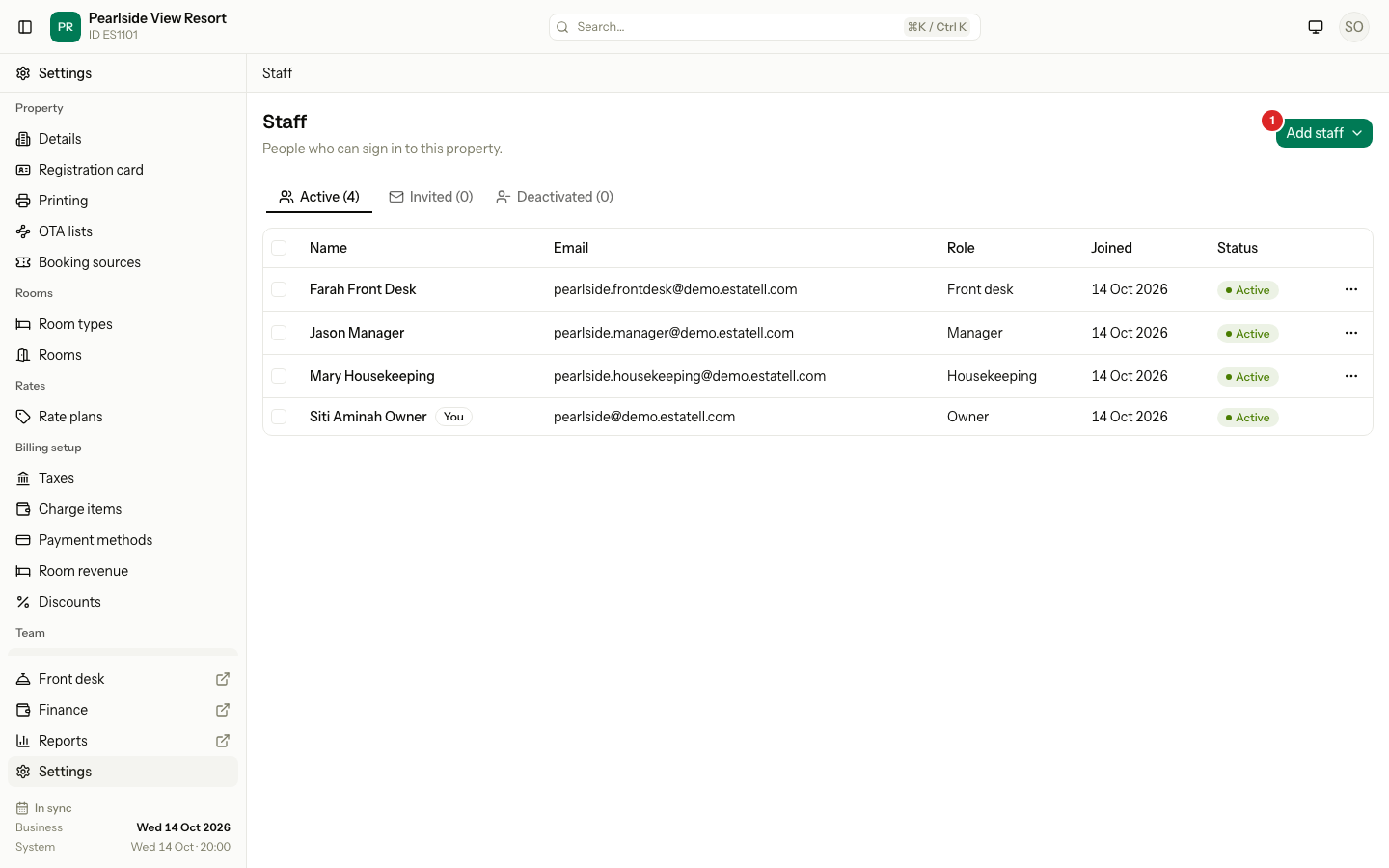
| Number | What it is |
|---|---|
| 1 | Add staff. A menu with the three ways to add people. |
Before you start
- Permission: View staff to open the screen. Manage staff to add or change people. Manage roles to edit roles. Owners have all three. Managers have the first two.
- You can add people while you set up the property. See the Team section in Property.
Roles at a glance
Every property starts with five roles. The Owner role cannot be changed. You can change the other four, and you can add your own.
| Role | What it is for | Typical person |
|---|---|---|
| Owner | Full access to everything. | The owner |
| Manager | Runs the property: bookings, rates, rooms, staff, refunds and reports. | General manager |
| Front desk | Handles guests: bookings, check-in and out, payments and room status. | Receptionist |
| Housekeeping | Keeps rooms ready: sees and updates room status. | Housekeeper, supervisor |
| Finance | Handles money: payments, refunds, city ledger and reports. | Bookkeeper, accountant |
Who can do what
This table shows the main differences. The full list is in Roles and permissions.
| Task | Owner | Manager | Front desk | Housekeeping | Finance |
|---|---|---|---|---|---|
| Check in and check out | ✅ | ✅ | ✅ | ❌ | ❌ |
| Create and change bookings | ✅ | ✅ | ✅ | ❌ | ❌ |
| Record payments and refunds | ✅ | ✅ | ✅ | ❌ | ✅ |
| Update room status on the housekeeping board | ✅ | ✅ | ✅ | ✅ | ❌ |
| Change the price of booked nights | ✅ | ✅ | ❌ | ❌ | ✅ |
| View and export reports | ✅ | ✅ | ❌ | ❌ | ✅ |
| Change property settings | ✅ | ✅ | ❌ | ❌ | ❌ |
| Add and manage staff | ✅ | ✅ | ❌ | ❌ | ❌ |
| Edit roles and permissions | ✅ | ❌ | ❌ | ❌ | ❌ |
Rules to know
- A person belongs to one property and has one role.
- Your property always keeps at least one active Owner.
- Only an Owner can give the Owner role.
- Nobody can change their own role or deactivate their own account.
Special cases
| Situation | What happens | What to do |
|---|---|---|
| A person works at two properties | • They need a separate account for each property. | • Add them with a different email at each property. |
| You are a manager and you cannot see Roles | • Roles shows only for people who can manage roles. By default that is the Owner only. | • Ask an Owner to change a role, or to give your role Manage roles. |
| Someone has left | • Their account stays, with its history. | • Deactivate them. |