
Rooms and room groups
Add rooms one by one or many at once, group them by floor, change the type of one room or many, and archive rooms.
A room is one door with its own number, such as 201. A room group is a label that collects rooms, such as "Second Floor". Groups help your team find rooms on the housekeeping board and the stay view.
The setup wizard covers the first rooms. See Rooms. Use this page to add more rooms, change a room, or archive one.
Before you start
- Permission: Manage rooms and room types. Owners and managers have it by default.
- Add the room type first. Every room needs one.
The Rooms screen
Open Settings → Rooms.
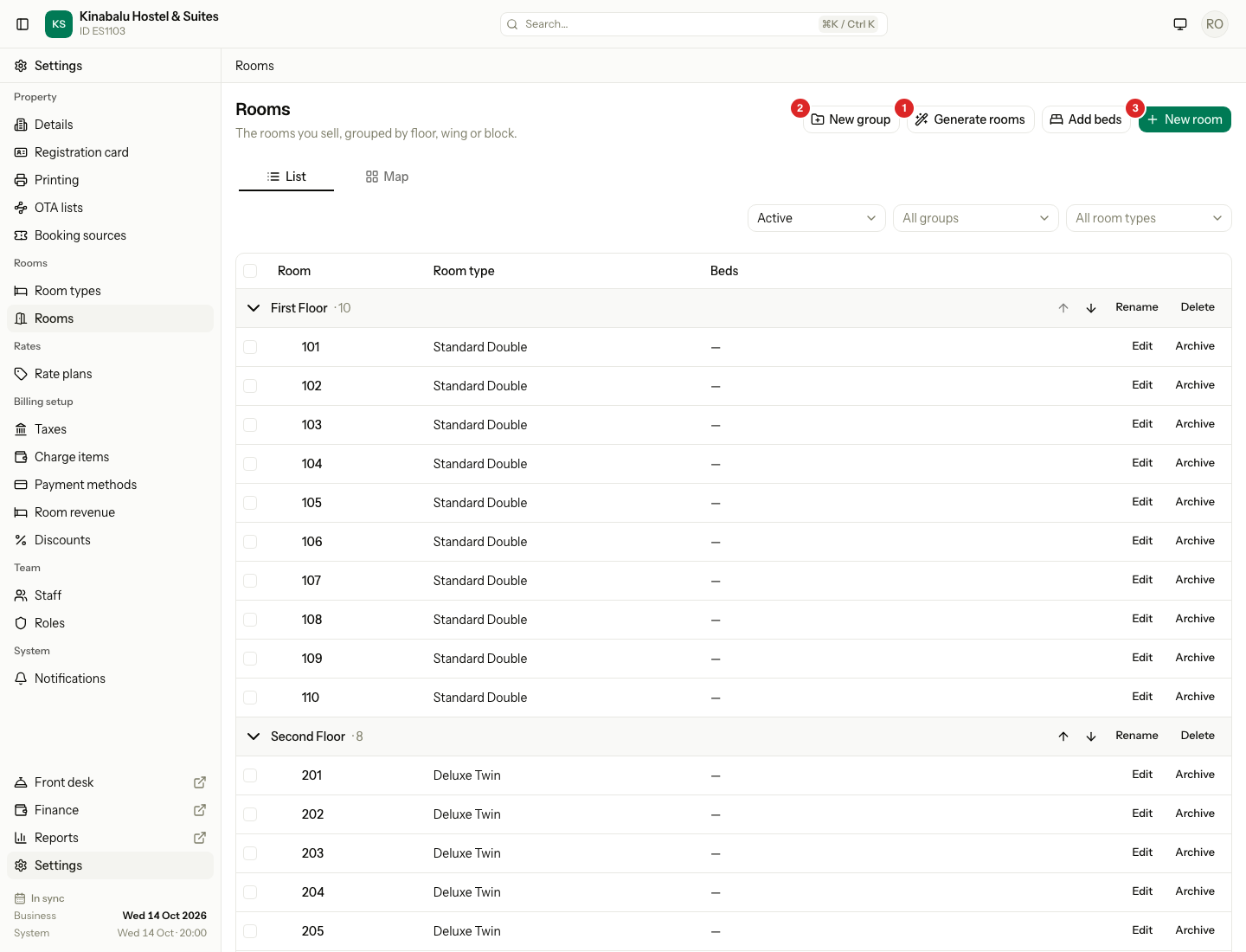
| # | What | What it does |
|---|---|---|
| 1 | Generate rooms | Makes many rooms at once. See Add many rooms at once. |
| 2 | New group | Adds a room group. |
| 3 | New room | Adds one room. |
The screen has two tabs:
| Tab | What it is for |
|---|---|
| List | The table of rooms. It opens first. Add, edit, archive and restore rooms here, and change many rooms at once. |
| Map | The rooms as coloured tiles, floor by floor. Use it to see the mix of room types along each floor, and to fix it. See Paint room types on the Map. |
In the List tab, each group has a row with its name and the number of rooms. Select the name to close or open its rooms. Use the arrows to move the group up or down. Rename and Delete are on the same row. Rooms without a group are under Ungrouped. Archived rooms are under Archived, which starts closed.
The three menus above the table filter the list: by status (Active or Archived), by room group and by room type.
Add one room
- Select New room.
- Enter the Room number. It is a label, so "201", "201A" and "Villa 3" all work. Up to 30 characters.
- Choose the Room type.
- Choose the Room group, or leave No group.
- Select Create room.
Add many rooms at once
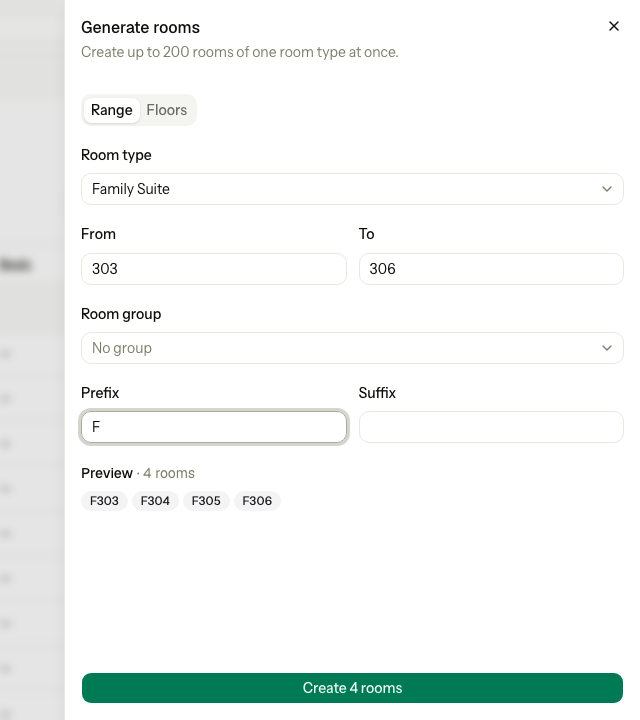
The number generator makes up to 200 rooms of one room type at a time. It shows a preview before it saves anything.
- Select Generate rooms.
- Choose the Room type.
- Choose how to make the numbers:
- For a run of numbers, stay on Range. Enter From and To, for example 101 and 110. Choose a Room group, or leave No group.
- For several floors, select Floors. Enter the First floor and Last floor. Then enter the First room on each floor and Last room on each floor.
- If you want letters around each number, enter a Prefix or a Suffix.
- Check the Preview.
- Select Create with the number of rooms, for example Create 4 rooms.
| Mode | You enter | Estatell makes |
|---|---|---|
| Range | From 101, to 110 | 101 to 110, in the group you chose. |
| Range with a prefix | From 1, to 3, prefix "Villa " | Villa 1, Villa 2, Villa 3. |
| Range with zeros | From 001, to 003 | 001, 002, 003. Estatell keeps the zeros of the first number. |
| Floors | Floors 4 to 5, rooms 01 to 03 | 401, 402, 403, 501, 502, 503. |
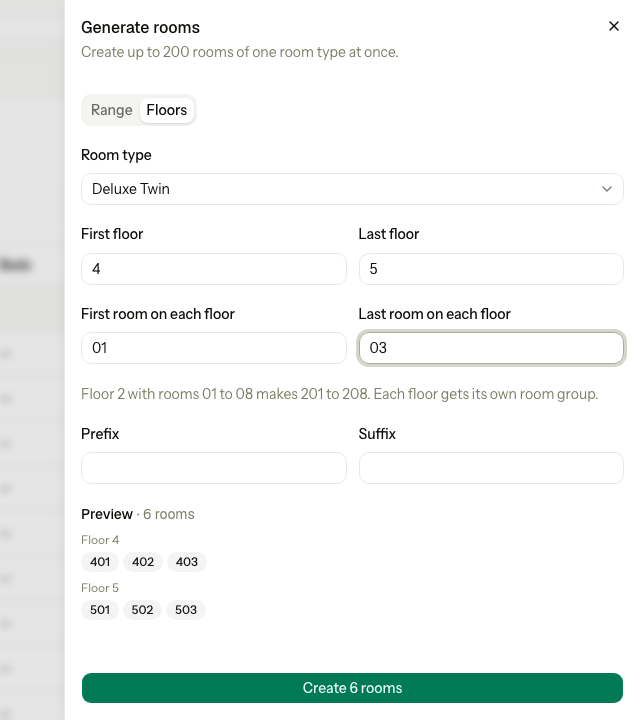
In Floors mode, Estatell makes one room group for each floor, named "Floor 4", "Floor 5" and so on. If the group exists, it uses it.
The generator makes rooms without beds. For a dorm, add beds after. See Beds.
You can also start the generator from the Rooms tab of a room type. The room type is then fixed. See Room types.
If a number is already used
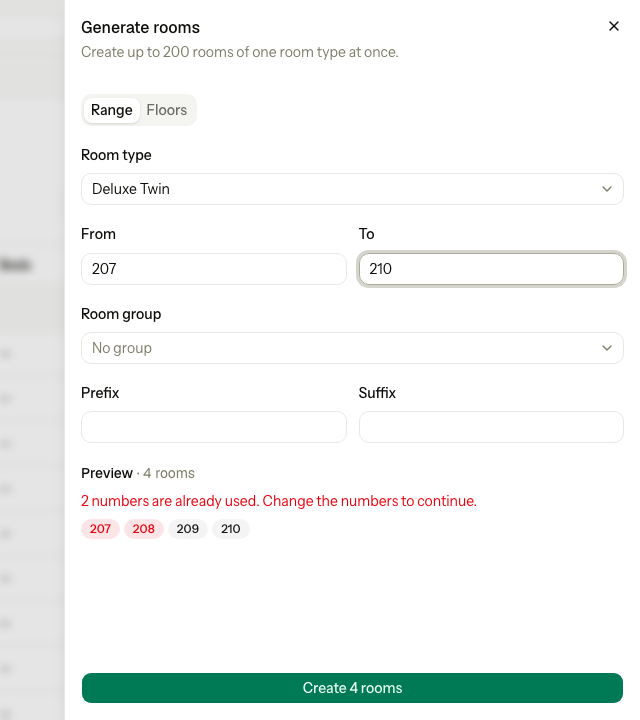
The preview shows used numbers in red, and the button stays off. Nothing is saved until every number is free.
Change a room
- Select Edit on the room.
- Change the Room number, the Room type or the Room group.
- Select Save changes.
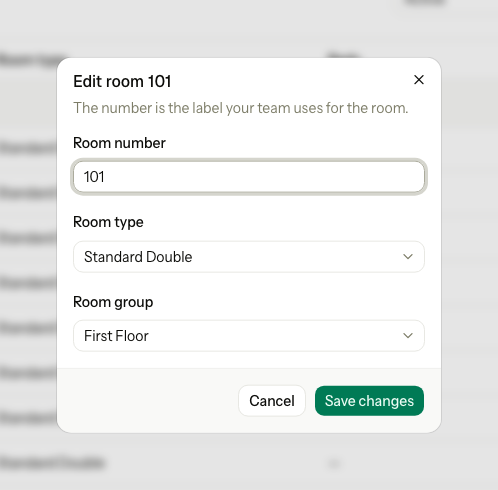
A new room number shows everywhere at once, also on old bookings.
Change the room type
You can move a room to another room type, with these rules:
- The new room type must be active.
- A room with beds can move only to a room type sold by bed.
- A room cannot change type while it, or one of its beds, has a stay on or after today. Move the stay first. See Change a stay.
You can also move rooms into a room type from its Rooms tab. Select Add rooms, pick the rooms, then select Save rooms. Nothing moves until you save. The same rules apply.
Change many rooms at once
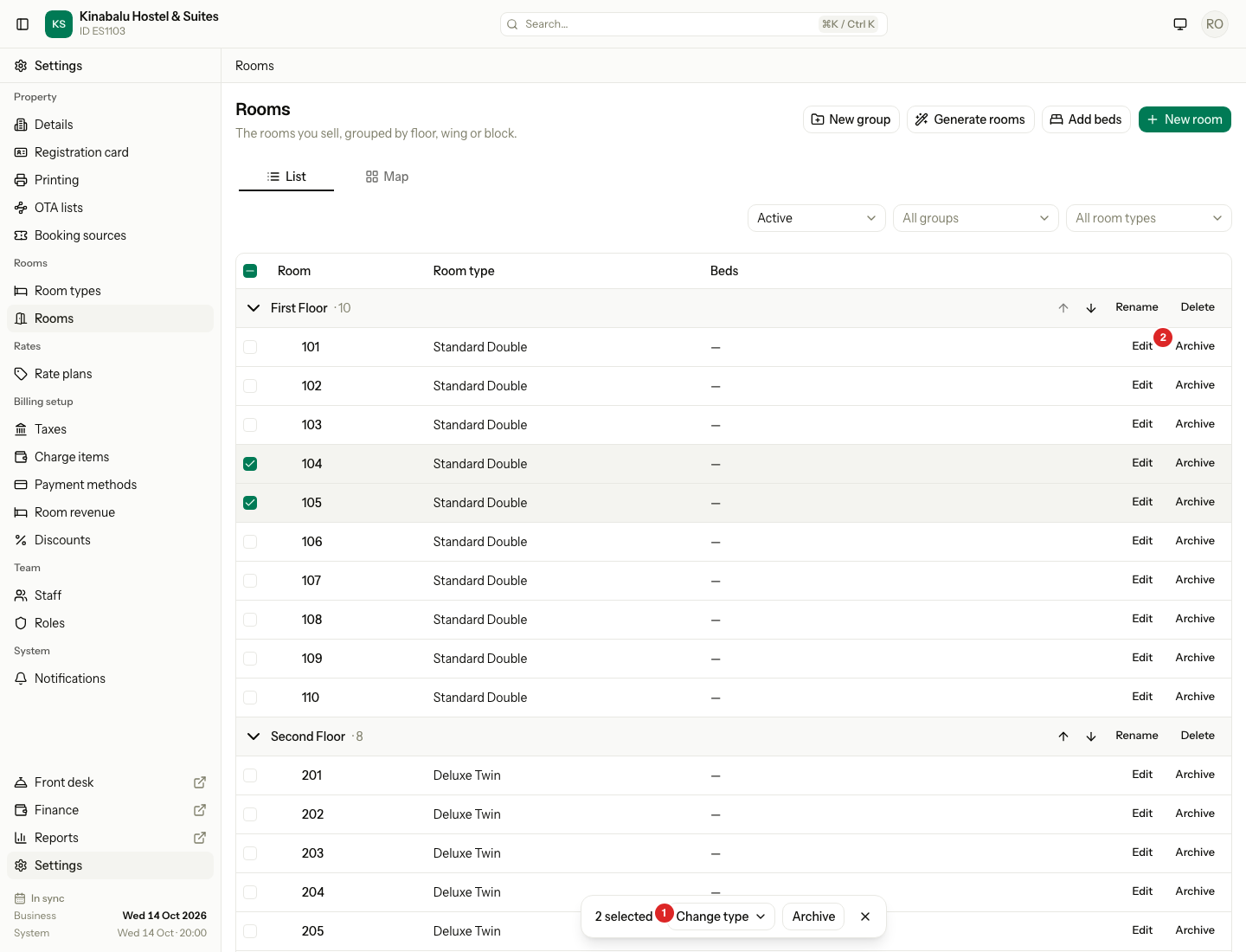
Tick rooms in the List tab to change their type or archive them together.
-
Tick the box on each room. The box in the header ticks every room you can see. Rooms in a closed group, or hidden by a filter, are not ticked.
-
A bar shows at the bottom with the number of rooms ticked.
-
Choose what to do:
- To change the type, select Change type, then choose the room type.
- To archive the rooms, select Archive, then confirm.
| # | What | What it does |
|---|---|---|
| 1 | Change type | Moves every ticked room to the room type you choose. |
| 2 | Archive | Archives every ticked room, after a question such as "Archive 2 rooms?". |
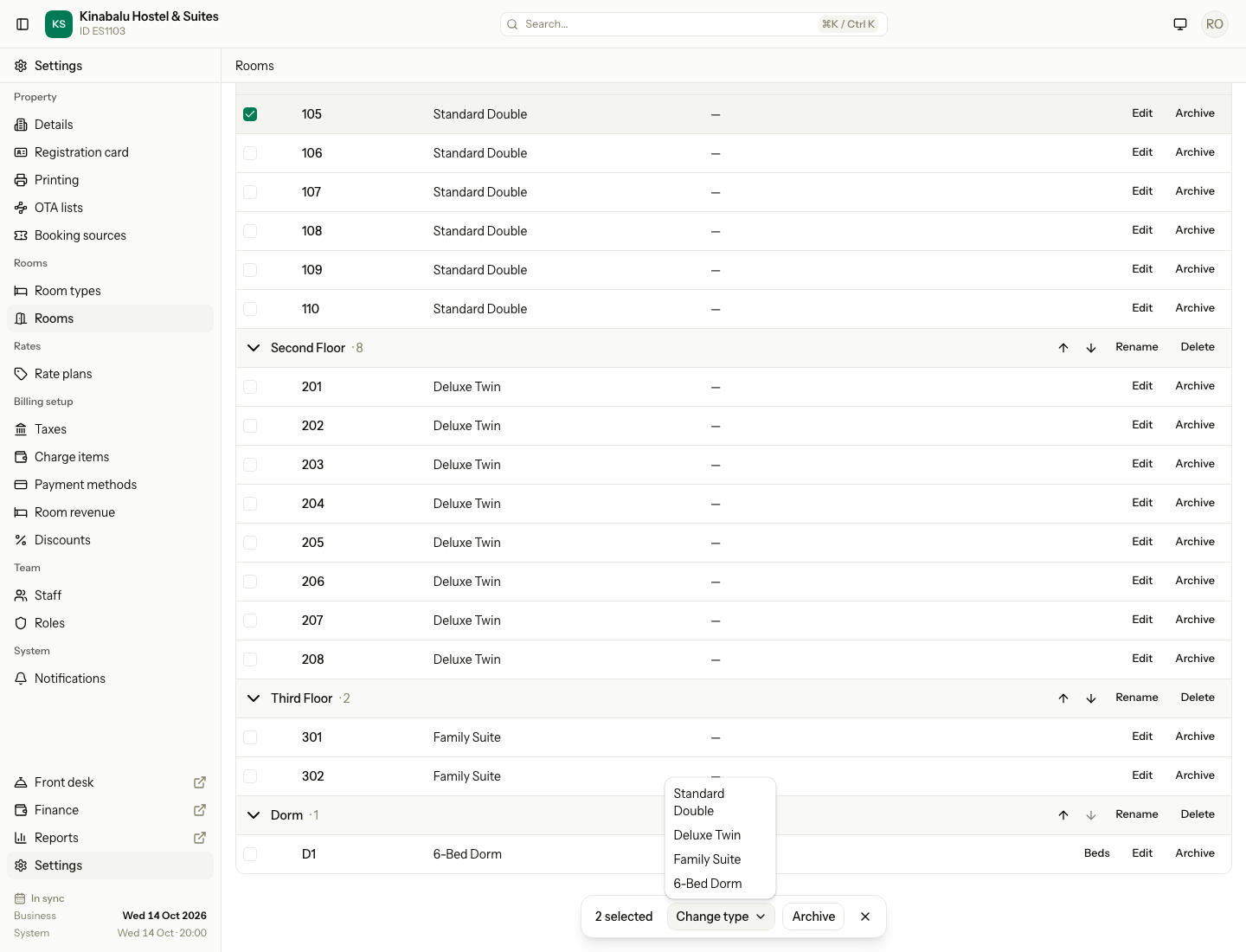
Estatell checks each room on its own, with the rules in Change the room type. It saves the rooms that pass. A message lists the rooms it refused, for example "2 rooms changed. 301 has beds. 305 has stays assigned from 20 Oct." It lists up to 3 rooms, then "and 2 more." A room that already has the type is skipped. You can change up to 200 rooms at a time. Select × on the bar to clear the ticks.
Paint room types on the Map
The Map tab shows each group with its rooms in order. Each room shows its number and the short label of its type, in the colour of its type. The colours are the same as in the setup wizard.
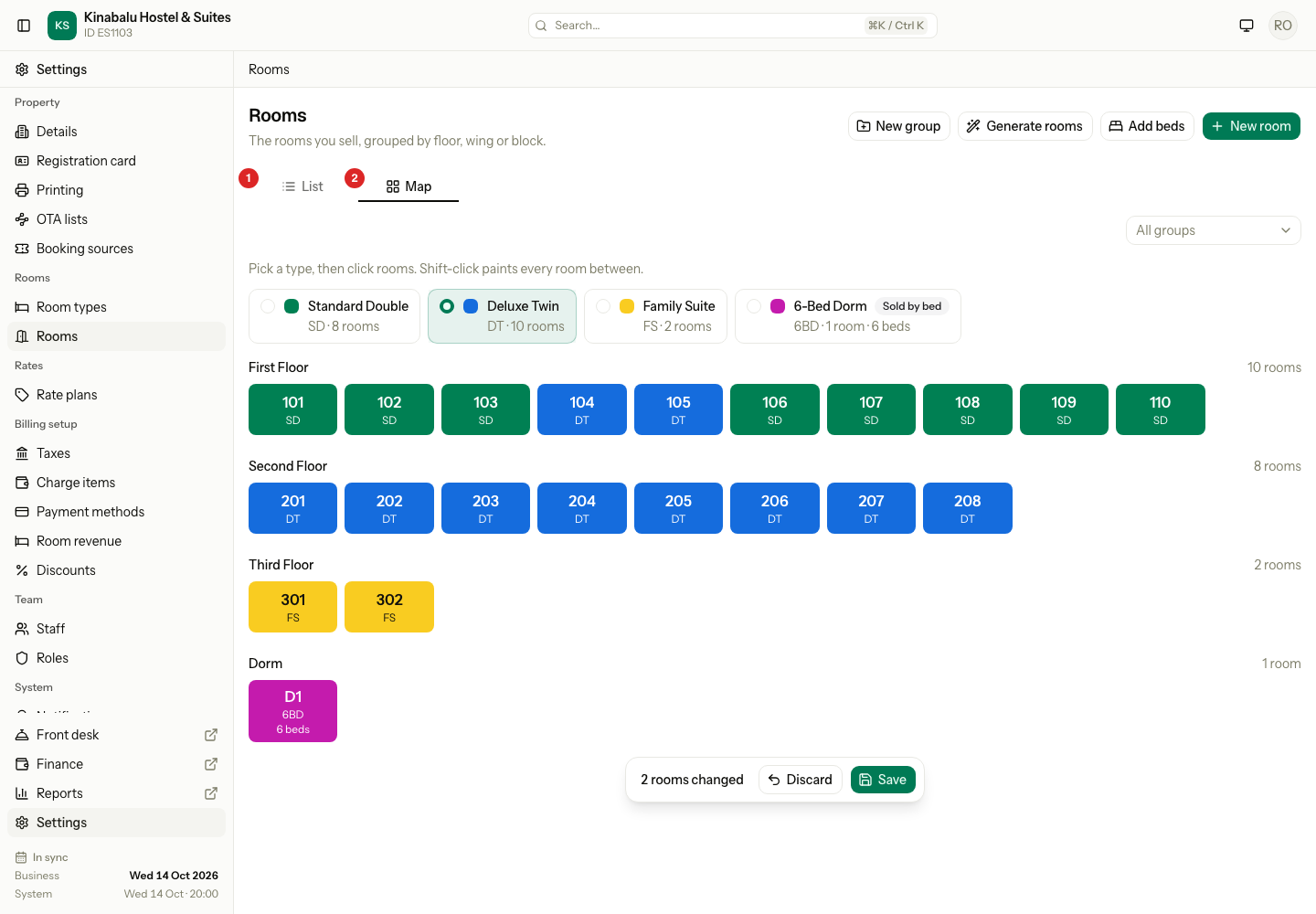
- Select Map.
- Select the tile of a room type.
- Click a room to paint it with that type. To paint a run, click the first room, then hold Shift and click the last room. The run stays inside one group.
- Check the bar at the bottom. It shows how many rooms you changed, for example "2 rooms changed".
- Select Save. To drop the changes, select Discard.
Nothing is saved until you select Save. If you leave the page or open the List tab first, Estatell asks you about the unsaved changes. Esc does not drop the changes here: only Discard does.
The same rules apply as in Change the room type. A room Estatell refuses stays painted, and the message lists it. Fix it, or select Discard.
| Situation | What happens |
|---|---|
| You paint a room back to its saved type | The change is dropped for that room. |
| You do not have the permission to manage rooms | The Map shows the rooms and the room types, but you cannot paint. |
| A room has a room type that is archived | Its tile is grey. |
| You want archived rooms | The Map shows active rooms only. Use the List tab. |
| You filter the Map | Only the group filter is on the Map. The type and status filters are in the List tab. |
Room groups
- Select New group.
- Enter the Name, for example "Garden block".
- Select Create group.
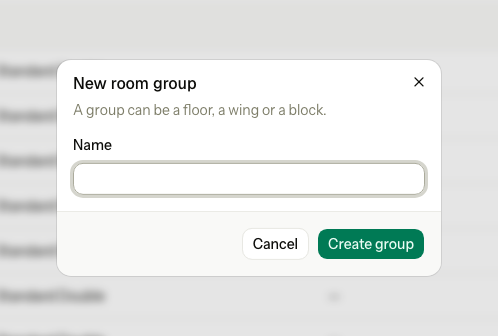
To put rooms in the group, edit each room, or choose the group on the Rooms tab of a room type.
| You want to | How |
|---|---|
| Rename a group | Select Rename on the group row. |
| Change the order of the groups | Use the up and down arrows on the group row. |
| Delete a group | Select Delete, then confirm. Only a group with no active rooms can be deleted. |
Archive and restore a room
Archive a room you no longer sell. It leaves the active list and cannot be used for new work. Old bookings keep it.
- Select Archive on the room.
- Select Archive in the question.
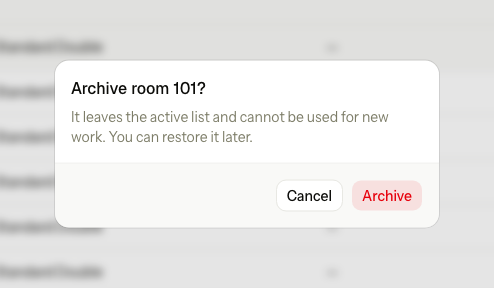
Archiving a room also ends its current and future room blocks. To bring the room back, set the status filter to Archived and select Restore. An archived room frees its number, so you can use that number again.
Special cases
| Situation | What happens | What to do |
|---|---|---|
| The room number is used | "Another active room already uses this number." Capital letters do not count. | Choose another number. An archived room does not count. |
| The generator range has a number in use | The preview marks it red. Estatell creates nothing. After a refused save: "No rooms created. These numbers are already used: 207, 208." | Change the numbers. |
| From or To has letters | "Use digits only." | Put the letters in Prefix or Suffix. |
| To is lower than From | "The last number must not be lower than the first." | Swap the numbers. |
| The last floor is lower than the first | "The last floor must not be lower than the first." | Swap the floors. |
| The run makes more than 200 rooms | "Create at most 200 rooms at a time." | Make two runs. |
| You change the room type of a room with a stay | "305 has stays assigned from 20 Oct. Move them first." With Change type or the Map, the message stops after the date. | Move the stay to another room. Then change the type. |
| You move a room with beds to a type sold by room | "305 has beds. Choose a room type that sells beds." With Change type or the Map, the message says "305 has beds." | Pick a room type sold by bed. |
| You try to remove a room from a room type's Rooms tab | There is no remove button. A room always has a type. | Add the room on the other room type's Rooms tab. |
| You delete a group that still has rooms | "Second Floor still has rooms. Move or archive them first." | Move or archive the rooms. |
| You delete an empty group that has archived rooms | The group goes. The archived rooms become ungrouped. | Nothing. |
| A group name is used | "Another room group already uses this name." | Choose another name. |
| You restore a room and its number is now used | "Room 201 cannot be restored. Another room uses the same number." | Rename the other room, then restore. |
| You tick a room that someone archived after you opened the page | The message says "301 is already archived." | Nothing. |
| You have no room types | The screen says Add a room type first. | Add a room type. |
| You edit a room that has an archived room type | You can save it with the same type. A new room needs an active type. | Nothing. |