
Beds
Set up dorms, add beds by count or one at a time, rename them and archive them.
A dorm sells beds, not the room. Each bed has a label, such as A1, and guests book it on its own. Beds exist only in rooms whose room type is Sold by Bed.
For how a guest books a bed, see Dorm beds.
Before you start
- Permission: Manage rooms and room types. Owners and managers have it by default.
- A room type with Sold by set to Bed.
- A room of that type. Rooms generated by the number generator have no beds yet.
How bed labels work
Estatell gives each dorm room one letter, by its place in the list of dorm rooms. The first dorm room is A, the next B, and so on. After Z it goes on with AA and AB. The beds in room A are A1, A2, A3.
| Dorm room | Letter | First four beds |
|---|---|---|
| The first dorm room | A | A1, A2, A3, A4 |
| The second dorm room | B | B1, B2, B3, B4 |
| A room where you enter the prefix "Bunk" | Bunk | Bunk1, Bunk2, Bunk3, Bunk4 |
When you add more beds, the numbers carry on after the highest one. If a room has A1 to A4, adding two beds makes A5 and A6. Beds you renamed, such as "Top bunk", are ignored when Estatell counts.
Add beds to one room
-
Open Settings → Rooms.
-
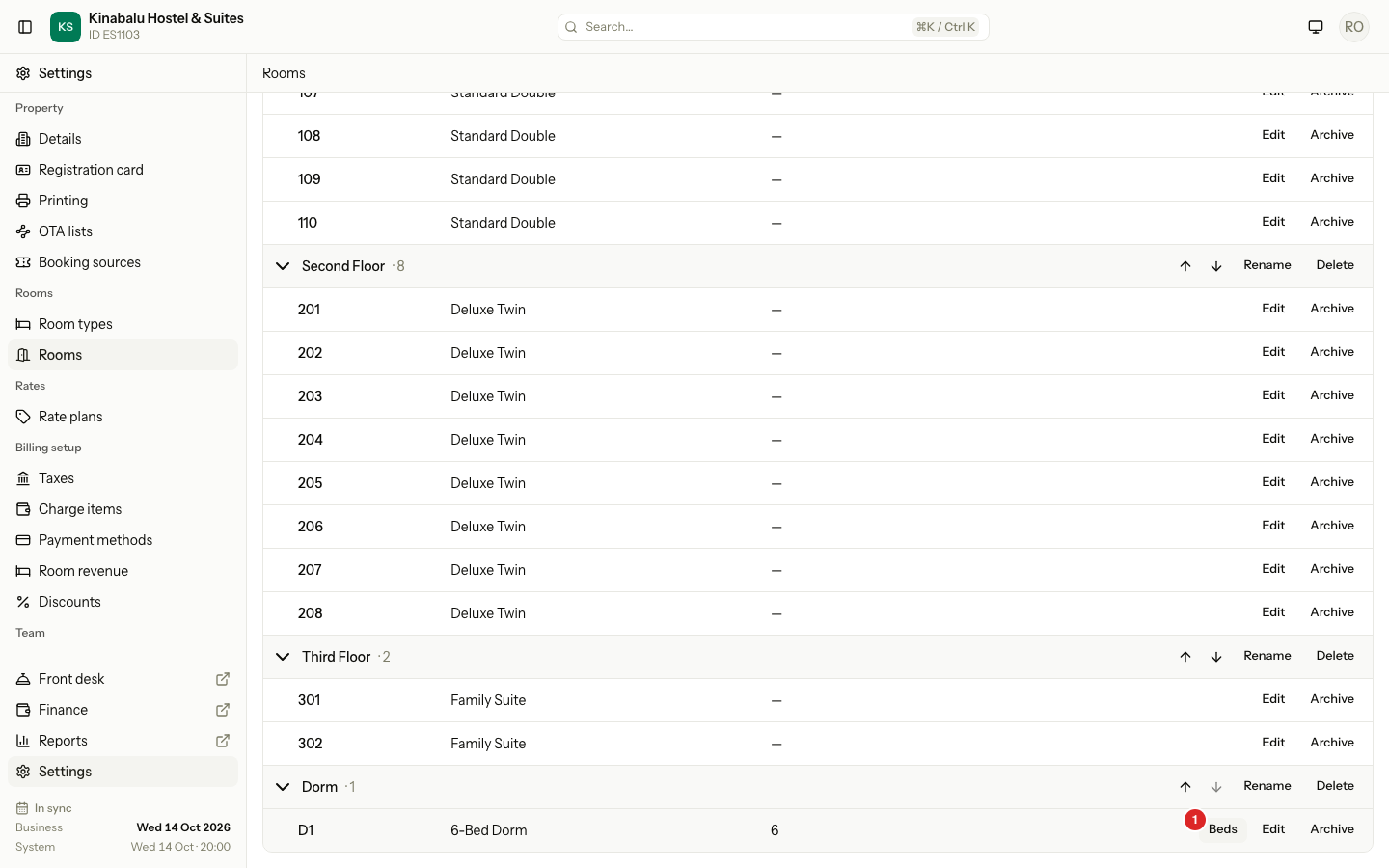
On the dorm room, select Beds.
-
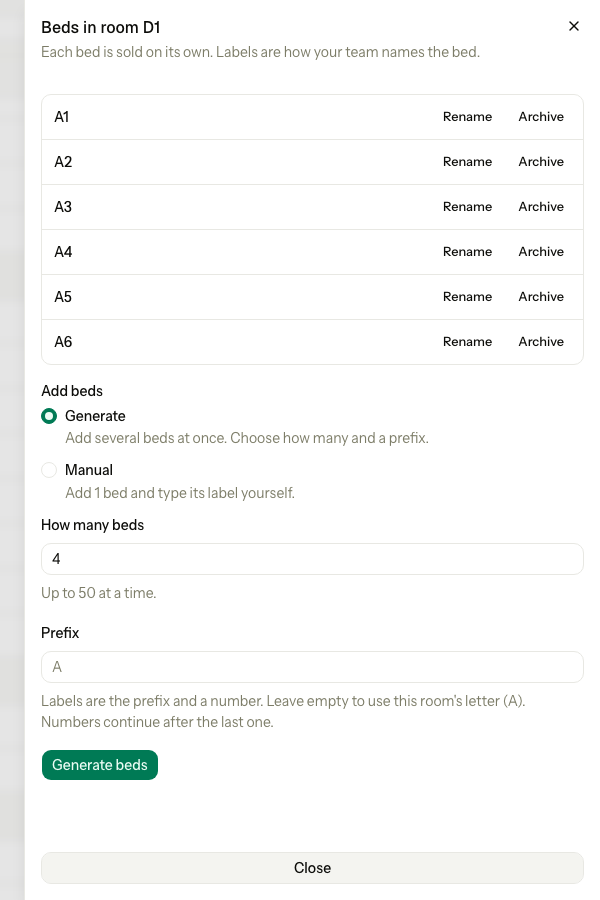
Under Add beds, choose how:
- For many beds, stay on Generate. Enter How many beds (up to 50). Leave Prefix empty to use the room letter, or enter your own. Select Generate beds.
- For one bed with your own label, choose Manual. Enter the Label, for example "Top bunk". Select Add bed.
-
Select Close.
The Beds column on the Rooms screen shows how many active beds each dorm room has.
Add beds to every dorm room at once
Use this when you have just made several dorm rooms.
-
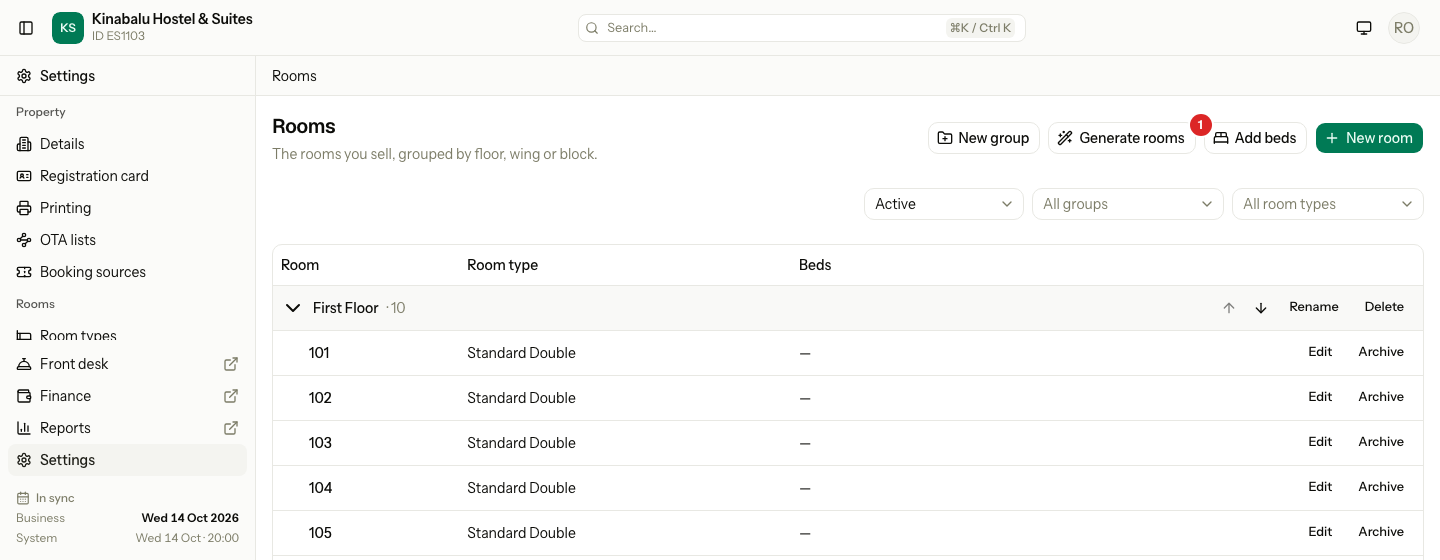
On Settings → Rooms, select Add beds. It shows only when you have a dorm room.
-
Enter Beds per room.
-
Select Add beds.
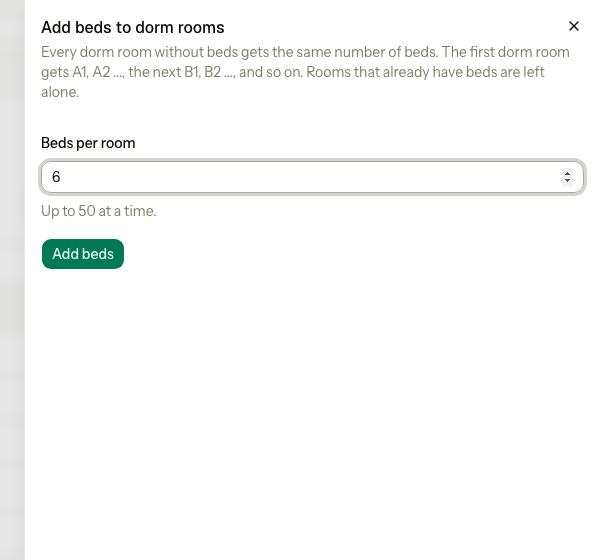
Every dorm room without beds gets the same number of beds. Rooms that already have beds are left alone.
Rename, archive and restore a bed
In the Beds sheet:
| You want to | How |
|---|---|
| Rename a bed | Select Rename, change the label, select Save. |
| Archive a bed | Select Archive. The bed leaves the list and cannot be booked. Old bookings keep it. |
| Restore a bed | Open the archived beds list in the sheet and select Restore. |
A bed label can have up to 30 characters.
Special cases
| Situation | What happens | What to do |
|---|---|---|
| The label is used in the same room | "Another active bed in this room already uses this label." | Choose another label. Two rooms can use the same label. An archived bed frees its label. |
| You add beds to a room of a type sold by room | "Room 101 cannot have beds. It is archived or its room type sells rooms." | Use a room type sold by bed. |
| You add beds and every dorm room already has beds | "No beds added. Every dorm room already has beds." | Open the room and add beds there. |
| You restore a bed and its label is now used | "Bed A3 cannot be restored. Another bed in the room uses the same label." | Rename the other bed, then restore. |
| You change a bed that is archived | "Bed A3 is archived. Restore it before editing." | Restore it first. |
| You archive a dorm room that has beds | The beds stay as they are, and the room's blocks end. | Nothing. |
| You archive an earlier dorm room | The letters of later dorm rooms shift in future runs. Beds that exist keep their labels. | Use your own Prefix if you want fixed letters. |
| You move a room with beds to a type sold by room | Estatell refuses. | Keep it in a room type sold by bed. |
| A bed needs repair | The bed can be blocked on its own. | Use a room block for that bed. |