
Profile and business licence
Set your property's name, logo, address, contact details, registered business name and licences.
The Profile tab holds the name, logo, address and contact details your guests see on receipts, invoices and reports. The Business licence tab holds the legal details.
Before you start
- Permission: Manage property settings. Owners and managers have it by default.
- Have your logo ready as a PNG or JPEG file of 1 MB or less.
- For the Business licence tab, have your registration number, tax number and licence numbers at hand.
Set the profile
- Open Settings, then Details. The Profile tab opens first.
- To add a logo, select Upload logo and choose the file. The logo saves at once. To change it, select Replace. To delete it, select Remove, then Remove logo.
- Enter the Property name.
- Enter Address line 1. Add Address line 2 (optional), Postcode (optional) and State (optional) if you need them. Enter the City.
- Enter the Phone (optional) and Email (optional).
- Select Save profile.
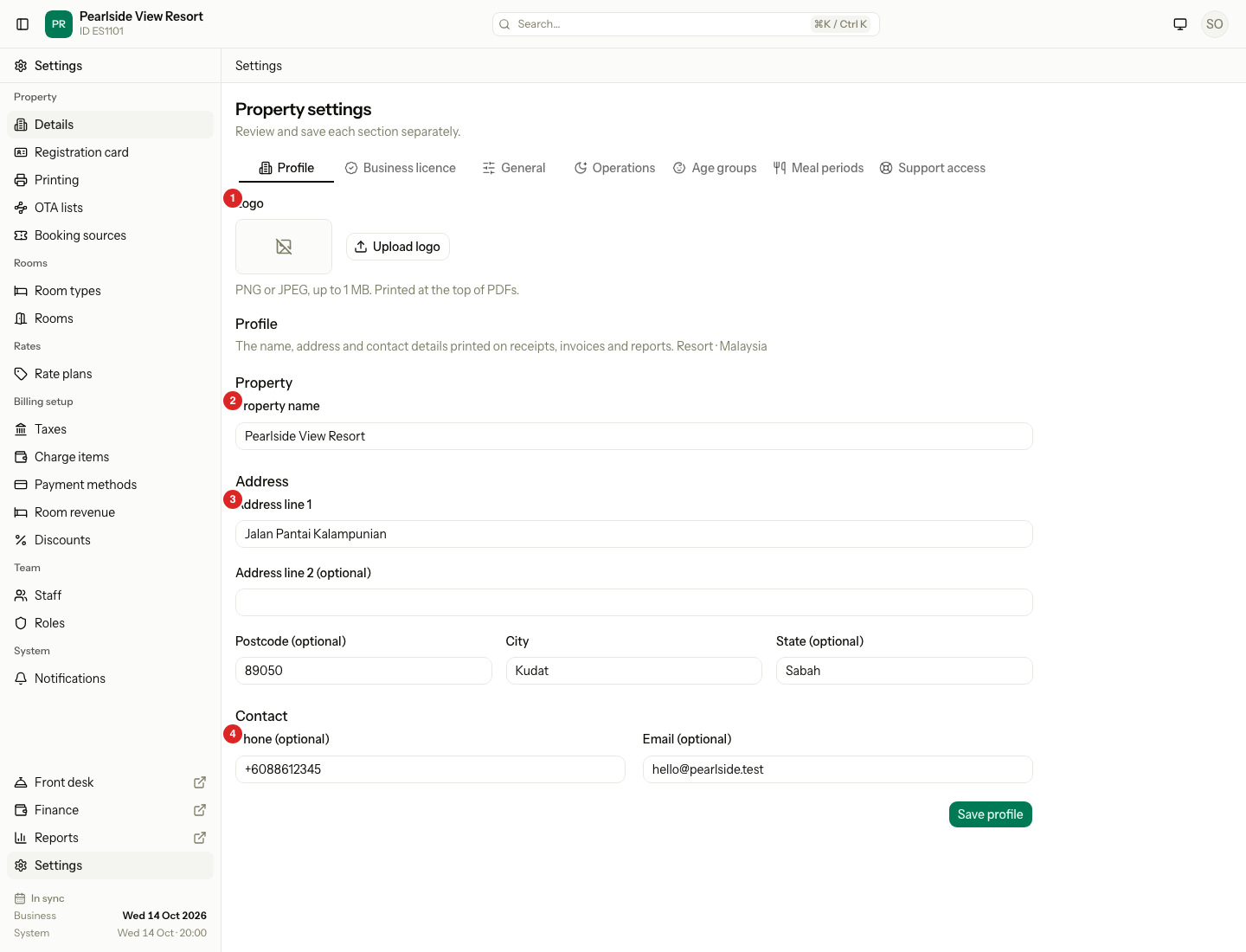
Under the title, Estatell shows your property type and country, for example "Resort · Malaysia". You cannot change them here.
| Field | Needed? | Notes |
|---|---|---|
| Property name | Yes | Up to 255 characters. Your document numbers do not change when you rename the property. |
| Address line 1 | Yes | Up to 255 characters. |
| City | Yes | Up to 255 characters. |
| Address line 2, Postcode, State | No | Up to 255 characters each. State is free text on this tab. |
| Phone | No | Up to 50 characters. |
| No | Must be a valid email address. |
Set the business licence
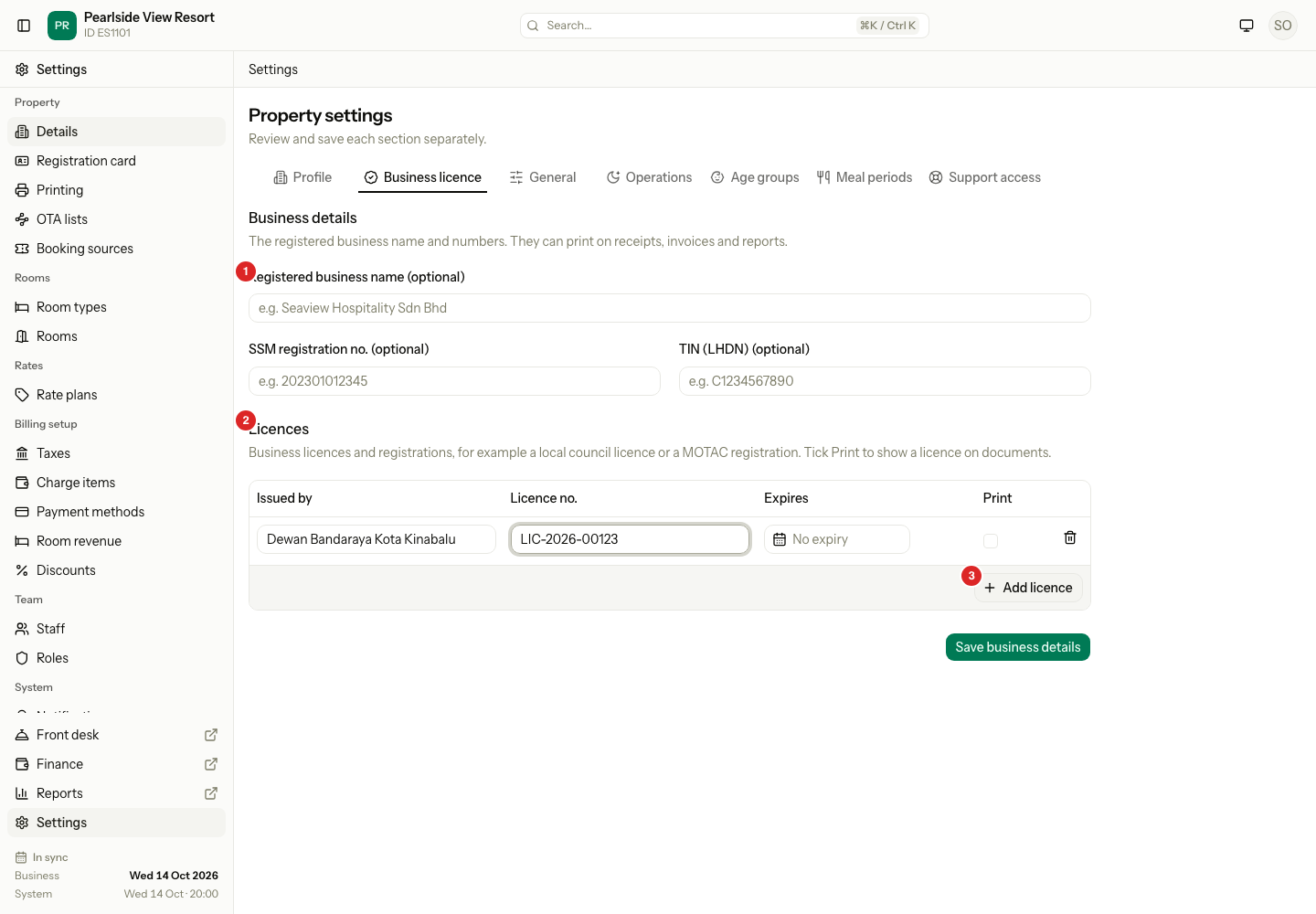
- Open the Business licence tab.
- Enter the Registered business name (optional) if it is different from your trading name, for example "Seaview Hospitality Sdn Bhd".
- Enter your registration number and tax number. In Malaysia the fields are SSM registration no. (optional) and TIN (LHDN) (optional). In other countries they are Business registration no. (optional) and Tax ID (TIN) (optional).
- To add a licence, select Add licence. Enter who issued it under Issued by and the number under Licence no. Pick an Expires date if it has one.
- Tick Print on a licence to show it on your documents.
- To delete a licence, select the bin button at the end of its row.
- Select Save business details.
| Licence field | Needed? | Notes |
|---|---|---|
| Issued by | Yes | Up to 150 characters. For example, your local council. |
| Licence no. | Yes | Up to 50 characters. |
| Expires | No | Leave it empty for a licence that does not expire. |
| No | Ticked licences show on printed documents. |
You can keep up to 20 licences.
What happens
- The name, address and contact details print on your documents. See Printing.
- A save that changes nothing is not recorded.
- Removing a licence from the list and saving deletes it.
Special cases
| Situation | What happens | What to do |
|---|---|---|
| Save profile is grey | You have not changed anything. | Change a field first. |
| A required field is empty | Estatell shows the error under the field and saves nothing. | Fill the field and save again. |
| The logo is bigger than 1 MB, or is an SVG | The upload is refused. SVG files print badly in PDFs. | Use a PNG or JPEG of 1 MB or less. |
| The logo fails to load | The top bar shows your property's initials. | Upload the logo again. |
| You add a 21st licence | Add licence is grey. | Delete a licence you no longer need. |
| A licence has no issuer or number | Estatell shows an error on that row and saves nothing. | Fill both fields, or delete the row. |
| You leave a tab with unsaved changes | Estatell asks you to Cancel, Discard or Save. | Choose what to do with the changes. |
| Documents show "Not set" | The profile field is empty. | Fill the field on this tab. |
| You need a different property type or country | They are locked here. | Change the country on the Basics step of setup, before go-live. |