
Basic rate
Set the price of each room type for weekdays and weekends, by room or by guest.
Basic rate is the first Prices section. It is required. It sets what each room type costs for one night. You can open it when Room types and Taxes are done.
Before you start
- Add your room types in Rooms.
- Set your taxes in Taxes. Basic rate shows what the guest pays with those taxes.
The table has one row for each room type that you sell by room. You cannot add or remove a row here.
The screen
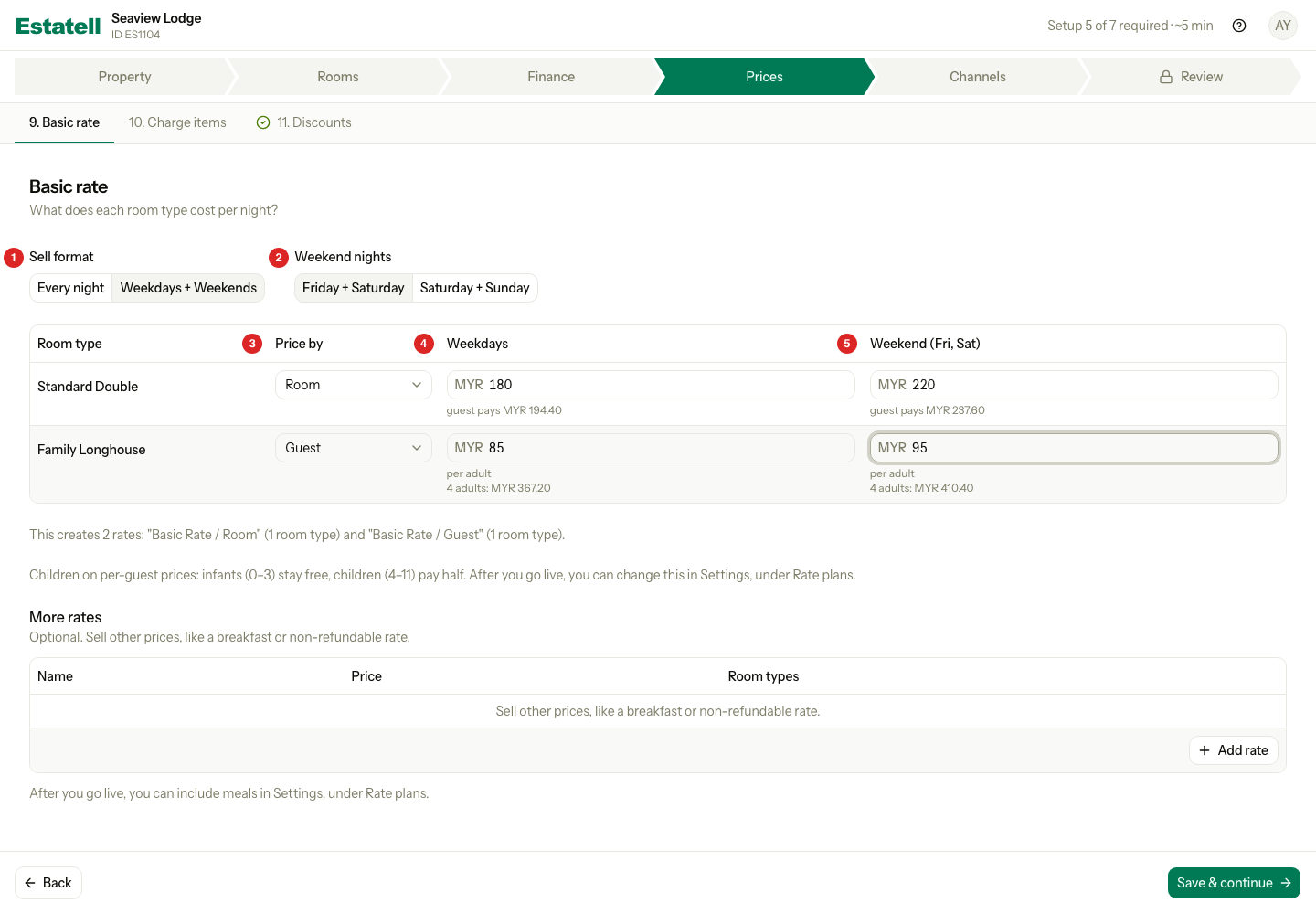
| Number | Part | What it does |
|---|---|---|
| 1 | Sell format | Every night or Weekdays + Weekends. |
| 2 | Weekend nights | Friday + Saturday or Saturday + Sunday. It shows only with Weekdays + Weekends. |
| 3 | Price by | Room or Guest, for each room type. |
| 4 | Weekdays | The price for a weekday night. With Every night, this column is named Every night. |
| 5 | Weekend | The price for a weekend night. The title shows your weekend nights, for example "Weekend (Fri, Sat)". |
Step 1: Choose how you sell
-
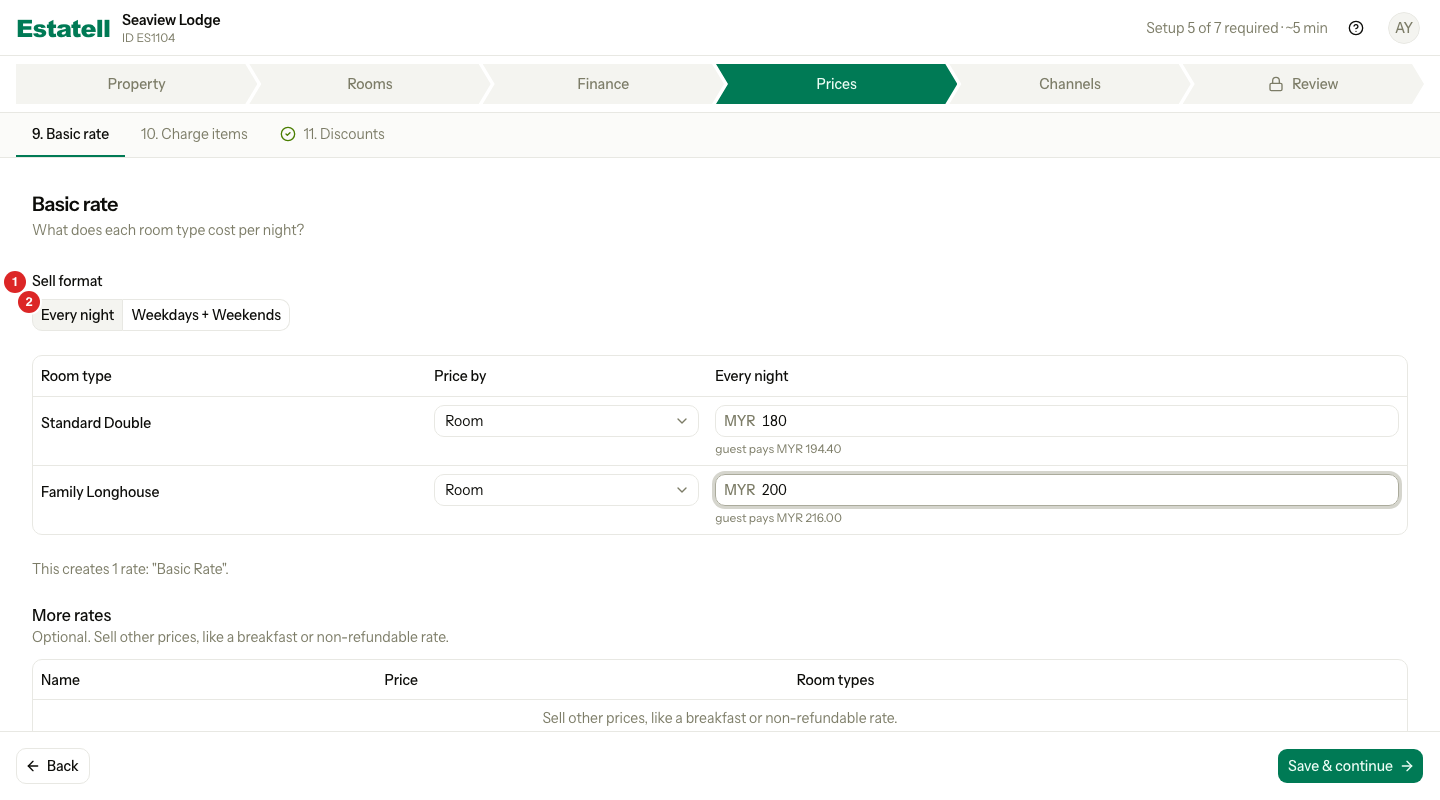
Under Sell format, choose Every night if one price is the same all week. The table then has one price column.
-
Choose Weekdays + Weekends if your weekend nights cost more. A Weekend column appears.
-
Under Weekend nights, choose Friday + Saturday or Saturday + Sunday.
If you choose Weekdays + Weekends after you typed prices, each empty weekend price copies the weekday price. Change it as you need.
Step 2: Price each room type
- In the Price by column, choose Room or Guest for the first room type. See Price by room or by guest.
- Enter the price in the Weekdays column. With Weekdays + Weekends, also enter the Weekend price.
- Read the line under the price. It shows what the guest pays, with tax.
- Do the same for each other room type.
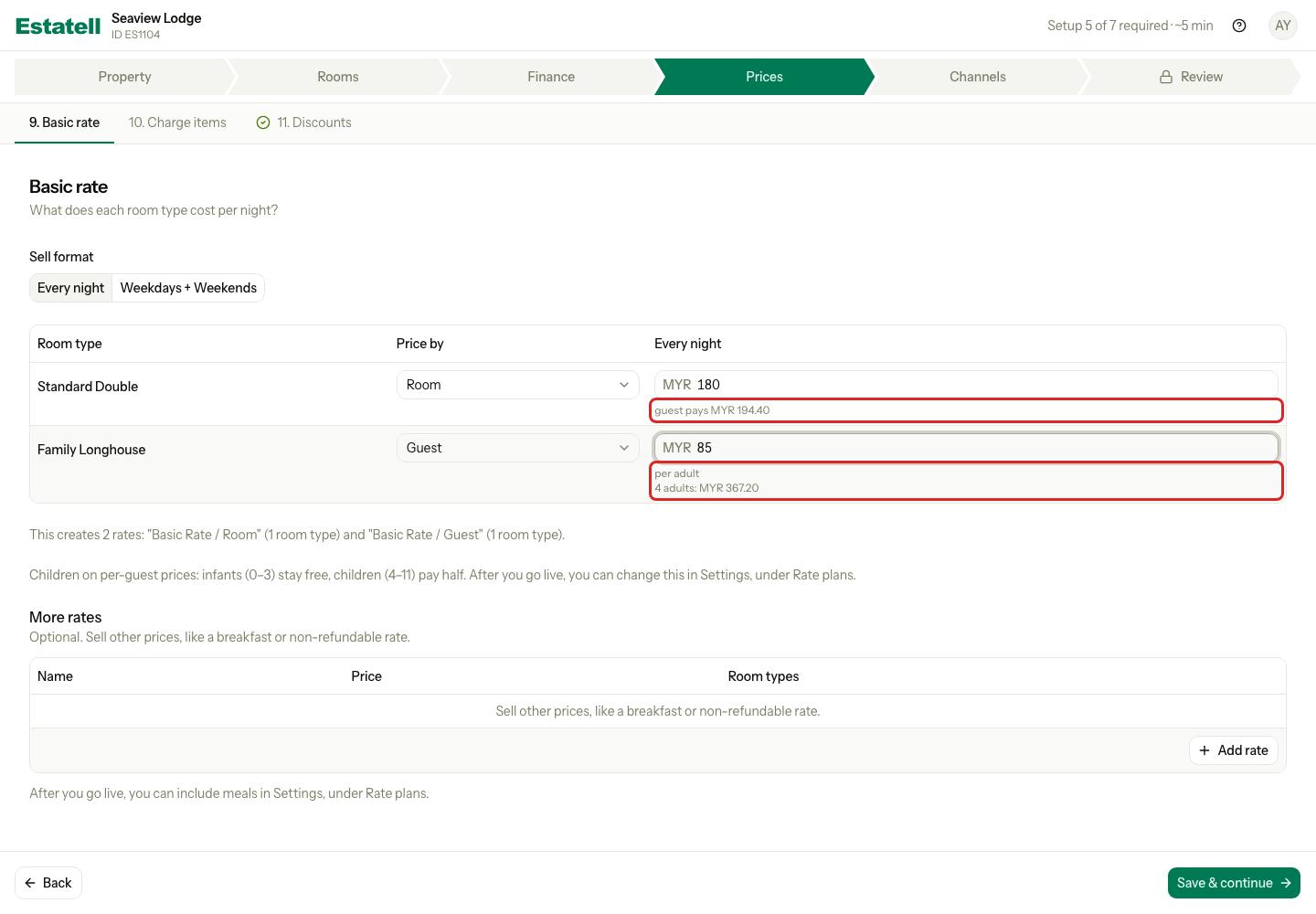
Every price must be more than 0, with the decimals of your currency. The line under a price is for a local guest. Estatell works it out on the server. The line stays empty while a price is blank or half typed.
Price by room or by guest
| Room | Guest | |
|---|---|---|
| The price you enter | The price of the room for one night | The price of one adult for one night |
| What the guest pays | The price you enter | The price you enter times the number of adults |
| Good for | Rooms that cost the same for 1 guest or 4 | Rooms where each guest pays |
Example, with Service Tax (SST) at 8%, and a room that holds 4 adults:
| Room type | Price by | You enter | Guest pays |
|---|---|---|---|
| Standard Double | Room | MYR 180 | MYR 194.40 |
| Family Longhouse | Guest | MYR 85 | 4 adults: MYR 367.20 |
The Family Longhouse total is MYR 85 × 4 adults = MYR 340, plus 8% tax.
If one row is priced by guest, a note says: "Children on per-guest prices: infants (0–3) stay free, children (4–11) pay half." You can change this in Settings, under Rate plans, after you go live.
Change Price by on a row that has prices
If a row already has saved prices, Estatell asks before it changes Price by. The change clears the prices of that row.
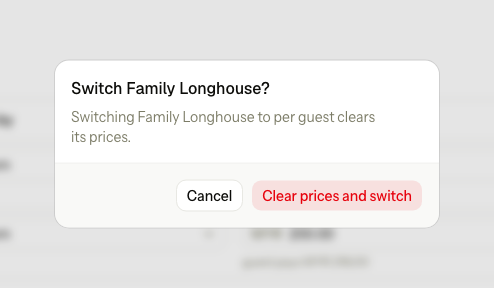
Select Clear prices and switch to go on, or Cancel to keep the prices. Then enter the new prices.
What Estatell creates
Estatell saves one rate for each way of pricing. A line under the table says which rates it will create before you save.
| You use | Estatell creates |
|---|---|
| Room only | "Basic Rate" |
| Guest only | "Basic Rate" |
| Room and Guest | "Basic Rate / Room" and "Basic Rate / Guest" |
Step 3: Save
- Select Save & continue.
- Estatell saves your prices for the next 364 days and opens Charge items.
If you save again, Estatell replaces the prices in that range. This is safe before you go live.
More rates
More rates is optional. Use it to sell another price, like a breakfast rate or a non-refundable rate. The table stays locked until you fill in the Basic rate prices. The footer says "Fill in the Basic rate prices first."
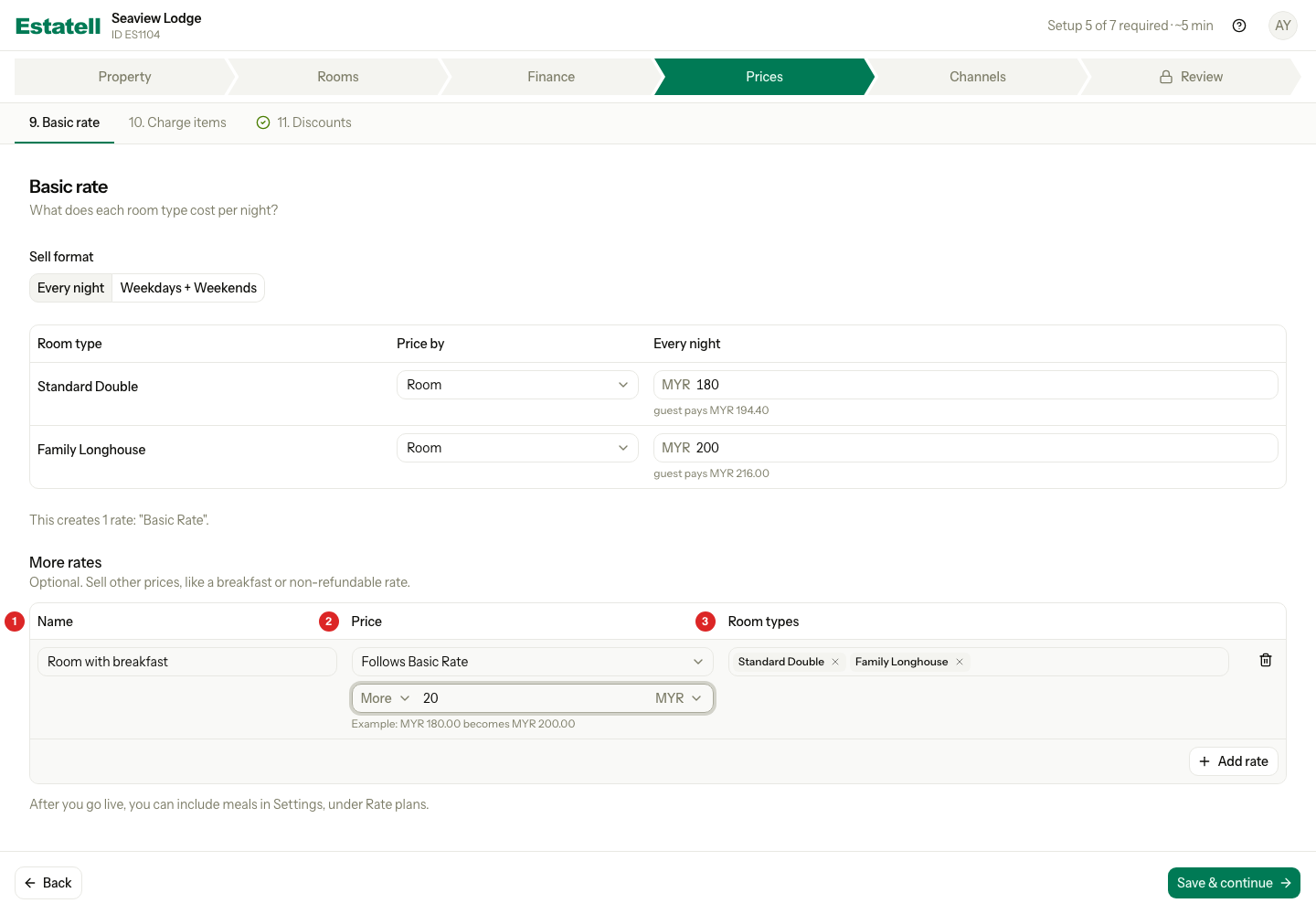
| Number | Part | What to enter |
|---|---|---|
| 1 | Name | The name of the rate, for example "Room with breakfast". |
| 2 | Price | Follows Basic Rate, or Own prices. See the two ways below. |
| 3 | Room types | The room types that sell this rate. All are selected at the start. Pick at least one. |
Way 1: Follows Basic Rate
Use this when the new rate is the Basic rate plus or minus a set amount.
- Select Add rate.
- Enter a Name.
- In Price, keep Follows Basic Rate. With both Room and Guest rows, choose the one to follow: "Follows Basic Rate / Room" or "Follows Basic Rate / Guest".
- Choose More or Less.
- Enter the amount, and choose MYR or %.
- Check the example under the fields. It shows the result for the first room type.
- In Room types, remove the room types that do not sell this rate.
An amount for a guest rate is per adult.
Way 2: Own prices
Use this when the new rate has its own prices, not a set step from the Basic rate.
- Select Add rate.
- Enter a Name.
- In Price, choose Own prices. A price grid opens, with one line for each room type.
- For each line, choose Price by and enter the prices, in the same way as in the Basic rate table.
- In Room types, remove the room types that do not sell this rate.
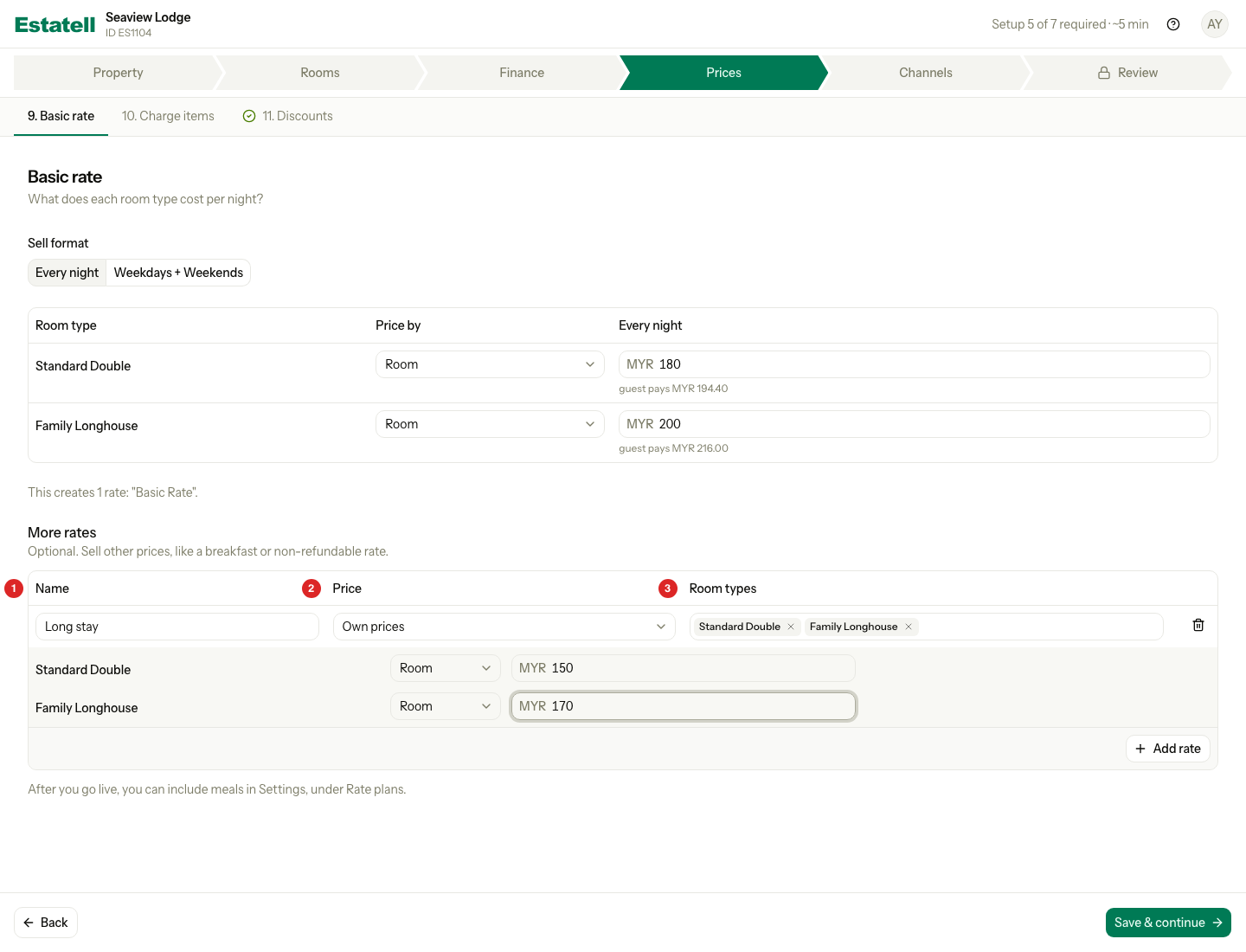
If an Own prices rate uses both Room and Guest, Estatell makes two rates from it. For example "Long stay / Room" and "Long stay / Guest". The page shows them as one row.
The name of a rate does not add breakfast to the bill. To include meals, use Settings, under Rate plans, after you go live.
When is Basic rate done?
Basic rate is done when every room type that you sell by room has prices for the next 30 days. More rates never stops you from going live.
Special cases
| Situation | What happens | What to do |
|---|---|---|
| A room type is sold by bed | It is not in the table. | Set its price in Settings, under Rate plans, after you go live. |
| Every room type is sold by bed | The page says there is nothing to price here, and Basic rate is done. The button reads Continue. | Select Continue. Price the beds in Settings, under Rate plans, after you go live. |
| You change Price by on a row that has saved prices | Estatell asks first, and then clears the prices of that row. | Enter the new prices. |
| You change Own prices to Follows Basic Rate | Estatell asks first, and then clears the own prices. | Enter the amount to add or take off. |
| A rate name is "Basic Rate", is used twice, or is used by another rate | Estatell shows an error. | Use another name. |
| You choose Less with % at 100 or more | Estatell shows an error. | Enter a percent below 100. |
| You clear every room type of a rate | Estatell shows "Pick at least one room type". | Pick at least one. |
| You remove a room type from a rate, then add it back | The room type keeps its earlier amounts. | Check them. |
| You add a room type after this section is done | It joins the first rate that fits it. | Check its price in Settings, under Rate plans. |
| You use a phone | Each row becomes a card. | Scroll down to see each field. |
What you do later in Settings
After you go live, you can set prices for each number of adults, a charge for a single guest, child prices, long-stay rates and company rates. See Rate plans in Settings.