
Daily report
See the day's revenue and cash in four tabs, from the totals down to each charge and each payment.
The Daily report answers two questions for the dates you pick: how much did the property earn, and how much money did the desk take. Each tab goes one step deeper, from four totals to the lines behind them.
Before you start
- Permission: View and export reports (
reports.view). Owners, managers and finance staff have it by default. - Layout also needs Manage property settings. Without it, the button does not show.
- The report reads the folio ledger live, by the date each line was posted. You do not need to wait for the night audit. See Business date.
Steps
- Open Reports, then Daily report under Revenue.
- Pick the dates. Use Quick dates or Custom dates. See Use a report.
- Choose a tab: Overview, Revenue, Charges or Cashier activity.
- To find where a figure comes from, select it. See Open the lines behind a figure.
The report opens on Today, which is the open business date. Your dates and the tab stay in the page address, so you can bookmark it.
Which tab do I use
| I want to know | Tab | Longest range |
|---|---|---|
| The totals for the period, at a glance | Overview | 366 days |
| Revenue for each day or month, split into buckets and taxes | Revenue | 366 days |
| Which charge made a figure, for which guest | Charges | 31 days |
| Who took the money and how | Cashier activity | 366 days |
Overview
Overview shows two rows of four cards. It has no table, no Layout and no Export.
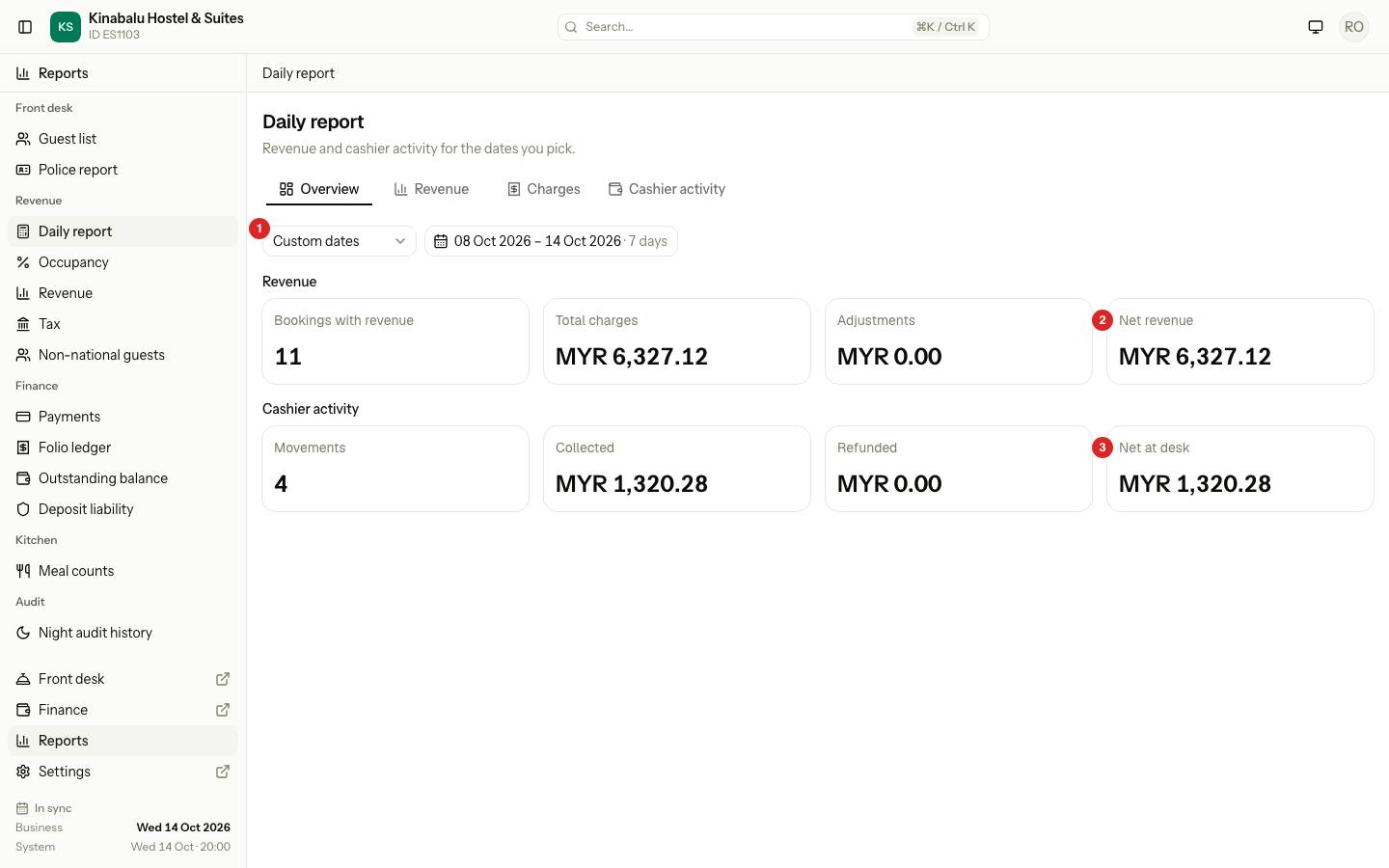
| Row | Card | What it counts |
|---|---|---|
| Revenue | Bookings with revenue | Reservations that have at least one charge or adjustment line in the dates. A reservation counts once, however many nights. |
| Total charges | Every charge in the buckets, plus the taxes. | |
| Adjustments | Discounts and adjustments. They are usually negative. | |
| Net revenue | Total charges and Adjustments together. | |
| Cashier activity | Movements | The number of completed payments and refunds. |
| Collected | Completed payments. | |
| Refunded | Completed refunds. | |
| Net at desk | Collected less Refunded. |
The Revenue row counts what you charged. The Cashier activity row counts the money that moved. They differ: a guest can stay and pay on another day, and a payment is never revenue.
Revenue
Revenue has one row for each day. Select Month to get one row for each month. A month holds only the days inside your dates. The last row is the total.
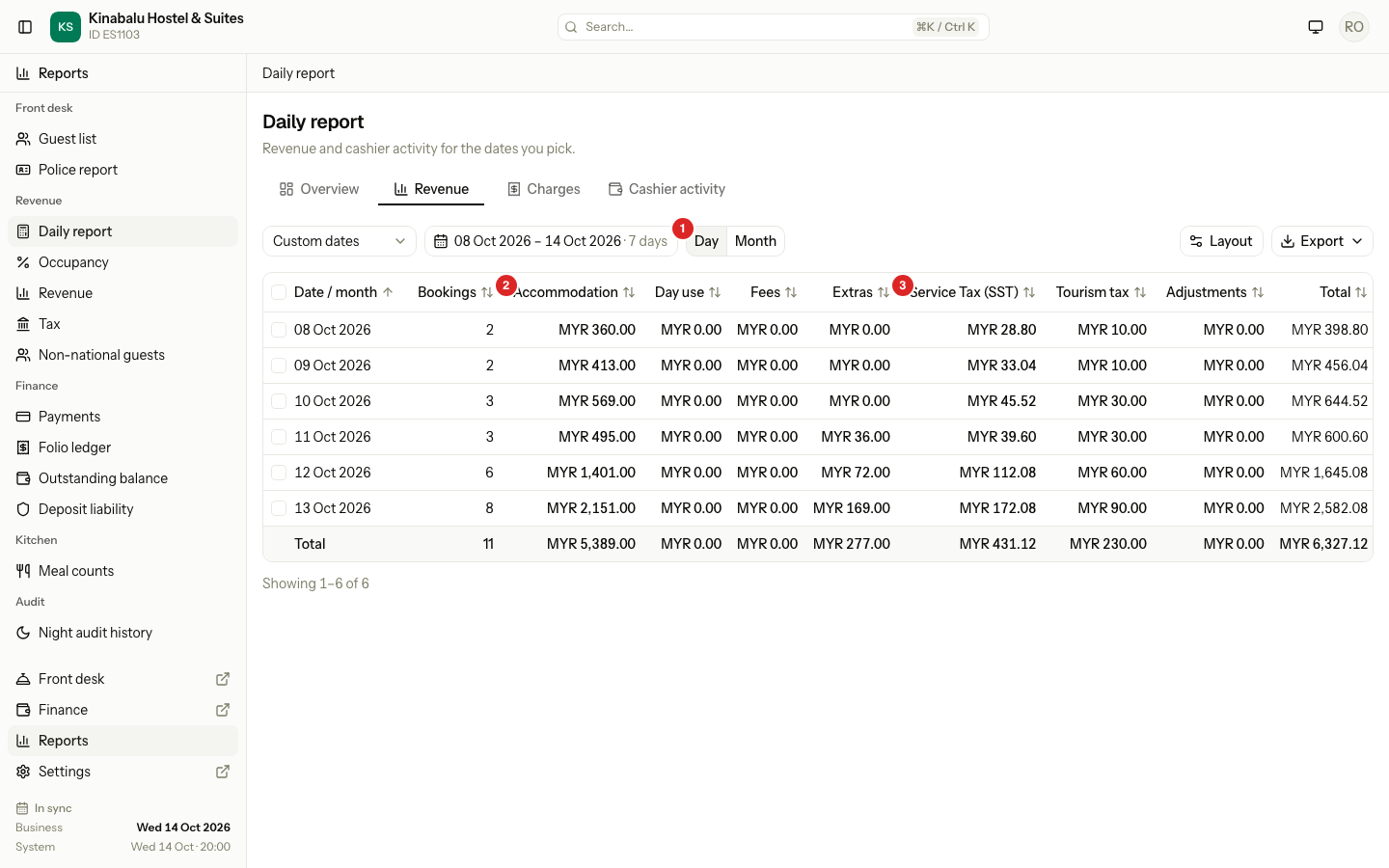
| Column | What it counts |
|---|---|
| Date / month | The day, or the month. |
| Bookings | Reservations with a charge or adjustment on that day. In the total row, a reservation counts once for the whole range, so the total is not the sum of the rows. |
| Accommodation | Room charges at full price, including a no-show fee. It leaves out day use. |
| Day use | Charges of the day use code. |
| Fees | Charges in the Fee category. |
| Extras | Every other charge, for example food, laundry, minibar and transport. |
| One column for each tax | The tax lines of that tax, for example Service Tax (SST) and Tourism tax. A property with no SST has no SST column. |
| Adjustments | Discounts and adjustments. |
| Total | All the columns added up. |
Total is the net figure: taxes are in it, and discounts are taken out. Payments are not revenue and never show here.
Charges
Charges is the charge register: the same money as Revenue, one line at a time. For the same dates, Total and each tax column match the Revenue tab.
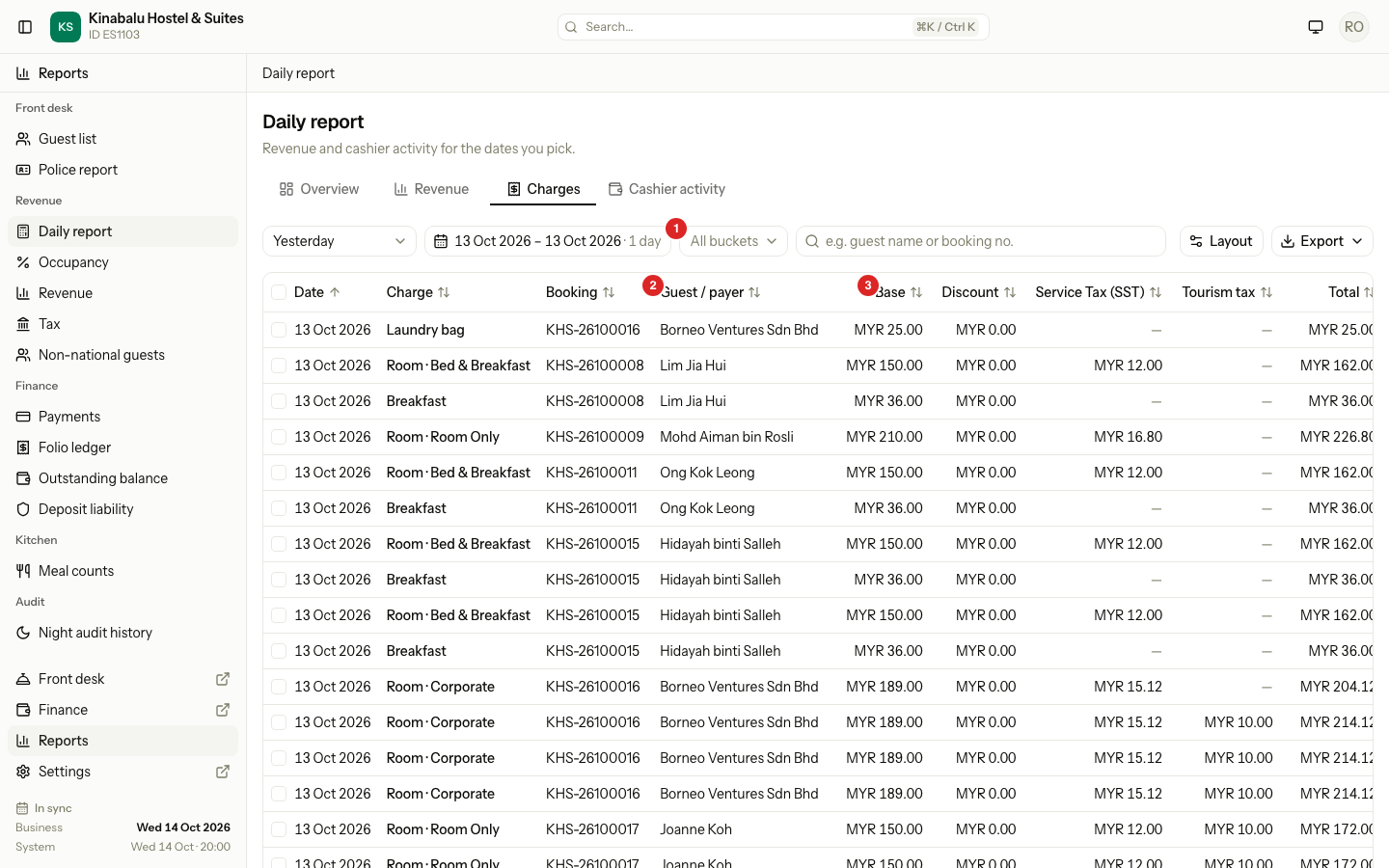
Each row is one charge, discount or adjustment. Its taxes are columns on the same row.
- To limit the rows to one bucket, open All buckets and choose Accommodation, Day use, Fees, Extras or Adjustments.
- To find a booking or a guest, type in the search box. It matches the booking number or the Guest / payer name, on every page.
The totals at the bottom cover only the rows that match.
| Column | What it shows |
|---|---|
| Date | The day the line was posted. |
| Charge | The name of the charge, for example "Room · Bed & Breakfast". |
| Booking | The reservation number. |
| Guest / payer | The company of a company folio, else the guest who pays, else the person who booked. |
| Base | The price before the discount and tax. |
| Discount | The discount on that charge. |
| One column for each tax | The tax on the price after the discount. A dash means none. |
| Total | Base, Discount and the taxes added up. |
Six more columns are off at first: Bucket, Folio, Room, Code, Status and Staff. A manager turns them on with Layout. See Report layout.
Status has three values:
| Status | What it means |
|---|---|
| Posted | A normal line. |
| Reversal | A line that cancels an earlier one. It is negative and counts on the day it was posted. |
| Moved | A charge that was moved to another folio. The two lines net to zero. See Move charges. |
Cashier activity
Cashier activity is the Payments report in a tab. It opens on By staff, so each staff member's takings show as a cash-up under the table.
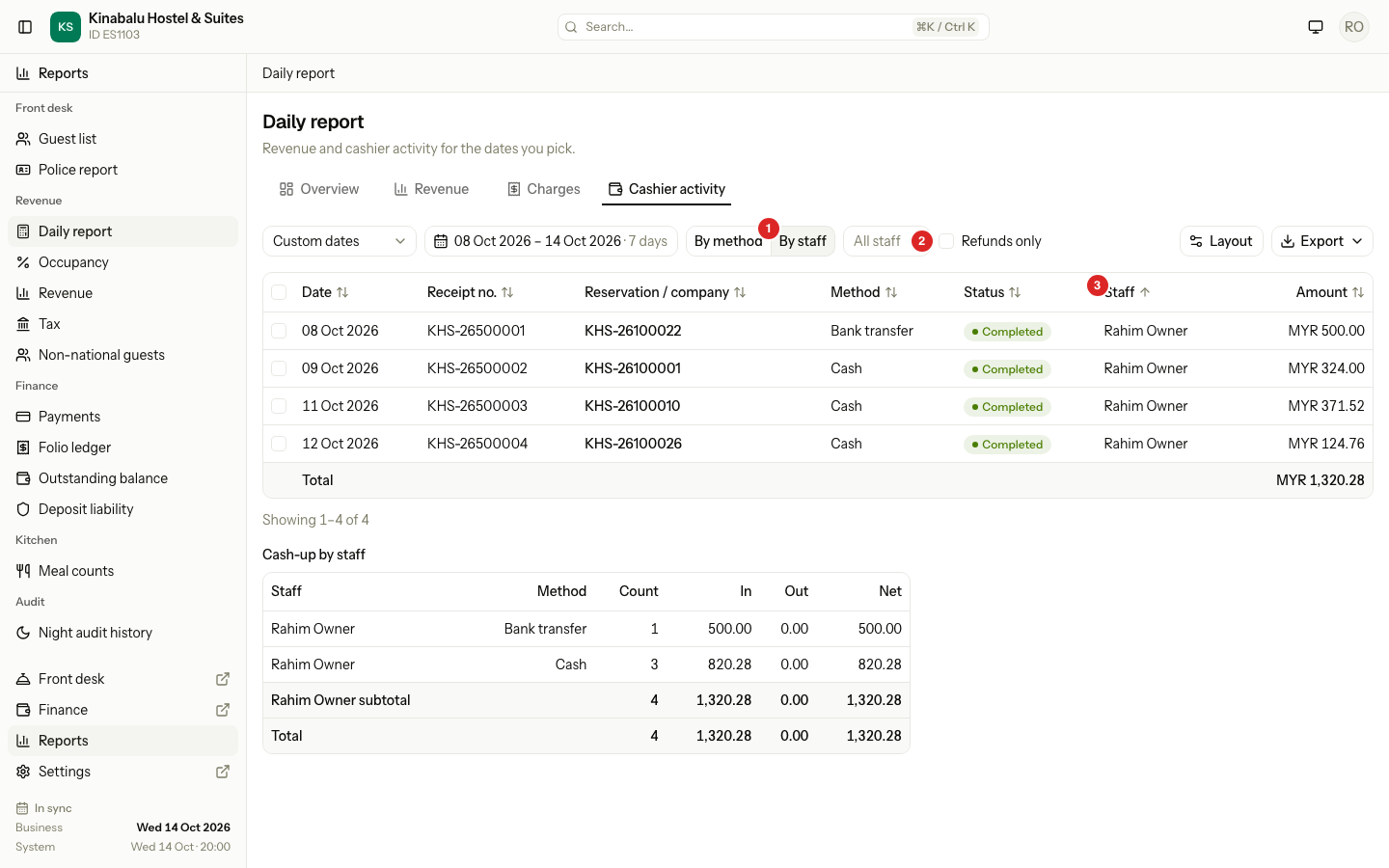
- Select By method to group the summary by payment method instead.
- Open All staff to see one person.
- Turn on Refunds only to list refunds.
- Only Completed rows count. Refunds subtract.
The tab uses the same Layout, filters and exports as the Payments report, so a change in one shows in the other. For the full rules, see Payments and cash-up.
Open the lines behind a figure
On the Revenue tab, a bucket figure and a tax figure are links.
| You select | You get |
|---|---|
| A figure in Accommodation, Day use, Fees, Extras or Adjustments | Charges for that day (or month) and that bucket. |
| A figure in a tax column | Charges for that day (or month), with no bucket. |
The Charges tab holds 31 days at most. If you select a figure from a longer range, the dates end on the same day and start 30 days before it.
Special cases
| Situation | What happens | What to do |
|---|---|---|
| Today shows no revenue | Room nights are charged by the night audit, so the open day has only the charges posted by hand. | Look again after the audit. See Run the night audit. |
| A discount is posted a day after its charge | The discount counts on the day it was posted. The charge keeps its own day. | Pick a range that holds both days. |
| A charge is reversed | A negative line counts on the day of the reversal, not the day of the charge. | Look for Reversal in Status on Charges. |
| The dates are longer than 31 days on Charges | Estatell refuses a range that long. | Pick 31 days or fewer. |
| The old system's lines | They are left out of every tab. | See Revenue and tax for the Tax report, which lists them in its own table. |
| Layout does not show | You do not have Manage property settings. | Ask a manager. |
| Collected is not the same as Total charges | The cards count different things. | Read the two rows apart. See Overview. |