
Report layout
Choose the paper orientation, the columns, their order and their alignment for a report, for the whole property.
The Layout button changes how a report looks on screen and on paper. You choose which columns show, in what order, and whether the paper is portrait or landscape. The layout of a report is the same for everyone who works at the property, so a printed report looks the same whoever prints it.
Before you start
- Permission: Manage property settings. Owners and managers have it by default. Staff without it do not see the Layout button.
- Open the report you want to change. See Use a report.
Change the layout
-
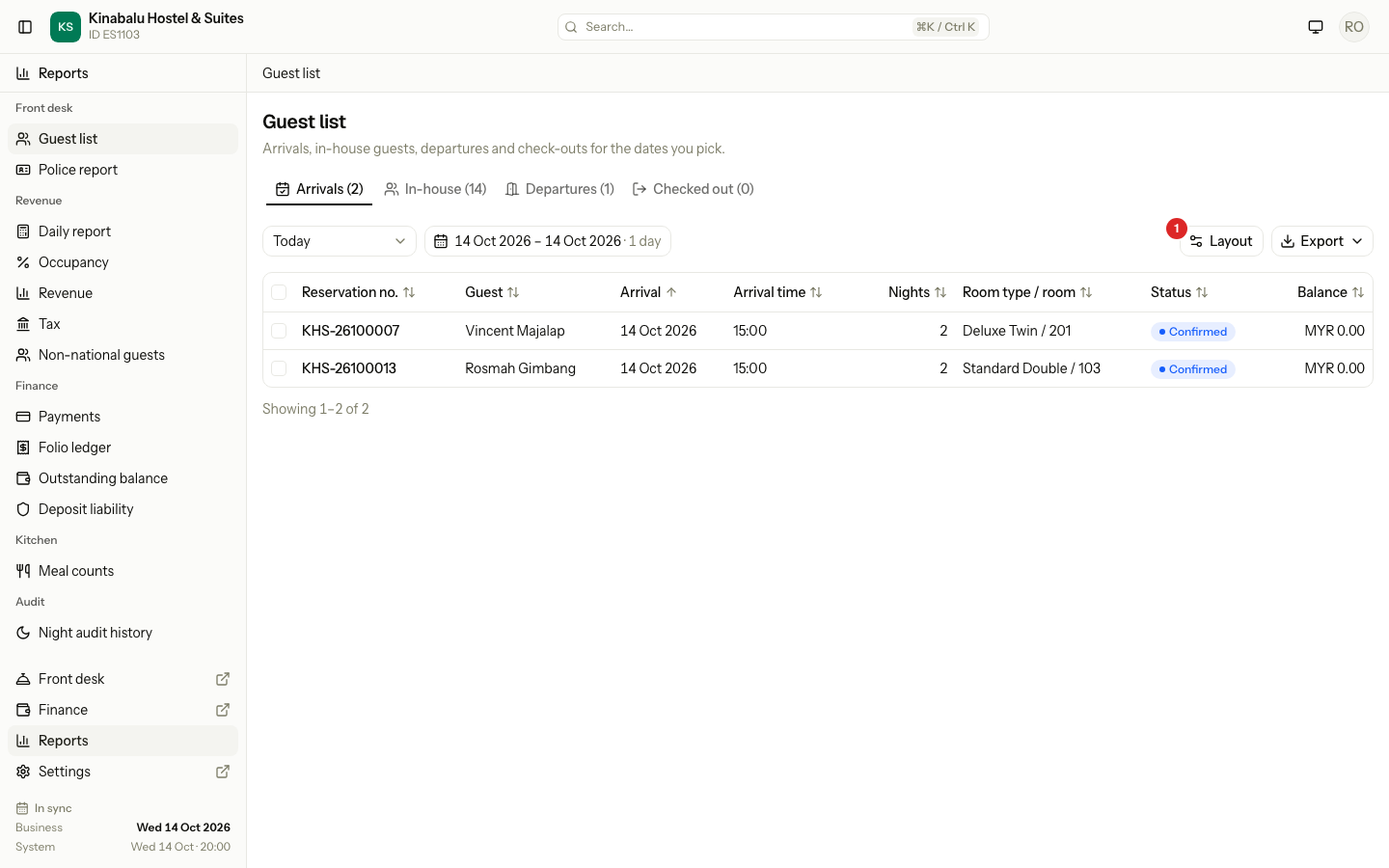
Open the report and select Layout.
-
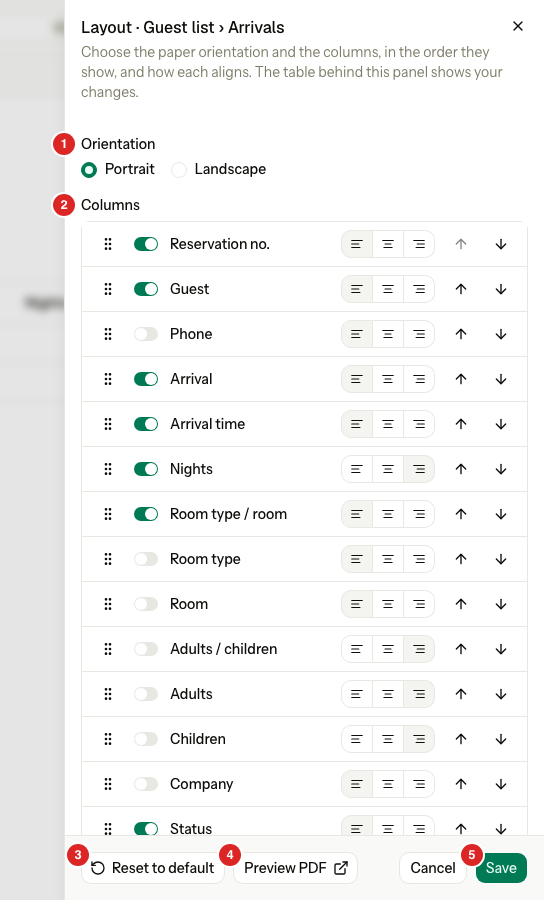
The Layout sheet opens. Its title names the report, for example "Layout · Guest list › Arrivals". The table behind the sheet changes as you edit, so you see the result at once.
-
Under Orientation, choose Portrait or Landscape. The screen table does not change. Only the PDF uses the orientation.
-
Under Columns, change each column:
- Use the switch to show or hide the column.
- Drag the handle at the start of the row to move the column. Or use the up and down arrows.
- Choose Left, Center or Right alignment.
-
To see the paper version, select Preview PDF. It opens a PDF in a new tab with your changes, for the dates on screen. Nothing is saved yet.
-
Select Save.
To drag with the keyboard, focus the handle, press Space, move with the arrow keys, then press Space again to drop the column.
Select Cancel, or close the sheet, to leave without saving. If you changed something, Estatell asks "Discard layout changes?" first.
What the layout changes
| Part | Where it applies |
|---|---|
| Which columns show, and their order | The screen table, the PDF, CSV and Excel files. |
| Orientation | The PDF only. Every report has its own default. |
| Alignment | The screen table and the PDF. The spreadsheets ignore it. |
One layout for the whole property
Estatell keeps one layout for each report and each property. When you save, everyone sees the new layout.
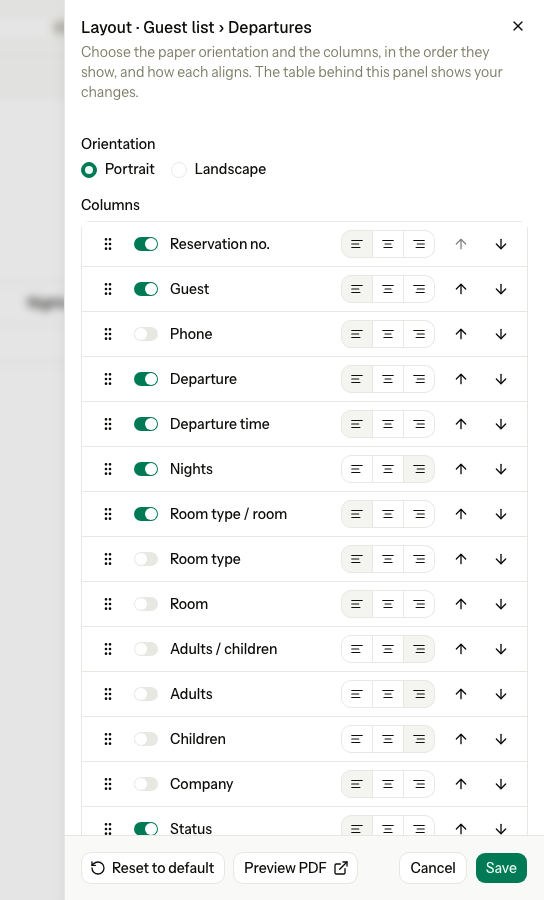
A report with tabs has one layout for each tab. For example, Arrivals, In-house, Departures and Checked out in the Guest list each have their own. The sheet title tells you which one you are editing.
Merged and split columns
Some columns put two values in one cell. For each one, Estatell offers the parts as separate columns. The parts are hidden at first. Show them if you need them apart.
| Merged column | Split columns | Where |
|---|---|---|
| Room type / room | Room type, Room | Arrivals, Departures, Checked out |
| Adults / children | Adults, Children | Arrivals, Departures, In-house, Checked out |
| ID | ID type, ID number | Police report |
| Checked in | Checked in date, Checked in time | Police report |
A split column sits right after the merged column it comes from. You can show both, or hide the merged one.
Reset to default
- Open Layout and select Reset to default.
- Read the message "Reset the report layout?". It says the saved orientation, column order and alignment are deleted for everyone.
- Select Reset layout.
The report goes back to the layout that comes with Estatell.
Special cases
| Situation | What happens | What to do |
|---|---|---|
| You hide every column | You cannot. The switch of the last visible column is off. | Show another column first. |
| You hide the column the report is sorted by | The report goes back to its default sort. | None. |
| Estatell adds a new column in an update | It goes at the end of your layout, shown or hidden as the report default says. | Move it where you want it. |
| You choose Landscape and the screen looks the same | Orientation only affects the PDF. | Use Preview PDF to check. |
| A colleague saves a layout while you edit | Both layouts save. The last save is the one everyone sees. | Open Layout again to see the current one. |
| You reset the layout | It resets for everyone, not only you. | Ask first if others use the report. |