
Use a report
Pick the dates, sort the rows, select rows and export a report as PDF, CSV or Excel.
Every report in Estatell has the same frame: a date picker, a table, a Layout button and an Export menu. This page explains that frame once. The pages for each report cover only what is different.
Before you start
- Permission: View and export reports. Owners, managers and finance staff have it by default.
- To change the columns, you also need Manage property settings. See Report layout.
- Reports count by business date, not by the clock. At 01:00, before the night audit, Today is still the open business date. See Business date.
The parts of a report
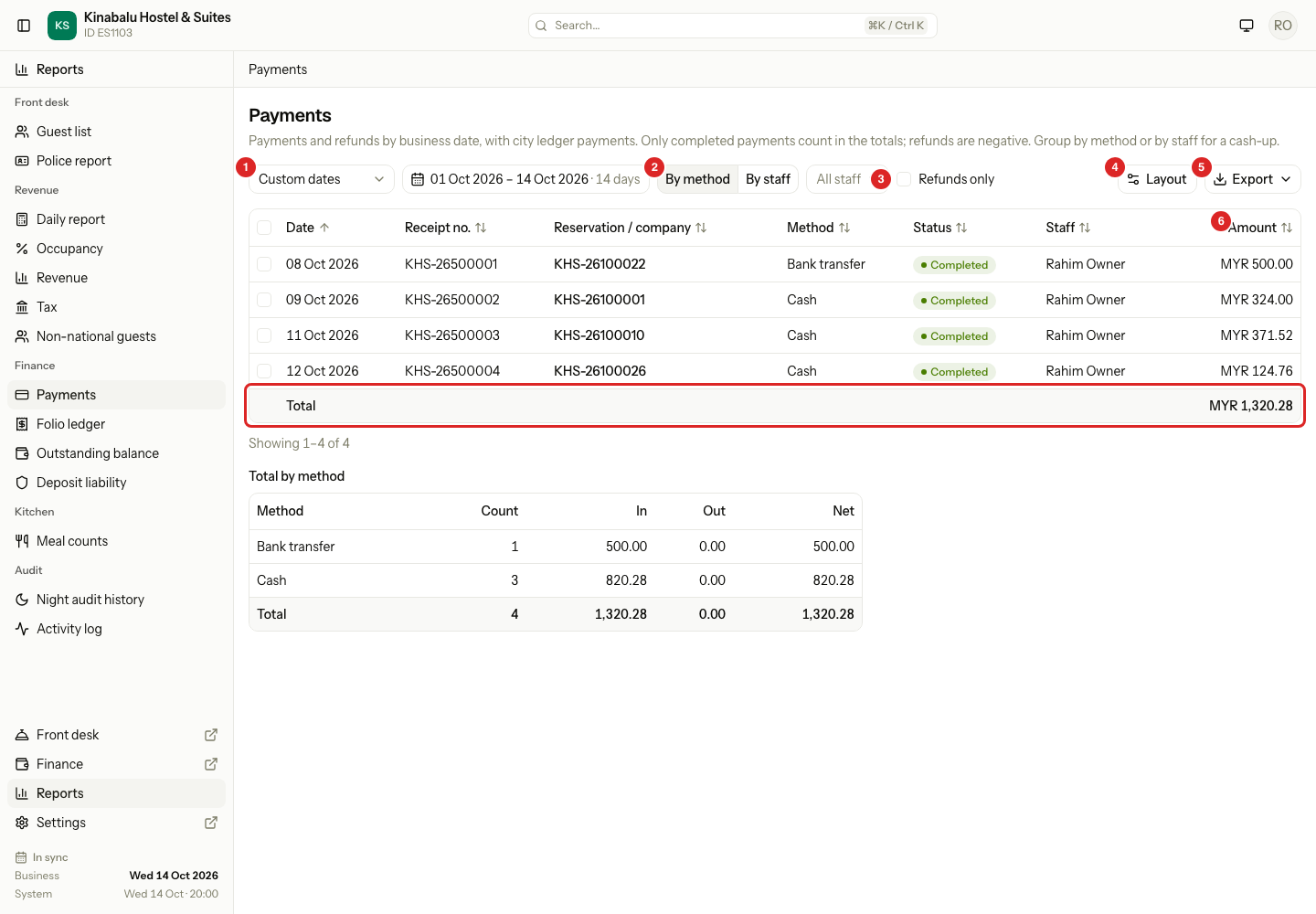
| Part | What it does |
|---|---|
| Quick dates | A list of ready-made ranges such as Today or Last week. It shows Custom dates when the dates match none of them. |
| Date picker | Shows the range, for example "01 Oct 2026 – 14 Oct 2026 · 14 days". Select it to pick any dates. |
| Filters | Some reports add a toggle or a filter next to the dates, such as By method or Refunds only. |
| Layout | Opens the column settings. Only staff with Manage property settings see it. |
| Export | Downloads the report as PDF, CSV or Excel. |
| Table | One row for each record. Select a column heading to sort. |
| Total row | Some reports add up their money or count columns in a last row marked Total. |
A table shows 25 rows on a page. The line under it says, for example, "Showing 1–4 of 4".
Pick the dates
-
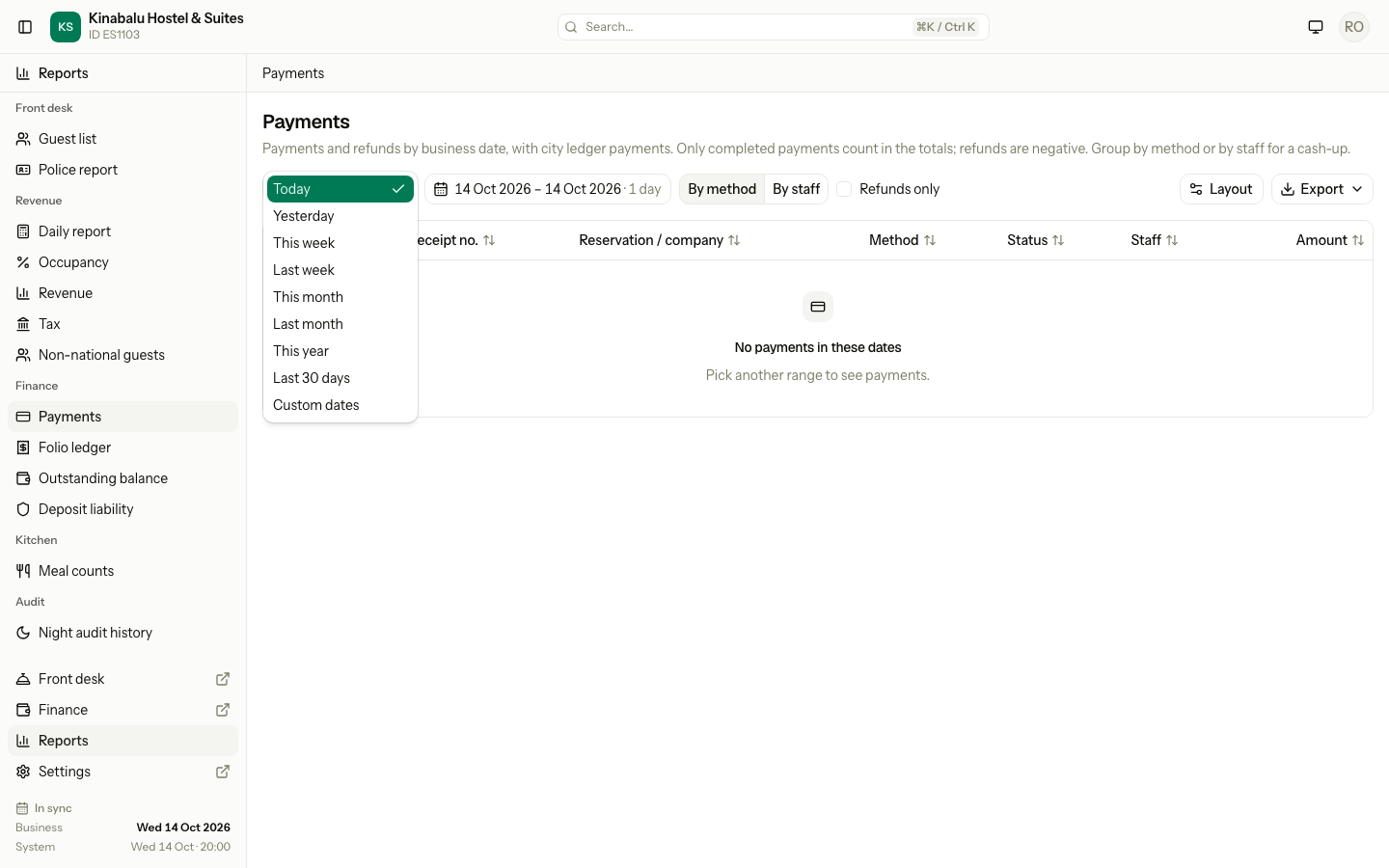
Open the Quick dates list and choose a range.
-
To use other dates, select the date picker or choose Custom dates. Select the first day, then the last day.
The report opens on Today unless its page says otherwise. Night audit history opens on the last 30 days.
Quick dates
| Quick date | The days it covers |
|---|---|
| Today | The open business date. |
| Yesterday | The business date before it. |
| This week, Last week | Monday to Sunday. |
| This month, Last month | The whole calendar month. |
| This year | 1 January to 31 December. |
| Last 30 days | The 30 days up to and including the business date. |
Some reports use their own list. Meal counts offers Tomorrow, Next 7 days and Next week, because the kitchen looks ahead.
The longest range
Each report has a longest range. After you pick the first day, the calendar greys out the days beyond the limit. A quick date longer than the limit is left out of the list. For example, This year is not in the list of a 31-day report.
| Longest range | Reports |
|---|---|
| 31 days | Arrivals, Departures, Checked out, Meal counts, Folio ledger, Police report, Non-national guests and the Charges tab of Daily report |
| 366 days | Occupancy, Revenue, Tax, Payments, Night audit history and Daily report |
| One date | In-house, Outstanding balance and Deposit liability |
A report of one date shows a single date picker. Its quick dates are Today and Yesterday.
Bookmark a report
The dates and filters are in the address of the page. Copy the address to bookmark the report or send it to a colleague. They see the same dates and filters if they have the permission.
Sort the rows
Select a column heading to sort by that column. Select it again to reverse the order. An arrow shows the sorted column. Sorting covers every row of the report, not only the page you see.
Each report has a default sort. For example, Arrivals sorts by Arrival. If you hide the column a report is sorted by, the report goes back to its default sort.
Select rows
-
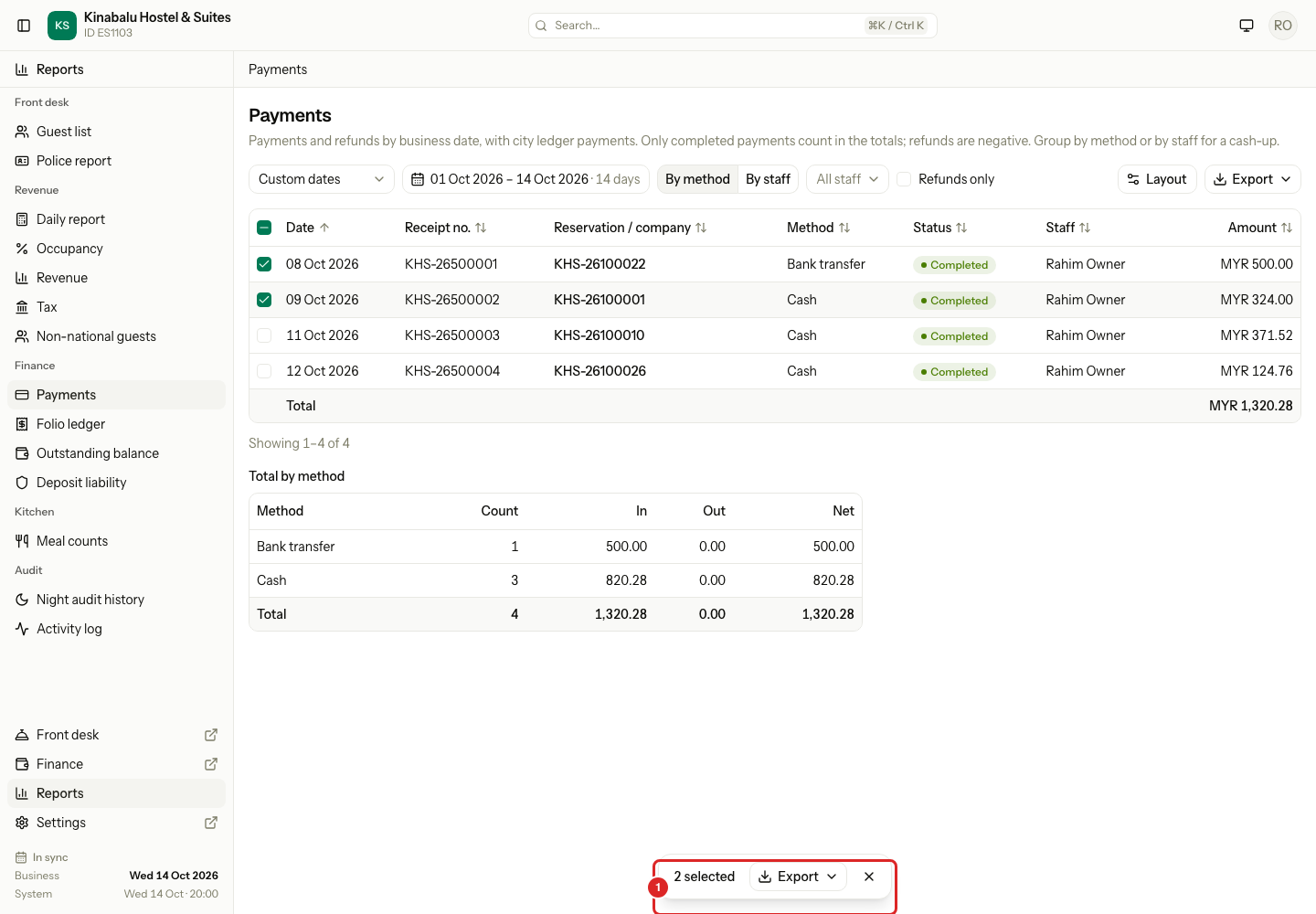
Select the box at the start of a row. Select the box in the heading to select every row on the page.
-
A bar appears at the bottom of the screen. It shows how many rows you selected, an Export menu and a cross.
-
To clear the selection, select the cross or press Esc.
The rules for a selection:
- You can select up to 500 rows. After that, Estatell shows "You can select up to 500 rows".
- The selection stays when you go to another page of the same report.
- The selection clears when you change the dates or a filter.
Export a report
-
Select Export.
-
Choose PDF, CSV or Excel.
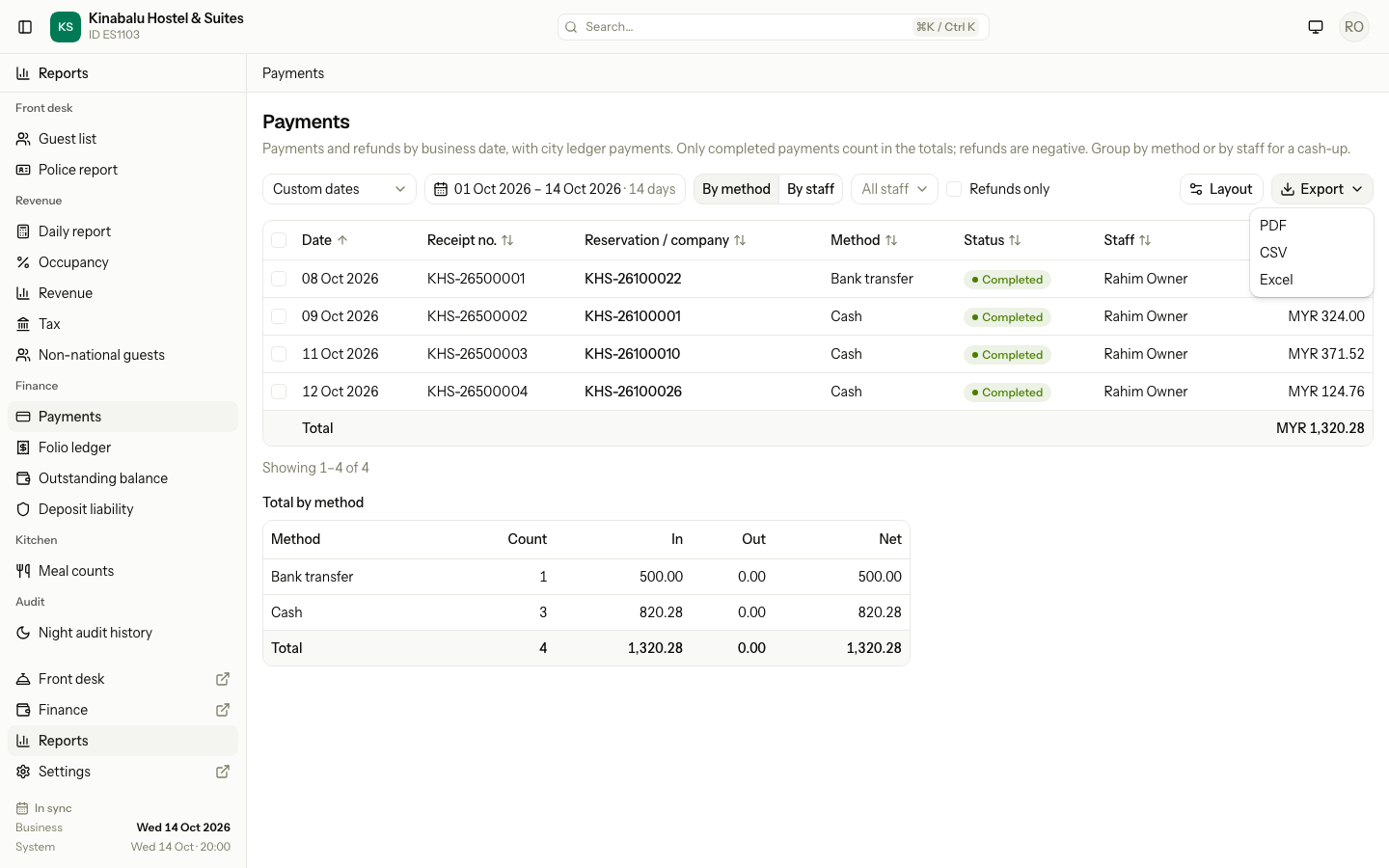
| Format | What you get |
|---|---|
| Opens in a new browser tab, ready to print. It uses the letterhead of your printing settings, the report title and the dates. It follows the orientation and the columns of the report layout. | |
| CSV | A file of plain values. Money and counts are numbers, so a spreadsheet can add them up. |
| Excel | The same values in an Excel file. |
All three formats use the saved layout: the same columns in the same order. The total row is the last row of the file. The PDF and spreadsheet ignore column alignment. The spreadsheet also ignores orientation.
What goes in the file depends on your selection:
| Your selection | The file holds |
|---|---|
| No rows selected | Every row that matches the dates and filters, on all pages. |
| Some rows selected | Only the selected rows. The PDF says "Selected rows only". |
The file is in the same order as the table on screen.
Special cases
| Situation | What happens | What to do |
|---|---|---|
| You do not see Layout | You do not have Manage property settings. | Ask an owner or manager to change the layout. |
| You pick 40 days on a 31-day report | The calendar does not let you pick the days beyond 31. | Pick a shorter range, or run the report twice. |
| You select 501 rows | Estatell refuses the extra rows and shows an error. | Export with no rows selected to get every row. |
| You change the dates after selecting rows | The selection clears. | Select the rows again. |
| You sort by a column, then hide it | The report goes back to its default sort. | Show the column again in Layout. |
| A report shows no rows | The table shows a message such as "No payments in these dates". | Pick other dates. |
| An export has full ID numbers | Estatell records it in the activity log. See Police report. | None. |