
Allocate and reverse
Match a company payment to its invoices, undo a match, and void a payment recorded by mistake.
An allocation matches money from a payment to an invoice. An invoice becomes Settled when allocations bring its balance to 0.00. Use this page when a payment was not allocated at recording, when it went to the wrong invoice, or when you recorded it by mistake.
Before you start
- Permission to allocate and reverse: Allocate AR payments and reverse allocations. Owners, managers and finance staff have it by default.
- Permission to void a payment: Record and void AR payments. Owners, managers and finance staff have it by default.
- A payment with money left to allocate. See Record a company payment.
Allocate a payment
-
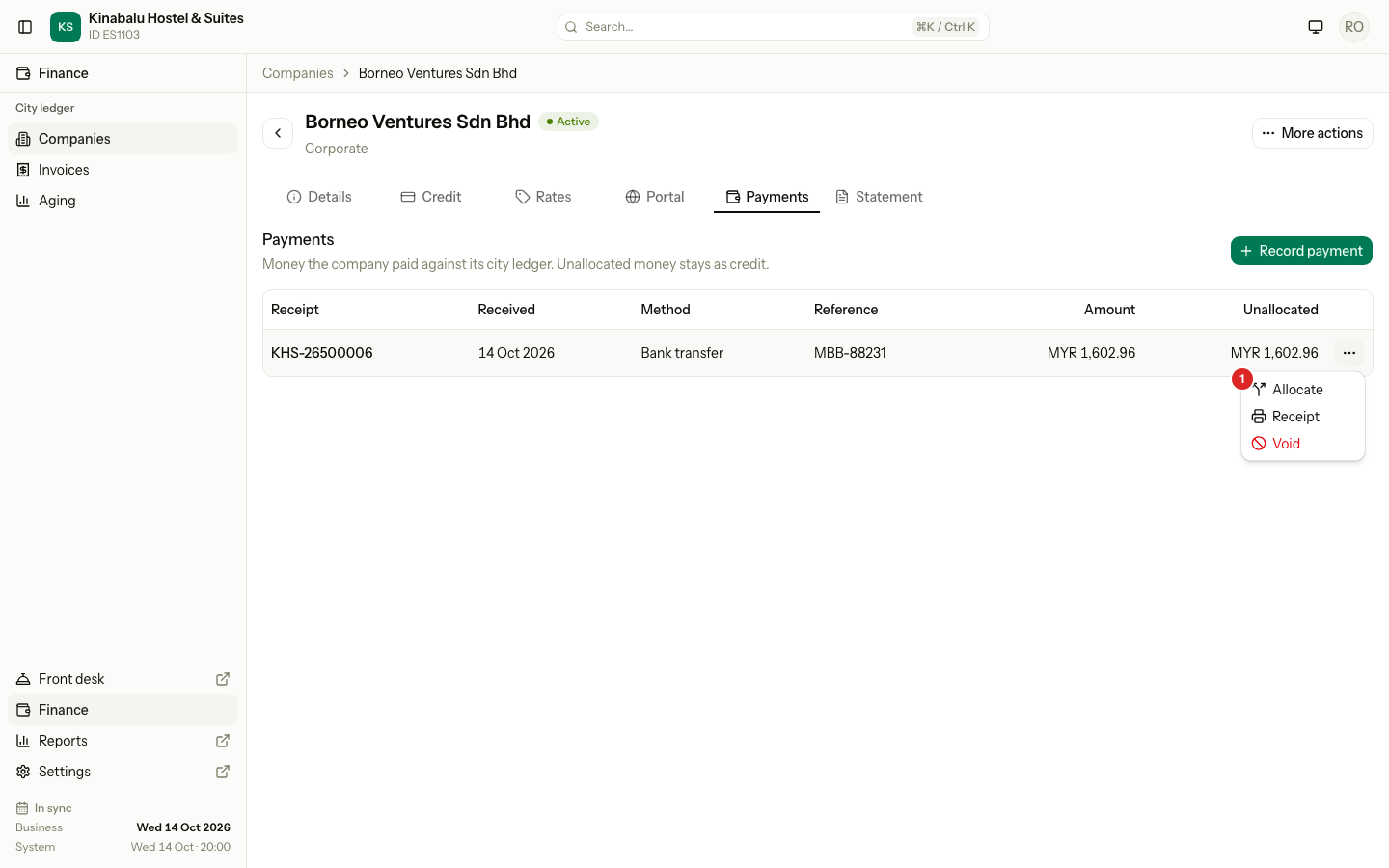
Open Finance, select City ledger › Companies, select the company, then the Payments tab.
-
Open the row menu of the payment and select Allocate.
-
Read the amount left to allocate at the top. Below it are the company's invoices that still owe money, with their due dates and balances.
-
Enter an amount next to each invoice you want to pay. Leave the others empty.
-
Select Allocate.
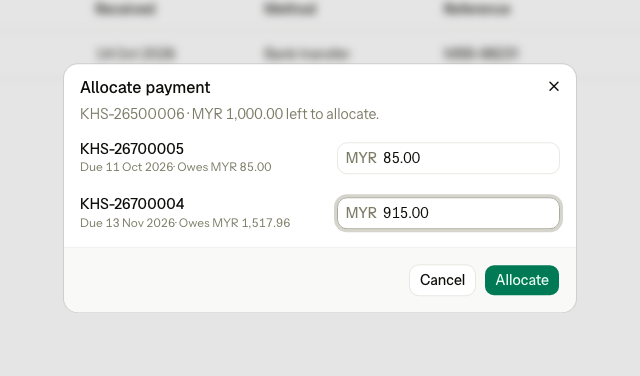
Estatell saves all the amounts or none. Each invoice that reaches a balance of 0.00 becomes Settled. What you do not allocate stays on the payment.
The Allocate item shows only on a payment that has money left and is not void.
When Estatell refuses an allocation
| Situation | What Estatell says | What to do |
|---|---|---|
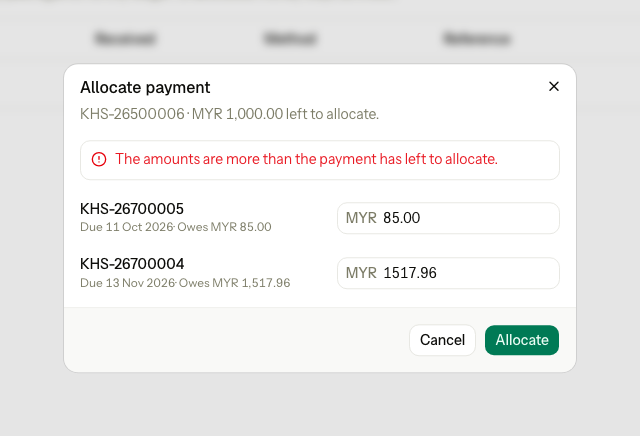
| The amounts add up to more than the payment has left | "The amounts are more than the payment has left to allocate." | Lower an amount. |
| An amount is more than the invoice owes | "An amount is more than the invoice still owes." | Lower the amount to the balance. |
| An invoice cannot take a payment, for example it was voided meanwhile | "One of the invoices cannot take a payment. Reload the page and try again." | Reload the page. |
| The payment is void | "This payment is void, so it cannot be allocated." | Record the payment again. |
| The company has no invoice that still owes money | "The company has no invoice that still owes money." | The payment stays as credit. |
Reverse an allocation
Reverse an allocation when a payment went to the wrong invoice, or when you must free the money to issue a credit note on a paid invoice. The money goes back to the payment as credit, and the invoice owes it again.
-
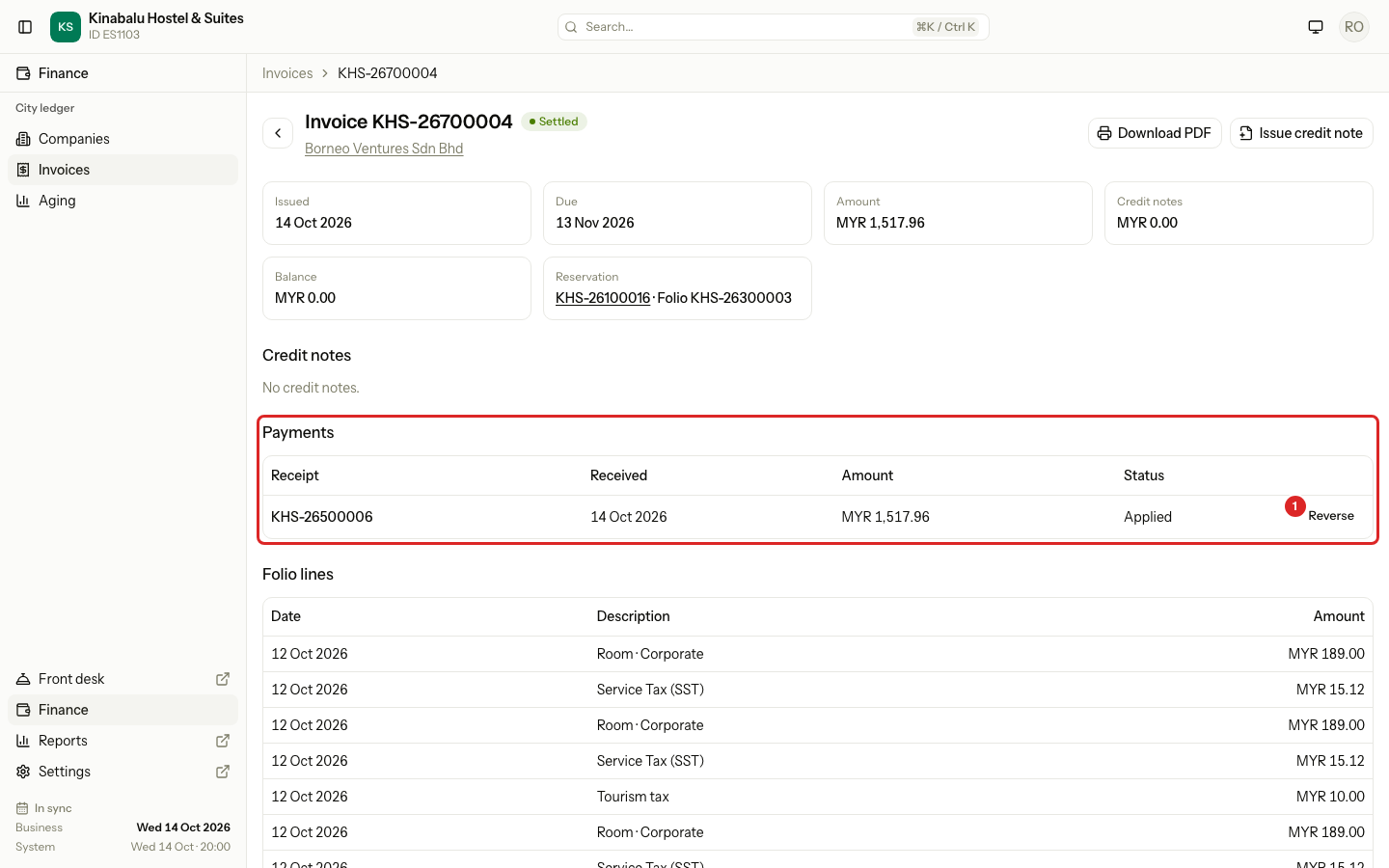
Open the invoice. In the Payments section, find the allocation.
-
Select Reverse.
-
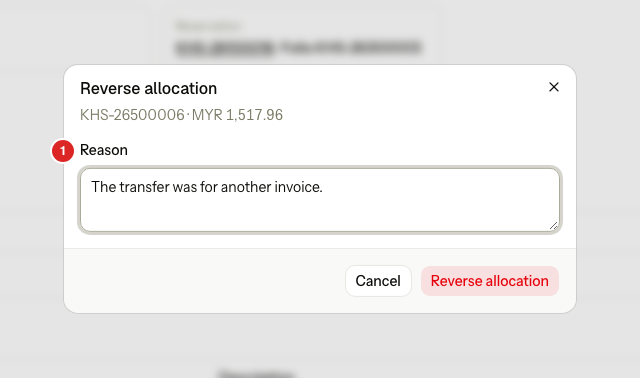
Enter the Reason. It is required.
-
Select Reverse allocation.
The page shows Reversed next to the allocation, and a message says "Allocation reversed." The invoice becomes Open again. Allocate the payment to the right invoice.
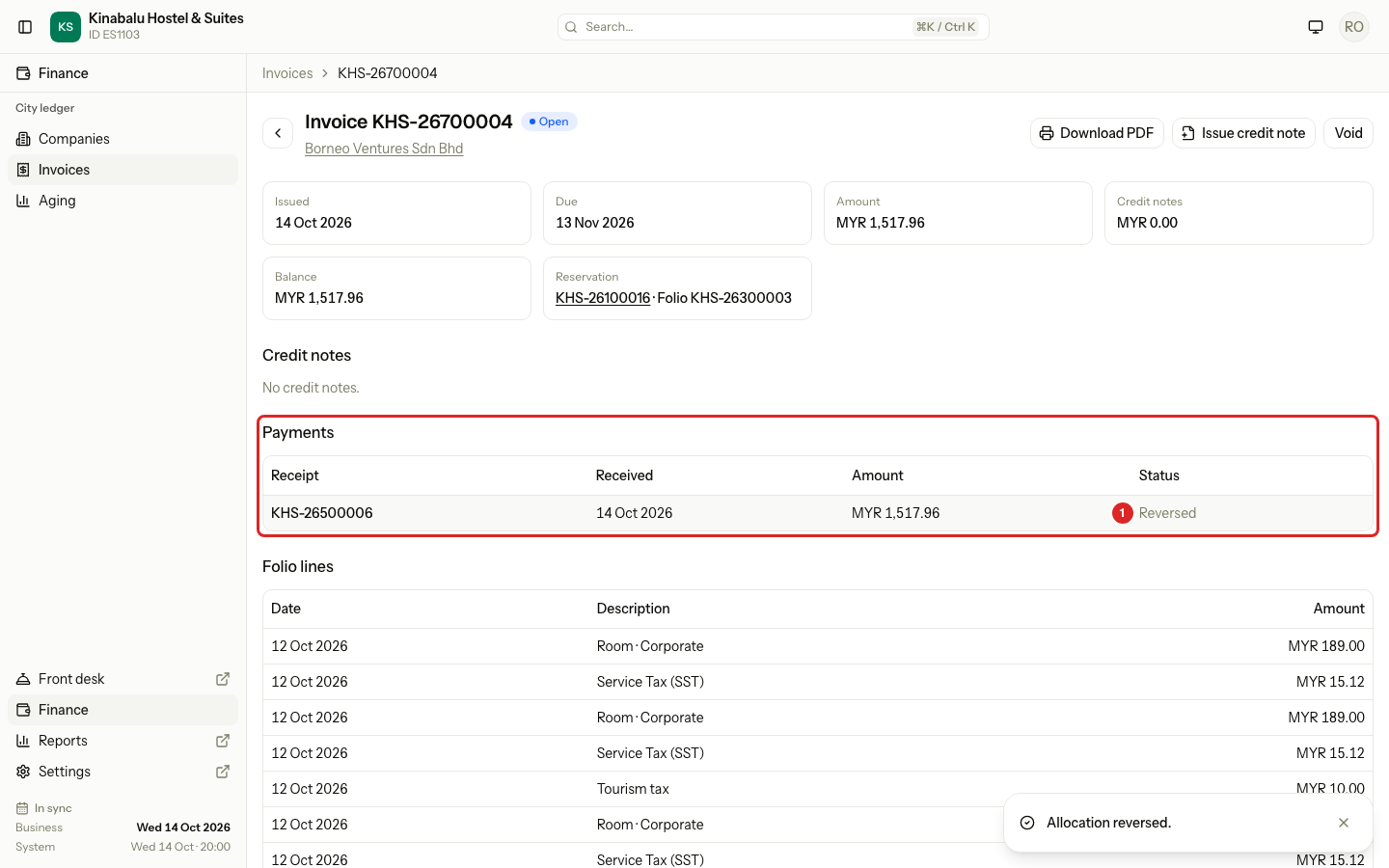
A reversed allocation stays in the list as a record. Point at Reversed to read the reason.
| Situation | What Estatell says | What to do |
|---|---|---|
| The reason is empty | "Enter a reason for the reversal." | Enter a reason. |
| The allocation is already reversed | "This allocation is already reversed." | Reload the page. |
Void a payment
Void a payment you recorded by mistake, for example with a wrong amount. You can void it only while it has no active allocations. Void it, then record it again.
-
Reverse the allocations of the payment first.
-
Open the company's Payments tab. Open the row menu and select Void.
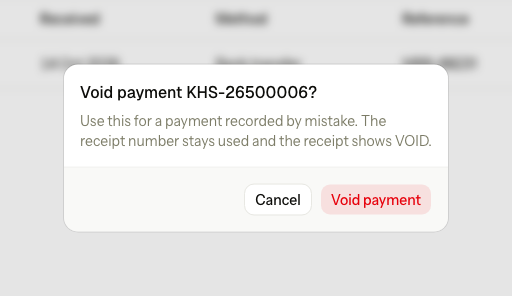
-
Select Void payment.
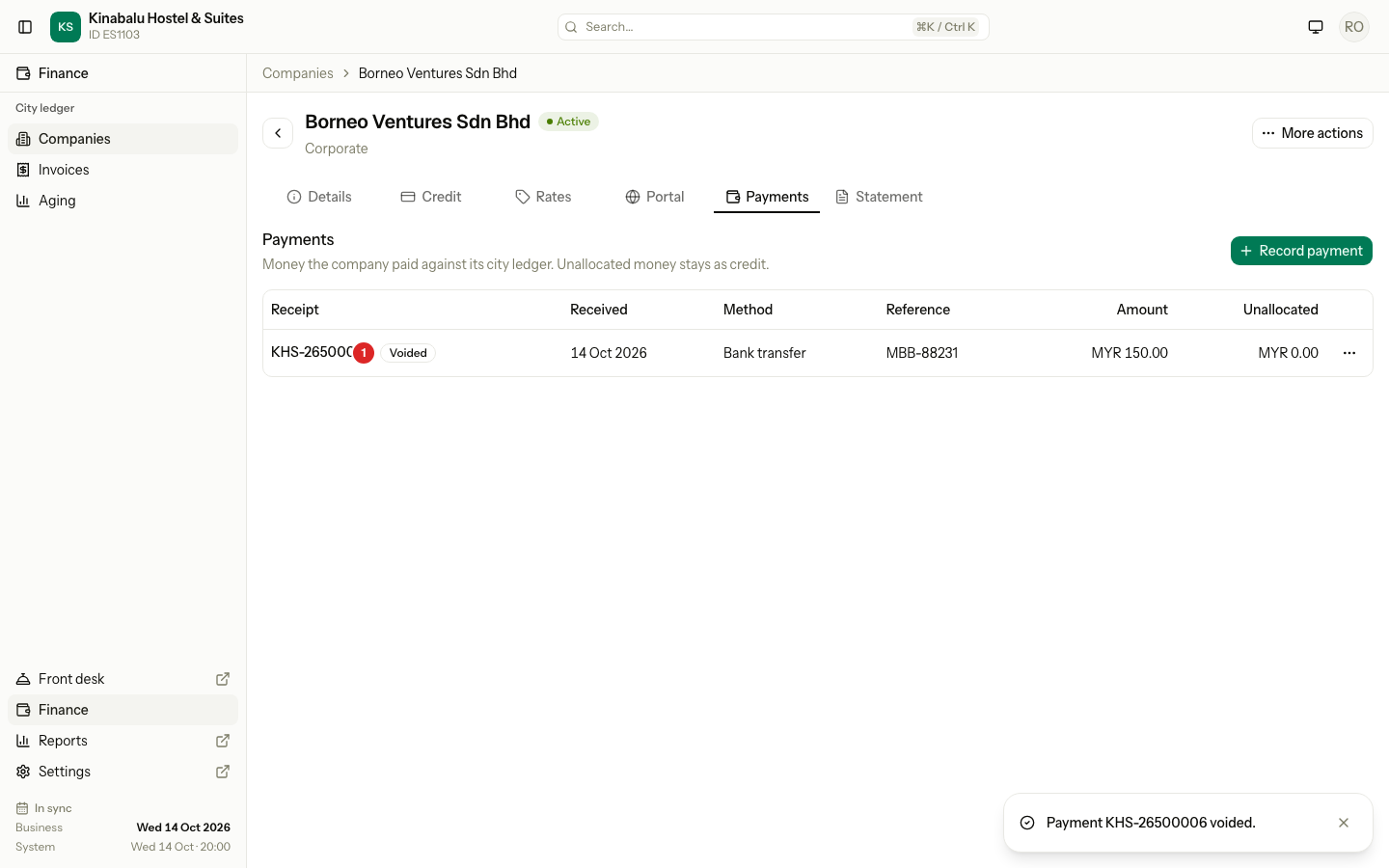
The row shows a Voided badge. The receipt number stays used, and the receipt shows VOID.
| Situation | What Estatell says | What to do |
|---|---|---|
| The payment still has active allocations | The Void item is hidden. If it is refused: "Reverse the allocations of this payment first." | Reverse each allocation, then void. |
| The payment is already void | "This payment is already void." | Nothing to do. |
Special cases
| Situation | What happens | What to do |
|---|---|---|
| You can allocate but not reverse | The Reverse button is hidden. | Ask an owner, manager or finance user. |
| A payment is split across two invoices | It has one allocation for each invoice. | Reverse each one by itself. |
| You reverse an allocation of a Settled invoice | The invoice becomes Open again with the money owed. | Allocate the payment again, or issue a credit note. |
| A payment covers a part of an invoice | The invoice stays Open with a lower balance. | Allocate the next payment to it. |
| A payment is void | You cannot allocate it. | Record it again with the right details. |