
Old system balances
Bring the invoices a company still owes, and the credit it paid in advance, from your old system.
When you move to Estatell, a company may still owe you invoices from the old system, or have money with you that it paid in advance. Add these to the company so the first bank transfer has an invoice to match, the aging report is right and the credit limit sees the debt.
Before you start
- Permission: Use the Manual Folio Editor. Owners and managers have it by default. Finance staff and front desk staff do not.
- The migration window must be open. It starts on your go-live date and lasts 60 days by default. Change the days in Settings › Details › Operations, in the Migration window (days) field. Outside the window, Add from old system is not in the menu.
- The company must be in Estatell and Active. If it is not there yet, add it first. See Companies or Bulk add companies.
- Have the old invoice numbers, dates and the amounts still unpaid in front of you.
Add from old system
-
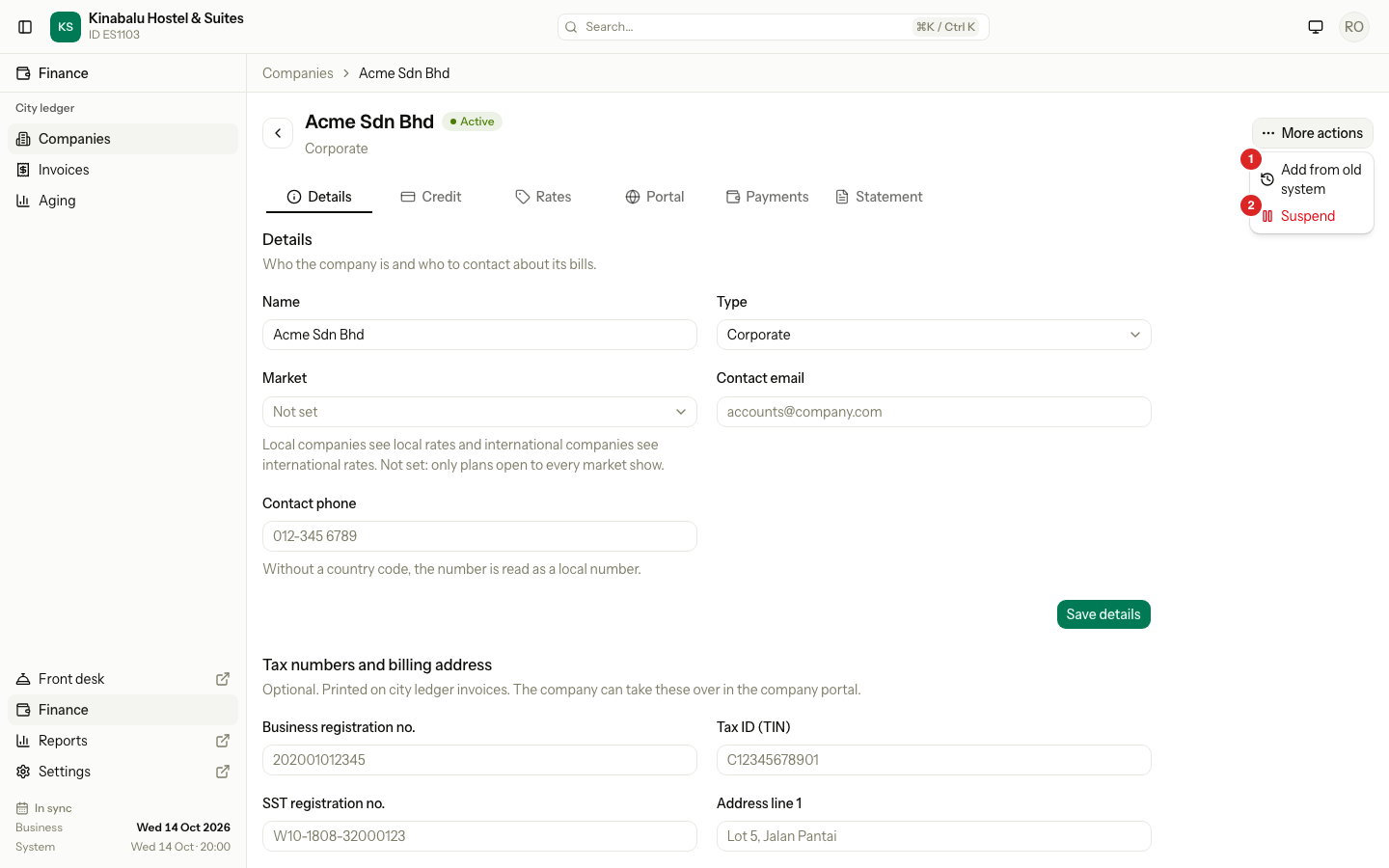
Open Finance › City ledger › Companies and open the company.
-
Select More actions, then Add from old system.
-
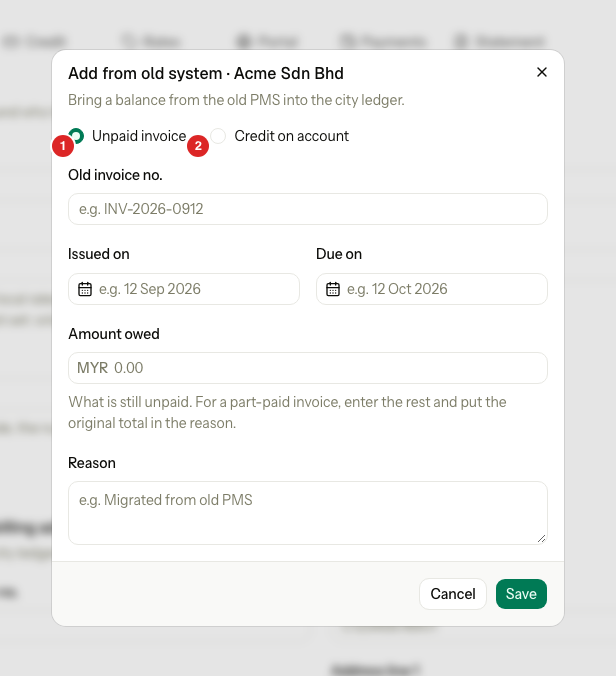
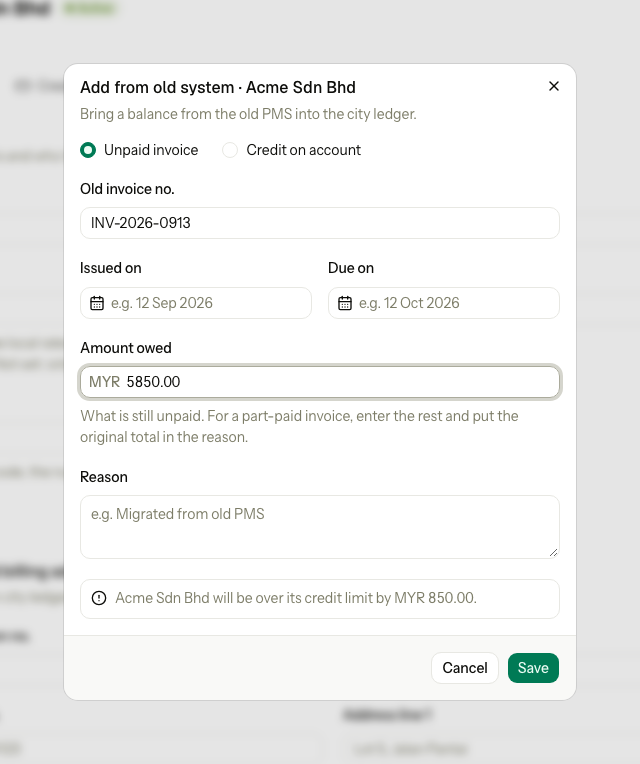
Choose Unpaid invoice or Credit on account.
-
Fill in the fields. See the tables below.
-
Select Save.
Add one entry at a time. There is no file import for these.
Unpaid invoice
Use this for an invoice the company has not paid.
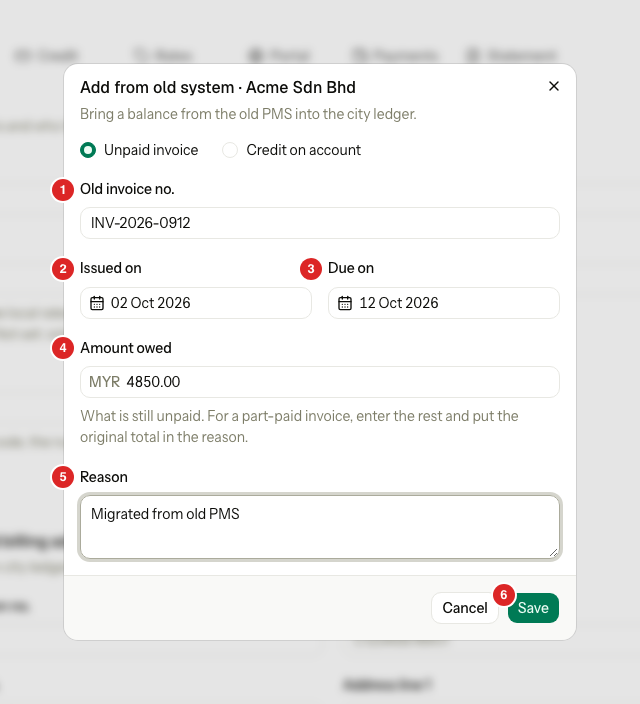
| Field | What to enter |
|---|---|
| Old invoice no. | The number on the old invoice. No other invoice that is not void can have the same number. |
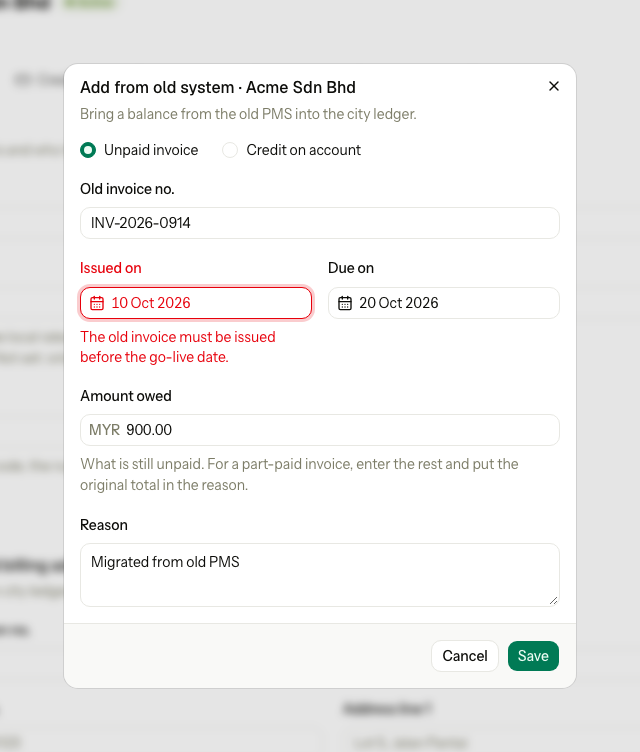
| Issued on | The date of the old invoice. It must be before your go-live date. |
| Due on | The date the company must pay. It cannot be before Issued on. |
| Amount owed | What the company still owes. It must be more than 0. |
| Reason | Why you add it, for example "Migrated from old PMS". |
Credit on account
Use this for money the company paid in the old system and has not used yet.
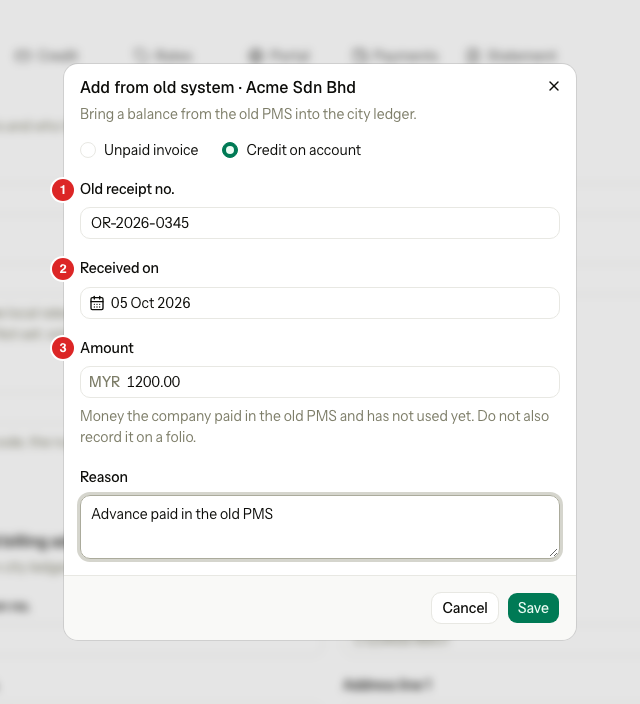
| Field | What to enter |
|---|---|
| Old receipt no. | The number on the old receipt. |
| Received on | The date the company paid. It must be before your go-live date. |
| Amount | The money the company paid and has not used. |
| Reason | Why you add it. |
Do not record the same money again on a folio. Estatell would count it twice.
The credit limit warning
If an unpaid invoice takes the company over its credit limit, the dialog warns you before you save: "Acme Sdn Bhd will be over its credit limit by MYR 850.00." The warning never stops you from saving. From then on, new Direct billing bookings for this company follow the usual limit rules. See Credit control.
What you see afterwards
-
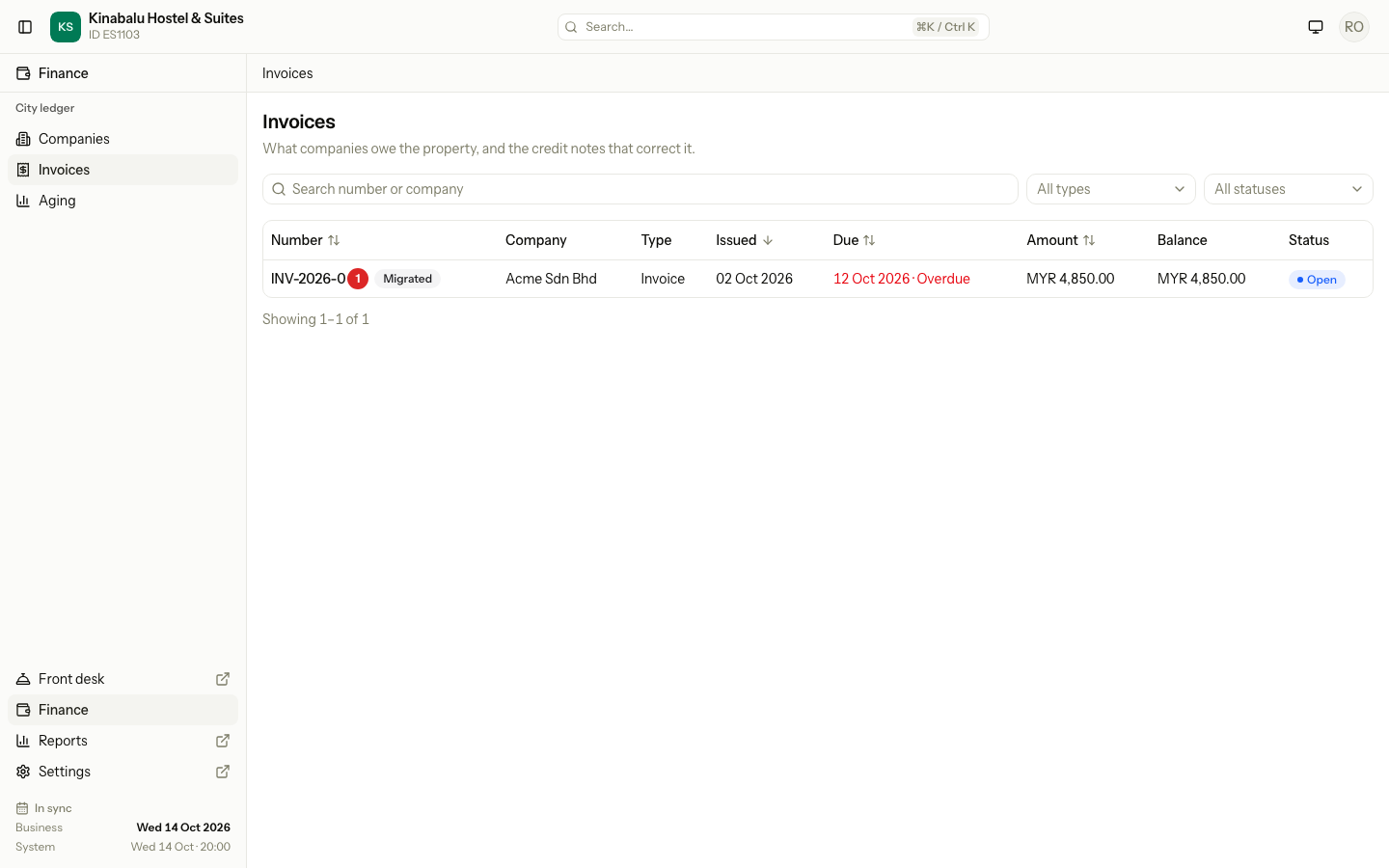
Unpaid invoice: the invoice is in City ledger › Invoices, with a Migrated badge. It has no Print, because there is no folio.
-
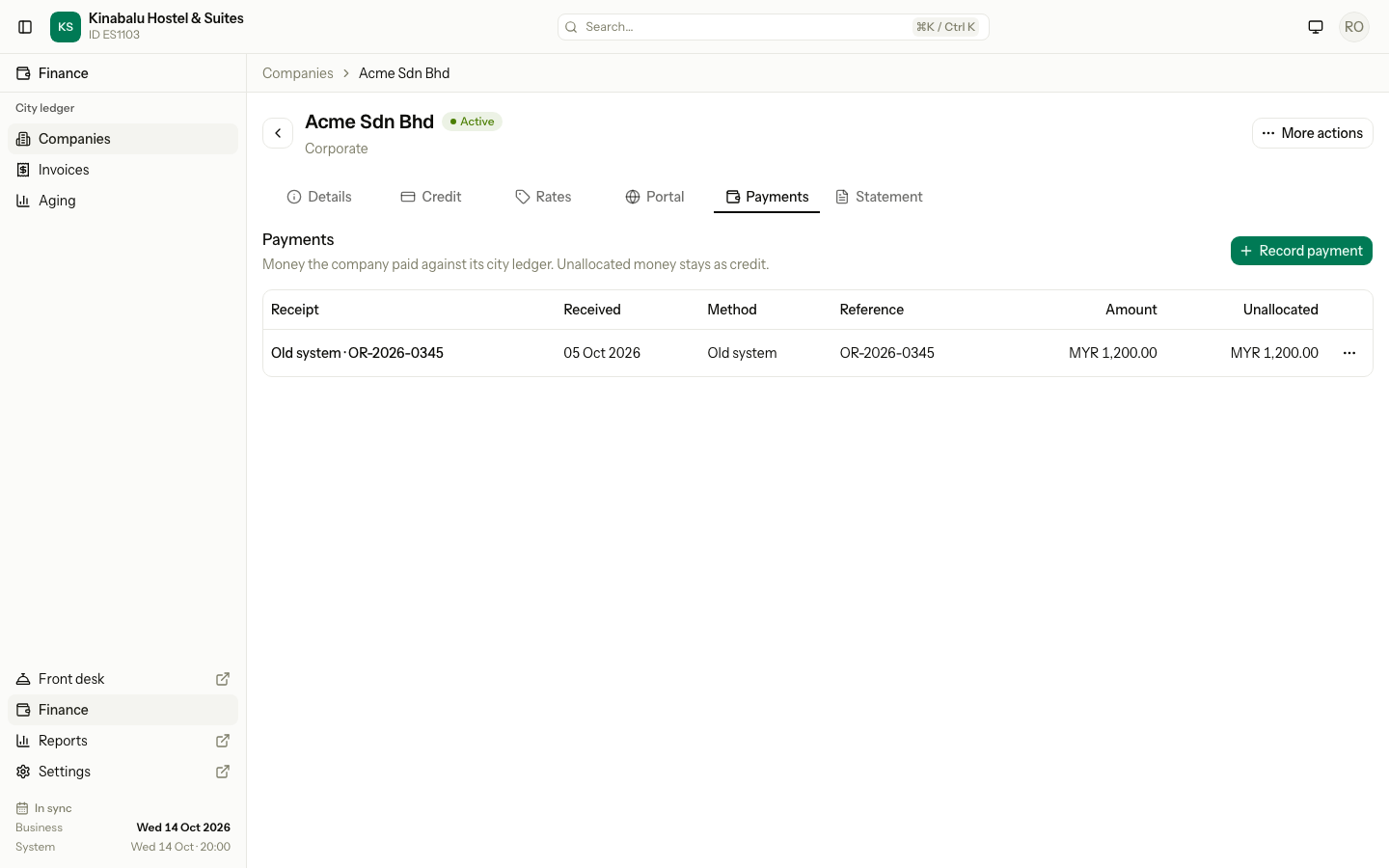
Credit on account: a payment on the company's Payments tab, with the receipt shown as "Old system · " and the old number. It is not allocated, so it stays as credit on the company. You can allocate it to an invoice later.
-
Aging and Statement: both include migrated invoices with their real dates.
-
PDF: a migrated invoice and an old receipt have no PDF. The PDF is in the old system.
When Estatell refuses
| Message | Why | What to do |
|---|---|---|
| "The migration window is closed, so old system balances cannot be added." | The window has ended, or the property is not live yet. | Ask the owner to lengthen the window in Settings › Details › Operations, or record the balance another way. |
| "This company is not active." | The company is suspended. | Reactivate it first. See Companies. |
| "The old invoice must be issued before the go-live date." | Issued on is on or after go-live. | Use the date on the old invoice. |
| "The old receipt must be dated before the go-live date." | Received on is on or after go-live. | Use the date on the old receipt. |
| "The due date cannot be before the issue date." | Due on is before Issued on. | Fix the dates. |
| "Another invoice already has this number." | An invoice with this number is not void. | Check the number. If the first entry was wrong, void it. |
| "Enter an amount greater than 0, such as 120.00." | The amount is 0, negative or has more than two decimals. | Enter the amount still unpaid. |
Special cases
| Situation | What happens | What to do |
|---|---|---|
| The company paid part of an old invoice | You enter only what is still owed. | Put the original total in the Reason. |
| The company pays an old invoice after go-live | It is a normal company payment. | Record the payment, then allocate it to the migrated invoice. See Record a company payment. |
| The company disputes an old invoice | Nothing special. | Issue a credit note against it. See Credit notes. |
| You entered a wrong invoice or credit | You cannot edit it. | Void it while it has no allocations, then add the right one. See Allocate and reverse. |
| The old number matches an Estatell number | Estatell refuses it. Estatell numbers carry a prefix, so this is rare. | Check the number. |
| You need to reprint an old invoice | There is no folio, so Estatell cannot. | Print it from the old system. |
| The company is over its limit on day one | The old debt counts at once. | Follow the limit rules. See Credit control. |
| You have many invoices | One dialog for each invoice. | Add them one by one. |
| The company is not in Estatell | You cannot add a balance to it. | Add the company first. |