
Company rates
Choose which rate plans a company can use, at the front desk and in the portal.
A company rate is a rate plan that only companies can use. You set who can use a plan on the plan's own Companies tab. The company's Rates tab only shows the result.
Before you start
- Permission: To change who can use a plan, you need to manage settings. To add or remove companies on a plan, you also need Manage companies. Owners and managers have both. The company's Rates tab needs only View companies.
- Make the plan first. A plan that follows another plan with a percent is the usual company rate. See Pricing rules.
- Set the company's Market on the company page if you use markets. See Market.
Who can use a plan
Open Settings › Rate plans, select the plan, then the Companies tab. The choice Who can use this rate has three cards.
| Choice | At the front desk | In the portal |
|---|---|---|
| Everyone | Every booking. This is a normal plan. | Never. |
| All companies | Only when a company is on the booking, and Front desk is on. | Every company with a portal login, if Portal is on. |
| Only these companies | Only when a listed company with Front desk on is on the booking. | Only the listed companies with Portal on. |
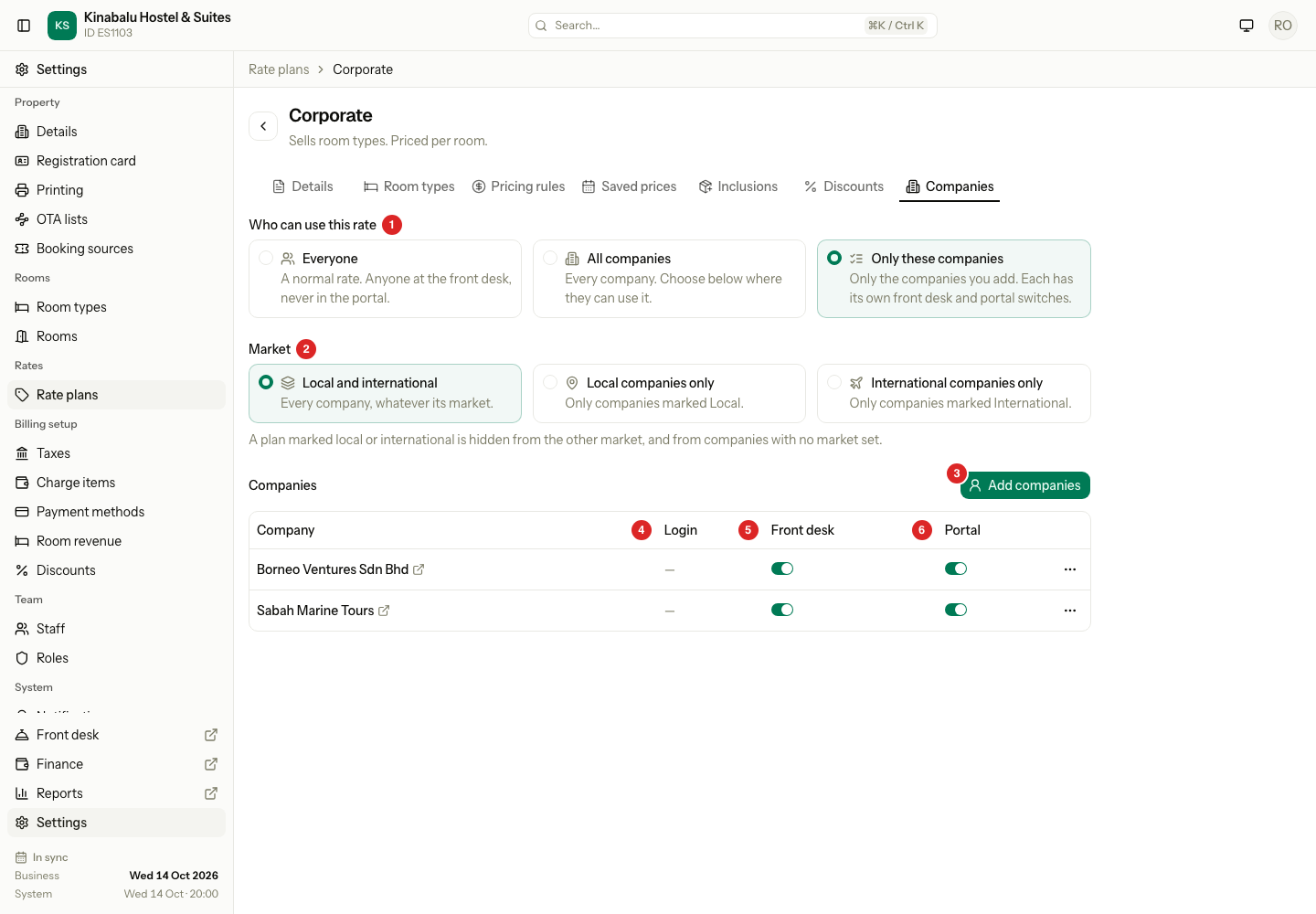
The choice Everyone is the default. A Day use plan is always Everyone. It has no Companies tab.
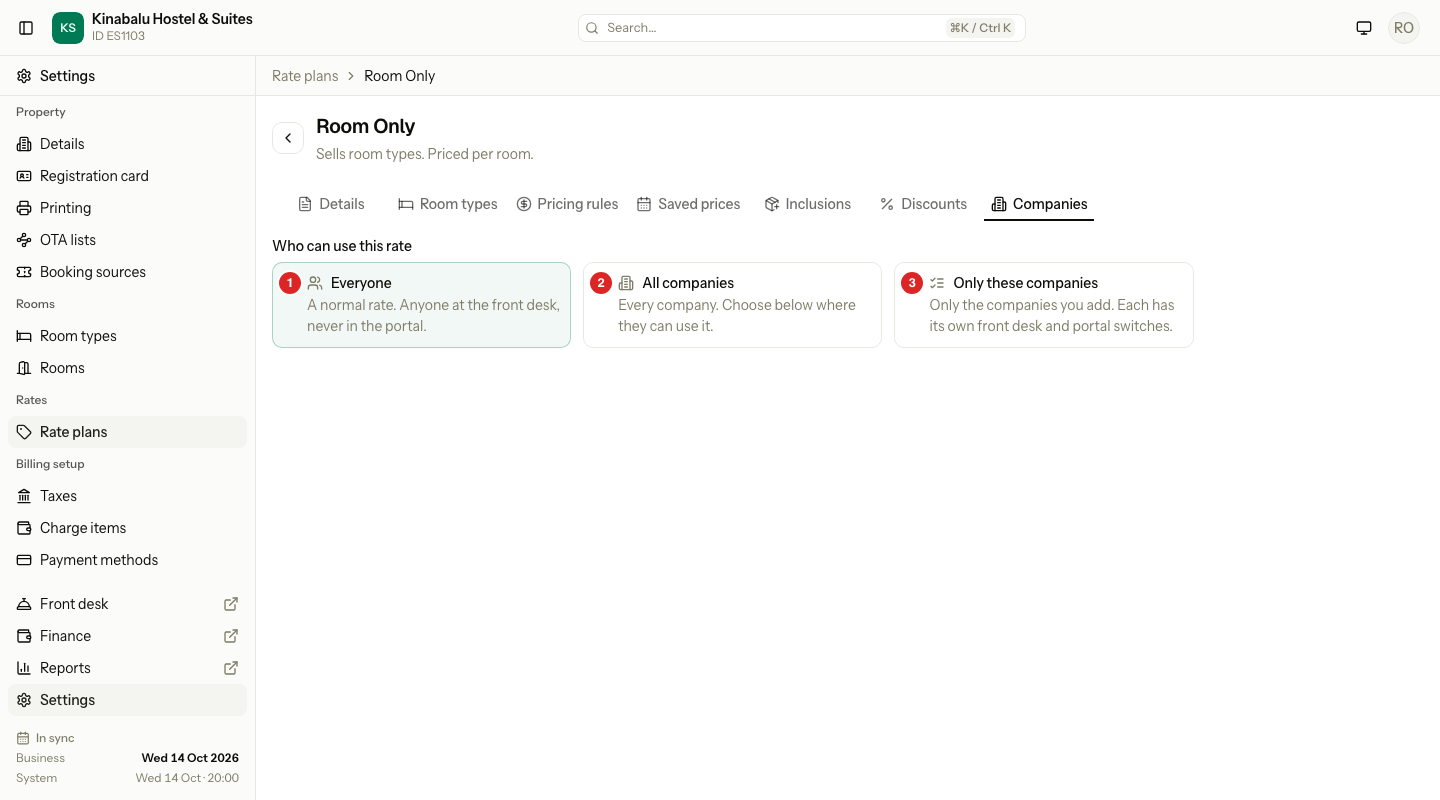
Only these companies
Choose this for a price that only some companies get. Selecting the card saves the choice at once.
-
Open the plan's Companies tab and choose Only these companies.
-
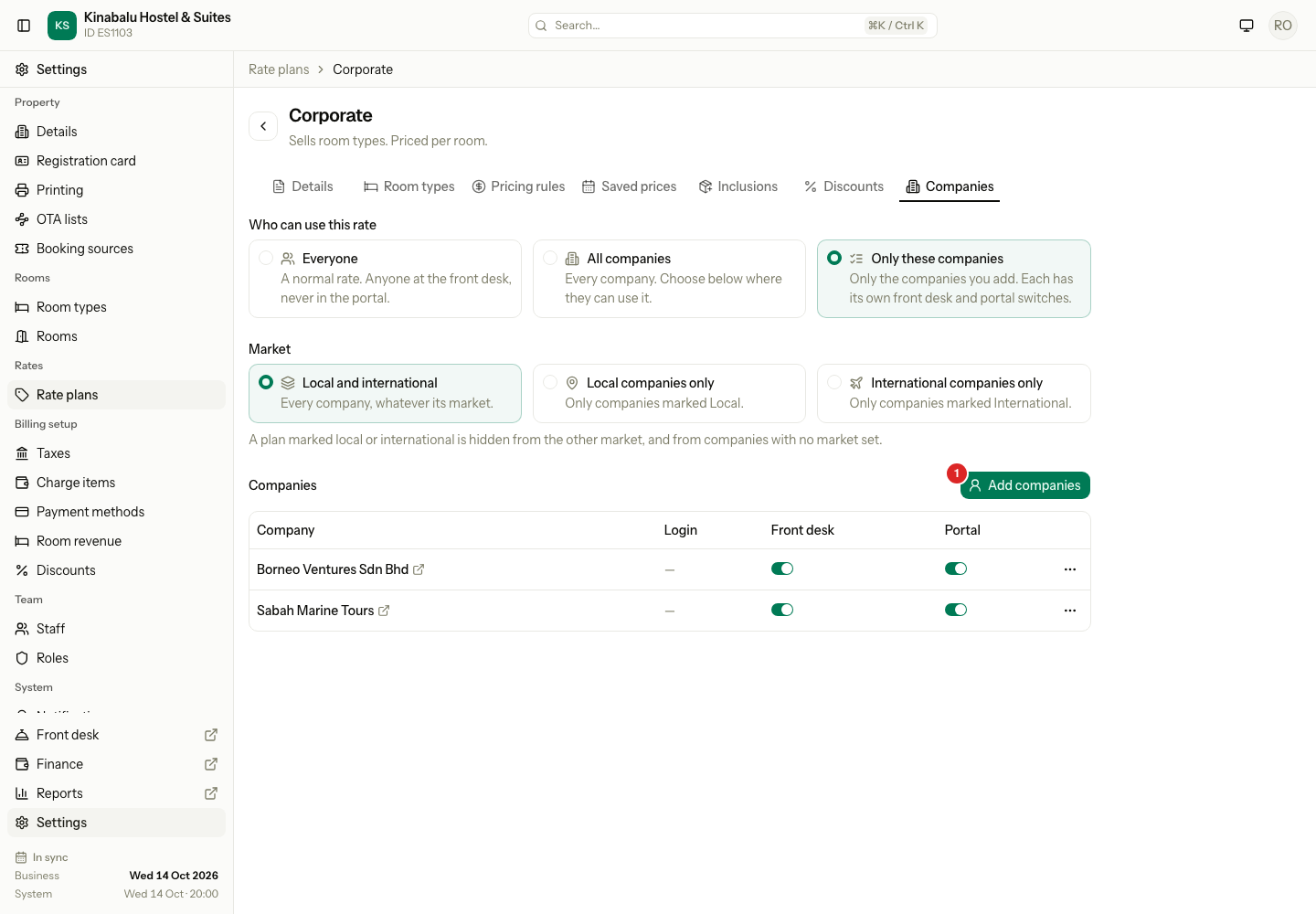
Select Add companies.
-
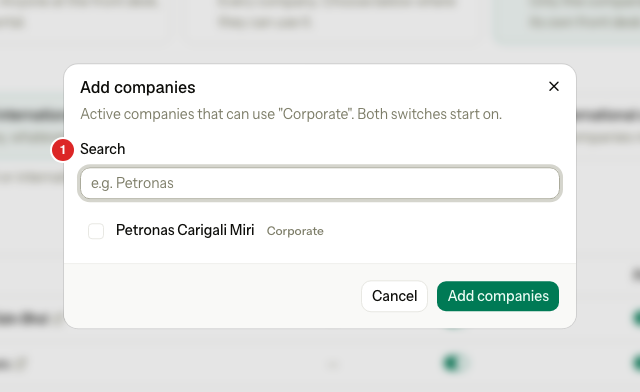
Search for a company and tick it. You can tick several.
-
Select Add companies. Both switches start on.
The table lists each company with these columns.
| Column | What it shows |
|---|---|
| Company | The company name. It opens that company's Rates tab in a new tab. |
| Login | The company's portal login status, or a dash. |
| Front desk | A switch. On means staff can pick this plan once the company is on the booking. |
| Portal | A switch. On means the company can book this plan in its portal. |
The switches save at once. You cannot turn both off. Estatell says "Turn on at least one, or remove the company." To take a company off the plan, select the ⋯ menu on its row, then Remove, then confirm. Bookings already made keep their price.
If you remove the last company, nobody can use the plan until you add a company or change the choice.
All companies
Choose this for a price that every company gets.
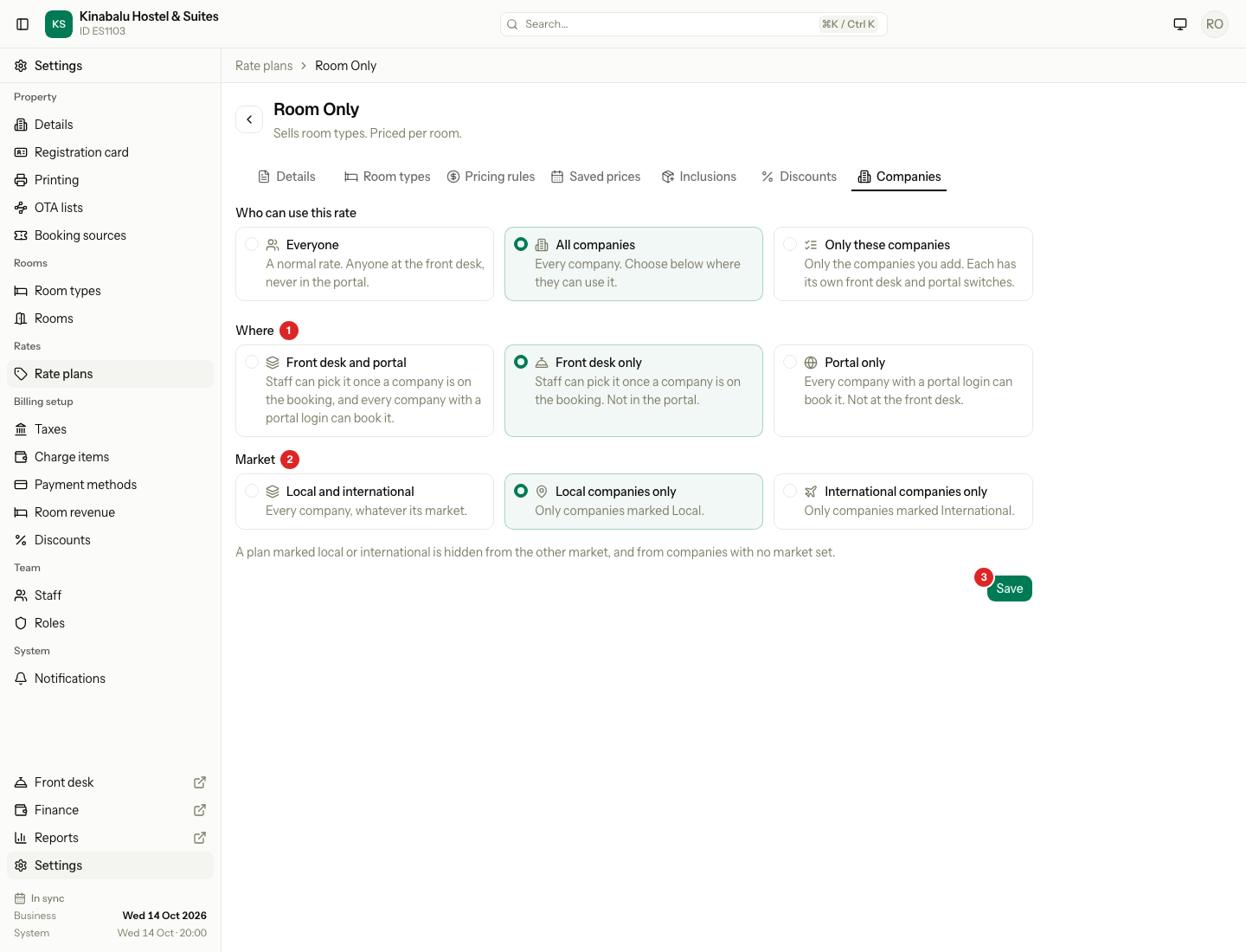
- Choose All companies.
- Under Where, choose Front desk and portal, Front desk only or Portal only.
- Choose the Market.
- Select Save.
Market
A plan that is All companies or Only these companies can be limited to local or international companies. A second check is added on top of the first one. Both must pass.
| Plan market | Local company | International company | Company with no market |
|---|---|---|---|
| Local and international | Sees the plan | Sees the plan | Sees the plan |
| Local companies only | Sees the plan | Does not | Does not |
| International companies only | Does not | Sees the plan | Does not |
Set the company's Market on its Details tab. Estatell does not work it out from the billing address, because a company with a Malaysian address can still pay an international rate.
The company's Rates tab
Open the company, then the Rates tab. It shows the Market of the company, then the plans the company can use. You cannot change anything here.
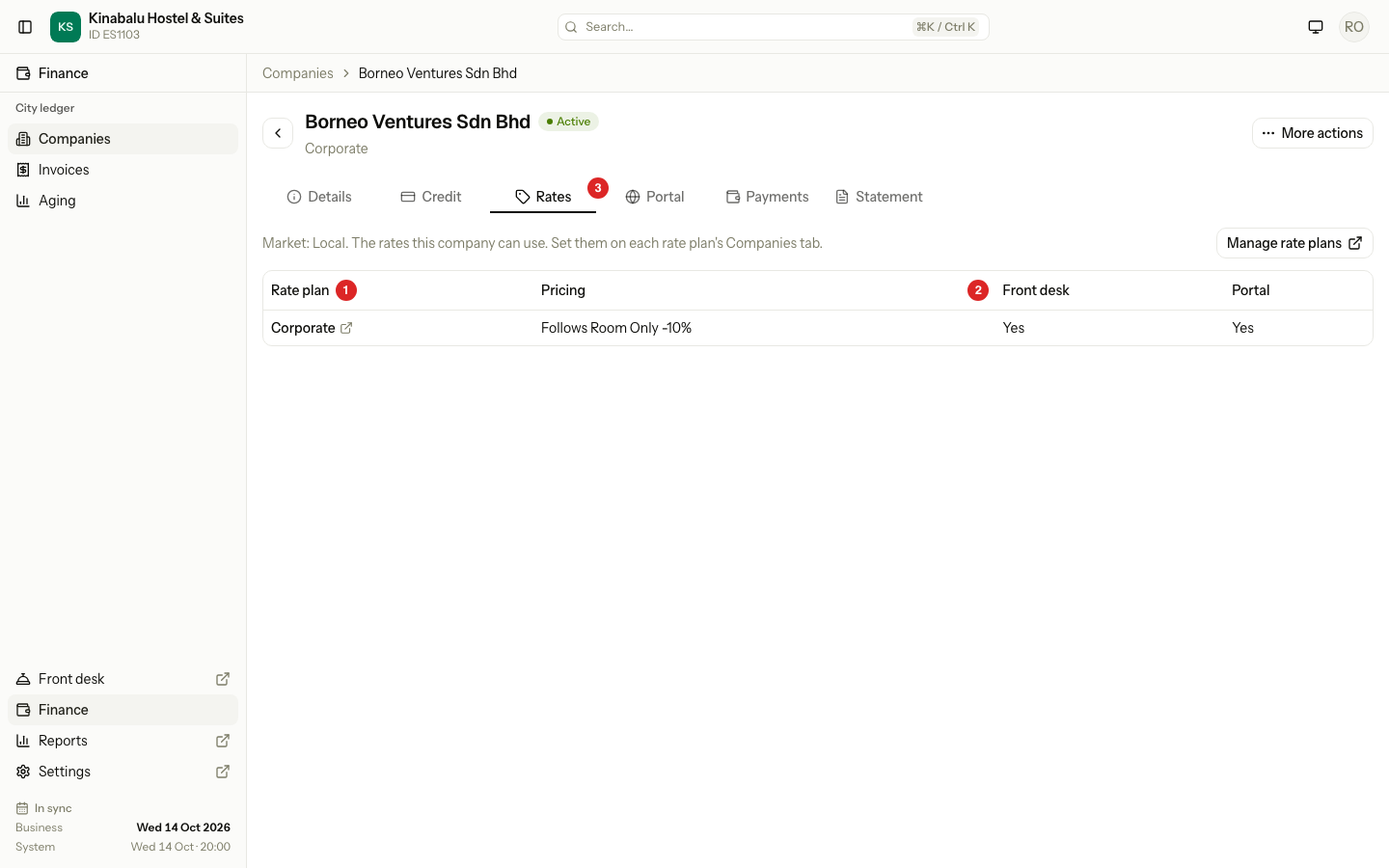
| Column | What it shows |
|---|---|
| Rate plan | The plan name. It opens the plan's Companies tab in a new tab, if you can manage settings. |
| Pricing | How the plan is priced, for example "Follows Room Only -10%". |
| Front desk | Yes if staff can pick the plan for this company. |
| Portal | Yes if the company can book the plan in its portal. |
A plan open to All companies shows here only if the plan's market fits the company's market.
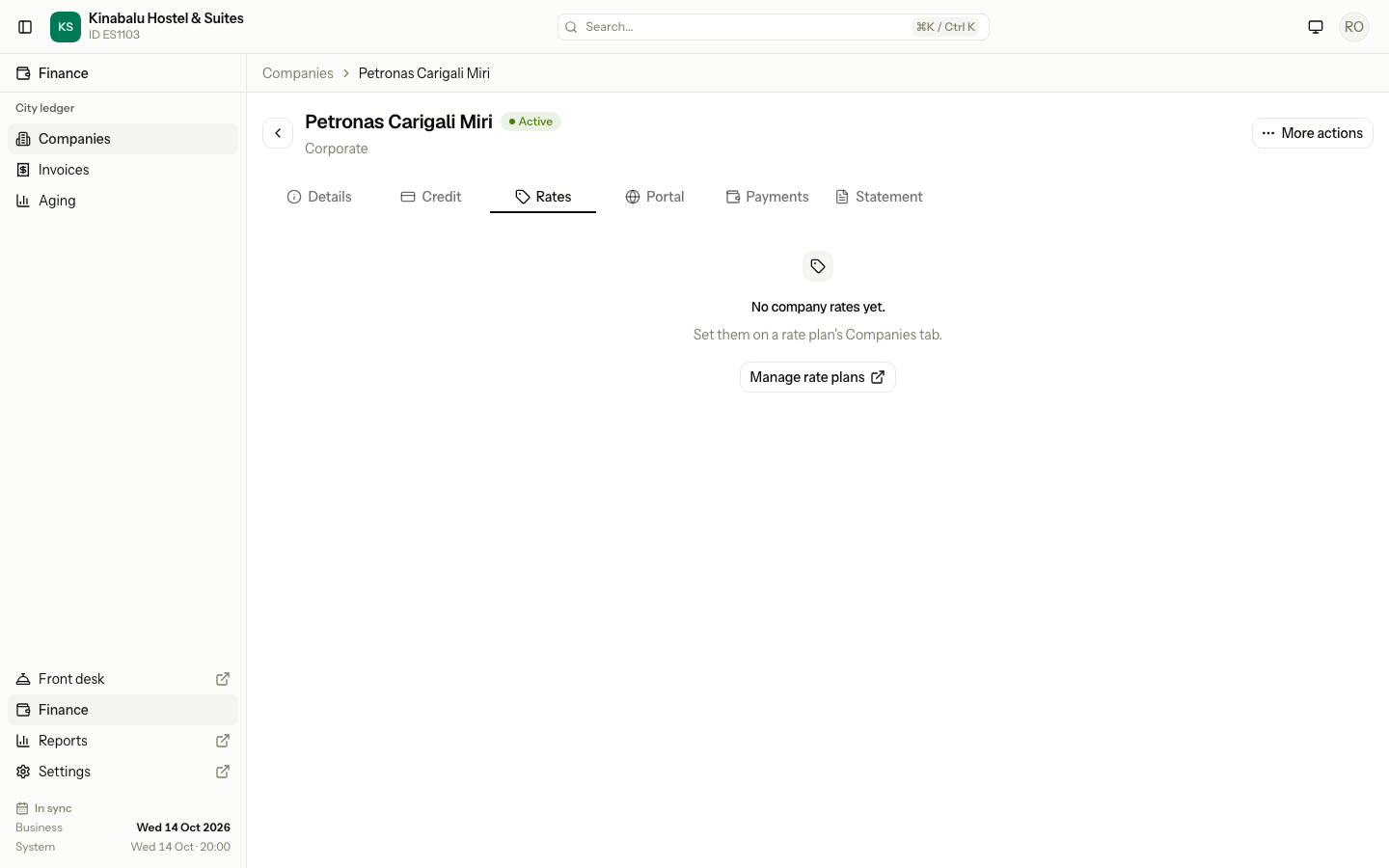
If the company has no rates, the tab says "No company rates yet." Set them on the plan's Companies tab.
What staff see on a booking
The booking form shows a company plan only after you pick a company. A walk-in with no company never gets company prices.
| On the booking | What the plan list shows |
|---|---|
| No company | Plans for Everyone only. |
| A company that is on an Only these companies plan, with Front desk on | That plan, and the plans for Everyone. |
| A company, and a plan for All companies with Front desk on | That plan, if the market fits. |
| You change the company | A line whose plan the new company cannot use is dropped. |
Special cases
| Situation | What happens | What to do |
|---|---|---|
| A company is not in the plan's table | It cannot use the plan. | Select Add companies on the plan's Companies tab. |
| You turn off both switches of a company | Estatell refuses. | Turn one off only, or remove the company. |
| You change a plan, a company or a market | Bookings already made keep their plan and price. | Nothing. |
| You change the company on a booking, and a unit uses a plan only the old company can book | Estatell refuses: "Units use plans only the old company can book." | See Change the company on a booking. |
| A company has no market, and the plan is limited to Local or International | The company does not see the plan. | Set the company's Market. |
| You switch the plan from Only these companies to another choice | Estatell keeps the list. It applies again if you switch back. | Nothing. |
| You suspend a company | It keeps its rows, but it cannot be picked on a new booking. | Reactivate it to use it again. See Companies. |
| An OTA or channel sends a booking | The front desk check does not apply to a booking from a channel. | Nothing. |
| The plan is archived | Nobody can use it, and you cannot change it. Its rows come back if you restore it. | Restore the plan to use it. |