
The company portal
What a company can do in its own portal, and what the hotel staff see.
The company portal is a separate site for your corporate clients and travel agents. A company signs in with its own login. It books rooms on its own rates, looks at its bookings, reads its statements and keeps its own details. It never sees your staff screens. The portal is part of Estatell, so there is nothing to connect.
Use the pages in this chapter to set a company up and to know what it sees:
- Portal login: give a company its login.
- Portal bookings: what happens when a company books, edits or cancels.
Before you start
- Permission to set the login:
company.manage. Owners and managers have it by default. - The property must be live. A company cannot open the portal of a property that has not gone live.
- The company needs a Portal login email. See Portal login.
- To book, the company needs a rate plan that is open to it in the portal.
What a company can do
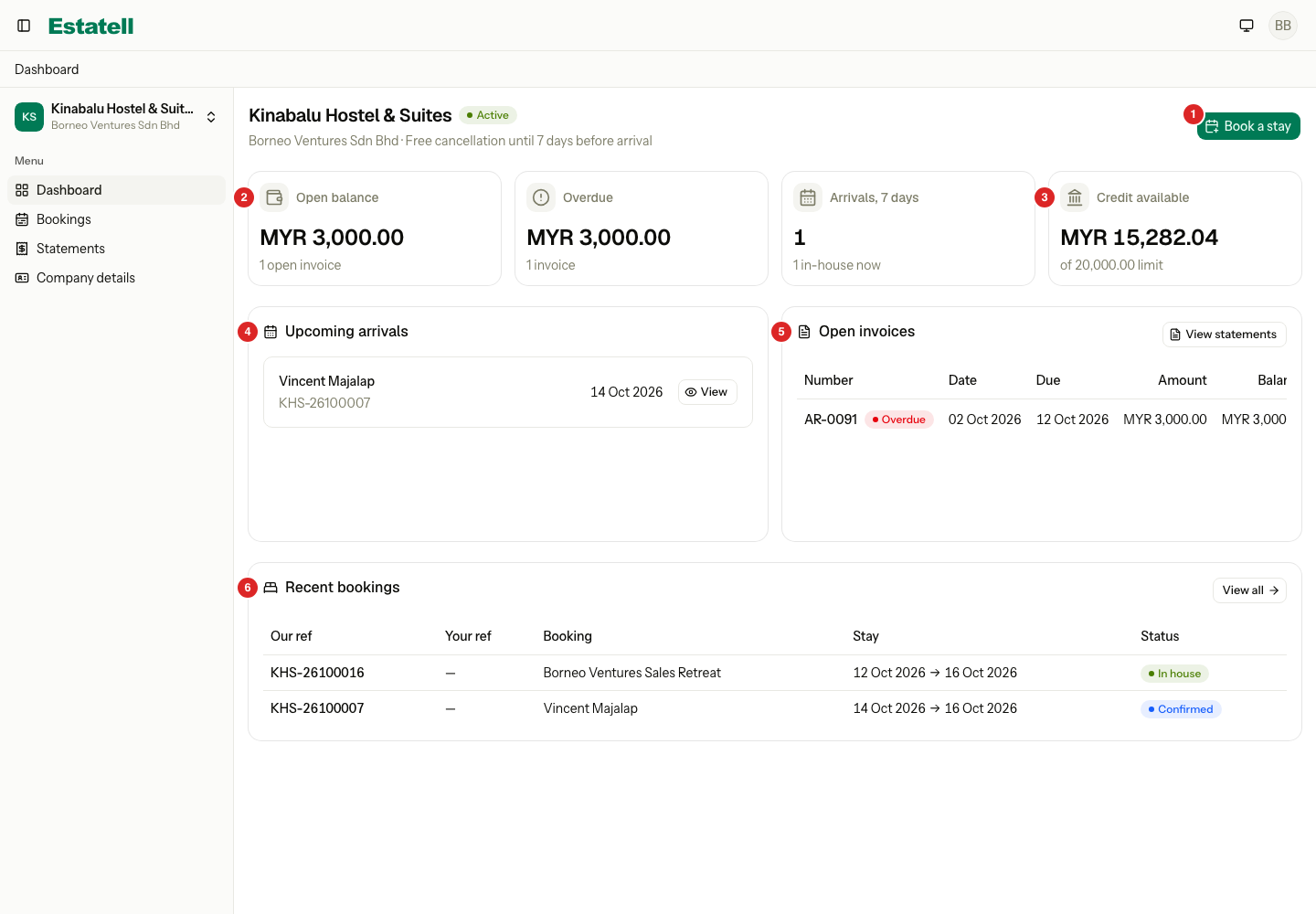
| Number | What it shows |
|---|---|
| 1 | Book a stay: start a new booking |
| 2 | Open balance: the invoices the company has not paid |
| 3 | Credit available: the company's limit minus what it owes. It shows No limit when the limit is empty. |
| 4 | Upcoming arrivals: confirmed bookings that arrive in the next 7 days |
| 5 | Open invoices: with an Overdue badge when one is late |
| 6 | Recent bookings: the five newest bookings |
The menu has four pages: Dashboard, Bookings, Statements and Company details.
| The company can | The company cannot |
|---|---|
| Book rooms and beds on the rate plans you open to it | Pick a rate plan you did not open to it, or see a price for another company |
| Add several rooms or beds in one booking | Pay online. The hotel bills the company, and you record its payments. |
| Add a reference of its own to a booking | Change the dates, rooms or plan of a booking. It must ask the hotel. |
| Edit the guest names, phone numbers and ID numbers until check-in | Cancel only some rooms of a booking |
| Cancel a whole booking at no charge before the cut-off | See your staff notes or the folio |
| Ask to cancel after the cut-off | See another company's bookings |
| Read its statement, its invoices and its payments, and download them as PDF files | Record or change a payment |
| Keep its contact, tax numbers and billing address up to date | Change its name, type, credit limit or payment terms |
Statements
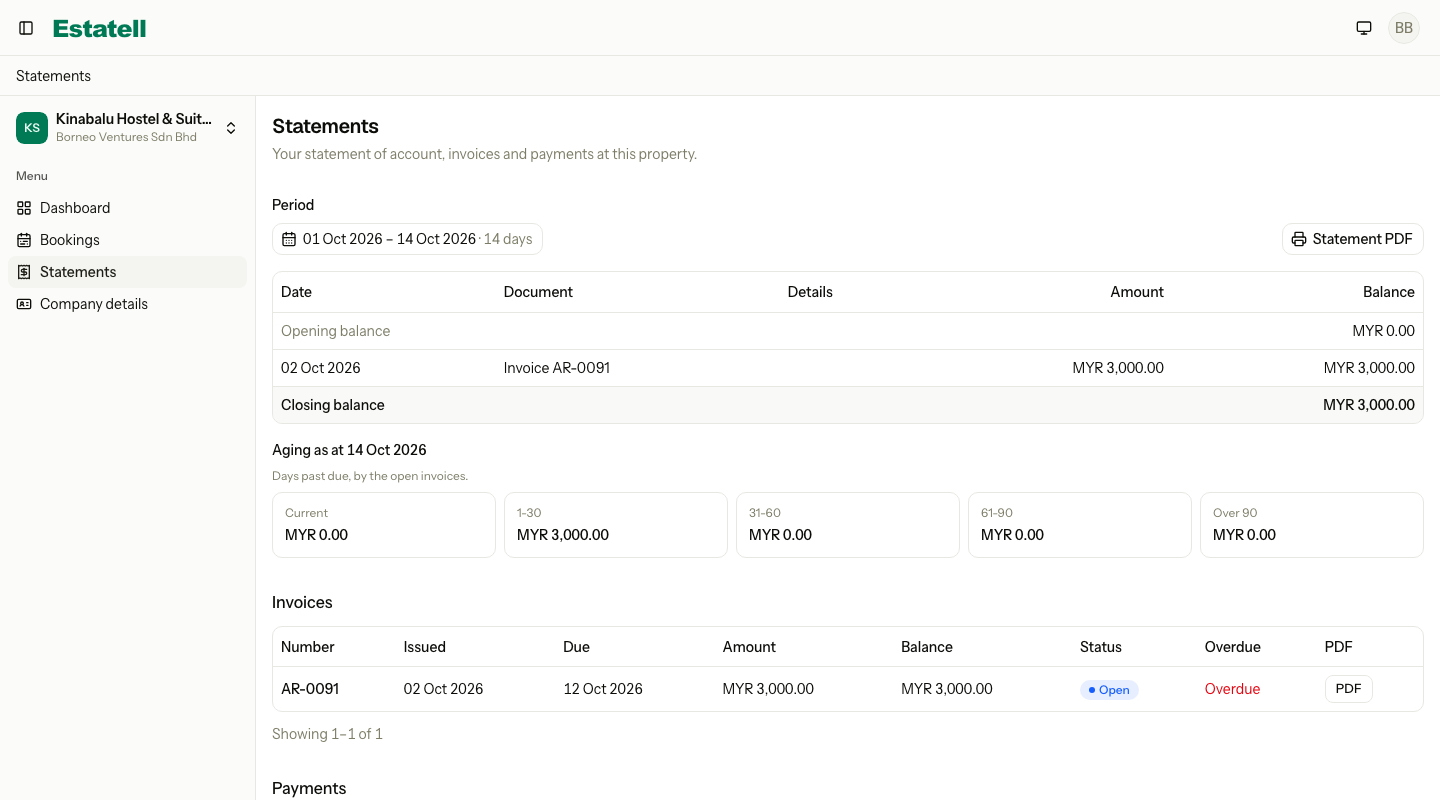
The Statements page shows the same figures as the company's statement. It also lists the company's invoices and payments, with a PDF for each invoice and a Receipt for each payment. A voided invoice or payment is not shown.
Company details
The company keeps its contact email, contact phone, tax numbers and billing address here. Each property has its own record, so a change in one property does not change another.
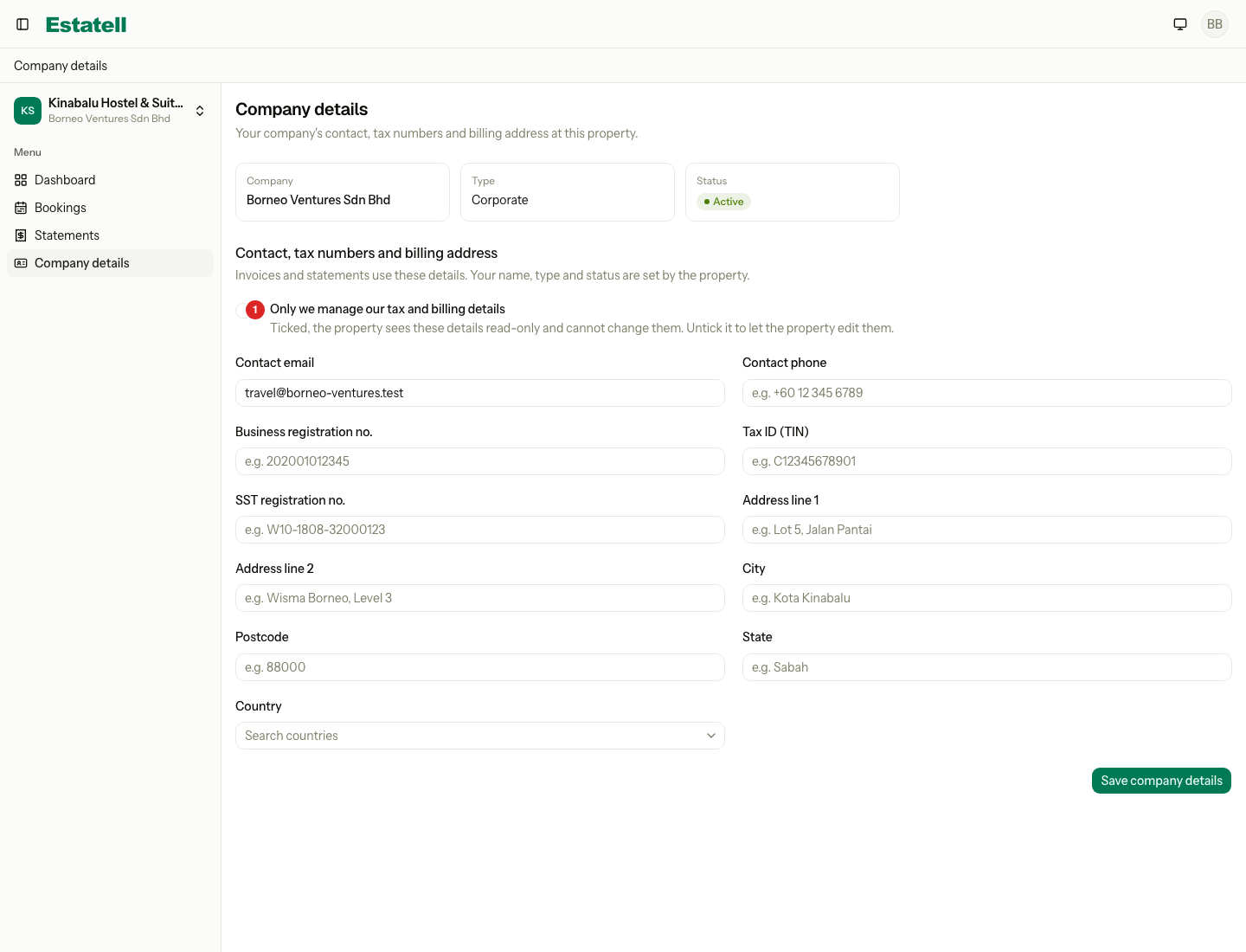
When the company ticks Only we manage our tax and billing details, your staff see the tax numbers and the address as read-only on the company's Details tab. Untick it to let your staff edit them again.
One login, many properties
A login belongs to a person at the company, not to a hotel. If two hotels both set the same email as the portal login of a company, one login opens both. After sign-in, the company lands on the dashboard. The Properties page lists each property it can open, with its open balance and its arrivals for the next 7 days. The company opens one property at a time and switches property in the sidebar.
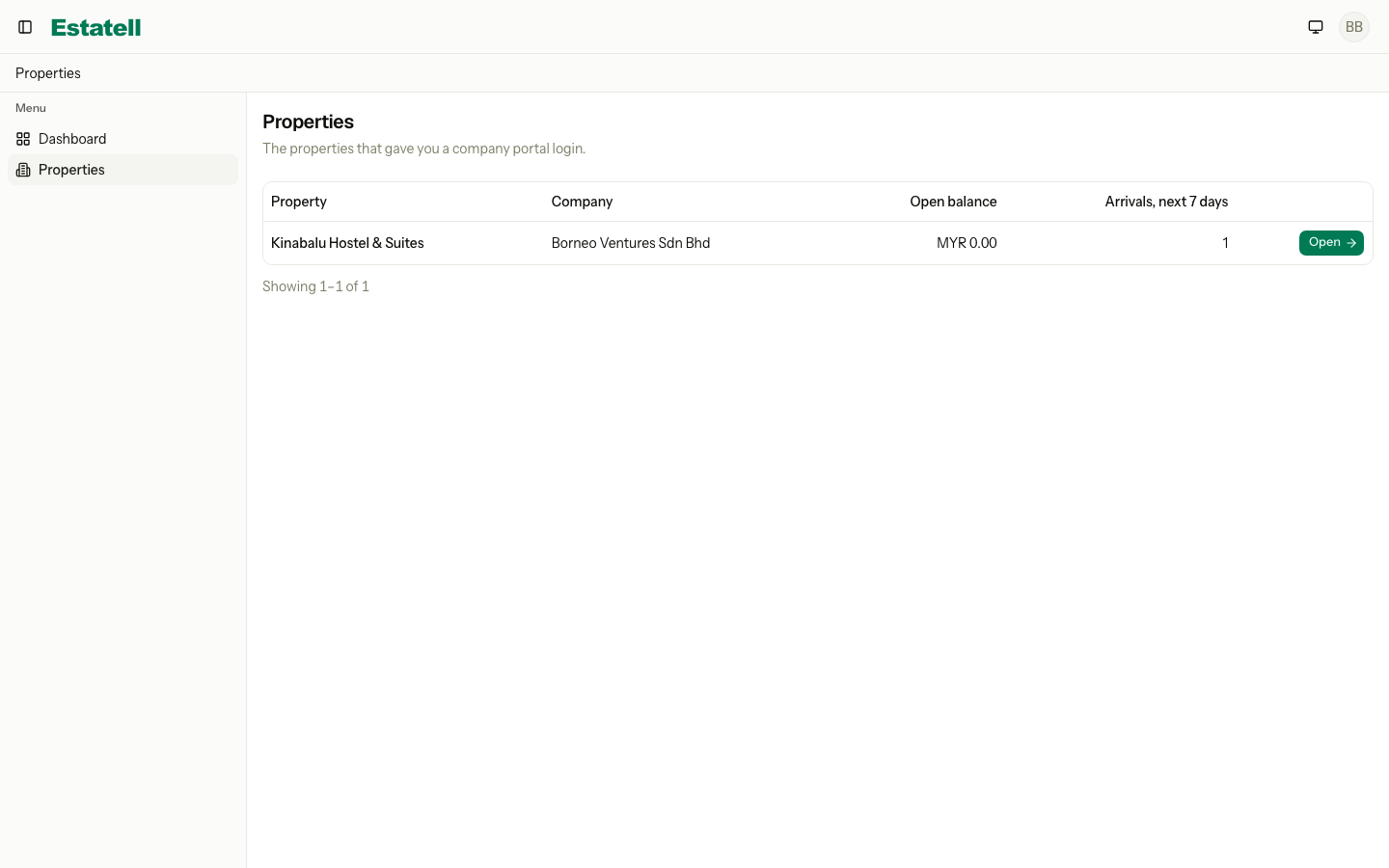
A property shows Not open yet when it has not gone live, and Suspended when Estatell has suspended the property. The row then has no Open button. A company you suspended can still open the property, but it can only look. See the special cases below.
What staff are told
When a company books, cancels or asks to cancel, Estatell sends a notification to every active staff member who has the reservations.manage permission. Each person can change what they receive in their own settings.
| Notification | When |
|---|---|
| Company portal booking | The company confirmed a booking. |
| Company portal cancellation | The company cancelled a booking inside the free period. |
| Company cancellation request | The company asked to cancel after the cut-off. It arrives by email by default. |
Answer a request in the Cancel reservation dialog. See Cancel a reservation.
Special cases
| Situation | What happens | What to do |
|---|---|---|
| The company is Suspended | It can still look at its bookings and statements. It cannot book, edit guests, cancel or ask to cancel. The buttons are hidden. | Reactivate the company to let it book again. |
| The company has no portal login | It cannot sign in. | Add a login. See Portal login. |
| You clear the Portal login email | The portal turns off for that company at that property. The login itself stays, so other properties still work. | Enter an email again to turn it back on. |
| The company opens a booking of another company, or of another property | The page does not exist for it. | Nothing. |
| The company is over its credit limit | It still sees its data. A new booking is refused. | See Credit control. |
| The company forgets its password | It selects Forgot your password? on the sign-in page. | Staff can also reset a temp password. See Portal login. |