
Portal login
Give a company its portal login, share the sign-in details, and turn the portal off.
A company gets into the portal with one login. You set that login with one field, Portal login email, on the company. Use this page when you add a company that needs the portal, when its contact changes, or when it loses its password.
Before you start
- Permission:
company.manage. Owners and managers have it by default. - Add the company first. See Companies.
- The property must be live, or the company cannot sign in.
- A company has at most one portal login at your property.
- You can use the contact email of the company as the login, but you do not have to. The contact email gets invoices, and the login is usually the person who books.
Steps
You can set the login in three places: the Portal section when you add a company, the Portal column of a bulk add, and the company's Portal tab. This page shows the tab.
-
Open Finance › City ledger › Companies and select the company.
-
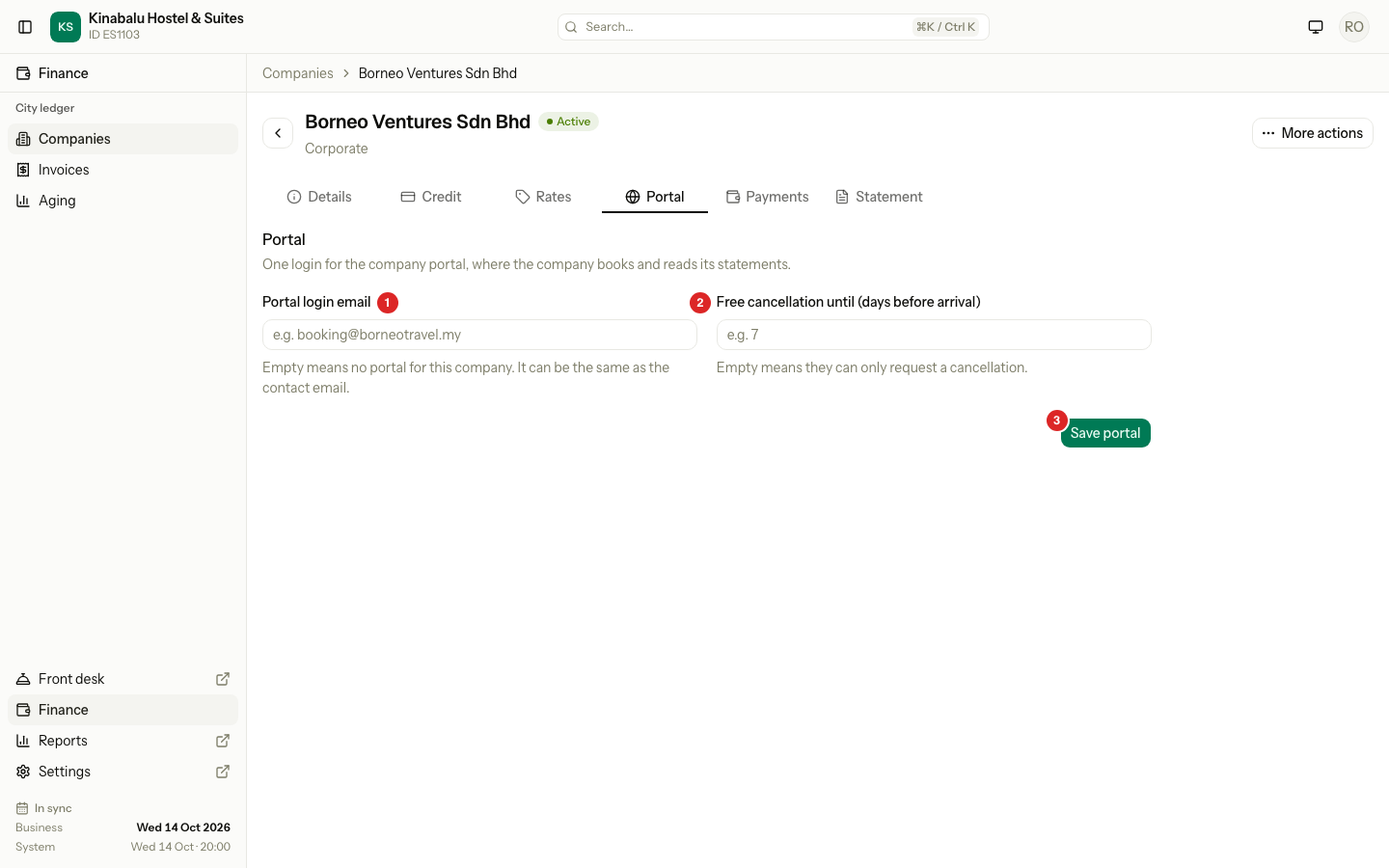
Select the Portal tab.
-
Enter the Portal login email, for example
booking@borneotravel.my. -
If the company can cancel free, enter Free cancellation until (days before arrival), for example
7. Leave it empty if the company may only ask to cancel. -
Select Save portal.
-
If Estatell made a new login, a Sign-in message opens. Select Copy and send it to the company, for example by WhatsApp. See Send the sign-in details.
| Field | What to enter | Notes |
|---|---|---|
| Portal login email | The email the company signs in with | Empty means no portal for this company. |
| Free cancellation until (days before arrival) | A number from 0 to 365 | The company cancels with no charge up to this many days before arrival. Empty means it can only ask to cancel. See Portal bookings. |
What saving does
The result depends on the email.
| The email is… | What happens |
|---|---|
| Empty | The portal turns off. An open link is removed. |
| The same as now | Nothing. |
| New to Estatell | Estatell makes a login named after the company, with a temp password. The link is Active at once. You send the sign-in details yourself. |
| A company login that already exists, for example from another hotel | Estatell makes a link that is Waiting to accept, and sends an invitation by mail and in the portal. The company accepts it in the portal. |
| An email of a staff, admin or partner account | Refused: "This email belongs to another kind of estatell account." |
| An email with an open staff or partner invitation | Refused with the same message. |
| The login of another company at your property | Refused: "This email is already the portal login of another company here." |
| A login that Estatell has turned off | Refused: "This login is not available." |
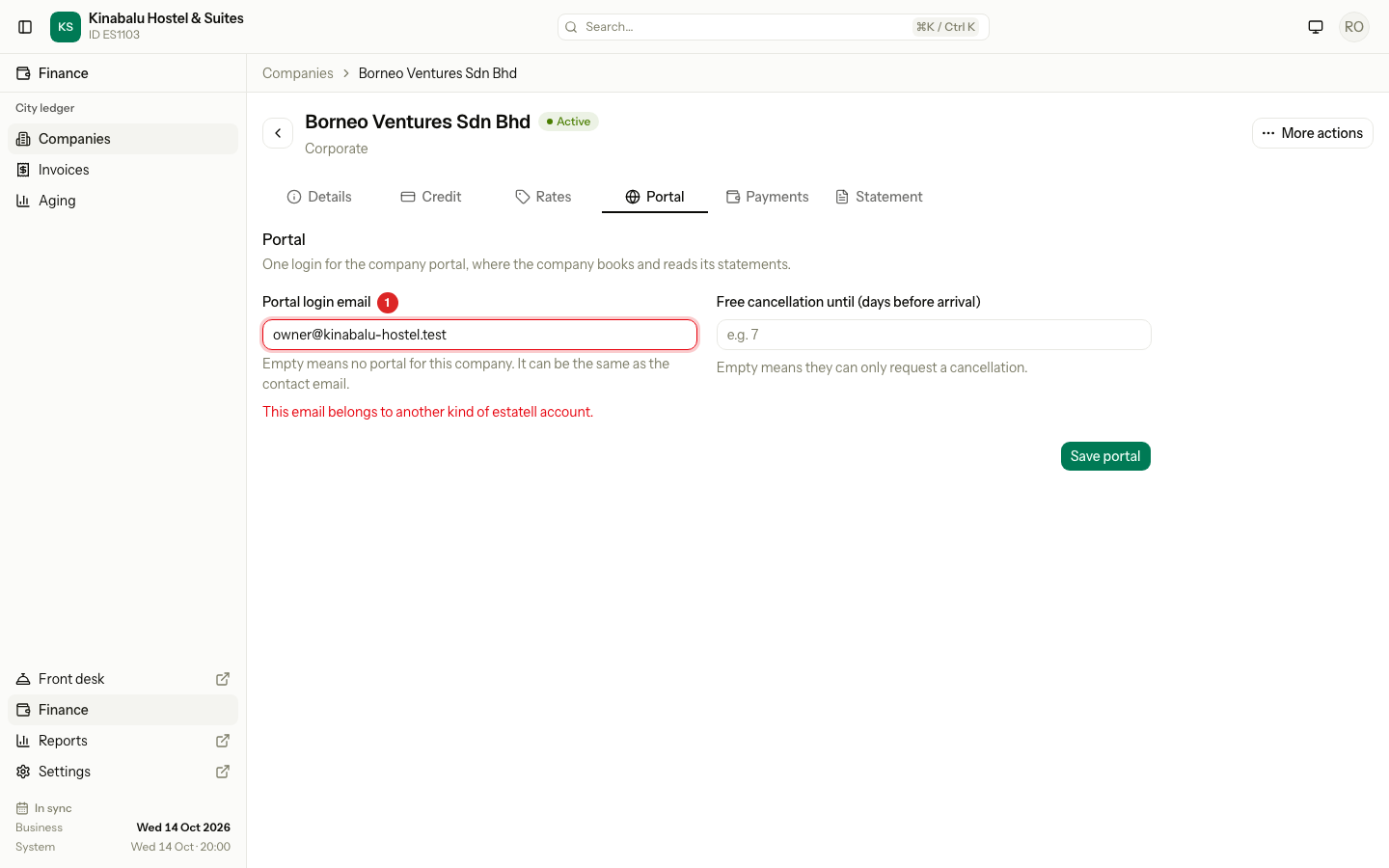
When you change the email, Estatell checks the new one first. If it refuses the new email, the old login keeps working. If it accepts, the old link is removed and the new one starts.
Send the sign-in details
A login that Estatell makes has a temp password. It is valid for 14 days and the company must choose its own password when it signs in. The email is already confirmed, so the company can use the portal at once.
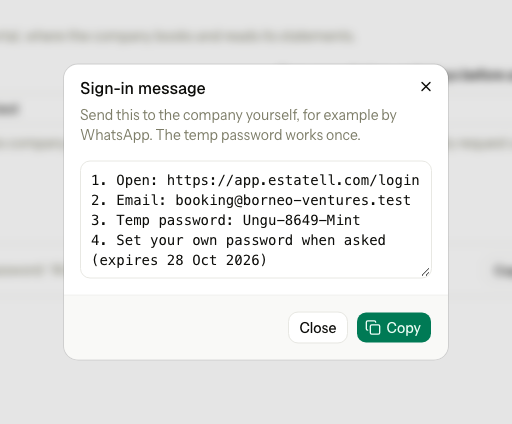
- Open the Portal tab.
- Next to Status, select Copy message. The dialog shows the sign-in page, the email and the temp password.
- Select Copy, then send the message to the company yourself.
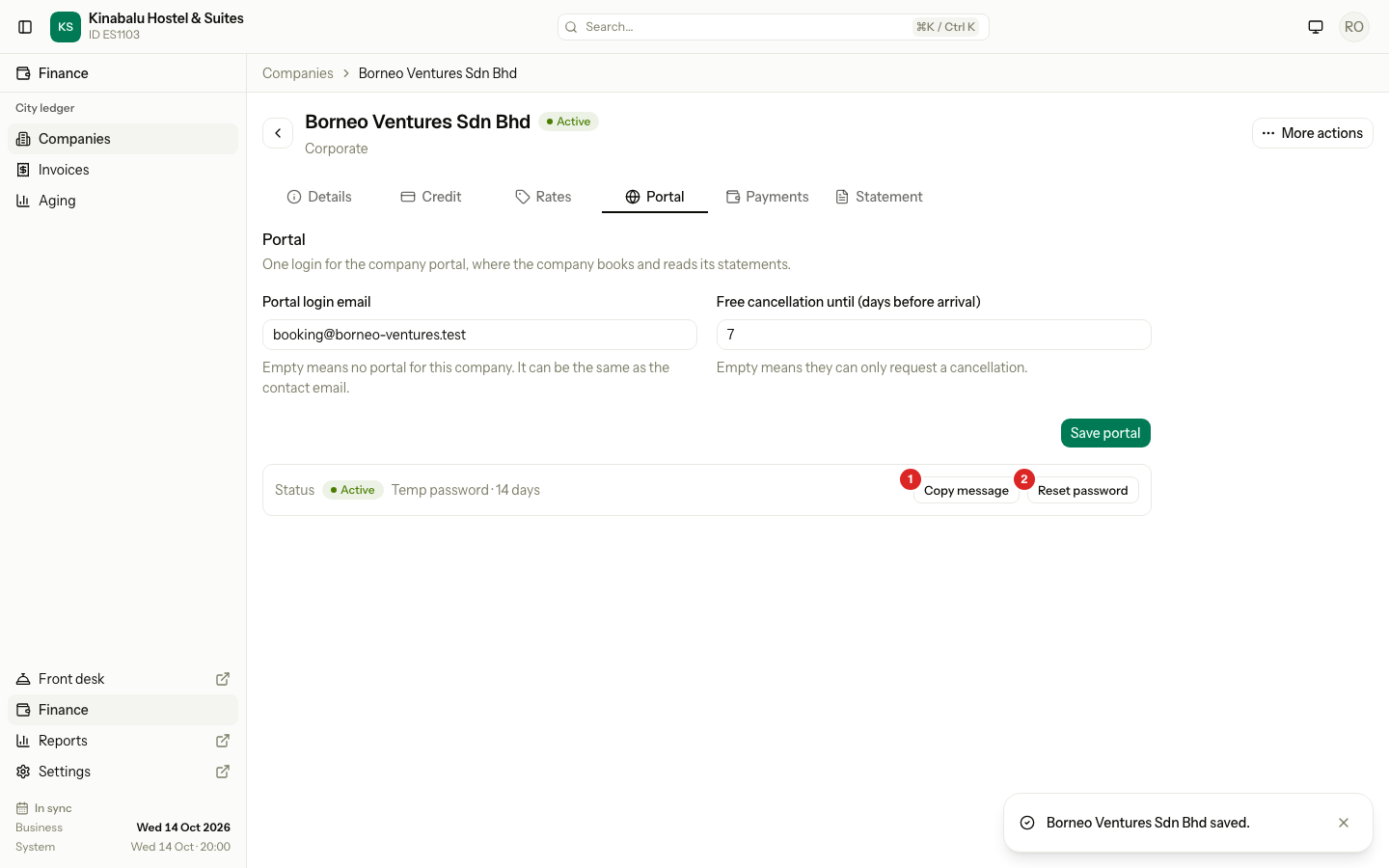
Next to Status you may see:
| Status | Meaning | Buttons |
|---|---|---|
| Active with Temp password · 14 days | The login works. The company has not chosen its own password yet. | Copy message, Reset password |
| Active | The login works. | None |
| Active with Temp password expired | The 14 days are over. | Reset password |
| Waiting to accept | An existing login was invited and has not accepted. | Resend |
- Copy message shows only while the temp password is valid.
- Reset password makes a new temp password. It works only while the company has not chosen its own password, and only when the login is not used at another property. Send the new message afterwards.
- Resend sends the invitation again.
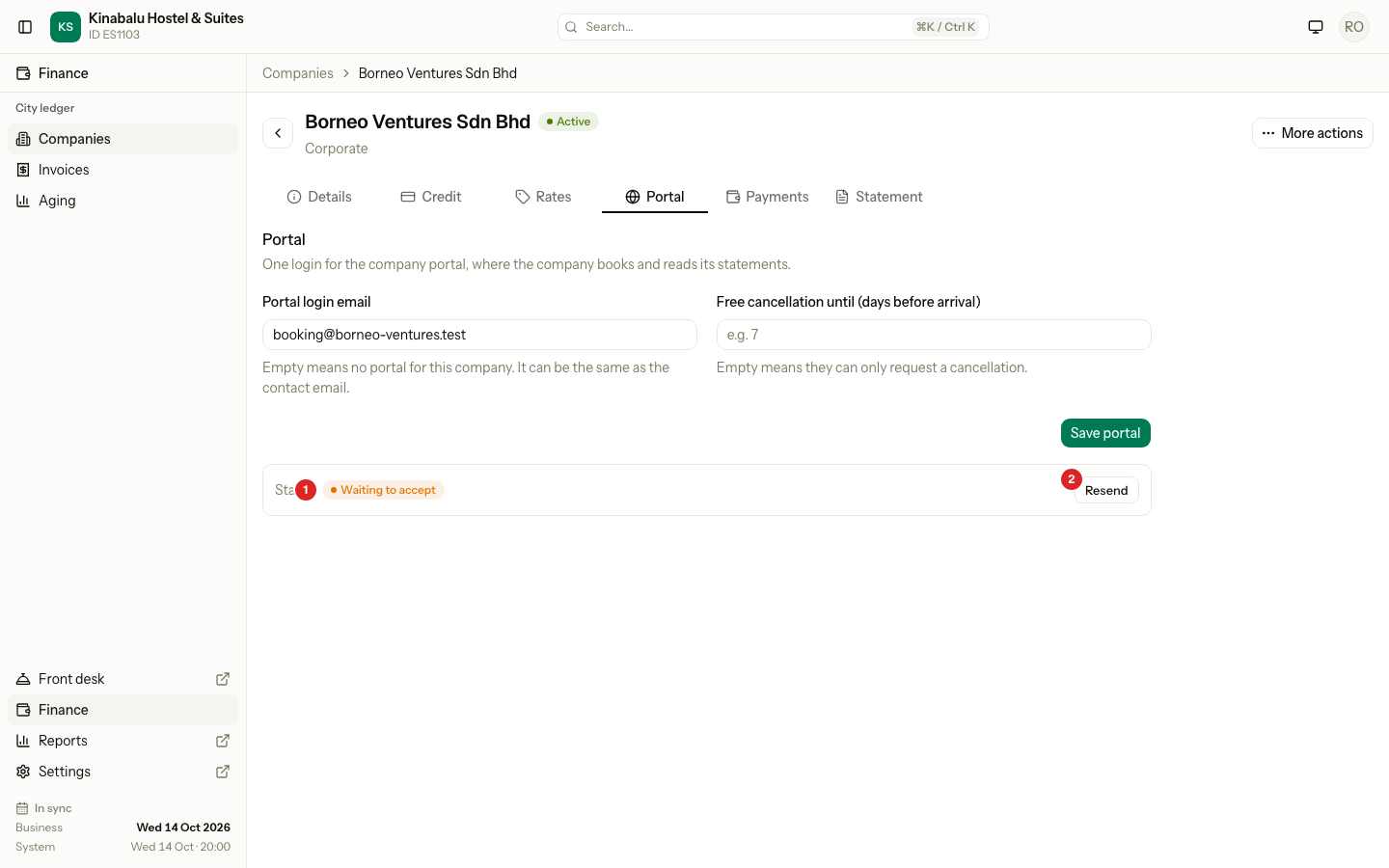
The company sees the invitation under Invitations on its portal dashboard, with Accept and Decline. If it declines, you can enter the email again.
Turn the portal off
- Open the Portal tab.
- Clear Portal login email.
- Select Save portal.
Estatell removes the link for your property. The login itself stays, because another hotel may use it. Only the Estatell team can turn off a login for good.
Special cases
| Situation | What happens | What to do |
|---|---|---|
| The company is Suspended | The two portal fields are off. You cannot change the login. The link stays. | Reactivate the company. The message says "Reactivate the company before you change its portal login." |
| The temp password expired | Copy message is gone. | Select Reset password, then Copy message. |
| The company chose its own password, then forgot it | Reset password does not show. | The company selects Forgot your password? on the sign-in page. |
| The login is also used at another property | Reset password does not show. | The company selects Forgot your password? on the sign-in page. |
| The email has a typo | The company never gets the invitation or the sign-in message. | Enter the right email and save. The old link is removed. |
| The email is the same as the contact email | This is allowed. | Nothing. |
| Another hotel uses the same email for a company | One login opens both hotels. The company accepts the invitation of the second hotel in the portal. | Nothing. |
| You add a company with a portal email in a bulk add | Each new login gets a temp password. | Download the temp password file after the bulk add. See Bulk add companies. |