
Night audit history
See every night audit, who ran it and how it ended, and open the packet that records a closed night.
The Night audit history report has one row for each night audit. It shows who ran the audit, if it was forced, how many issues it found, and the night's occupancy and room revenue. For a closed night, you can open the packet. The packet is a PDF with the full record of that night.
Before you start
- Permission: View and export reports. Owners, managers and finance staff have it by default. The night audit sheet needs only Run the night audit, but its Open packet link needs this permission too.
- You need at least one audit. A new property has none until its first night audit.
- For dates, sorting and export, see Use a report.
Read the history
Open Reports, then Audit, then Night audit history. The report opens on the last 30 days, counted back from the open business date. You can pick up to 366 days. The newest audit is first.
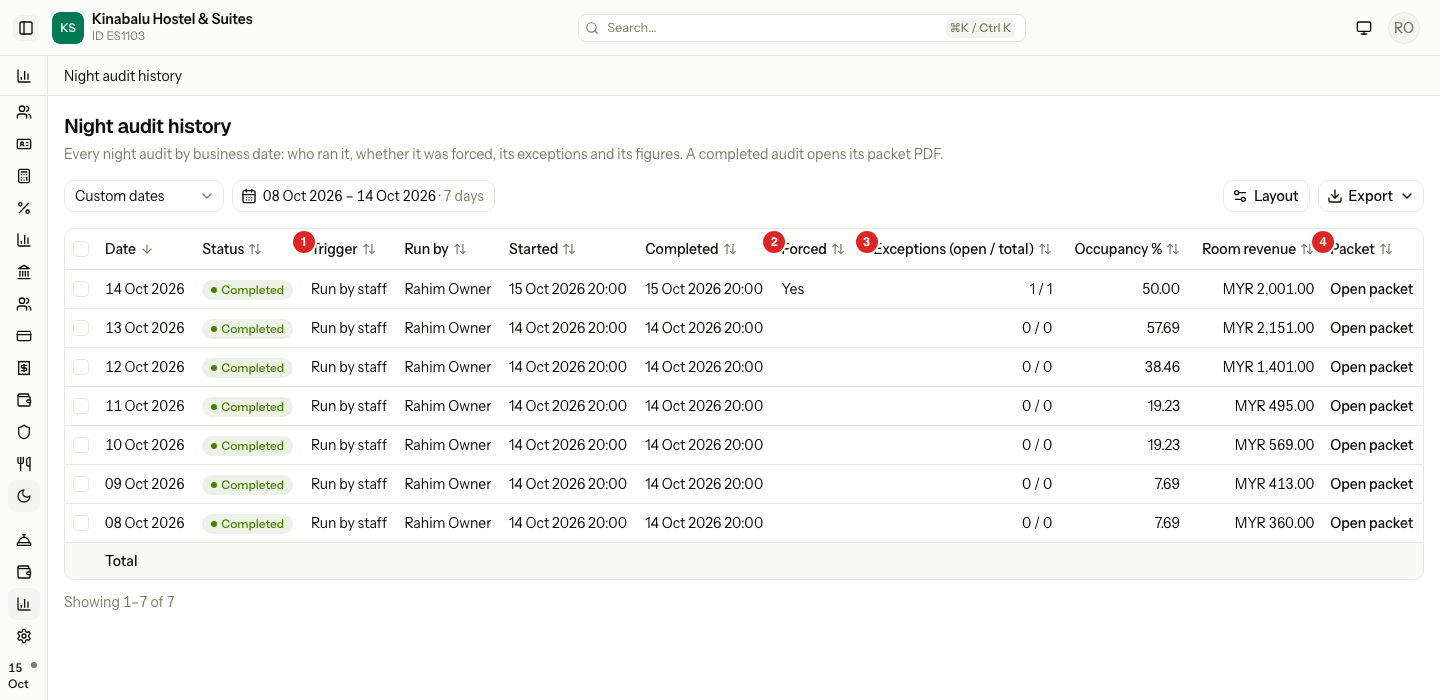
One row is one audit. The date is the business date the audit closed, not the day it ran. See Business date.
| Column | What it shows |
|---|---|
| Date | The business date of the audit. |
| Status | Running, Completed or Failed. |
| Trigger | Scheduled for the automatic run, or Run by staff. |
| Run by | The person who ran it. Empty for a scheduled run. |
| Started, Completed | The time the audit started and ended, in the property's time zone. |
| Forced | "Yes" if staff forced it. Point at "Yes" to read the reason. |
| Exceptions (open / total) | The issues the audit found. For example, "1 / 3" is one still open of three. |
| Occupancy % | The occupancy saved when the audit closed the date. Empty if none was saved. |
| Room revenue | The room revenue of the date. Shown only for a Completed audit. |
| Packet | An Open packet link, for a Completed audit. |
The split columns are hidden at first. Show them with Layout: Started date, Started time, Completed date, Completed time, Open exceptions and Exceptions. With Open exceptions and Exceptions visible, the total row adds each column. See Report layout.
Forced audits
An audit is Forced when staff closed the night with a blocker still open. They had to give a reason. The report shows "Yes" and the reason shows when you point at it. In a PDF or spreadsheet export, the cell reads "Yes: " and the reason. See Force close.
The issues of a forced audit carry on to the next day's sheet. See Earlier audit issues.
Open a packet
- Open Night audit history and find the date.
- In the Packet column, select Open packet.
The packet opens in a new tab as a PDF. You can print it or save it. The night audit sheet has the same Open packet link after a run completes.
Only a Completed audit has a packet. A Running or Failed audit has none, because its date is not closed.
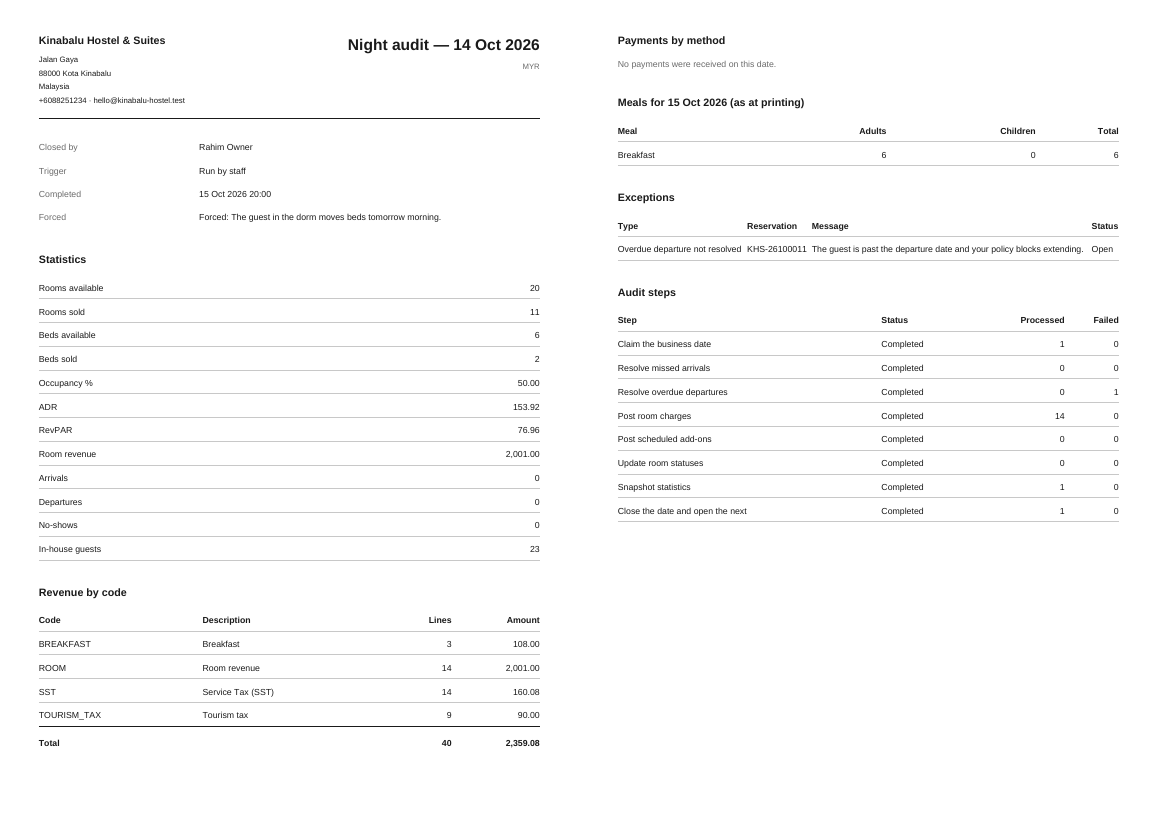
What the packet holds
| Section | What it shows |
|---|---|
| Header | "Night audit" and the date, who closed it, the trigger, when it completed, and "Forced:" with the reason when the audit was forced. |
| Statistics | Rooms and beds available and sold, occupancy, ADR, RevPAR, room revenue, arrivals, departures, no-shows and in-house guests. |
| Revenue by code | Each revenue code with its number of lines and amount, then a total. |
| Payments by method | Each method with its count and amount, then refunds, then a total. City ledger payments are included. |
| Meals for the next date | The adults, children and total to prepare for each meal. Left out when no rate plan includes a meal. |
| Exceptions | Every issue of the audit, open and resolved, with its type, reservation, message and status. |
| Audit steps | Each step of the audit with its status and how many items it processed and failed. |
The figures in the packet come from the closed date and do not change. The exception is Meals for. Its title ends "(as at printing)", because Estatell counts the meals when you open the packet. If a booking changes later, a reprint shows the new count.
Special cases
| Situation | What happens | What to do |
|---|---|---|
| A row has no Open packet link | The audit is Running or Failed. | Finish the audit. Open the sheet and select Resume audit. See Run the night audit. |
| Room revenue shows "—" | The audit did not complete, so the date is not closed. | Wait for the audit to complete. |
| Occupancy % shows "—" | No statistics were saved for the date. | Nothing. The packet then says "No statistics were saved for this date." |
| The report is empty | No audit has a business date in the dates you picked. | Pick other dates. |
| Run by is empty | The schedule ran the audit. | See Scheduled audit. |
| The Exceptions total row is empty | Total figures show only when the split columns are visible. | Show Open exceptions and Exceptions with Layout. |
| You export the report | The Packet column stays in the file, empty. | Open the packet from the screen. |
| You open the packet link for a date with no completed audit | Estatell says the page is not found. | Pick a date from the list. |
| The meal counts of a packet changed | The meals are counted when you open the packet. | Keep the first printout if you need the original count. |