
Room View
One card for each room or bed on one day, with who arrives, stays and leaves, and quick actions for the front desk.
Room View shows every room and bed on one date. Use it for today's work: who arrives, who leaves, which rooms are dirty and which rooms are free to sell. To plan across many days, use the Timeline View.
Open it from Front desk → Room View.
Before you start
- Permission: View the Timeline View and Room View. Owners, managers and front desk staff have it by default.
- Quick actions: each action needs its own permission. See What you can do.
Read the board
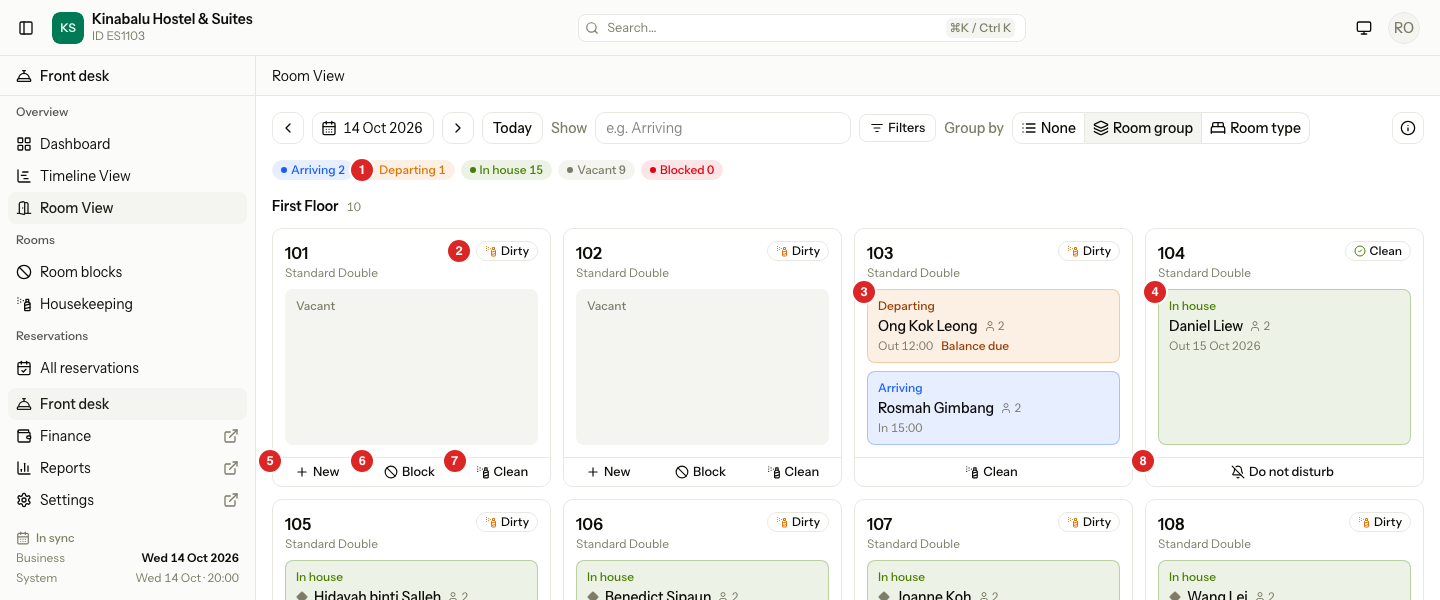
| # | What | What it shows |
|---|---|---|
| 1 | Day summary | One badge for each state, with the number of cards in it. |
| 2 | Housekeeping chip | Clean, Dirty or Inspected. |
| 3 | Departing box | A guest who leaves on this date. |
| 4 | In house box | A guest who is staying and does not leave today. |
| 5 | New | Start a booking for this room. Only on a vacant card. |
| 6 | Block | Take this room out of sale. Only on a vacant card. |
| 7 | Clean | Mark a dirty room clean. |
| 8 | Do not disturb | Mark a guest room as do not disturb. |
Each card has three parts:
- Header: the room, its type, the housekeeping chip, and two small marks. A ! means the room must be ready today. A bell with a line means do not disturb.
- State box: what the room does on this date. The box colour matches the state.
- Footer: the quick actions that apply. A card with no action has no footer.
A dorm shows one card for each bed. The card reads Bed and the bed name, and the room number sits under it.
Cards are in groups. Group by sets the group headings: None, Room group or Room type. Cards in a group are in room number order.
Room states
| State | Colour | What it means | What the box shows |
|---|---|---|---|
| Arriving | Blue | A guest arrives on this date. | The guest, the number of guests, the arrival time (In 15:00). |
| In house | Green | A guest is staying and leaves on a later date. | The guest, the number of guests, the departure date (Out 15 Oct 2026). |
| Departing | Orange | A guest leaves on this date. | The guest, the number of guests, the departure time (Out 12:00). |
| Vacant | Grey | No guest and no block on this date. | The word Vacant. |
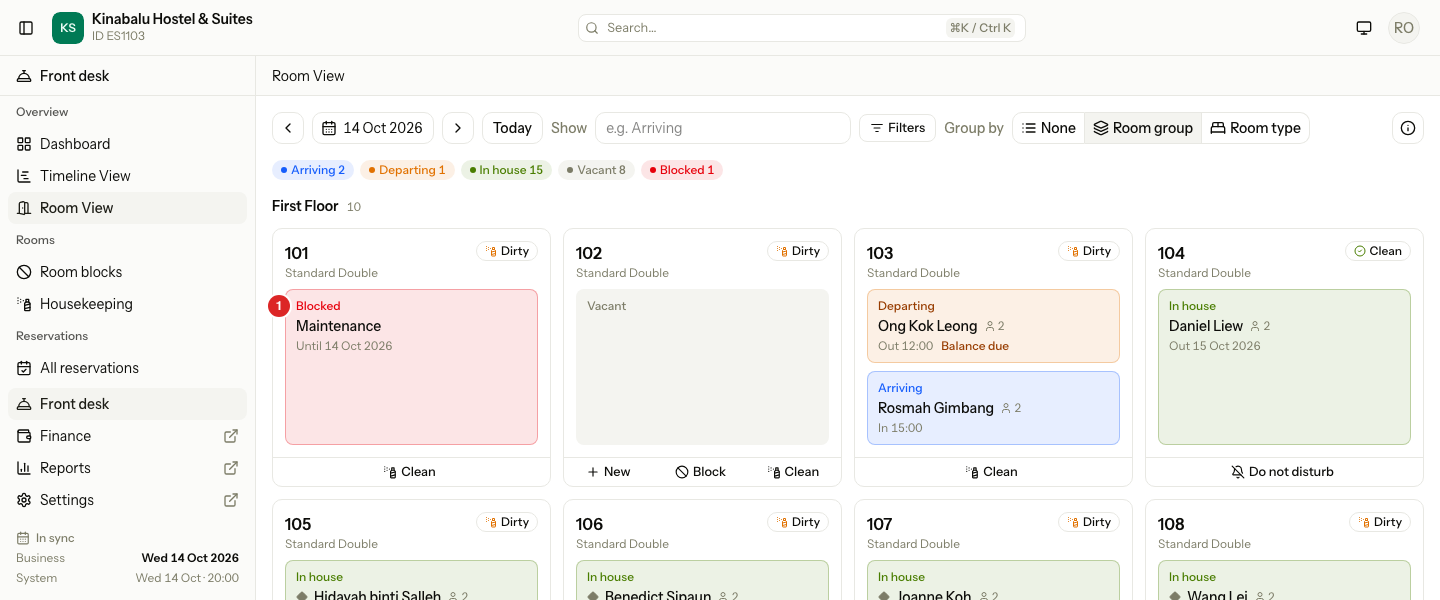
| Blocked | Red | The room is blocked on this date. | The reason, and Until and the last blocked night. |
- A box that has a balance on the reservation also shows Balance due.
- A diamond before the guest name means the unit is part of a group booking.
- A room can show two boxes. A guest leaves and the next guest arrives on the same date: Departing is first, then Arriving. A block that starts the day a guest leaves works the same way.
- A card with two states counts in both badges of the day summary. The badges can add up to more than the number of rooms.
- A booking that has no room yet is not on any card. Find it in the Unassigned lane of the Timeline View. See Assign rooms and beds.
Change the date
- Select the date, or use the arrows, to go to another day. Today goes back to the business date.
- The summary and the cards change to that day.
Room View shows one day at a time. The date, the filters and Group by are in the page address, so you can bookmark a view.
Find a room
| Control | What it does |
|---|---|
| Show | Shows only the cards in the states you pick: Arriving, In house, Departing, Vacant or Blocked. Pick none to show all. |
| Filters | Opens a panel with Search, Room group, Room type and Status (the housekeeping status). The button shows how many filters are set. |
| Group by | Sets the group headings. It never hides a room. |
The day summary counts the rooms that pass your filters.
Open a stay
Select a state box that has a guest. A panel opens on the right with the guest, the dates, the status and the balance. The room cards stay visible.
Select Open reservation, or Open group booking for a group, to go to the reservation page. Check in, check out, moving a guest and payments are done there.
Book or block a vacant room
A Vacant card has two buttons.
- Find the vacant card of the room.
- Select New to book it. The booking form opens with the room and the date filled in. After you save, you come back to Room View.
- Or select Block to take it out of sale.
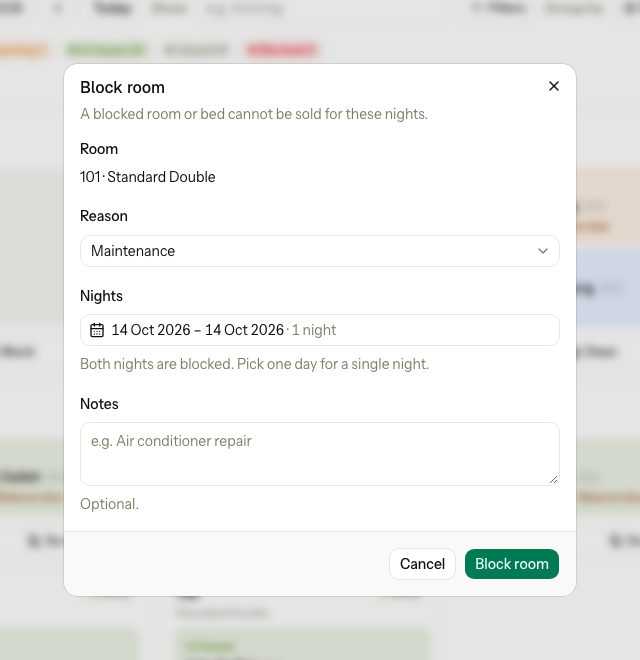
Block opens a dialog:
- Choose a Reason: Maintenance, Owner use, Out of order or Other.
- Choose the Nights. The first night is the date on the board.
- Optional: enter Notes.
- Select Block room.
The card changes to Blocked and the day summary counts it.
To change or end a block, see Room blocks.
Quick actions
Two actions change the room without leaving the board. The card changes at once.
| Action | Where it shows | What it does |
|---|---|---|
| Clean | A card whose room is Dirty, in any state, on any date. | Marks the room Clean. |
| Do not disturb | A card with a guest In house, only when the board is on the business date. | Marks the room do not disturb. The button then reads Clear do not disturb. |
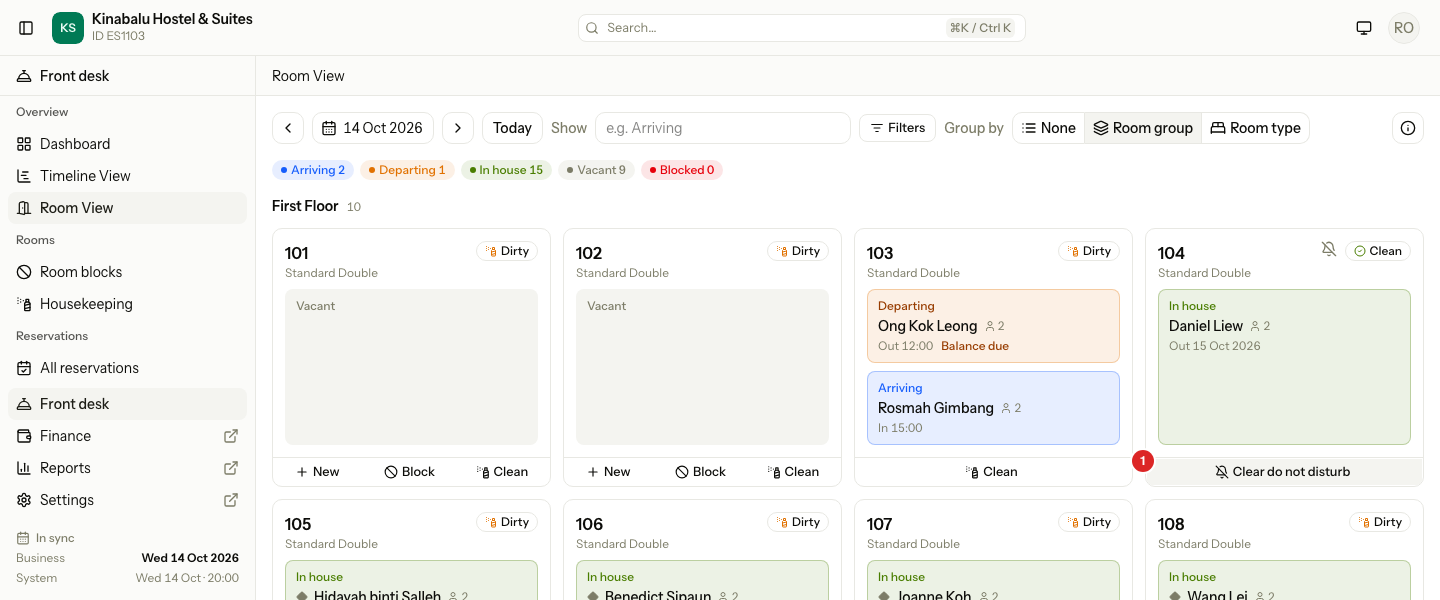
- A vacant room has no Do not disturb, because there is no guest to disturb.
- An Inspected room has no Clean button, because it is already past clean.
- For more housekeeping changes, use the housekeeping board.
What you can do
| Action | Permission |
|---|---|
| See Room View | View the Timeline View and Room View |
| New | Manage reservations |
| Block | Block rooms and beds |
| Open the reservation from the panel | View reservations |
| Clean and Do not disturb | Update room status, assignments and flags |
Without a permission, estatell hides the button. The housekeeping status and the bell still show.
Special cases
| Situation | What happens | What to do |
|---|---|---|
| The date is before the business date | A vacant card has no New and no Block. | To enter a stay that is already over, see Past stay. |
| The date is not the business date | A guest in house has Clean if the room is dirty, but no Do not disturb. | Open Room View on the business date to set it. |
| A block starts on the date | The card is Blocked. It has no New and no Block. | Change the block in Room blocks. |
| A guest in house with a dirty room | The card shows Clean and Do not disturb. | Select Clean when the room is done. |
| The change is refused | The card goes back to what it was, and a message shows. | Read the message. Try again, or use the housekeeping board. |
| No rooms match | The board reads No rooms match. | Change the Show and Filters choices. |
| The property has no rooms | The page reads No rooms yet. | Add rooms in Rooms. |
| A room with no guest named | The state box reads No guest named. | Open the reservation and add the guest. |