
Overview
How to read the Timeline View, the grid of rooms and nights that shows who sleeps where.
The Timeline View is the front desk's planning board. Each row is a room or a bed. Each column is a night. A coloured bar is one stay. Use it to see what is free, who arrives and leaves, and where to put a guest.
Open Front desk → Timeline View. To change a stay by dragging it, see Edit on the Timeline. For one day at a time, use Room View.
Before you start
- Permission: View the Timeline View and Room View. Owners, managers and front desk staff have it by default.
- To open a reservation from the peek sheet, you also need View reservations.
The screen
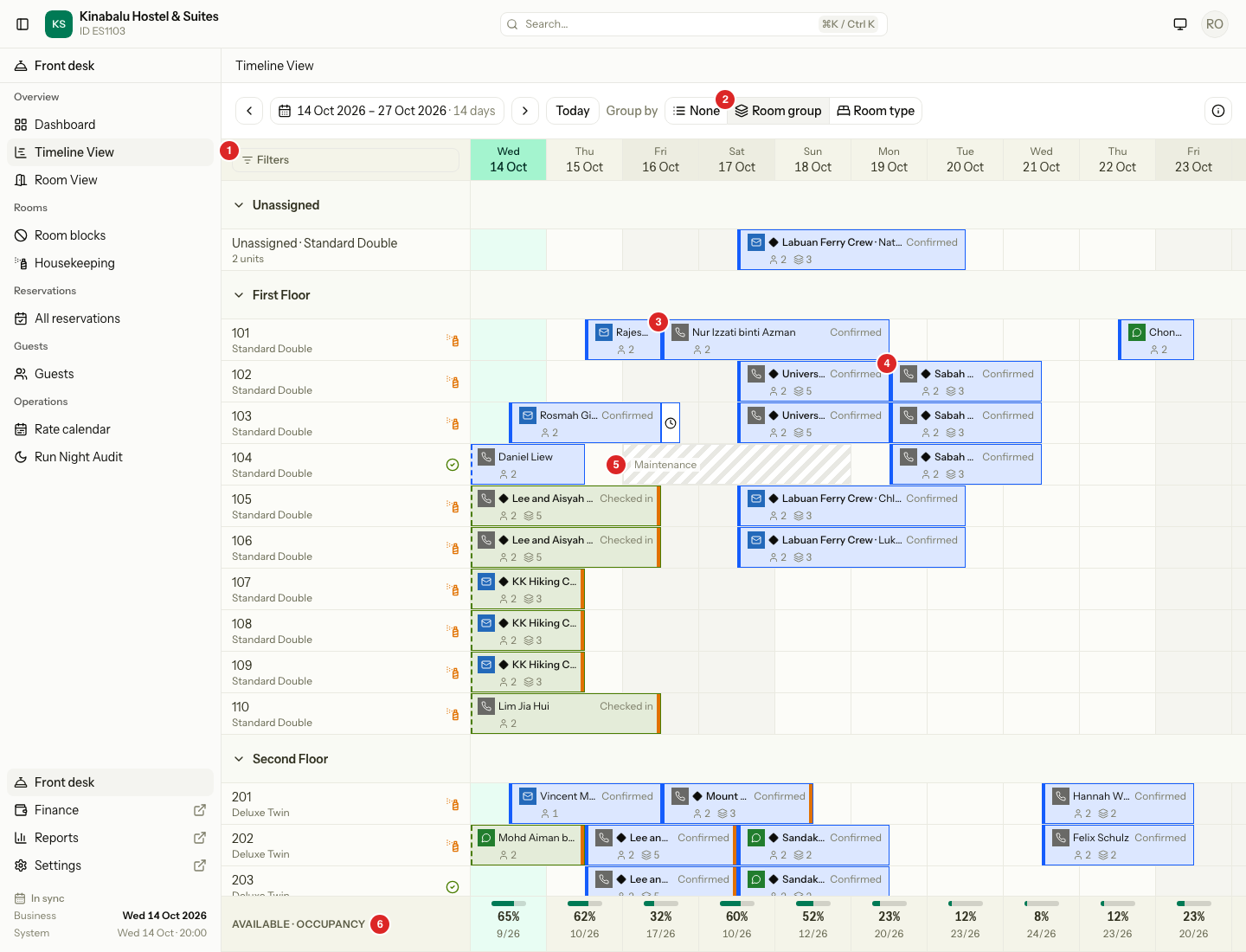
| # | What | What it does |
|---|---|---|
| 1 | Filters | Opens the filters sheet. The number next to it is how many filters are on. |
| 2 | Group by | None, Room group or Room type. It changes the row headings only. |
| 3 | A stay bar | One stay in one room or bed. Hover for details, select to open the peek sheet. |
| 4 | A group bar | One bar for each room of a group booking, with a ◆ and the group name. |
| 5 | A block | A hatched bar. The room or bed is out of sale. |
| 6 | Available · Occupancy | The footer. See The footer. |
At the top of the grid:
- The arrows move the window back or forward. The date button picks any range. Today goes back to the business date.
- The window shows 14 days. It can show up to 30.
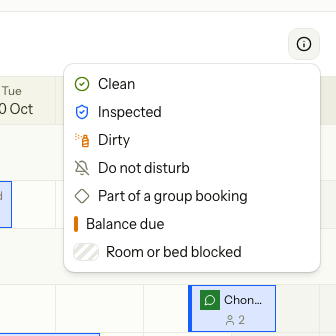
- Select the i button to open the legend.
- The column of today's business date is tinted green.
Room rows show the room number, the room type and a small icon for the housekeeping state: clean, inspected or dirty. A bell shows a guest who asked not to be disturbed.
Stay bars
A bar starts on the arrival and ends on the departure. The label is the guest name. A wide bar also shows the status, such as Confirmed or Checked in.
| What you see | What it means |
|---|---|
| Blue bar | The unit is Confirmed. The guest has not arrived. |
| Green bar | The unit is Checked in. |
| Small icon at the left | How the booking came in, for example Phone, Email or WhatsApp. |
| Person icon and a number | Adults. A baby icon shows children. |
| Layers icon and a number | The number of units in the reservation. It shows for a group of two or more. |
| ◆ and a name before the guest | The unit is part of a group booking. |
| Orange strip on the right edge | A balance is due on the reservation. |
| Dashed left edge | The stay began before the first day on screen. |
| Hatched bar with a reason | The room or bed is blocked. See Room blocks. |
| Clock marker | A day use. See Day use. |
A guest who moves room has one bar in each room. Each bar covers only the nights in that room.
Half cells
A bar starts in the middle of the arrival column and ends in the middle of the departure column. A guest who leaves in the morning and a guest who arrives in the afternoon share the same column. The left half is the departure. The right half is the arrival.
A bar that is cut by the edge of the window runs to the edge of the grid.
Day use
A day use is a room sold for a few hours. A column has four quarters.
| Quarter | Used by |
|---|---|
| First and second | A departure |
| Third | A day use |
| Fourth | An arrival |
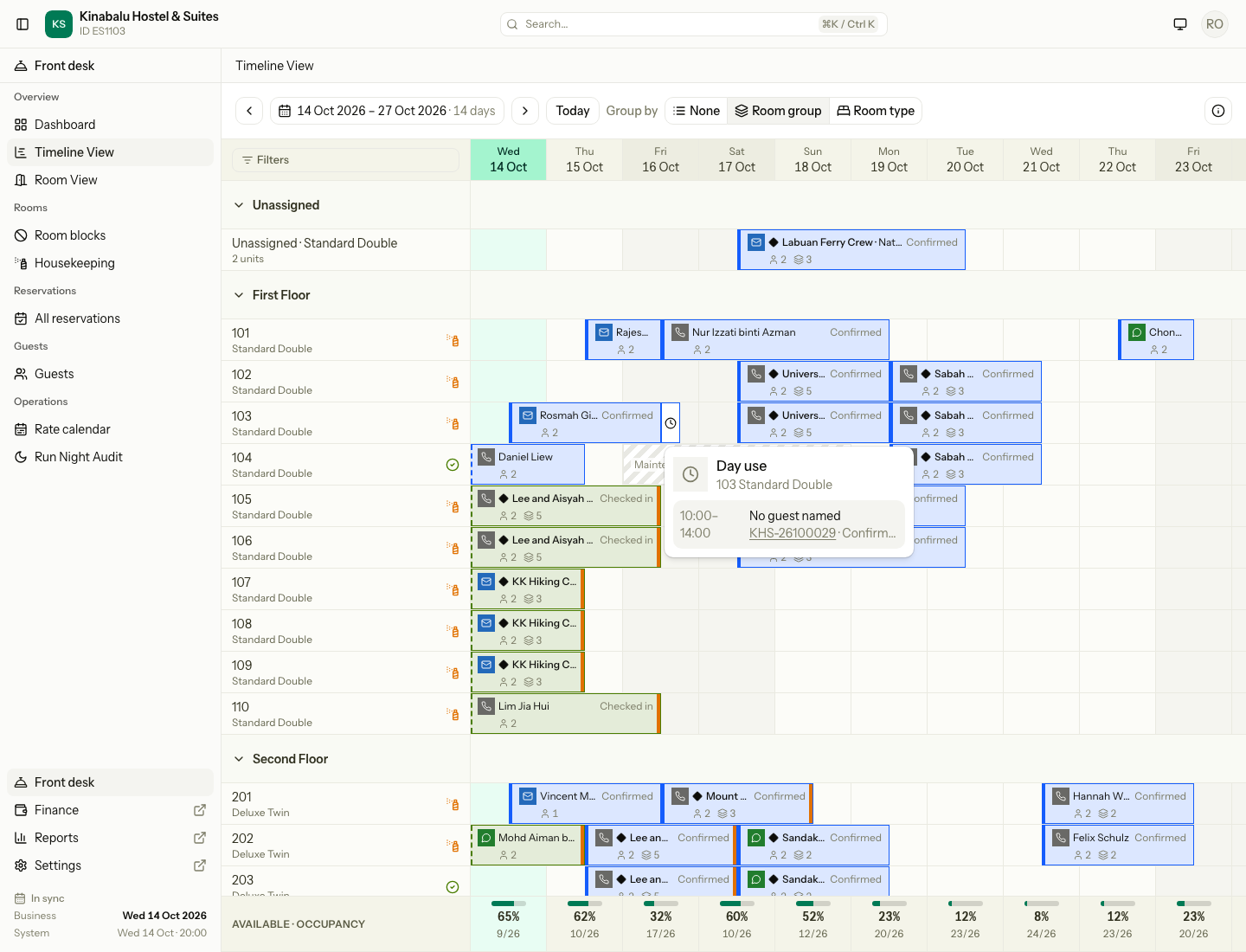
- The marker shows the date, not the hours. Hover over it to see the hours.
- A room with two or more day uses on one date shows one marker with the number. The hover card lists each one.
- A room that sells beds shows the marker on each of its beds.
- With View reservations, select the marker to open the reservation.
- A cancelled or no-show day use is not drawn.
Group bars
A group booking has one bar for each unit. Each bar has a ◆ and the group name, for example Sabah Teachers Union · Huang Jing. A unit with no named guest reads No guest named. Hover over one bar to light up the other bars of the group.
Each unit has its own status. A group can have a unit that is checked in next to units that are still confirmed.
The hover card
Hover over a bar for a moment to see a card. It opens at once, with no wait for the server.
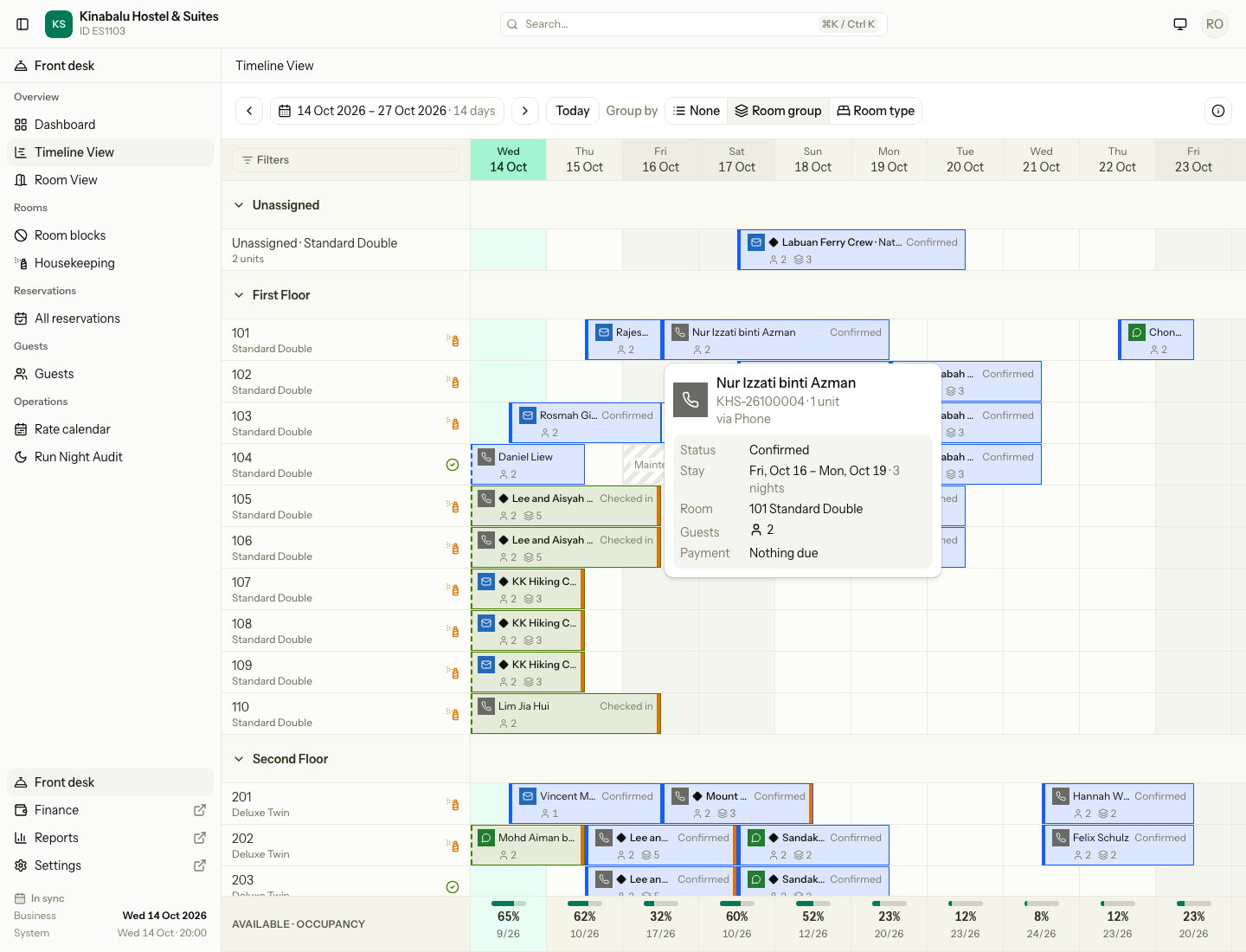
| Line | What it shows |
|---|---|
| Heading | The guest, the reservation number, the number of units and how the booking came in. |
| Status | The status of the unit. |
| Stay | Arrival, departure and the number of nights. |
| Room | The room or bed. A stay with no room says Not assigned. |
| Guests | Adults and children. |
| Payment | Balance due or Nothing due. The amount is in the peek sheet. |
A block shows Blocked, the reason, the dates and the room.
The peek sheet
Select a bar to open the peek sheet on the right. The grid stays visible.
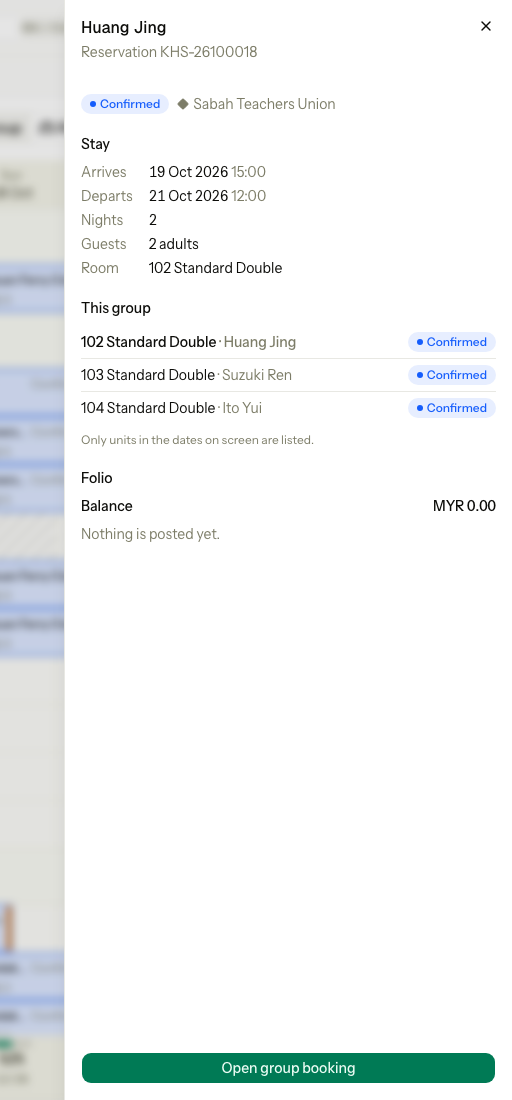
| Part | What it shows |
|---|---|
| Heading | The guest and the reservation number. |
| Status | The status of the unit, and the group name for a group booking. |
| Stay | Arrival and departure with their times, the nights, the guests and the room. |
| This group | The other units of the group that are on screen. Select one to show it in the sheet. |
| Folio | The balance and the newest lines. It needs View reservations. |
| Open reservation | Goes to the reservation page. For a group it says Open group booking. |
Check in, check out, move and payments are done on the reservation page.
Without View reservations, the sheet shows the summary only.
The nightly rate row
Turn on Show rates in the filters sheet to see the price of a night under the dates. It is on by default.
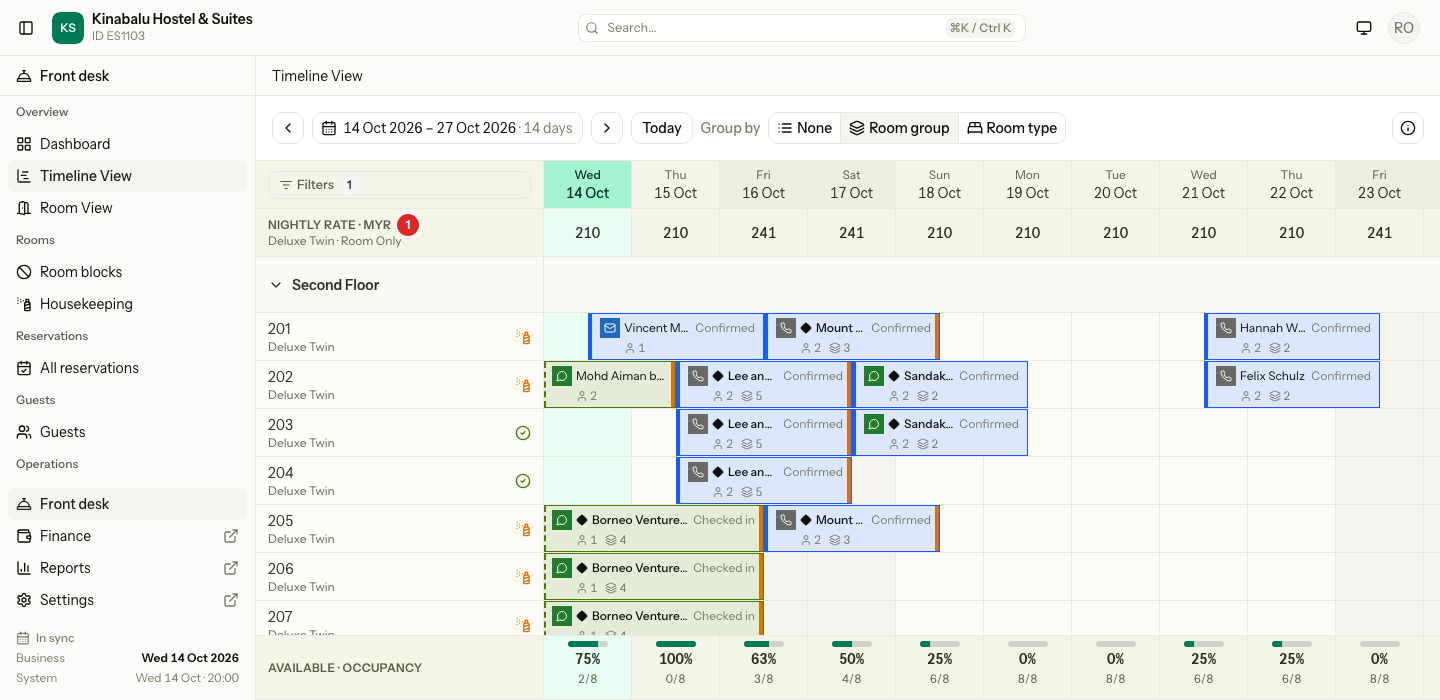
A price shows only next to the rooms it is for.
| Your view | What you see |
|---|---|
| Group by Room type | Each room type heading shows its own prices in the date cells. |
| One room type on screen, for example with a Room type filter | One row under the dates, called Nightly rate, with the room type and the rate plan. |
| Several room types on screen, grouped another way | No prices, because one price would be wrong for some rooms. |
- Pick the Rate plan in the filters sheet. The first plan in your list is the default. Package and day use plans are not listed.
- A dash means the plan has no price for that night, does not sell the room type, or is closed.
- Hover over a price to see every rate plan of that room type for the night. A struck-through price is a stop-sell night.
- Estatell remembers Show rates and the rate plan in this browser.
Filters and search
Select Filters in the top-left corner of the grid.
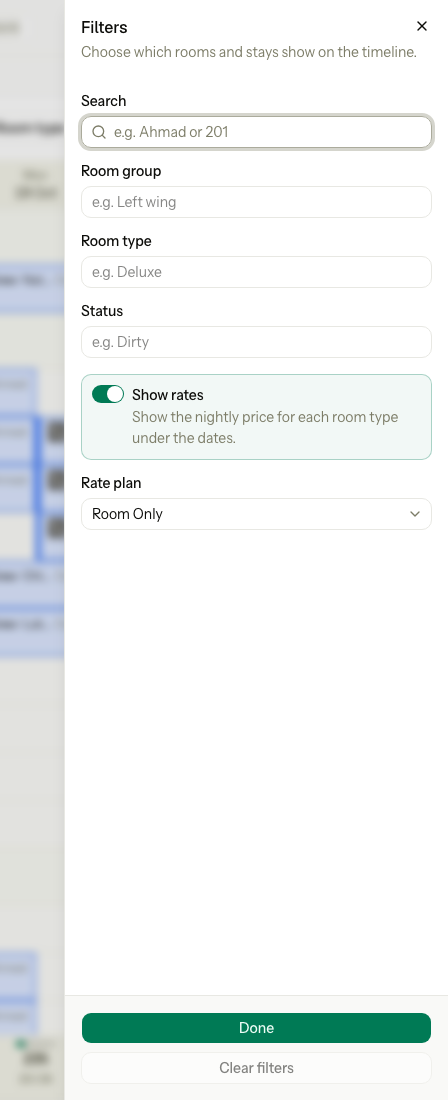
| Field | What it does |
|---|---|
| Search | Finds a guest, a reservation number or a room. |
| Room group | Shows only these groups. |
| Room type | Shows only these room types. |
| Status | Shows only rooms with this housekeeping status. |
| Show rates | Shows or hides the price row. |
| Rate plan | Picks the plan for the prices. It shows only when Show rates is on. |
Changes apply as you make them. Clear filters turns them all off. Done closes the sheet.
The footer
The footer sits at the bottom of the grid. For each night it shows:
- The number of free rooms or beds out of the total, for example 9/26.
- The occupancy in percent, with a bar.
The footer counts only the rows on screen. If you filter to one room type, it counts only that room type. A stay with no room counts as sold.
The legend
Select the i button at the right of the toolbar.
Special cases
| Situation | What you see | What to do |
|---|---|---|
| A stay has no room | A lane at the top called Unassigned · Standard Double, with the stay in it. | Assign a room. See Assign rooms and beds. |
| A filter hides a room | The stays in that room are gone, and the footer changes. | Select Clear filters. |
| Room group or Status filters are on | The Unassigned lane still shows. | A stay with no room is not in any room group. |
| A stay began before the window | A dashed left edge. | Move the window back to see the whole stay. |
| A guest changed room | Two bars, one in each room, that meet on the change day. | Hover over each bar for the dates. |
| The guest has no name on the booking | The bar says No guest named. | Open the reservation and add the guest. |
| Another person changes a stay | The grid updates by itself, about every 15 seconds. | Nothing. |
| You use a phone | The toolbar scrolls sideways. | Use a wider screen to drag stays. |