
Invoices and vouchers
Print the invoice of a closed folio, or a voucher with the lines you tick.
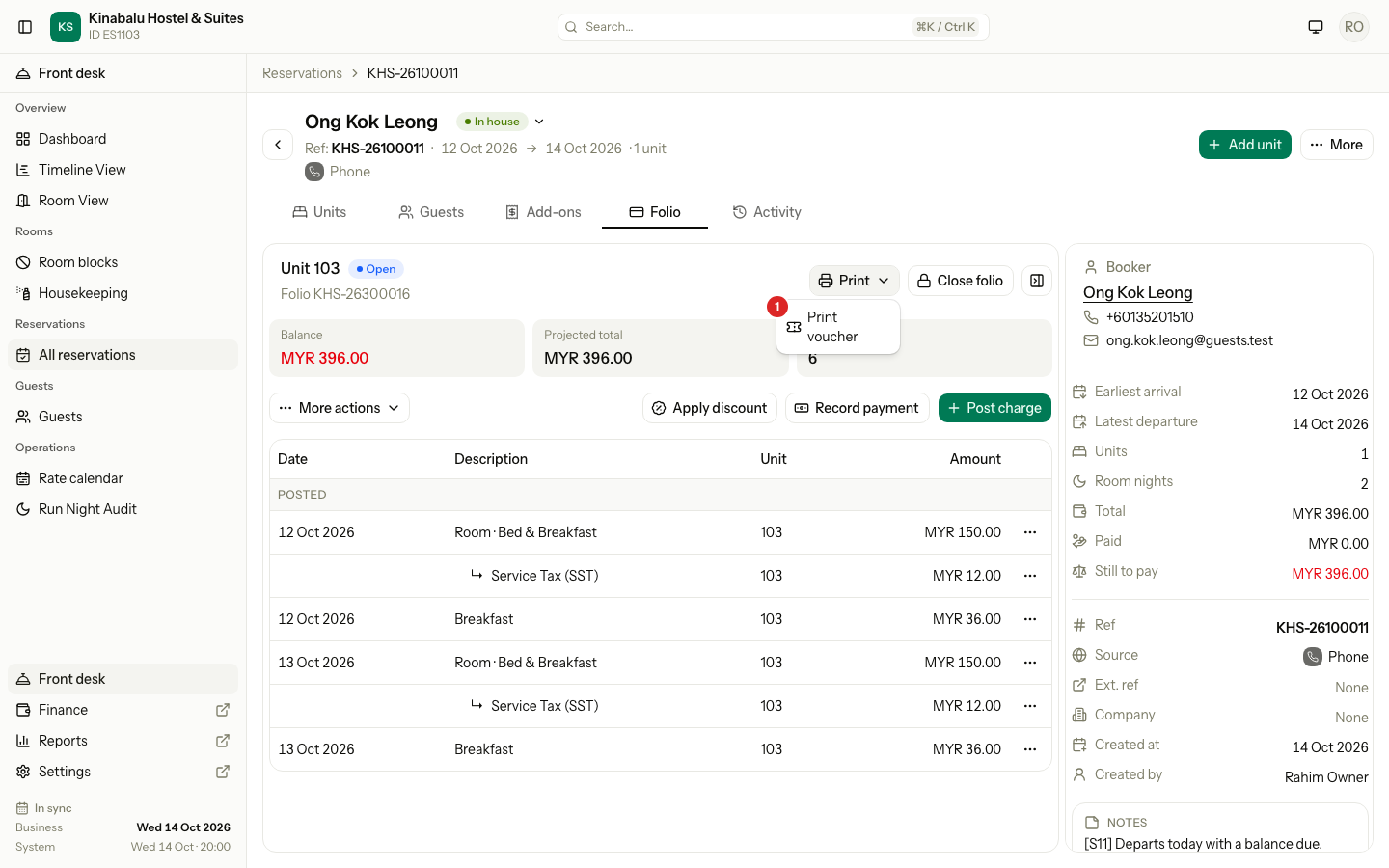
The Print menu on the Folio tab has two items. Print invoice gives the guest or the company the final bill of a closed folio. Print voucher prints a slip with the lines you choose, for example a minibar slip the guest signs.
Before you start
- Permission: Print folio vouchers and invoices. Owners, managers, front desk staff and finance staff have it by default. It covers both items.
- For an invoice, the folio must be Closed. See Close and reopen.
- The letterhead, logo and footer come from Settings → Printing. See Printing.
Which paper do I need?
| I need | Use | Where |
|---|---|---|
| The final bill of a closed folio, with its invoice number | Print invoice | Print menu, or the notice on a closed folio |
| A slip of some lines, before the folio closes | Print voucher | Print menu, or a line's ⋯ menu |
| A receipt for one payment | Download receipt | The ⋯ menu of the payment row. See Record a payment |
| Receipts for every payment | Print receipts | More on the reservation page |
| A summary of the booking before the guest arrives | Print booking summary | More on the reservation page. See The reservation page |
An open folio has no invoice. Its Print menu has only Print voucher. Print the booking summary, or a voucher.
Print an invoice
-
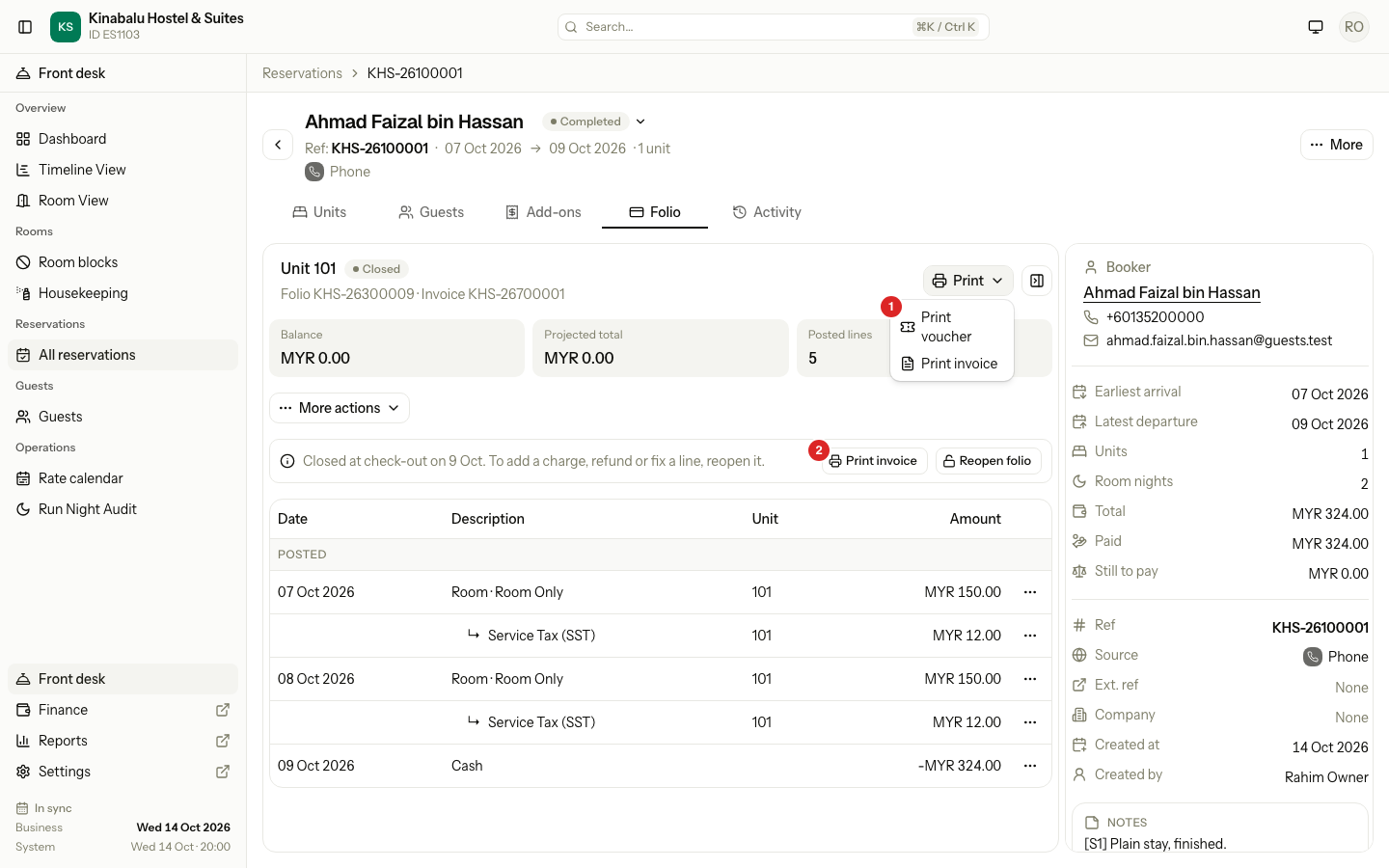
Open the Folio tab and select the closed folio.
-
Select Print, then Print invoice.
-
The invoice opens as a PDF in a new tab. Print it or save it from there.
Print invoice is also a button in the notice above the rows of a closed folio (2 in the picture).
What the invoice shows
| Part | What it shows |
|---|---|
| Top right | Invoice, the invoice number and the date the folio closed |
| Bill to | The company that pays, with its tax numbers and billing address. If no company pays, the guest who pays. If neither, the person who booked. |
| Stay and Reservation | The dates and the reservation number. Your ref shows when the booking has an outside reference. |
| Lines | The folio's charges, discounts and taxes, with the room nights grouped as your printing settings say |
| Payments | Each payment and refund, with its date, receipt number and method |
| Balance | Always 0.00 on a closed folio |
- A charge you reversed, and its reversal, are left out. The invoice shows what the guest actually owes.
- Lines from the old system print first, in their own block. See Migrated and old stays.
- A folio settled to the city ledger prints a line that says the amount was billed to the company, with the company invoice number.
- The invoice number, the date, Bill to, the tax amounts, the tax registration number and the total always print. The other parts follow your Printing settings.
The same number after a reopen
Estatell gives the folio its invoice number when you close it, and keeps it. If you reopen the folio, fix a line and close it again, the number is the same.
The invoice prints the lines as they are now. It does not keep a copy of the first print. Print it again after a change, and give the guest the new one.
Print a voucher
A voucher is a slip of the lines you choose. It writes nothing to the folio and has no number of its own. The folio number, the reservation and the dates identify it.
- Open the Folio tab and select the folio.
- Select Print, then Print voucher.
- Tick the lines to print. Use Quick select to tick a whole kind at once.
- Check lines selected and Total at the bottom.
- Select Print voucher. The slip opens in a new tab.
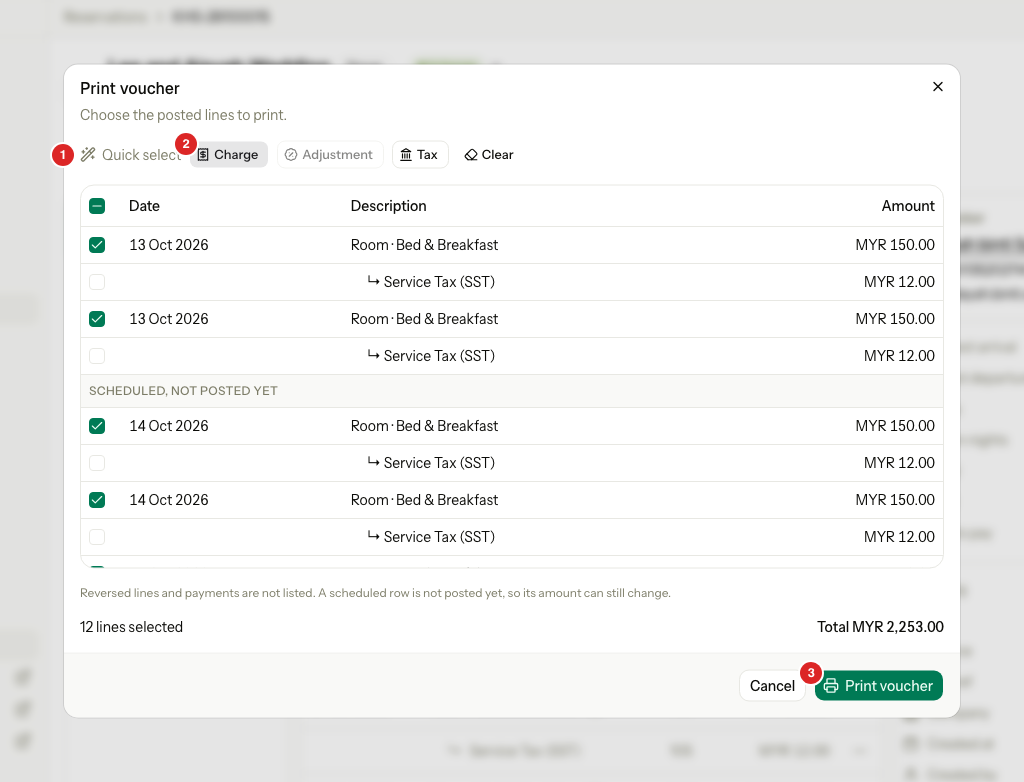
| # | What | What it does |
|---|---|---|
| 1 | Quick select | Charge, Adjustment and Tax tick every line of that kind. Select a button again to untick them. |
| 2 | Charge | Ticks the main charges, such as room nights and extras. Their tax lines stay unticked. |
| 3 | Print voucher | Opens the PDF. The dialog stays open, so you can change the ticks and print again. |
Clear unticks everything. The box in the header row ticks or unticks every line.
Which lines are listed
- Lines that have posted, except payments, reversed lines and reversals. A payment has its own receipt.
- Under Scheduled, not posted yet, the scheduled rows. Their amounts can still change. Use them, for example, to hand over the tourism tax before the night audit posts it.
- A tax or discount line can be ticked on its own. A voucher only reads, so nothing changes on the folio.
Print from one line
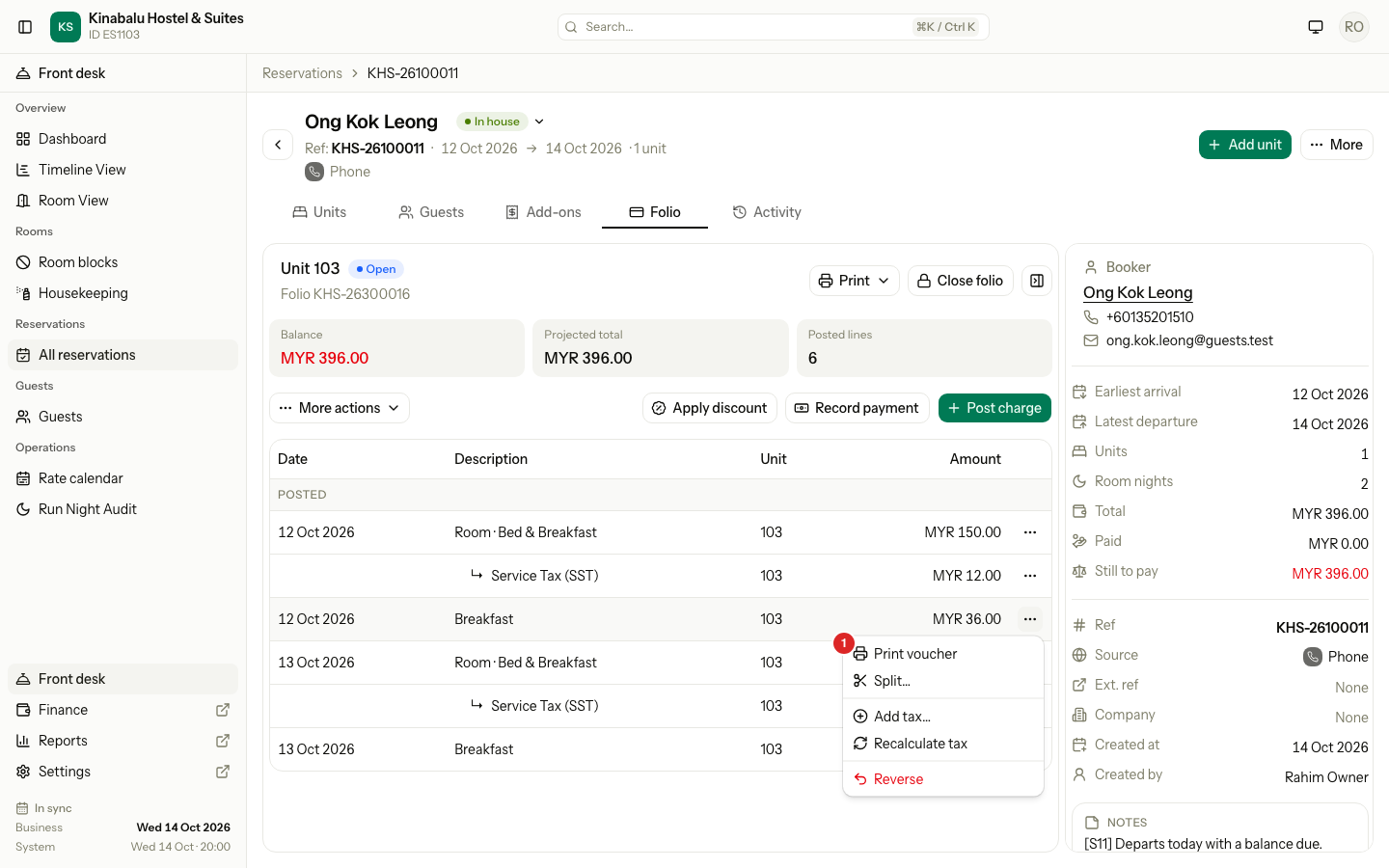
Select the ⋯ menu on a line, then Print voucher. The dialog opens with that line and the tax and discount lines under it already ticked.
What the voucher looks like
- Voucher, the folio number and the date at the top.
- Billed to when a company pays, then the guest, nationality, reservation and stay.
- The chosen lines in order, with a tax or discount indented under its charge when the charge is on the slip too. Scheduled rows print like the others, with no extra heading.
- The total, then signature lines for the guest and the staff member.
- Two copies: Guest copy and Hotel copy.
Special cases
| Situation | What happens | What to do |
|---|---|---|
| Print invoice is not in the menu | The folio is open or voided, or you lack the permission. | Close the folio first. See Close and reopen. |
| The invoice still shows an old line after a change | The invoice prints the lines as they are now. | Print it again. |
| A closed folio | Both prints still work. | Print as usual. |
| More than 100 lines ticked | The dialog says Select up to 100 lines. and turns Print voucher off. | Untick some lines, or print two vouchers. |
| No line ticked | Print voucher is off. | Tick at least one line. |
| A payment is not in the voucher list | Payments are left out. | Use Download receipt from the payment row. |
| A unit that has not started | The unit can print a voucher of its scheduled rows. The slip has no folio number and shows the reservation number. | Use Print voucher on the unit's card. |
| The PDF does not open | Your browser blocked the new tab. | Allow pop-ups for Estatell, then select Print voucher again. |
| A company pays the folio | Bill to shows the company and its tax numbers. | Check the company details first. See Companies. |