
Overview
The ways to create a reservation, and how to book a guest who arrives today or later.
Every reservation starts on the same booking form. The Reservation mode field at the top picks the kind. You can switch mode without losing what you typed.
| Mode | Use it for | Who sees it |
|---|---|---|
| New booking | A guest who arrives on a later date. This page. | Everyone who manages reservations |
| Walk-in | A guest at the desk now. Checked in on save. | Everyone who manages reservations |
| Past stay | A stay that began before today and was entered late. | Owners and managers |
| Migrated stay | A stay from your old system that is still running, or ended after go-live. | Owners and managers, while migrating |
| Old stay | A stay from your old system that ended before go-live. History only. | Owners and managers, while migrating |
New booking
Use New booking when a guest books by phone, WhatsApp, email or an agent. For a guest who is at the desk now, use Walk-in instead.
Before you start
- Permission: Manage reservations. Owners, managers and front desk staff have it by default.
- Set up first: at least one room type, a rate plan with rates for the dates, and your booking sources.
Open the form
Open Reservations › All reservations, select New, then New booking.
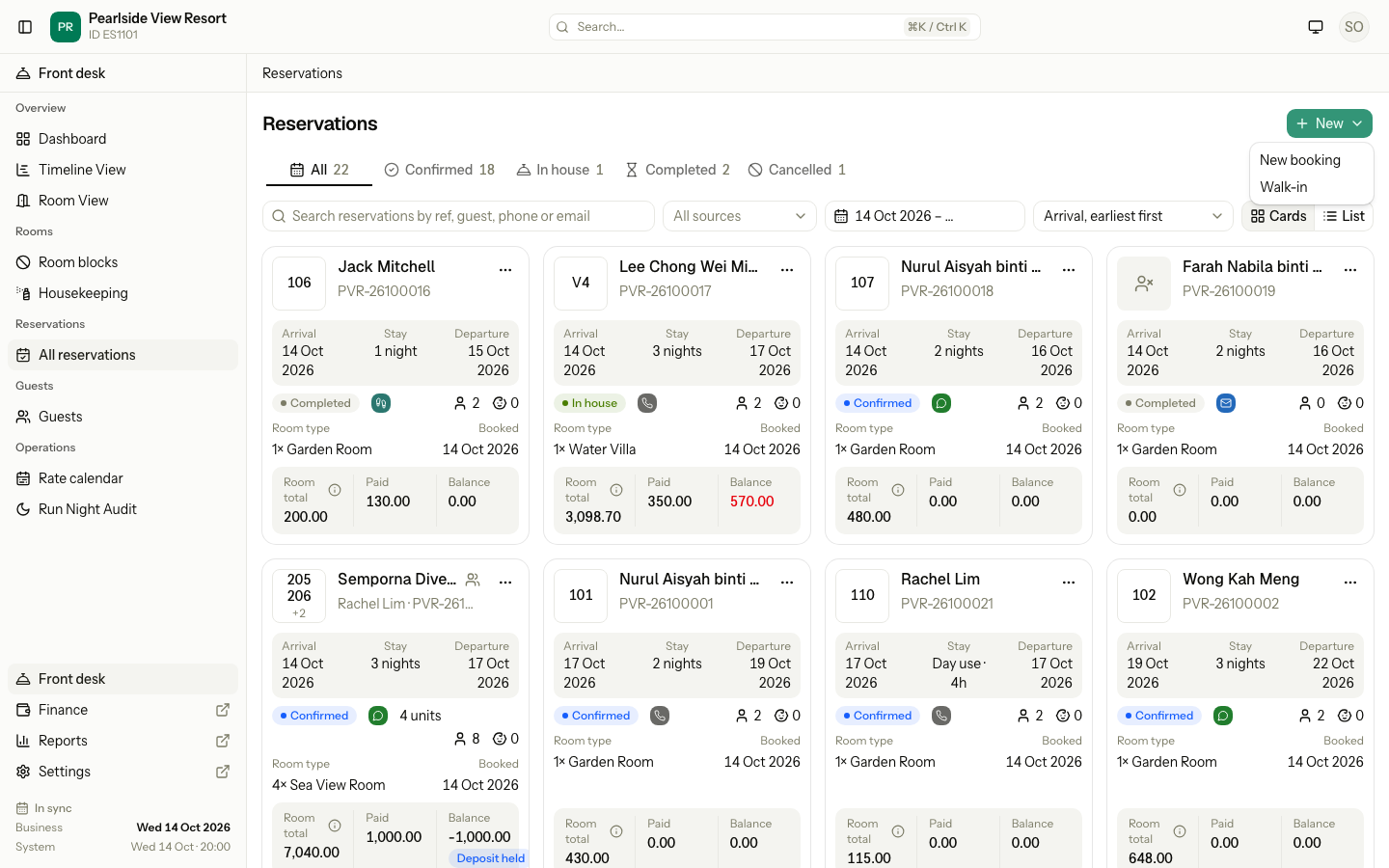
You can also start a booking from:
| Place | How | Back goes to |
|---|---|---|
| Dashboard | New booking or Walk-in in the quick actions | The dashboard |
| Timeline View | Select an empty cell | The timeline, with the same dates and filters |
| Room View | Select a vacant room card | The room view, with the same date and filters |
Fill in the stay
- Check Arrival. It starts at the business date. Pick a later date for a future booking.
- Pick Departure. The number of nights shows between the two dates.
- Change the times only if the guest told you when they arrive or leave. The times start at your check-in and check-out times. They are for planning only and never change the price.
- Pick the Source. The table below shows what each source needs.
| Source type | Examples | Also needs |
|---|---|---|
| Direct | Phone, WhatsApp, Email | Nothing. Phone is the default. |
| OTA | Booking.com, Agoda | External reference: the OTA booking number |
| Company / Travel agent | Your agent and company accounts | Company |
| Walk-in | A guest at the desk | A room for every unit. Arrival is today. |
Add rooms and beds
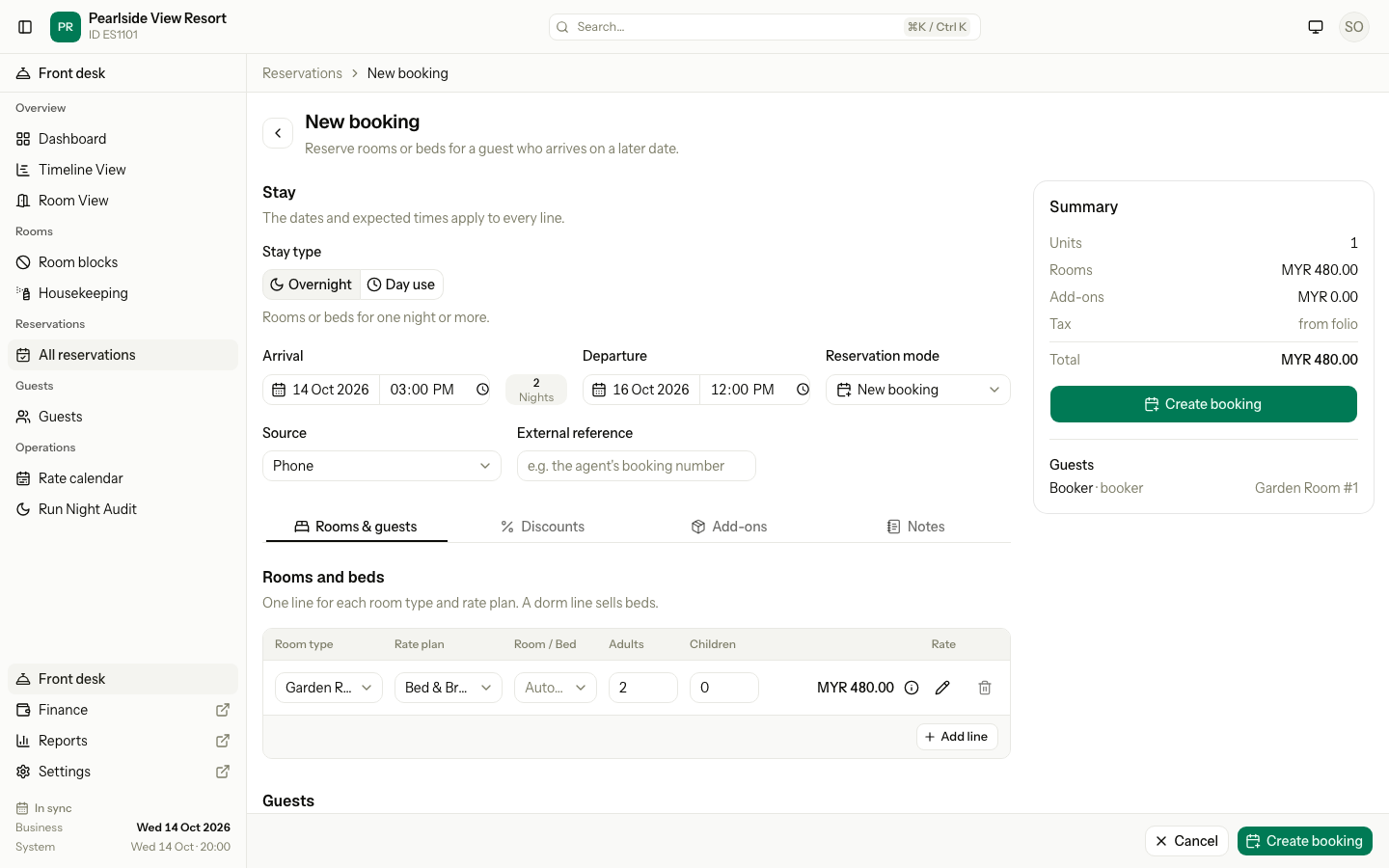
- In Rooms and beds, pick the Room type and the Rate plan. The price shows in Rate as soon as both are set.
- Set Adults and Children. For each child, enter an age from 0 to 17. The age sets the child price.
- Pick a room in Room / Bed, or leave it as Select later. Only rooms free on every night are listed. If your property turns on auto-assign, the empty choice says Auto-assign.
- To book more rooms, select Add line. Each line is one room type and rate plan. A dorm line asks for the number of beds instead.
| Rate cell | What it does |
|---|---|
| The amount | The total for the stay on this line, from your rates |
| ⓘ | Shows the price of each night |
| ✎ | Sets a different total. You must enter a reason, and the change is logged. |
With two or more units, a Group name field appears next to the source. Leave it empty to show the booker's name. The Billing choice in the summary decides who pays. See Group bookings.
Add the guests
- In Guests, type the booker's name or phone. Pick a match to use an existing guest, or keep typing to create a new one.
- Pick the guest's Nationality. It is required, because tourism tax depends on it.
- In Stays in, pick the unit the guest stays in, or Not staying if the booker does not stay.
- To add more guests, select Add guest. A unit can have no guest yet. Add them later on the reservation page.
Finish
- Optional: add a discount on the Discounts tab, extras on the Add-ons tab, and special requests on the Notes tab (up to 2000 characters).
- Check the Summary on the right, then select Create booking.
The reservation page opens with the new reference number.
Special cases
| Situation | What happens | What to do |
|---|---|---|
| Arrival is before the business date | "Arrival cannot be before today." | For a guest who is here now, use Walk-in. |
| Departure is on or before arrival | "Departure must be after arrival." | Pick a later departure. |
| No room of the type is free | "No unit is available on 15 Oct 2026." | Pick another room type or other dates. Check the Timeline View. |
| The stay breaks a rate restriction, such as a minimum stay or a closed arrival day | A warning shows under the lines. | Owners and managers can enter a reason and book anyway. Others see "You may not book past rate restrictions." and must change the dates or plan. |
| No rate is set for a night | "No rate is set for 15 Oct 2026." | Set the rate in the Rate calendar. |
| The plan is a package | The departure date is locked to the package's nights. | Change the arrival date, or pick another plan. |
| A child has no age | The line shows an age field for each child. | Enter each age from 0 to 17. |
| The source is an OTA and the reference is empty | "Enter the OTA booking number." | Type the booking number from the OTA. |
| The source is Company / Travel agent and no company is picked | "Select the company." | Pick the company. |
| The company is over its credit limit | "This company is over its credit limit." | Owners and managers can enter a reason to book anyway. Otherwise ask the company to pay first. |
| You change the total with ✎ and leave the reason empty | "Enter a reason for the price override." | Enter why the price is different. |
| The guest has no nationality | "Pick the nationality." | Pick it. For an existing guest, also turn on Update guest profile. |
| The guest is blacklisted | A warning shows the reason. | You can still book. Check with your manager first. |
| A discount is picked | The discount is not in the summary total. | This is expected. The folio applies it. |
| You mix overnight and day use lines | "A booking is all overnight or all day use. Book the other kind separately." | Make two bookings. See Day use. |
| Another staff member takes the room while you book | The line shows an error and nothing is saved. | Pick another room, or leave Select later. |