
Add-ons
Sell extras with a booking, such as an airport transfer, an extra bed or breakfast.
An add-on is an extra that is not part of the room rate. Examples are an airport transfer, a birthday cake, an extra bed or breakfast. An add-on belongs to one unit. For an extra shared by a whole group, such as one transfer for everyone, add it to one unit.
Add-on or folio charge?
An add-on is an extra you plan ahead. The folio is the guest's bill. An add-on goes on the folio on its own when it posts, so you never enter it twice.
| Add-on | Charge on the folio | |
|---|---|---|
| Use it for | Extras you know about ahead, such as an airport transfer, an extra bed or a birthday cake | Things that already happened, such as the minibar, laundry today or a broken towel |
| When | From booking, before the guest arrives | Only when the unit is in house or checked out |
| Charged | At check-in, or in the night audit of its date | At once, on today's business date |
| Price | Copied from the item when you add it | The item's price on the day you post |
| Change or remove | Remove it any time before it posts | Cannot be deleted. Reverse the line |
| Permission | Manage reservations | Post charges to folios |
Rule of thumb: if you know about it before it happens, add an add-on. If it already happened, post it on the folio.
Before you start
- Permission: Manage reservations. Owners, managers and front desk staff have it by default.
- Set up first: the item must exist in your charge items, with its price and how it is charged. An owner sets this up in Charge items.
- The unit must be Confirmed or in house. Add-ons of cancelled, no-show and checked-out units stay as history and cannot change.
How an add-on is charged
Each charge item has a charging unit. It decides what you pay for. The total is always the number of rows × quantity × price.
| Charging unit | You pay for | Example | Sum |
|---|---|---|---|
| Per item | Each item you enter | Extra towel, 2 pieces at MYR 5.00 | 2 × 5.00 = MYR 10.00 |
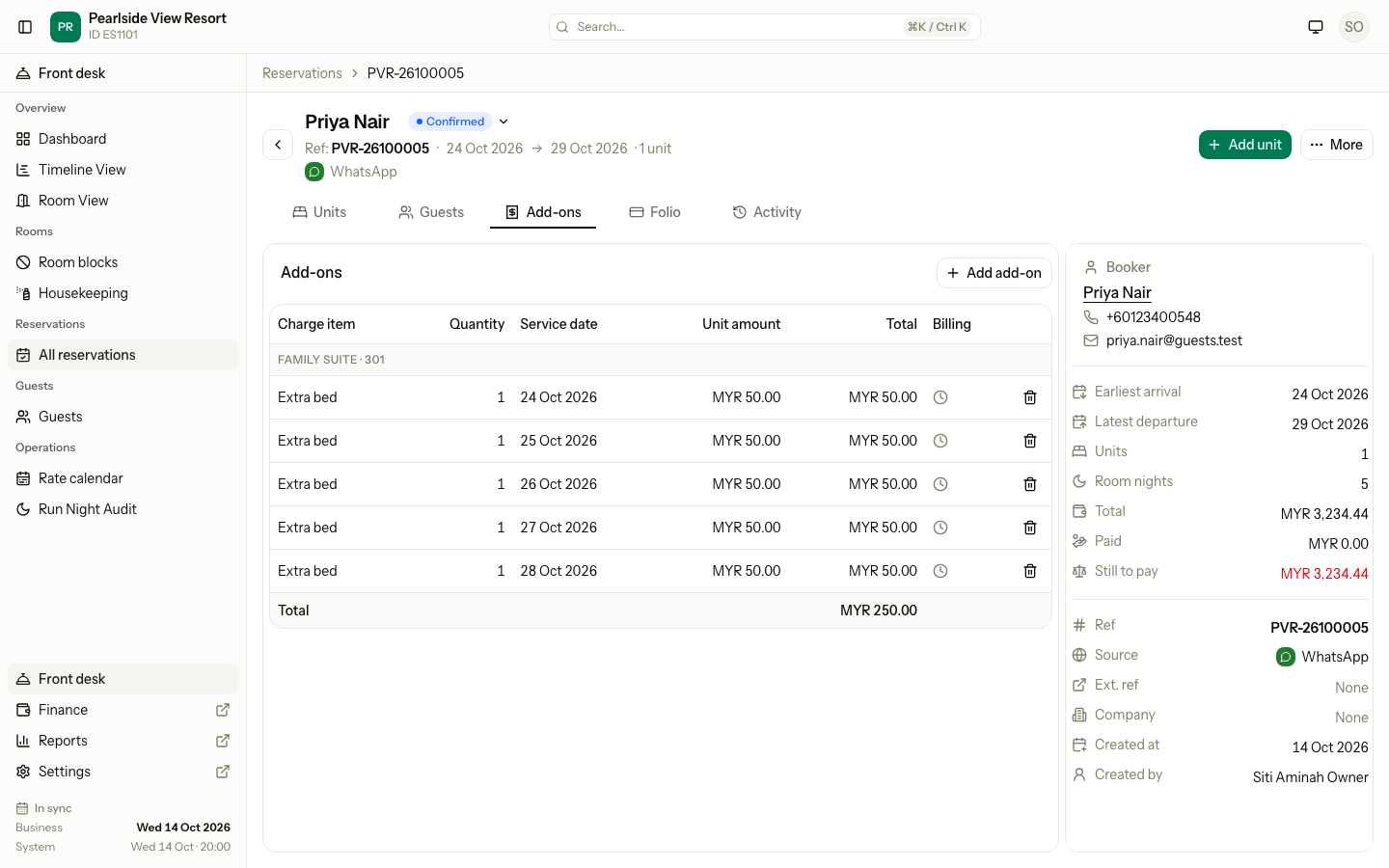
| Per night | Each night of the stay | Extra bed, 5 nights at MYR 50.00 | 5 nights × 50.00 = MYR 250.00 |
| Per stay | The whole stay, once | Airport transfer at MYR 120.00 | 1 × 120.00 = MYR 120.00 |
| Per guest | Each guest (adults and children), once | Island hopping trip at MYR 180.00, 2 guests | 2 guests × 180.00 = MYR 360.00 |
| Per guest-night | Each guest, each night | Breakfast at MYR 20.00, 2 guests, 3 nights | 2 guests × 3 nights × 20.00 = MYR 120.00 |
- Per night and per guest-night items always follow the nights of the stay. You cannot pick a date or a quantity for them. Each night is its own row, with its own date.
- Per item, per stay and per guest items have one row. The date is optional. Leave it empty to charge at check-in.
Child prices
A per-guest or per-guest-night item can have a lower price for children. Then Estatell adds up each group of guests at its own price. A child older than your oldest age group, or with no age, pays the adult price.
Example: breakfast at MYR 30.00 for each guest each night. Children aged 4 to 11 pay 50%. Infants are free. The booking is for 1 night, with 2 adults, a child of 6 and a baby.
| Guests | Number | Price each | Sum |
|---|---|---|---|
| Adults | 2 | 30.00 | 2 × 30.00 = 60.00 |
| Child 4–11 | 1 | 50% of 30.00 = 15.00 | 1 × 15.00 = 15.00 |
| Infant | 1 | Free | 0.00 |
| Total | 60.00 + 15.00 + 0.00 = MYR 75.00 |
The Add-ons tab shows two rows: "Breakfast" and "Breakfast · Child 4–11". The baby has no row. For a stay of 3 nights, each night has these rows, and the total is 3 × 75.00 = MYR 225.00.
The price
- The price is copied from the charge item when you add the add-on. A later price change in the catalogue does not touch it.
- You can enter another amount only if the item allows it, or has no price. Then the amount is required.
- The amount is before tax. Tax is added when the add-on posts to the folio.
Add an add-on to a booking
Use the Add-ons tab on the booking form. Each row has a Line, a Charge item, a quantity or date where the item needs one, and the amount.
- Open the Add-ons tab of the form.
- Pick the Line (the room) and the Charge item.
- If the item is per item, enter the quantity.
- Leave the date as At check-in, or pick a day.
- Create the booking as usual.
If an add-on is refused, the whole booking is refused. Nothing is saved.
Add an add-on to a reservation
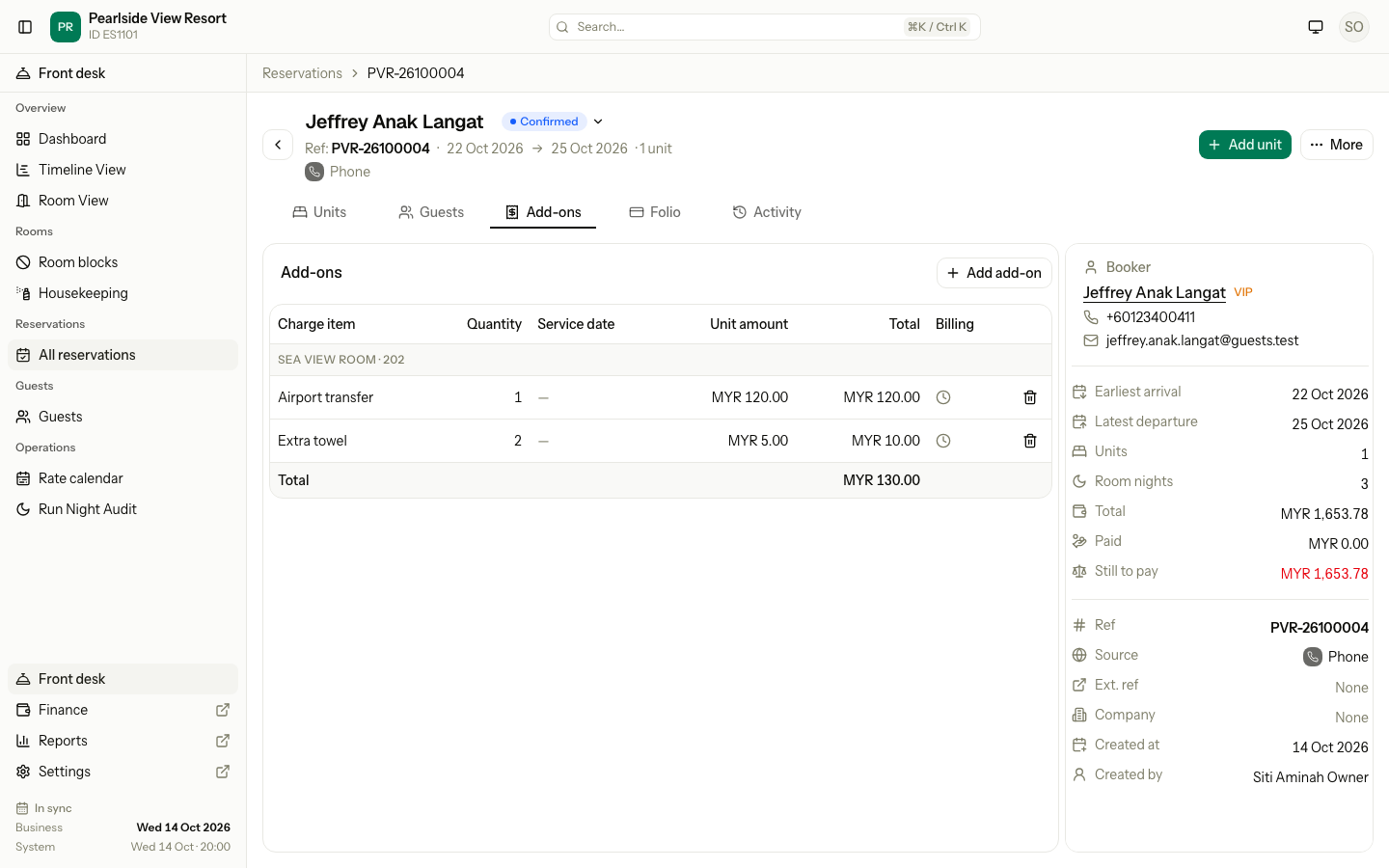
- Open the reservation and select the Add-ons tab.
- Select Add add-on.
- If the reservation has several units, pick the Unit.
- Pick the Charge item. The charging unit shows beside its name.
- If the item is per item, enter the Quantity.
- Pick a Service date, or leave it empty to charge at check-in. It must be inside the stay.
- If the amount field shows, enter the Unit amount. It shows only when the item allows a different price, or has no price. The catalogue price is shown under it.
- Select Add add-on.
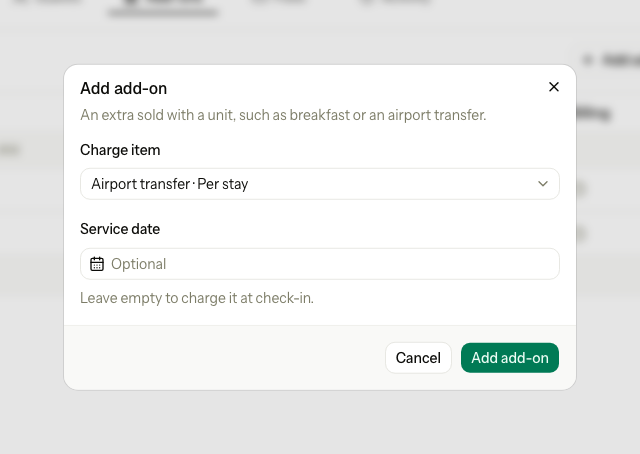
For a nightly item, the dialog says "This item is charged for each night of the stay." and shows no date.
What the tab shows
The table groups the add-ons by unit, with the charge item, quantity, service date, unit amount and total. The last column, Billing, shows where each one is charged:
| Icon | Meaning |
|---|---|
| Tick | Posted. The tooltip names the folio and the date. |
| Clock | Not posted yet. It posts at check-in, or in the night audit of its service date. |
| Clock and arrow | Not posted yet, and it goes to another folio, for example the Master folio. |
A nightly item shows one row for each night.
When an add-on posts
| Add-on | It posts |
|---|---|
| With a service date | In the night audit of that date |
| Without a date | At check-in |
| Without a date, on a unit already in house | In tonight's night audit |
| On a day use unit already in house | At once, because the guest leaves before the audit |
| On a cancelled or no-show unit | Never |
Remove an add-on
- Select the bin icon on the row.
- Confirm Remove add-on. The message says: "It is taken off the unit. This cannot be undone, but you can add it again."
A posted add-on has no bin icon. Reverse its line on the Folio.
Add-ons added automatically
A charge item can be set to Add to every new booking, for example a cleaning fee. Estatell then adds it to each new room.
| Where the room is added | What happens |
|---|---|
| Booking form and walk-in | The add-on is filled in, with an Added automatically tag and a × to remove it. |
| Add unit on the reservation page | The server adds it. The message names it: "Unit added with Cleaning fee." |
| Company portal | The server adds it. The company user cannot remove it. |
| Channel booking | Not added. The OTA decides what the guest pays. |
| Reinstate | Not added again. The old add-ons come back as they were. |
| Day use | Only per stay, per guest and per item charges. Nightly ones are left out. |
When you remove an automatic add-on on the booking form, Estatell notes it on the reservation. Example: "Cleaning fee was not added (removed on the booking form)."
When the stay changes
- If you shorten the stay, add-ons with a date outside the new dates that are not posted yet are dropped.
- If you lengthen it, nightly add-ons get a row for each new night.
- Add-ons without a date do not change.
- A boat trip adds its fare as an add-on without a date. See Boat trips.
Special cases
| Situation | Example | What happens | What to do |
|---|---|---|---|
| The date is outside the stay | The stay is 22 to 25 Oct and you pick 27 Oct. | • "The service date must be within the stay." | • Pick a date from arrival to departure. |
| The date is in the past | A cake for yesterday. | • "The service date cannot be before today." | • Pick today or later. |
| Every night is in the past | You add an extra bed for a stay that is already over. | • The add-on is refused. | • Post the charge on the Folio instead. |
| The quantity is not valid | You enter 0 or 1,000 towels. | • "Enter a quantity from 1 to 999." | • Enter a number from 1 to 999. |
| A different price is not allowed | Airport transfer is fixed at MYR 120.00 and you enter MYR 100.00. | • "This item does not allow a different amount." | • Use the catalogue price. • Or ask an owner to allow price changes on the item. |
| The amount is not valid | You type "twenty". | • "Enter an amount such as 25.00." | • Enter a number with up to two decimals. |
| The item has no price | A laundry item with no set price. | • The amount is required. | • Enter the amount. |
| The unit is closed | You add a cake to a cancelled unit. | • "This unit is closed, so it cannot change." | • Reinstate the unit first, or post on the folio. |
| The add-on is posted | A towel posted last night. | • The row has no bin icon. | • Reverse the line on the Folio. |
| The same item twice | Two airport transfers for one unit. | • Both are added. | • Remove one if it was a mistake. |
| A nightly item on day use | Breakfast per guest-night on a day use. | • "A nightly item cannot be added to a day use unit." | • Use a per stay, per guest or per item charge. |
| An item turned off | A charge item was switched off yesterday. | • "This charge item is not available." | • Pick another item, or ask an owner to turn it on. |
| The price changed in the catalogue | Breakfast went from MYR 20.00 to MYR 25.00. | • Add-ons already on a booking keep MYR 20.00. | • Remove and add the add-on again for the new price. |
| A group extra | A transfer for 10 rooms. | • It belongs to the unit you add it to. | • Add it to one unit, such as the booker's room. |
| An automatic add-on you do not want | A cleaning fee on a long stay. | • It is filled in on the form. | • Select × on the booking form. |