
Overview
The guest list, the guest page, who can do what, and which page to use for each guest task.
The Guests screen is your property's guest book. It keeps one profile for each person, with contact details, tags, notes and ID documents. A guest of one property is never shown to another property.
Staff open it from Guests in the side menu. A guest is also added when you take a booking. See Guest profiles.
The guest list
The list shows the guests of your property, 25 to a page. You can search, filter, sort and select many guests at once. See Guest list.
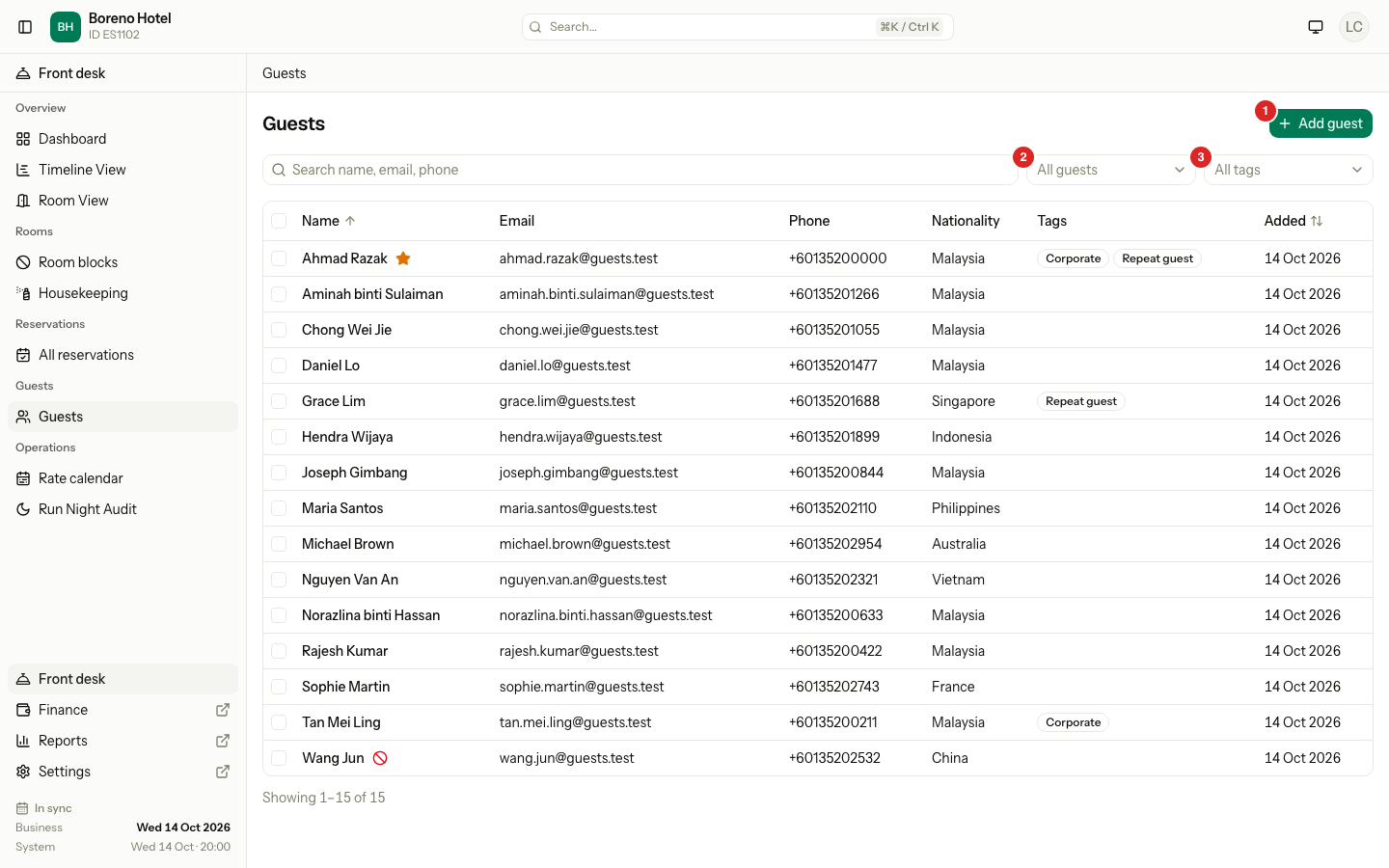
| Number | What it is |
|---|---|
| 1 | Add guest. Opens a sheet to add a guest. |
| 2 | The status filter. It starts at All guests. |
| 3 | The tag filter. It shows only when your property has tags. |
A small icon next to a name is a flag. A star is a VIP. A red circle is Blacklisted. A crossed eye is Archived.
Select a row to open the guest page.
The guest page
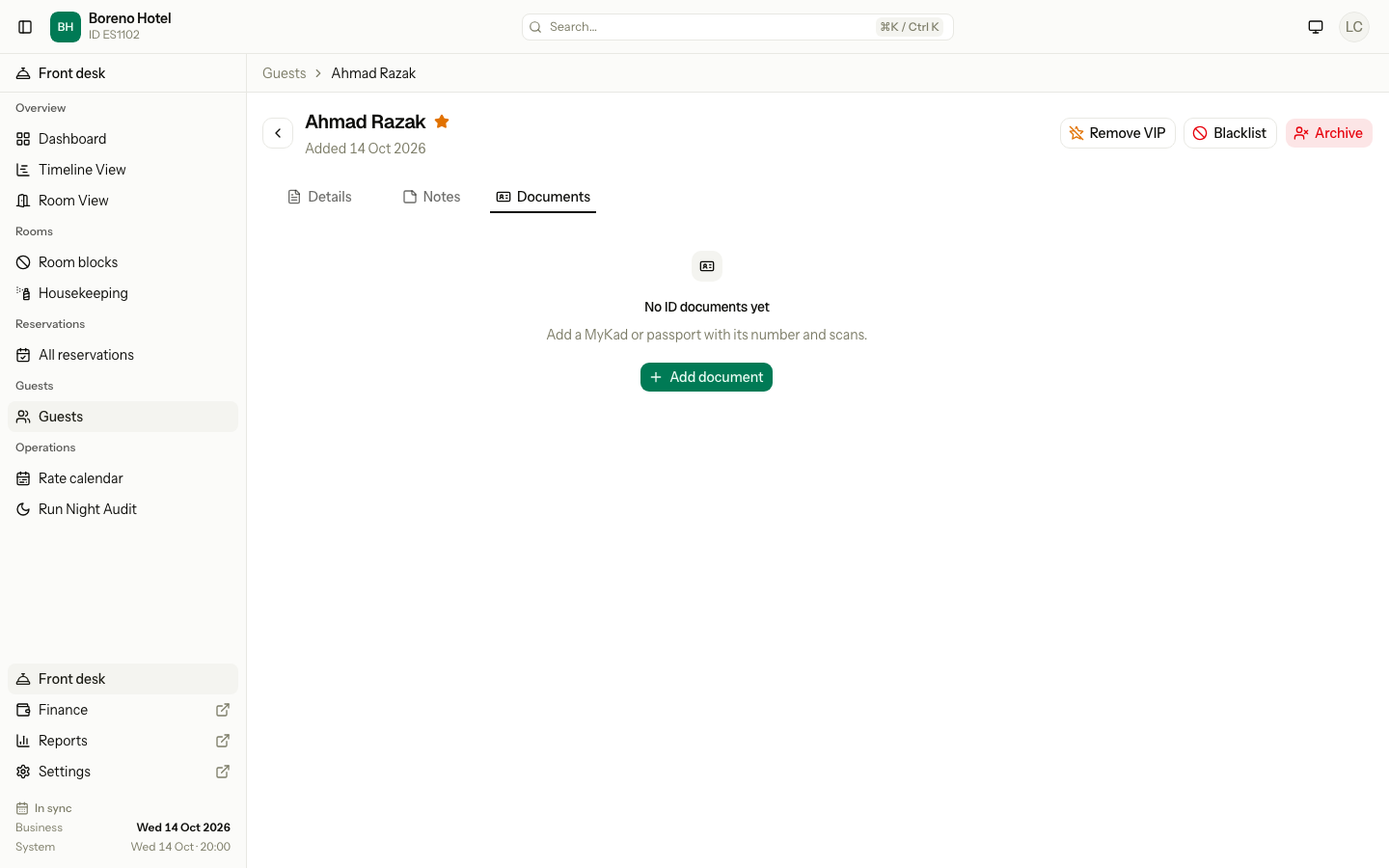
The guest page has up to three tabs. The name, the flags and the date the guest was added are at the top.
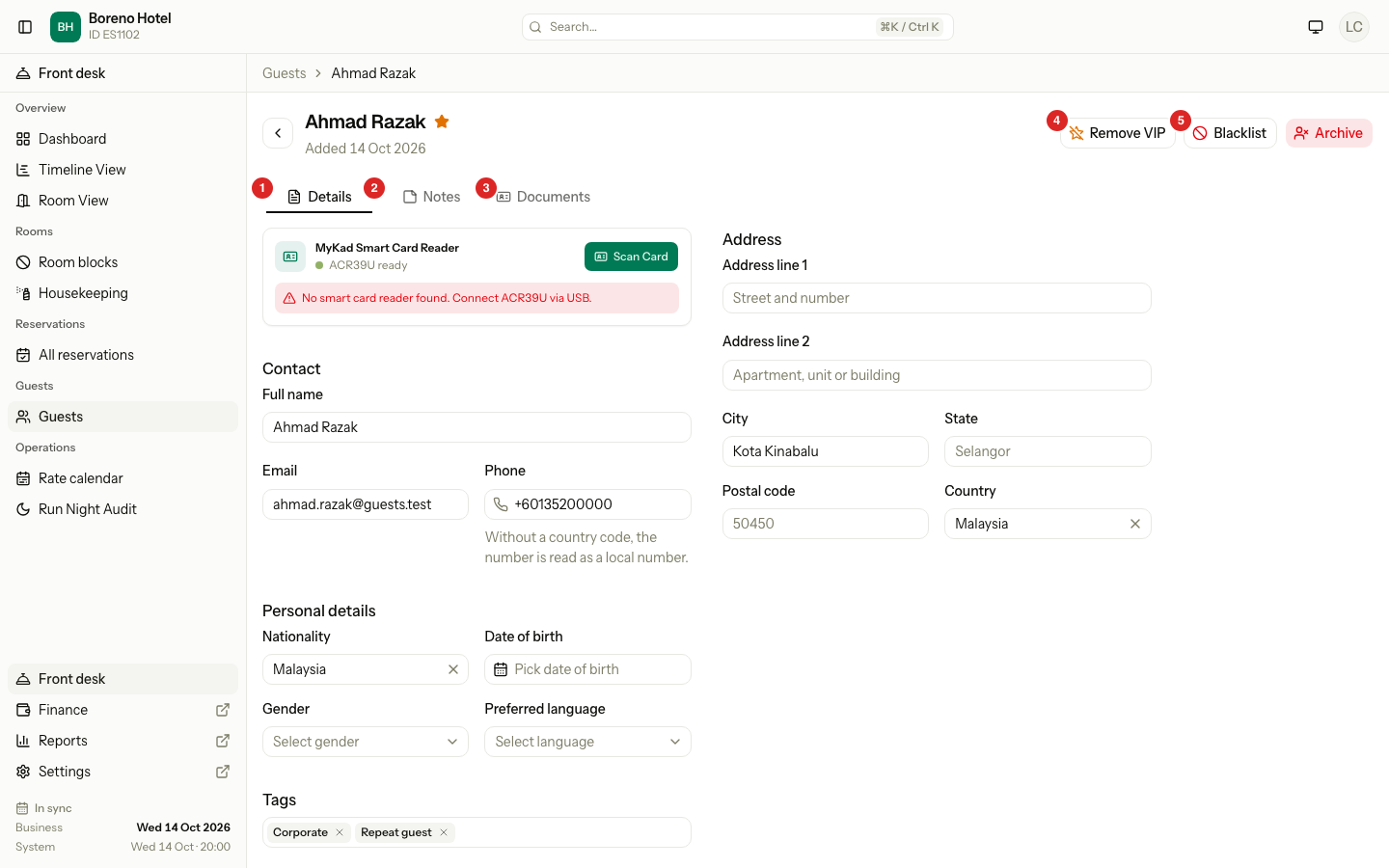
| Number | What it is |
|---|---|
| 1 | Details. Contact details, personal details, address and tags. |
| 2 | Notes. Private notes about the guest. |
| 3 | Documents. ID documents. |
| 4 | The VIP button. It reads Mark as VIP, or Remove VIP for a VIP guest. |
| 5 | Blacklist, or Remove from blacklist for a blacklisted guest. |
Owners also see an Archive button. See Privacy.
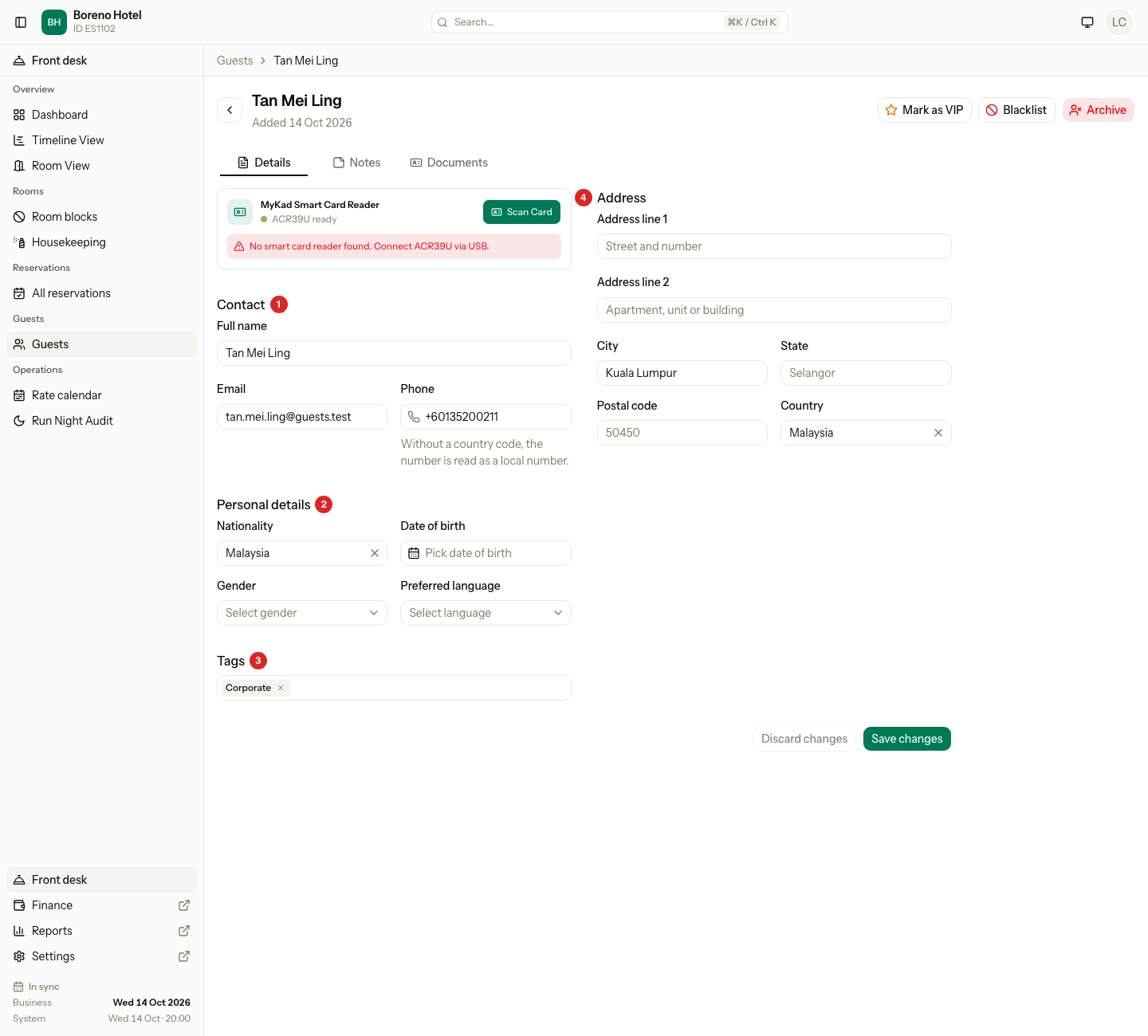
Details
Staff who can edit guests see a form that is always open. Other staff see the same details as plain text. If estatell finds guests that look like this one, a Possible duplicates list appears under the form. See Merge guests.
Notes
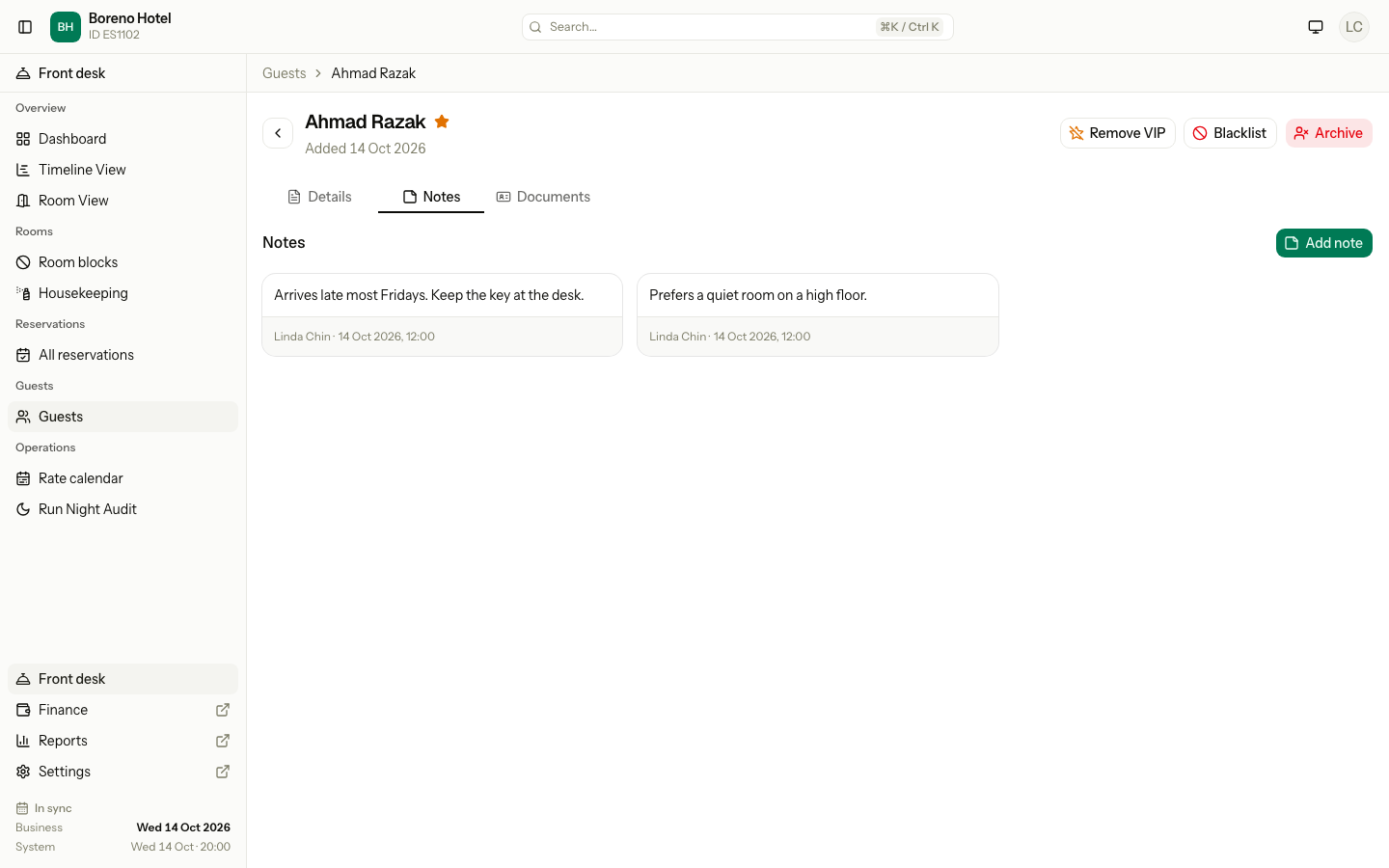
The Notes tab keeps short notes about preferences and past stays. Only staff see them. A note cannot be changed or deleted after you add it.
Documents
The Documents tab keeps ID documents, such as a passport or a MyKad. It shows only to staff who can view guest ID documents. See Identity documents.
Who can do what
Each role has these permissions by default. An owner can change them for the other roles. See Roles and permissions.
| Task | Permission | Owner | Manager | Front desk | Housekeeping | Finance |
|---|---|---|---|---|---|---|
| See the guest list and the Details and Notes tabs | View guests | ✅ | ✅ | ✅ | ❌ | ✅ |
| Add and edit guests, edit tags, mark VIP, add notes | Add and edit guests | ✅ | ✅ | ✅ | ❌ | ❌ |
| Blacklist a guest, remove from the blacklist | Blacklist guests | ✅ | ✅ | ❌ | ❌ | ❌ |
| Open the Documents tab, add and remove documents | View and manage guest ID documents | ✅ | ✅ | ✅ | ❌ | ❌ |
| Merge duplicate guests | Merge duplicate guests | ✅ | ✅ | ❌ | ❌ | ❌ |
| Archive guests | Archive guests | ✅ | ❌ | ❌ | ❌ | ❌ |
A button you cannot use does not show.
Which page to use
| I want to... | Page |
|---|---|
| Find a guest, filter the list, or change many guests at once | Guest list |
| Add a guest, change details, add tags or a note | Guest profiles |
| Mark a guest VIP or blacklist a guest | VIP and blacklist |
| Add a passport or MyKad, see a number, or look at a scan | Identity documents |
| Read a MyKad with the card reader | MyKad reader |
| Join two profiles of the same person | Merge guests |
| Archive a guest and remove their personal data | Privacy |
| Understand the registration card | Registration cards |
| Choose who completes a card and when it is needed | General |
| Choose the fields on the card | Layout |
| Write the terms the guest agrees to | Terms |
| Sign a card at the desk or send it to the guest's phone | Sign a card |
| Download, void or sign again | Signed cards |