
Terms
Write and publish the terms a guest agrees to, in each language, with tick boxes the guest must tick.
The Terms tab holds the text a guest agrees to when they sign. Each change is a new version, so a signed card always keeps the exact text its guest signed.
Before you start
- Permission: Manage registration terms. Owners and managers have it by default. Other staff do not see the Terms tab.
- A new property already has a Standard document in English and Bahasa Malaysia. It starts from the template for your property type. For a property outside Malaysia the template is in English only.
Templates
A template is a ready-made text. Estatell has five: Standard hotel, Hostel, Resort, Serviced apartment and Homestay.
Templates are a starting point, not legal advice. Read the text, change it to match your house rules and the law where you work, and ask a lawyer if you are not sure.
You get a copy of the template. Changing your copy never changes the template, and a new template never changes your copy.
Steps
- Open Settings, then Registration card, then the Terms tab.
- Choose the Language at the top right.
- Edit the Terms text. The preview on the right shows the card text with the placeholders filled in.
- Select Publish new version.
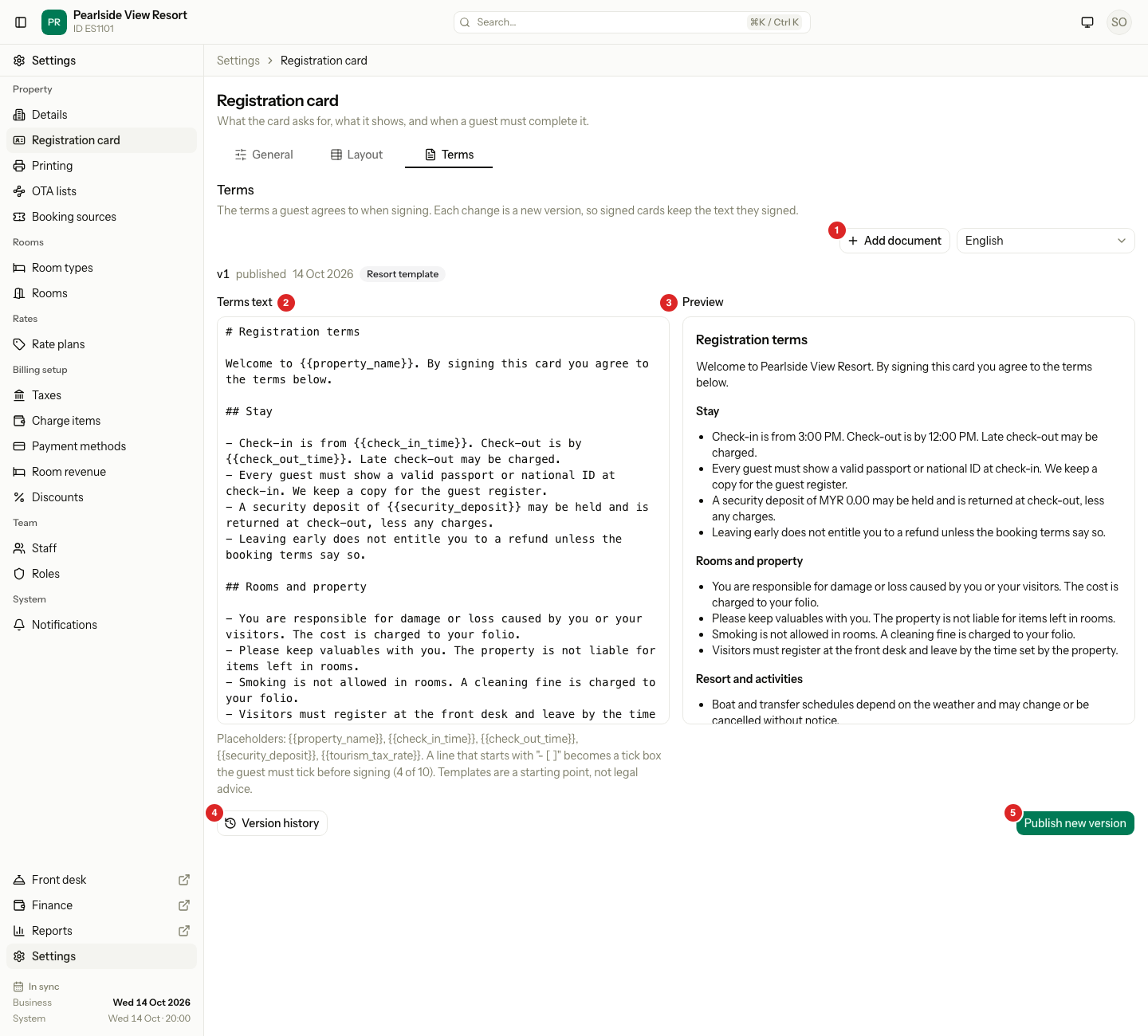
| # | What | What it does |
|---|---|---|
| 1 | Add document | Makes a second terms document. See A different document for a room type. |
| 2 | Terms text | The text. It is written in Markdown, so # makes a heading and - makes a list. |
| 3 | Preview | Shows the text the way the guest sees it. |
| 4 | Version history | Shows the versions you published. |
| 5 | Publish new version | Saves the text as the next version. Nothing is saved until you select it. |
The line above the text shows the version, the date, who published it and the template it came from, for example "v1 published 14 Oct 2026 Resort template".
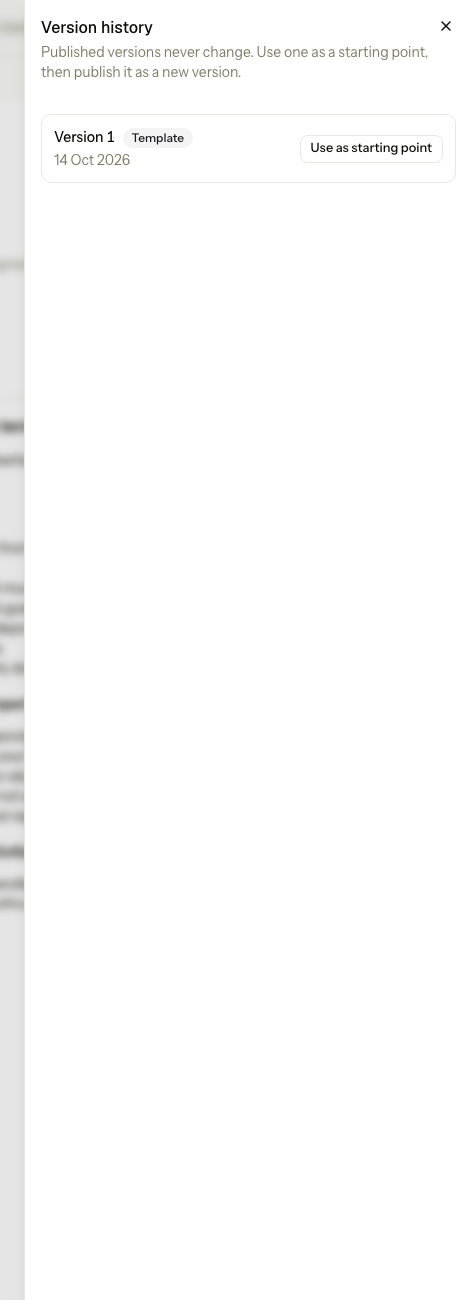
Version history opens a list of the versions in the language that is open.
Placeholders
A placeholder is a word between double curly brackets. Estatell fills it in when the guest signs.
| Placeholder | What it becomes |
|---|---|
{{property_name}} | The name of your property |
{{check_in_time}} | Your check-in time |
{{check_out_time}} | Your check-out time |
{{security_deposit}} | The deposit from the General tab |
{{tourism_tax_rate}} | The rate of your tourism tax. Empty if you have none. |
If you type another placeholder, Estatell refuses to publish and says "Unknown placeholder". A fee such as a late check-out fee has no placeholder. Type the amount into the text.
Tick boxes
A line that starts with - [ ] becomes a tick box. The guest must tick every box before they can sign.
## I confirm that

- [ ] I will check out by {{check_out_time}}.- Put the boxes where they belong in the text. The guest sees each box in the place where you wrote it.
- A version can have 10 tick boxes at most. The line under the text counts them, for example "4 of 10". Publish new version is off while there are more than 10.
- A version with no tick boxes needs only the signature.
- Each template has a few boxes, such as the no-smoking fine, the deposit and the personal data notice.
Languages
The Language menu lists English and Bahasa Malaysia. Each language has its own versions.
- A language with no version shows as "(not published)". Choose it to start from the template as a draft, then publish it to make version 1.
- The guest screen has a language menu. It lists only the languages that have a published version.
- Check the text of every language you publish. Estatell does not translate your edits.
Versions
| What | What happens |
|---|---|
| Publish new version | Makes version 1, 2, 3 and so on, for the language that is open. |
| Version history | Lists every version with its date and author. Use as starting point copies an old version into the editor. It does not publish it. |
| A published version | It is never edited or deleted. Signed cards point to it. |
| A card that is still a draft | It uses the latest version when it is signed. |
| A card that is already signed | It keeps the version it was signed with. |
A newer template is available
Sometimes Estatell ships a new version of a template. If your text came from that template and a newer one exists, the tab shows A newer template is available. Nothing changes by itself.
- Select Preview to read the new text. It is read only.
- Select Apply to make the new text your next version. Your old versions stay in Version history.
A different document for a room type
Most properties need one document. You can add more, for example a shorter text for a hostel dorm.
-
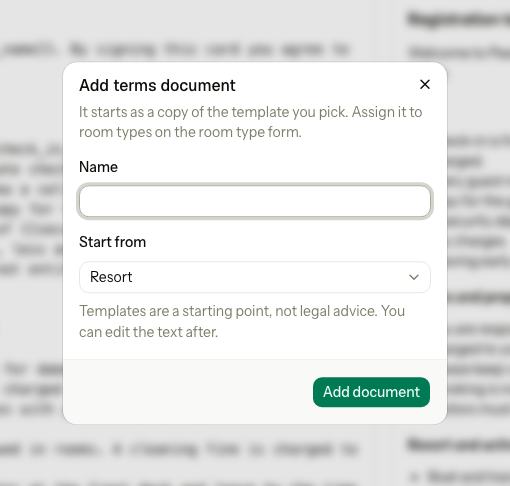
Select Add document.
-
Type a Name, and choose what to Start from.
-
Select Add document.
-
Open Settings, then Room types, and choose the document in Terms document on the room type form.
The new document starts as a copy of the template in every language. Once there are two documents, a Document menu shows next to Language. The Terms document menu on the room type form shows only when you have two or more documents.
A room type with no document of its own uses the default one. If the chosen document has no version in the guest's language, Estatell uses the property's default language.
Special cases
| Situation | What happens | What to do |
|---|---|---|
| You publish text that is the same as the latest version | Estatell says "The text is the same as the latest version, so nothing was published." | Change the text first. |
| You type an unknown placeholder | Estatell refuses to publish. | Use only the five placeholders above. |
| You write more than 10 tick boxes | Publish new version is off. The count shows in red. | Remove some - [ ] lines. |
| You leave the tab with unpublished text | A message asks if you want to publish or leave. | Choose to publish, or to leave. |
| You want to delete a document | Delete document shows on documents that can be deleted. | Only a document that is not the default, and that no room type uses, can be deleted. |
| You want to delete the default document | It cannot be deleted. | Edit it and publish a new version. |
| You publish a new version after a guest signed | The signed card does not change. | Nothing. To use the new text, void the card and sign again. See Signed cards. |
| A language has no published version | The guest cannot choose it. | Publish a version in that language. |
| You do not see the Terms tab | You do not have Manage registration terms. | Ask an owner or manager. |