
Layout
Choose which of the 19 card fields show, which ones the guest must fill in, and in what order.
The Layout tab sets what the registration card shows and asks. Every property has the same 19 fields in three groups. You choose which ones show, which ones are required, and the order.
Before you start
- Permission: Manage property settings. Owners and managers have it by default.
Steps
- Open Settings, then Registration card, then the Layout tab.
- Use the Visibility switch to show or hide a field on the card.
- For a guest detail that shows, use the Required switch to make it required, or leave it off to make it optional.
- Use the up and down arrows under Order to move a field. A field moves only inside its own group.
- Look at the preview on the right. It follows every change.
There is no Save button. Estatell saves 0.3 seconds after your last change. The top right says Saving…, then Changes save automatically.
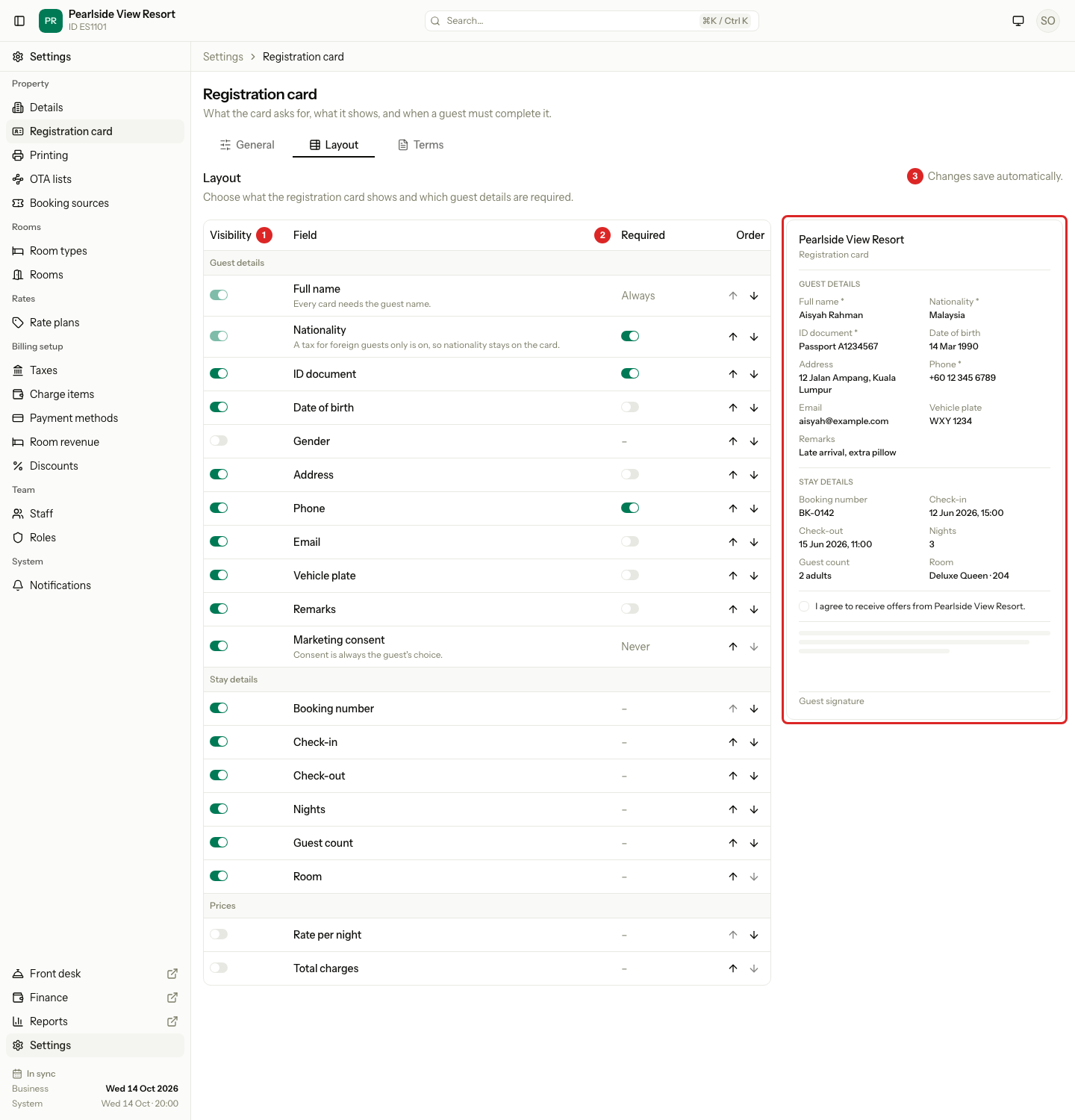
| # | What | What it does |
|---|---|---|
| 1 | Visibility | On: the field is on the card. Off: the field is hidden. |
| 2 | Required | On: the guest must fill in the field before they can sign. Off: the field is optional. |
| 3 | Saving message | Shows Saving… while a change is sent. |
The preview uses made-up details, such as "Aisyah Rahman". A star after a label means the guest must fill it in.
The fields
| Group | Field | Can be hidden | Required | Starts as |
|---|---|---|---|---|
| Guest details | Full name | No | Always | Required |
| Guest details | Nationality | Yes, unless a tax is for foreign guests only | Your choice | Required |
| Guest details | ID document | Yes | Your choice | Required |
| Guest details | Date of birth | Yes | Your choice | Optional |
| Guest details | Gender | Yes | Your choice | Hidden |
| Guest details | Address | Yes | Your choice | Optional |
| Guest details | Phone | Yes | Your choice | Required |
| Guest details | Yes | Your choice | Optional | |
| Guest details | Vehicle plate | Yes | Your choice | Optional |
| Guest details | Remarks | Yes | Your choice | Optional |
| Guest details | Marketing consent | Yes | Never. Consent is always the guest's choice. | Optional |
| Stay details | Booking number, Check-in, Check-out, Nights, Guest count, Room | Yes | Not asked. The card only shows them. | Shown |
| Prices | Rate per night, Total charges | Yes | Not asked. The card only shows them. | Hidden |
- Stay details and Prices come from the booking. The guest does not type them.
- Remarks is free text of up to 500 characters. Staff and the guest can both write in it.
- Check-in and Check-out show the date and the time, for example "14 Oct 2026, 15:00".
- Room shows the room type and the room number, for example "Garden Room · 107". Before a room is assigned it shows the room type only.
- Marketing consent shows as a separate tick box: "I agree to receive offers". If the guest ticks it, Estatell records the date on the guest.
Special cases
| Situation | What happens | What to do |
|---|---|---|
| Full name | Its switches are locked. The note says "Every card needs the guest name." | Nothing. |
| A tax for foreign guests only is on | Nationality cannot be hidden. The note says "A tax for foreign guests only is on, so nationality stays on the card." | Keep Nationality on. To hide it, turn the tax off first. |
| You turn a foreign-only tax on later | The card does not change. | Check that Nationality is on. |
| You show Rate per night or Total charges | The card prints the booking's price with room charges and taxes, under "Estimated charges at booking". Extras and payments are not on it. | Keep them hidden if guests should not see prices. |
| The booking belongs to a company | The card still shows the prices if the fields are on. Estatell does not hide them for company bookings. | Keep the price fields hidden if a company has a negotiated rate. |
| You change a price after a card is signed | The signed card keeps the price it had. | Nothing. |
| Every adult is chosen and prices are on | Each adult sees the prices. | Keep the price fields hidden if only one guest should see them. |
| A change is refused | An error message shows and the table goes back to the saved copy. | Reload the page and try again. |
| You change the layout after a card was signed | The signed card keeps the layout it was signed with. | Nothing. A new card uses the new layout. |