
Guest profiles
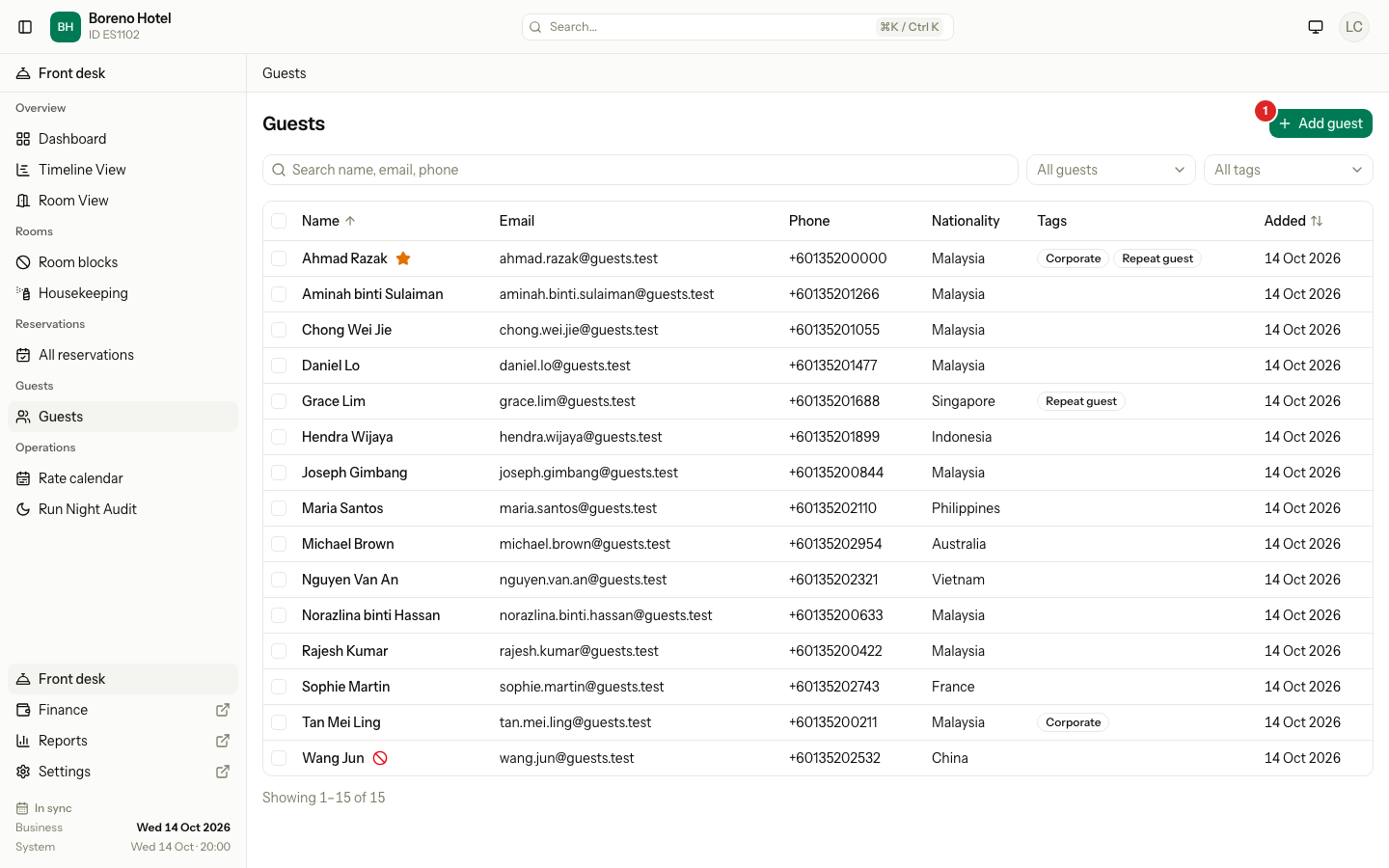
Add a guest, fill in the details, add tags, and keep notes about the guest.
A guest profile holds what you know about one person: contact details, personal details, address, tags and notes. Staff add a guest here, or while they take a booking.
Before you start
- Permission: Add and edit guests to add a guest, change details, tags or notes. Without it you can read the profile but not change it. See who can do what.
- You do not need to fill in every field. Only the name is required.
- Two guests can share an email or a phone number. Families often do.
Add a guest
-
Open Guests and select Add guest.
-
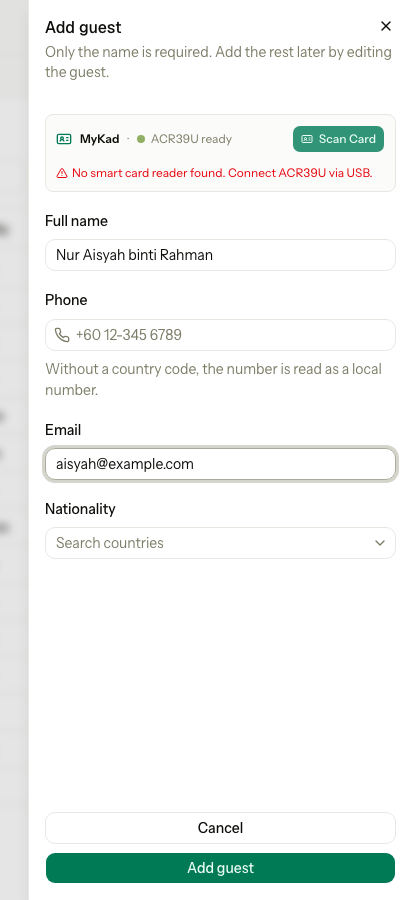
Type the Full name.
-
Type the Phone and Email, if you have them.
-
Choose the Nationality, if you know it.
-
Select Add guest.
Estatell opens the new profile and shows "Name added." Add the rest of the details there.
If you type a phone number without a country code, estatell reads it as a number of your property's country. A number with a country code, such as +65, is accepted from any country.
The sheet has a MyKad box at the top. You can use it to fill in the form from a MyKad. See MyKad reader.
If you close the sheet after you typed something, estatell asks "Discard this guest?". Select Keep editing to go back.
A warning about a duplicate
When you leave the name, phone or email, estatell checks if the guest is already in your list. If it finds one, a warning shows under the fields. It never stops you from saving. Select the name in the warning to open the other guest in a new tab. See Merge guests.
Change the details
- Open the guest and stay on the Details tab.
- Change the fields you need.
- Select Save changes.
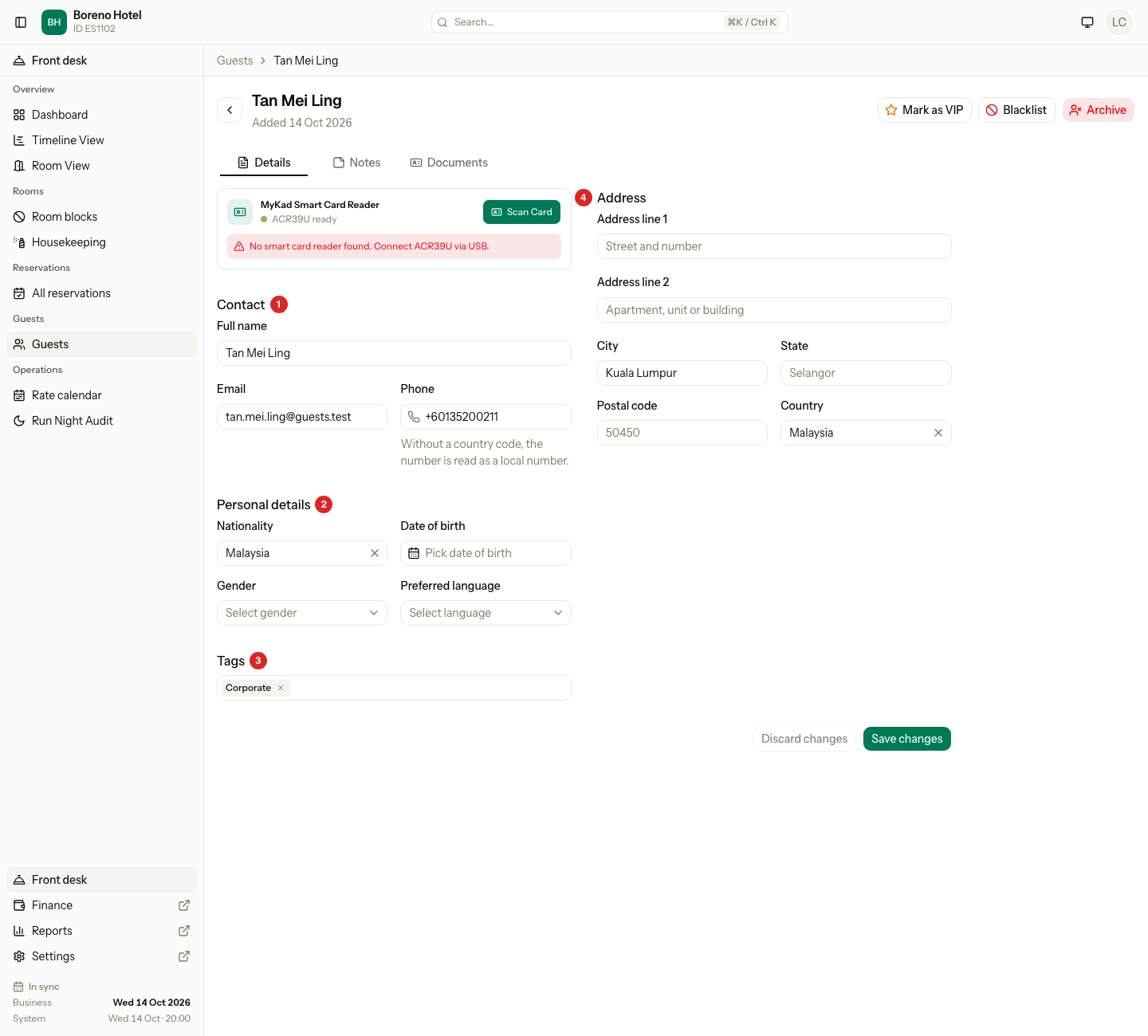
| Number | Section | What it holds |
|---|---|---|
| 1 | Contact | Full name, Email and Phone. |
| 2 | Personal details | Nationality, Date of birth, Gender and Preferred language. |
| 3 | Tags | Short labels you choose. |
| 4 | Address | Address line 1, Address line 2, City, State, Postal code and Country. |
Estatell shows "Name saved." When you change your mind, select Discard changes.
- State is free text, because guests come from many countries.
- Gender has two choices: Male and Female.
- Staff who cannot edit guests see the same details as text, with "Not set" for an empty field.
- You cannot edit an archived guest.
Tags
A tag is a short label, such as Corporate or Repeat guest. You can filter the guest list by tag. See Guest list.
- On the Details tab, select the Tags box.
- Choose a tag from the list, or type a new name and choose Create "name".
- To remove a tag, select the × on it.
- Select Save changes.

A tag belongs to your property. Two tags cannot have the same name, even if the capital letters differ. If you type a name that exists, estatell uses the old tag. There is no screen to rename or delete a tag.
Notes
Use notes for what the next person should know: a room preference, an allergy, or a problem at the last stay.
- Open the guest and select the Notes tab.
- Select Add note.
- Type the Note.
- Select Add note.
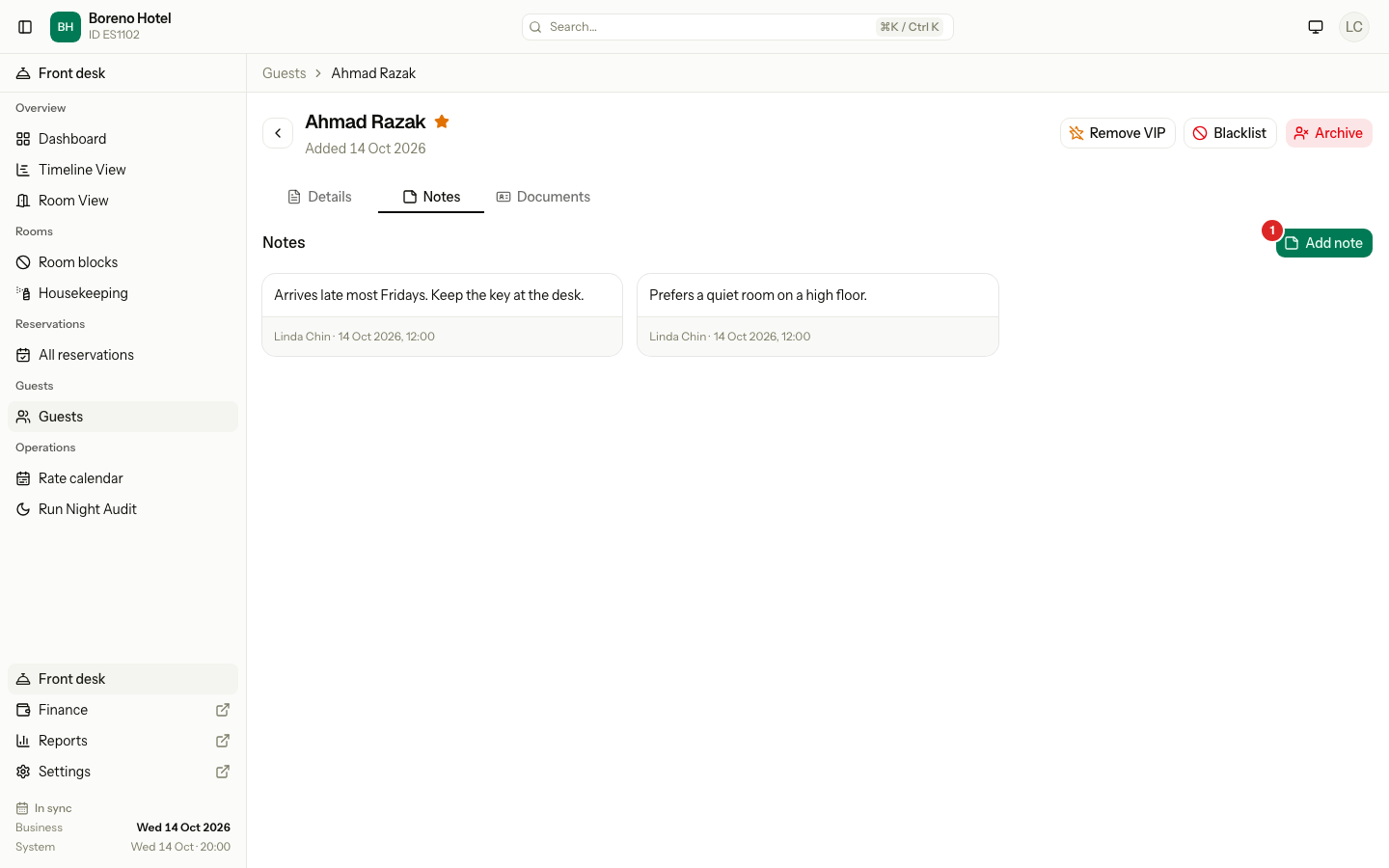
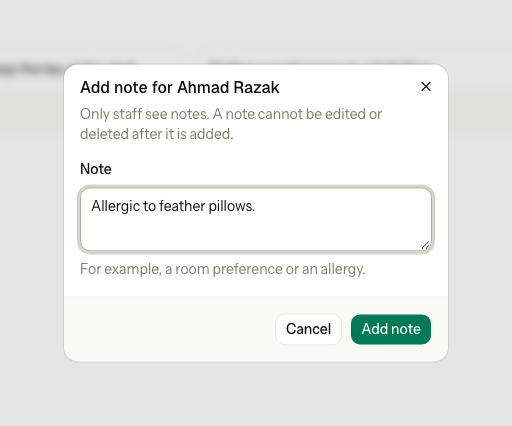
Each note shows who wrote it, and the date and time. The newest note is first. Only staff see notes.
A note cannot be changed or deleted. If a note is wrong, add a new note that says so. The notes stay with the guest until the guest is archived.
Special cases
| Situation | What happens | What to do |
|---|---|---|
| You add a guest with the same name as another guest | • Estatell shows a warning and still lets you save. | • Check if it is the same person. If it is, merge them later. |
| Two family members share a phone or email | • Estatell allows it and may show the duplicate warning. | • Ignore the warning if they are different people. |
| A phone number is not valid | • Estatell shows an error under the field. | • Check the number and the country code. |
| The guest has no email or phone | • The profile saves. | • Add them later. |
| You open a guest from another property | • The page is not found. | • Open the guest from the right property. |
| The guest was merged into another guest | • Estatell opens the other guest and shows a message. | • Use the guest that opened. |
| The guest is archived | • The form and the notes are read only. | • Nothing. The personal data is gone. |
| You cannot see the Documents tab | • You do not have the permission to view guest ID documents. | • Ask an owner. |