
Guest list
Search, filter and sort your guests, and change up to 100 guests at once.
The list on the Guests screen shows every guest of your property, 25 to a page. Use it to find a guest, or to mark, blacklist or archive many guests together.
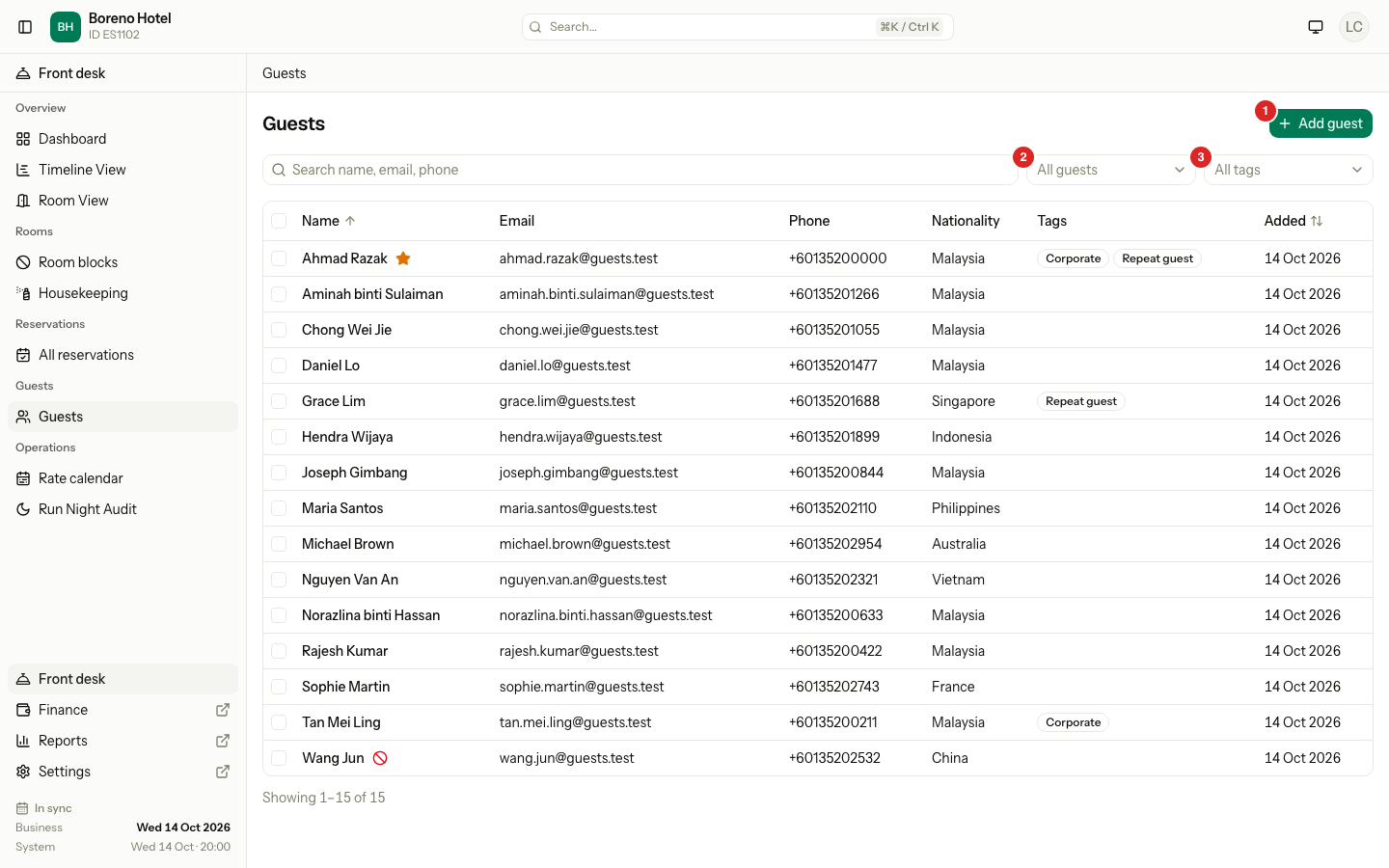
Each row shows the Name, Email, Phone, Nationality, Tags and the date the guest was Added. Select a row to open the guest page.
Before you start
- Permission: View guests to see the list. See who can do what.
- Guests that were merged into another guest are not in the list. Archived guests show only under the Archived filter.
Search
Type in the box that says Search name, email, phone. The list updates as you type.
- Open Guests.
- Type part of a name, an email address or a phone number.
- Select a row.
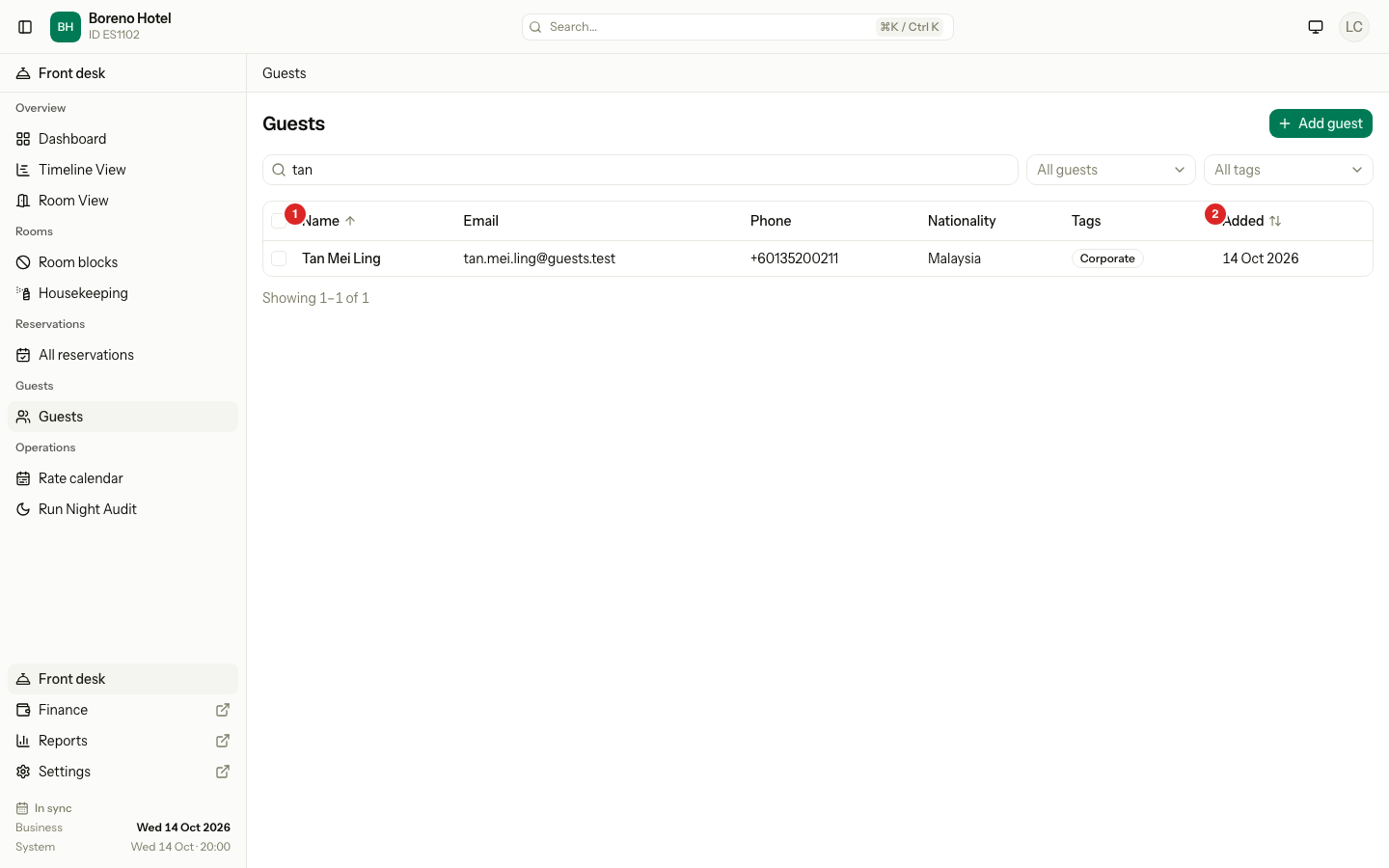
If you can view guest ID documents, you can also type a full ID number, such as a MyKad or passport number. It must match exactly, and it needs at least four characters. See Identity documents.
Filter
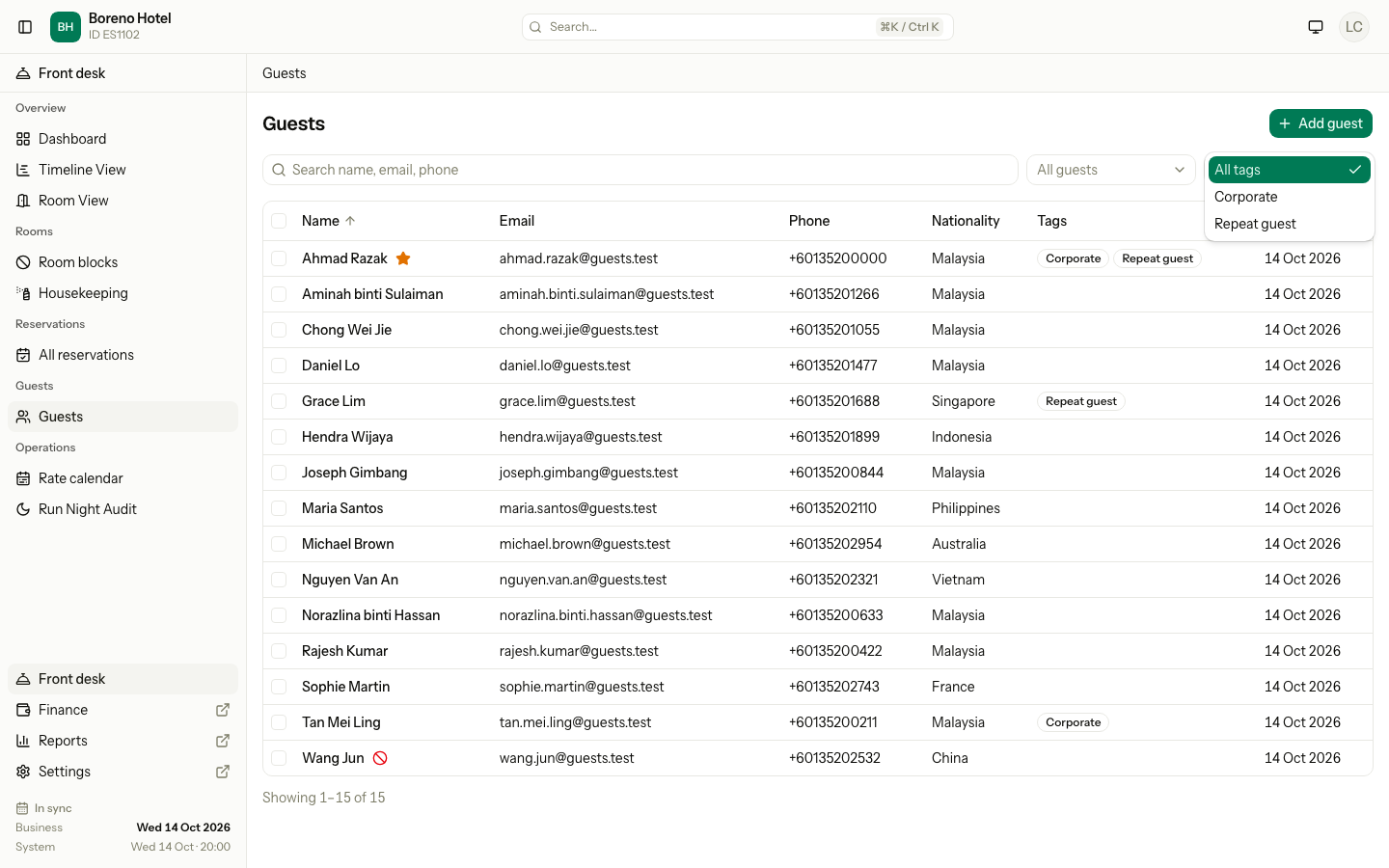
There are two filters next to the search box. You can use them with the search.
| Filter | Choices | What the list shows |
|---|---|---|
| All guests | VIP | Guests marked VIP. |
| Blacklisted | Guests on the blacklist. | |
| Archived | Guests whose personal data was removed. | |
| All tags | One of your tags | Guests with that tag. |
- Select the status filter.
- Choose VIP, Blacklisted or Archived.
- To add a tag, select the tag filter and choose a tag.
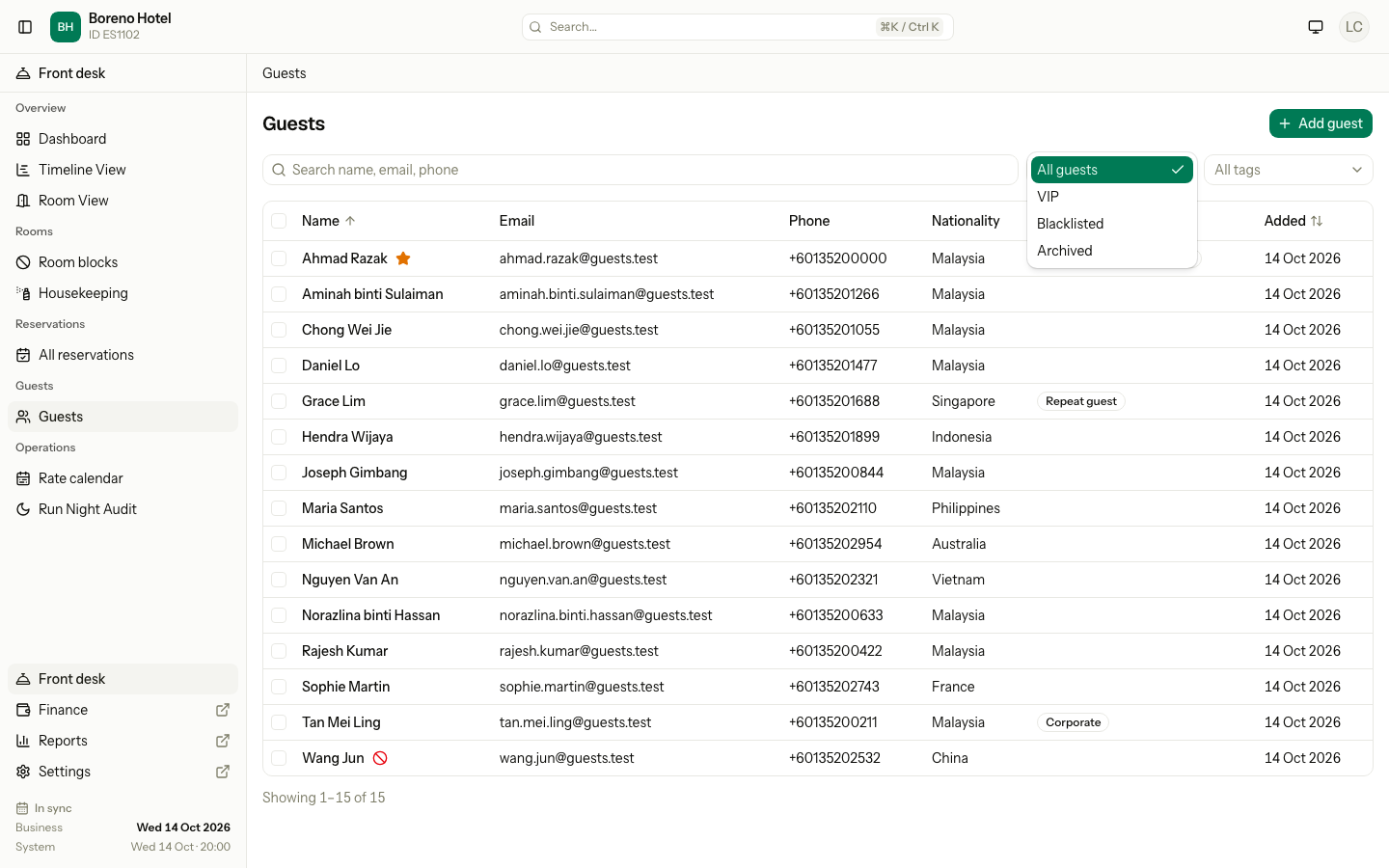
You choose one status and one tag at a time. The tag filter shows only when your property has tags. To clear a filter, choose All guests or All tags again. If nothing matches, the list says "No guests match these filters" and shows Clear filters.
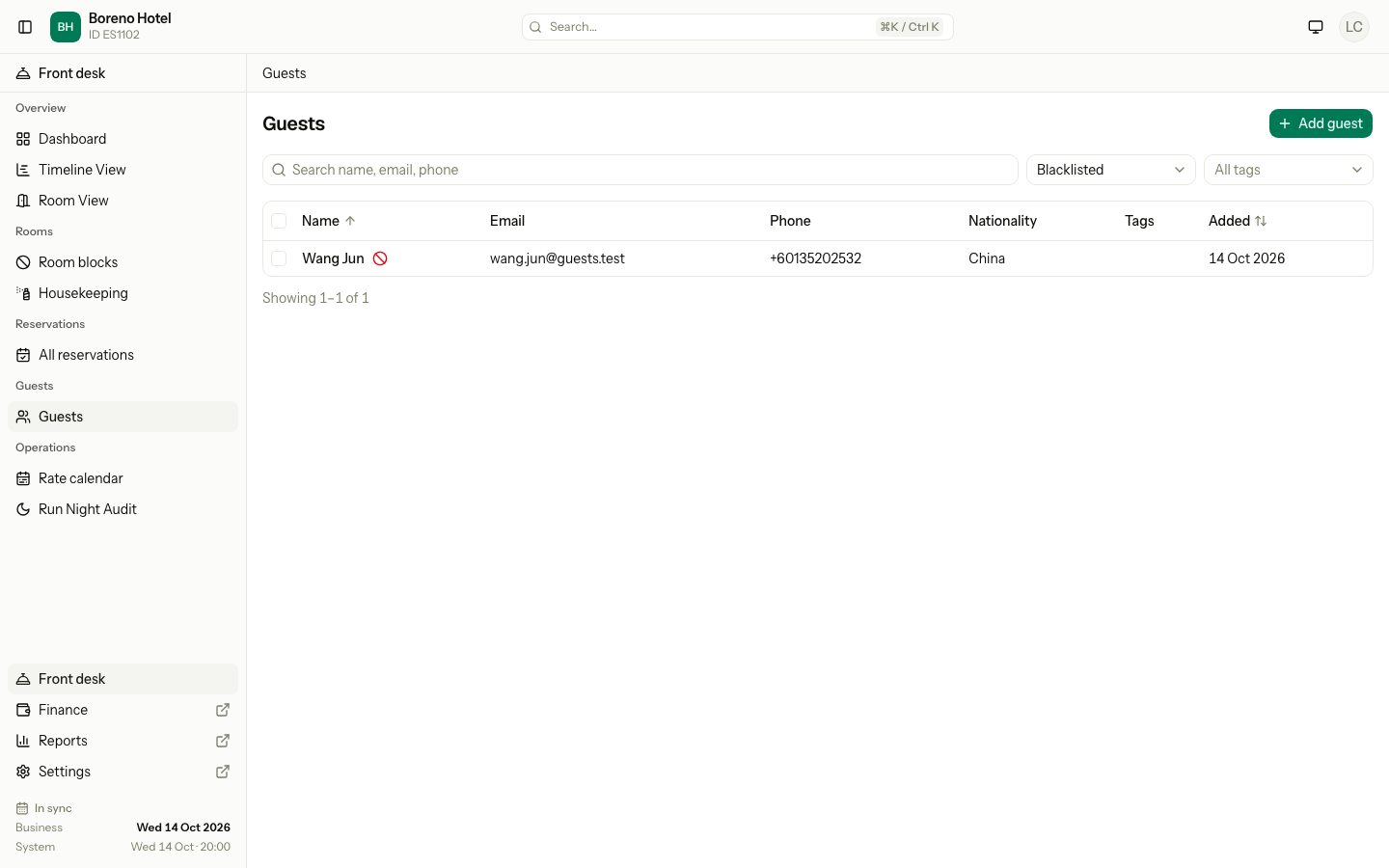
The search, filters and sort are saved in the address of the page. You can copy the address and send it to a colleague.
Sort
The list starts in A to Z order by Name. Select the Name title to change the order. Select Added to put the newest guests first, or the oldest. The arrow next to a title shows the order.
The other columns do not sort.
Change many guests at once
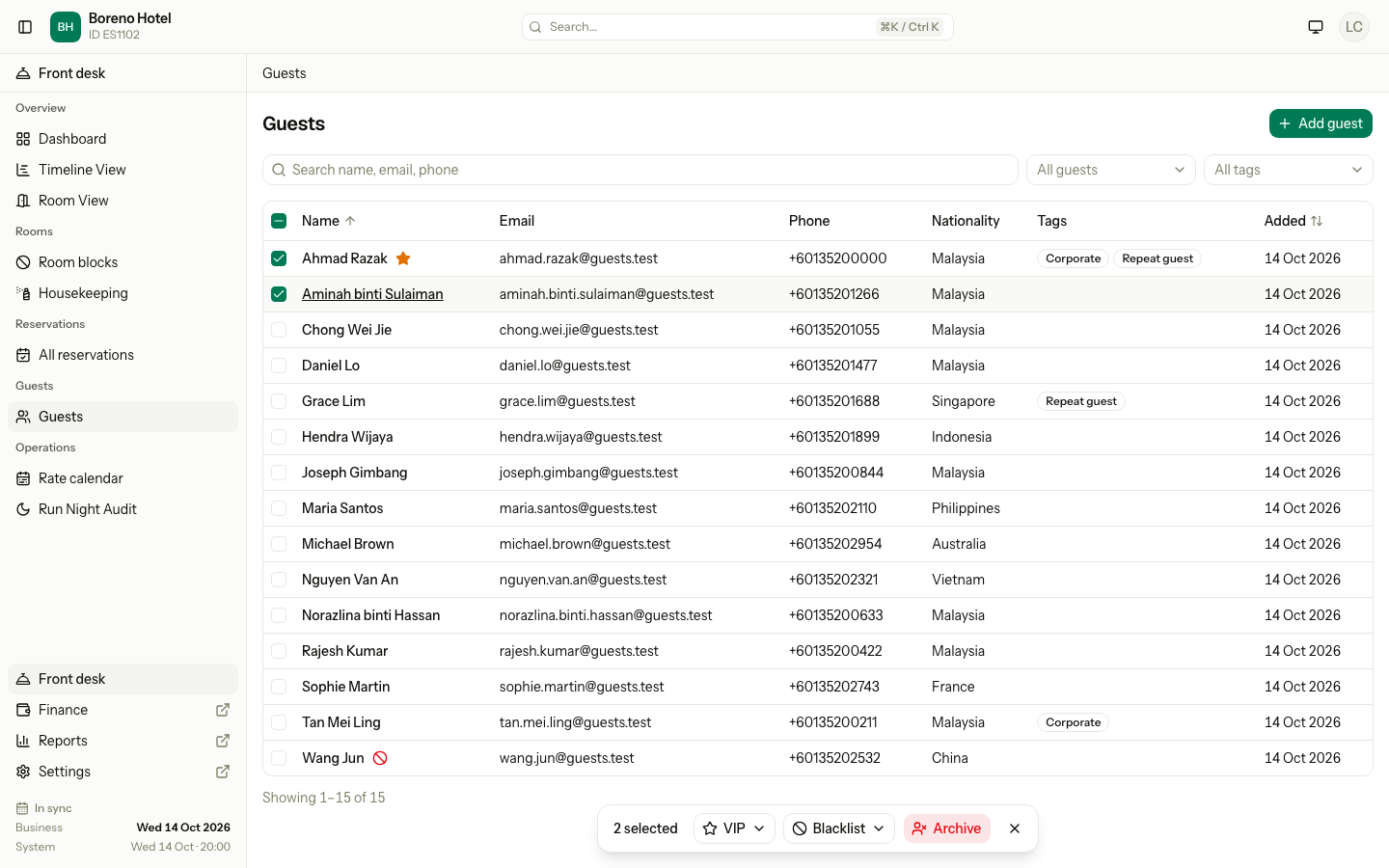
You can select guests and use a bar at the bottom of the page.
- Tick the box next to each guest. Tick the box in the header to select the whole page.
- Check the bar at the bottom. It shows how many guests you selected.
- Choose an action.
| Button | Choices | Permission | Asks first |
|---|---|---|---|
| VIP | Mark as VIP, Unmark as VIP | Add and edit guests | No. It runs at once. |
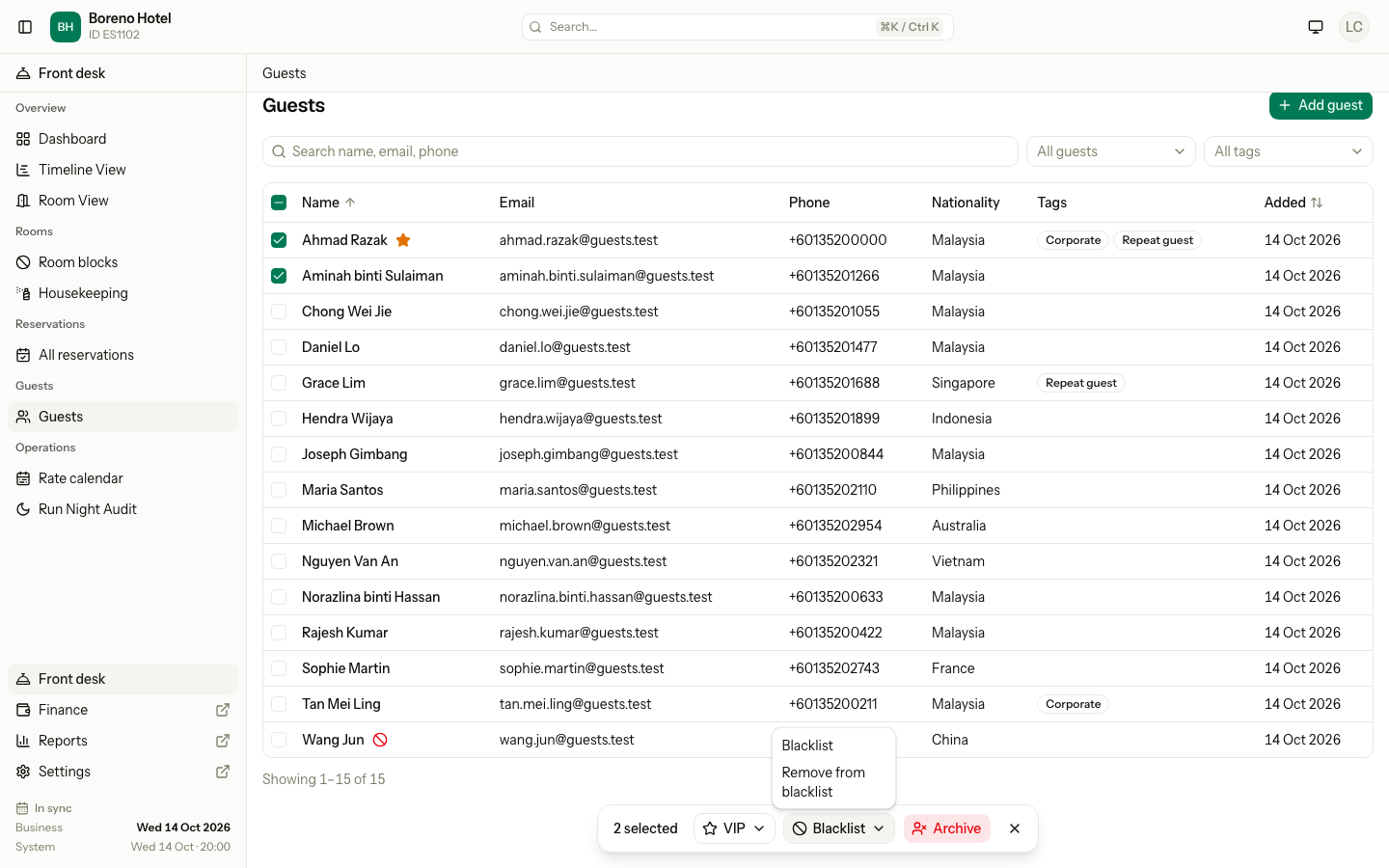
| Blacklist | Blacklist | Blacklist guests | Yes. You type one reason for all the guests. |
| Remove from blacklist | Blacklist guests | Yes. Estatell says the reasons are cleared. | |
| Archive | None | Archive guests | Yes. You type Confirm. It cannot be undone. |
You only see the buttons you have permission for. If you have none of them, the list has no tick boxes.
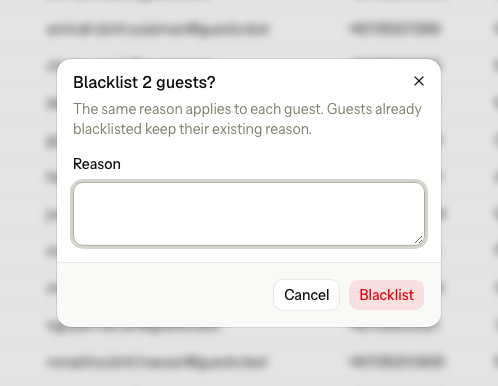
The reason can have up to 500 characters. A guest who is already blacklisted keeps the old reason.
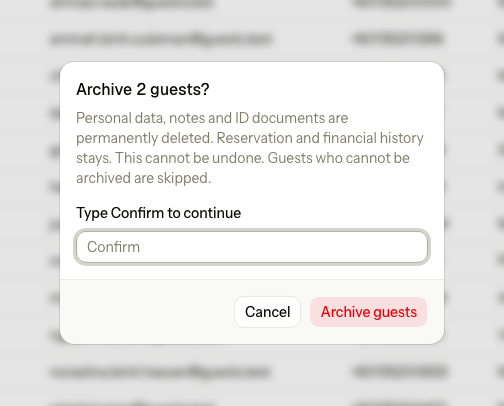
To archive, type Confirm and select Archive guests. Estatell skips a guest it cannot archive, and you can open that guest to see why. See Privacy.
When the action is done, estatell shows a message, for example "2 guests marked as VIP." The message also says how many guests were already in that state, and how many it skipped, for example "1 skipped. Open their guest pages to review them."
- Guests that changed, and guests that were already in the state, leave the selection.
- Guests that were skipped stay selected, so you can check them.
- Select Clear, or press Esc, to clear the selection.
Special cases
| Situation | What happens | What to do |
|---|---|---|
| You select more than 100 guests | • Estatell says "Select up to 100 guests at a time." | • Do the first 100, clear the selection and do the rest. |
| You search or change a filter with guests selected | • The selection is cleared. | • Select the guests again. |
| You change page or sort the list | • The selection stays. | • Nothing. |
| The Archived filter is on | • The list has no tick boxes. | • Open a guest to see the details. |
| You mark a guest who is already VIP | • The guest is counted as "already in the requested state". Nothing changes. | • Nothing. |
| A guest is archived or merged | • The guest is skipped. | • Open the guest page if you need to check. |
| One of the guests cannot be archived | • That guest is skipped. The rest are archived. | • See Privacy. |
| You have no tick boxes | • You do not have permission for any bulk action. | • Ask an owner. |
| A guest is not in the list | • The guest may be merged, archived or on another page. | • Search for the name. Use the Archived filter. |