
Sign a card
Check a guest's registration card, hand it to the guest on this device, and see it signed. Or print a blank form.
Each guest who needs a card has a staff card page. You check the card there, then hand it to the guest to read, tick and sign. Nobody signs on the staff page.
Before you start
- Permission: Prepare and sign registration cards. Owners, managers and front desk staff have it by default.
- The unit must be Confirmed or Checked in. A cancelled, no-show or checked-out unit has no card.
- The terms must be published. See Terms.
- Set up what the card asks first. See Layout.
Open the card
- Open the reservation, then the Guests tab.
- Select the ⋯ menu on the guest's row.
- Select Registration card.
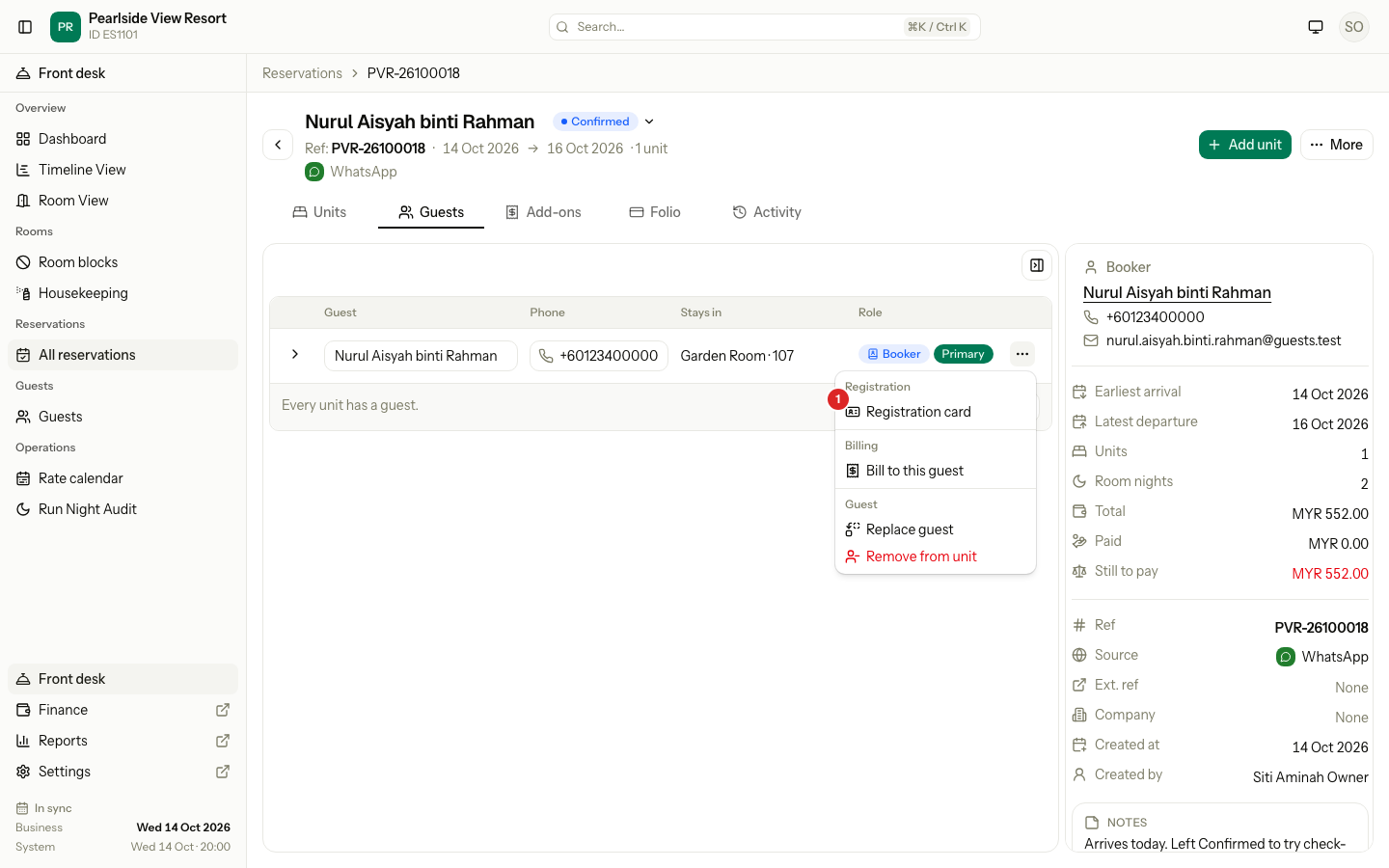
Estatell opens the card page. If the guest has no card yet, it starts a Draft.
Check the card
The left side shows the details Estatell already has: the guest, the stay and the room. You cannot change them here. The guest can correct the guest details on their screen.
The right side, Before handing over, is for you.
- Choose the ID document. Pick one already saved for the guest, or type a new one: the type, the Document number and the Issuing country. With a MyKad reader, select Scan Card.
- Enter the Vehicle plate, if the guest has a car.
- Write the Remarks, if the guest told you something about the stay. It takes 500 characters at most.
- Select Save.
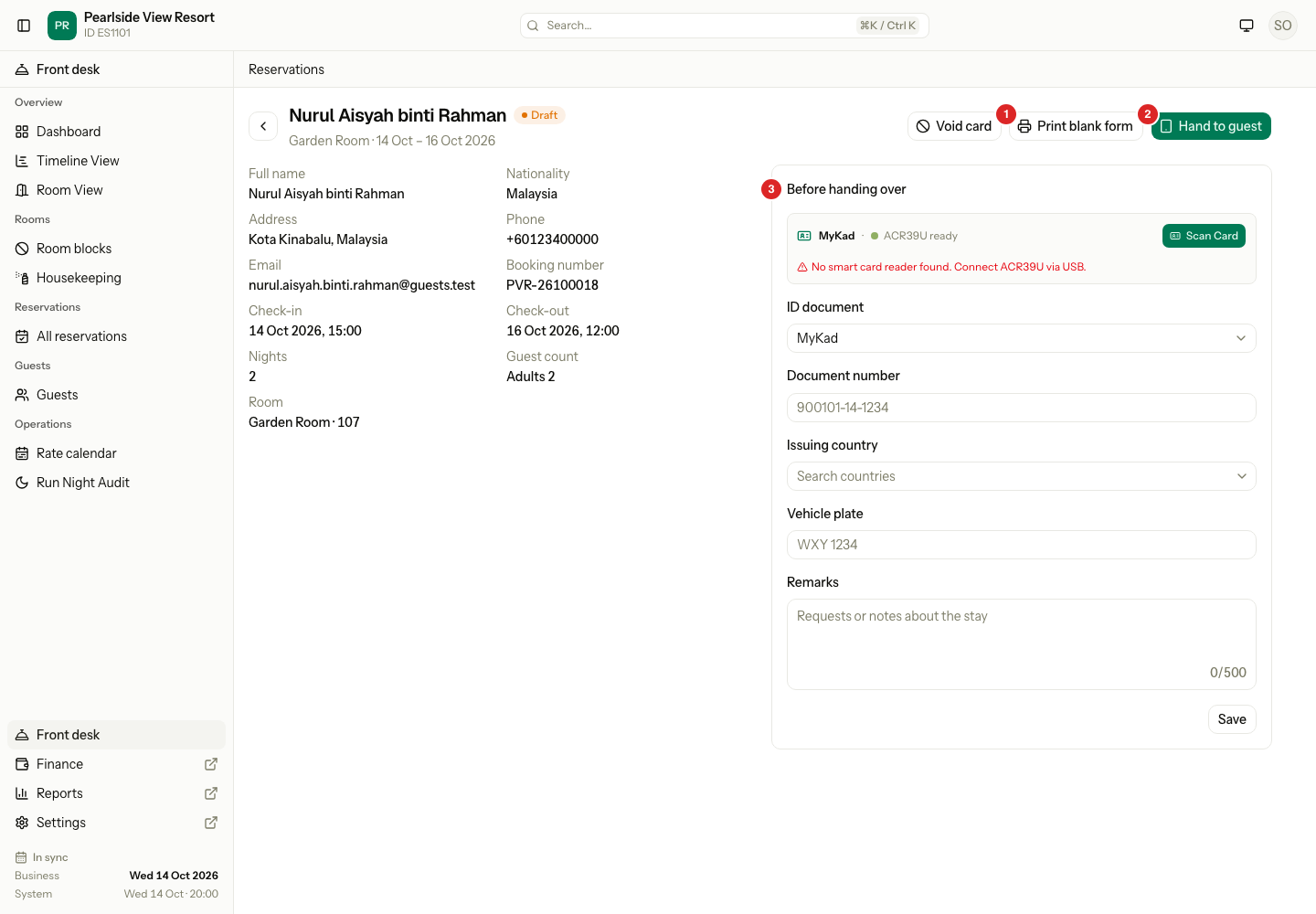
| # | What | What it does |
|---|---|---|
| 1 | Print blank form | Opens a PDF to print, for a guest who signs on paper. |
| 2 | Hand to guest | Opens the guest screen in a new tab. |
| 3 | Before handing over | The ID document, vehicle plate and remarks. A field the Layout tab hides is not here. |
The card shows only the fields you turned on. See Layout. If the ID document field is hidden, there is no ID document here.
Sign on this device
- On the card page, select Hand to guest. The guest screen opens in a new tab.
- Turn the screen or the tablet to the guest.
- The guest checks the stay, then fills in the fields marked with a star.
- The guest chooses a language, if they want another one.
- The guest reads the terms and ticks every box. Agree to all ticks them all at once. The guest can still untick one.
- The guest types their name in Name of signer and signs in the box. Clear starts the signature again. The arrows open a larger box.
- The guest selects Sign card.
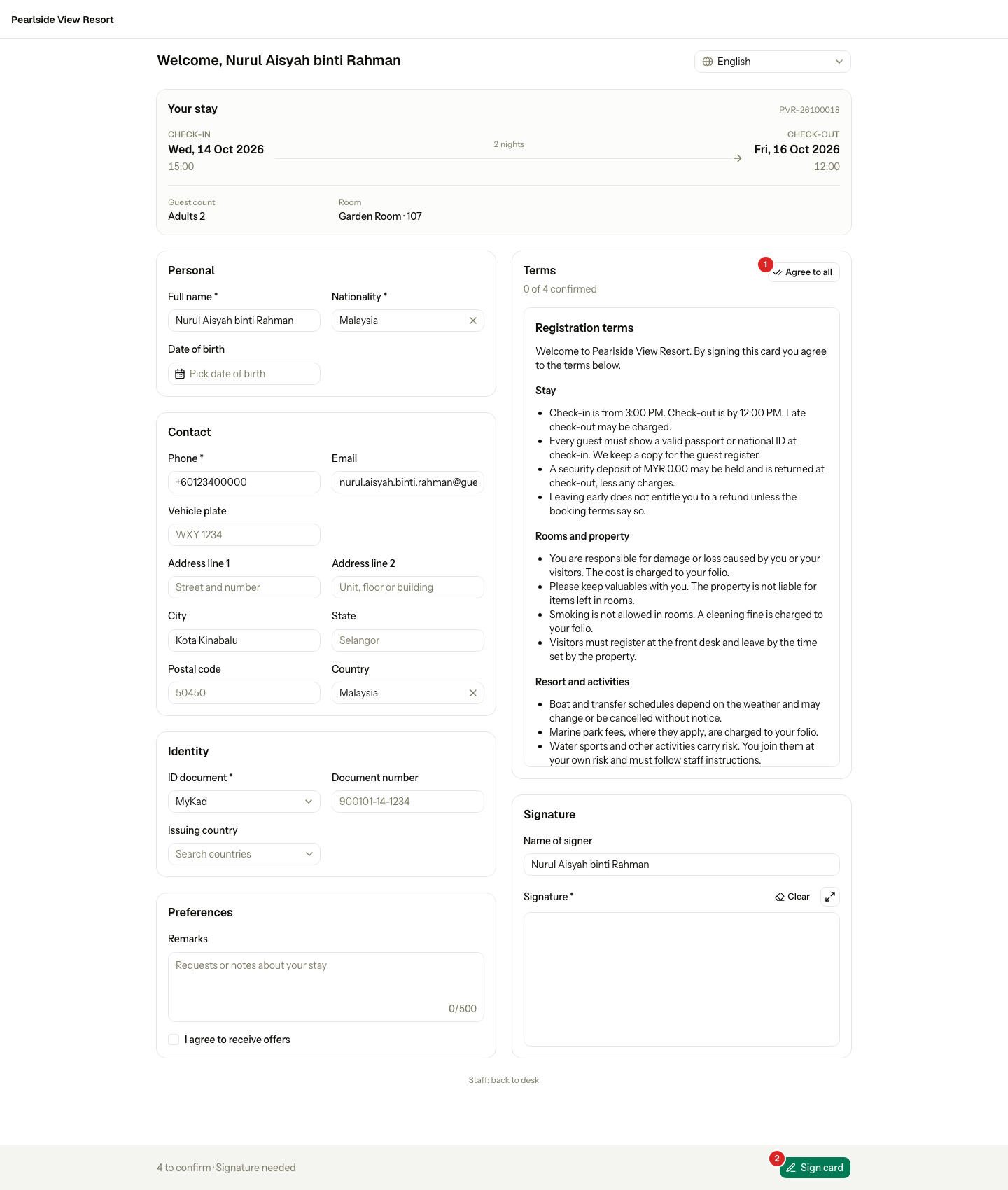
The bar at the bottom tells the guest what is missing, for example "4 to confirm · Signature needed". Sign card stays off until every box is ticked and the signature and name are done. If a required field is empty, the field shows an error when the guest selects Sign card.
The guest screen has no staff menu. The small link Staff: back to desk goes back to the card page. It needs no PIN, because staff are with the guest.
What happens when the guest signs
- The card becomes Signed and gets a card number.
- The guest's details are saved to the guest's profile, and the guest's language is saved.
- If the guest ticked the offers box, Estatell records the consent.
- Estatell keeps a frozen copy of what the guest saw and signed. It never changes. See Signed cards.
- The guest screen shows a thank-you.
Several guests in a row
If Every adult is on in General, each adult has a card. The guest screen says "Guest 1 of 3". After each signature, the thank-you screen names the next guest who still needs a card, for example "Next: Nurul Huda (2 of 3)".
- Select Continue. The next guest's card opens.
- The next guest signs the same way.
- After the last guest, the screen says "All done. Please return the device to the front desk."
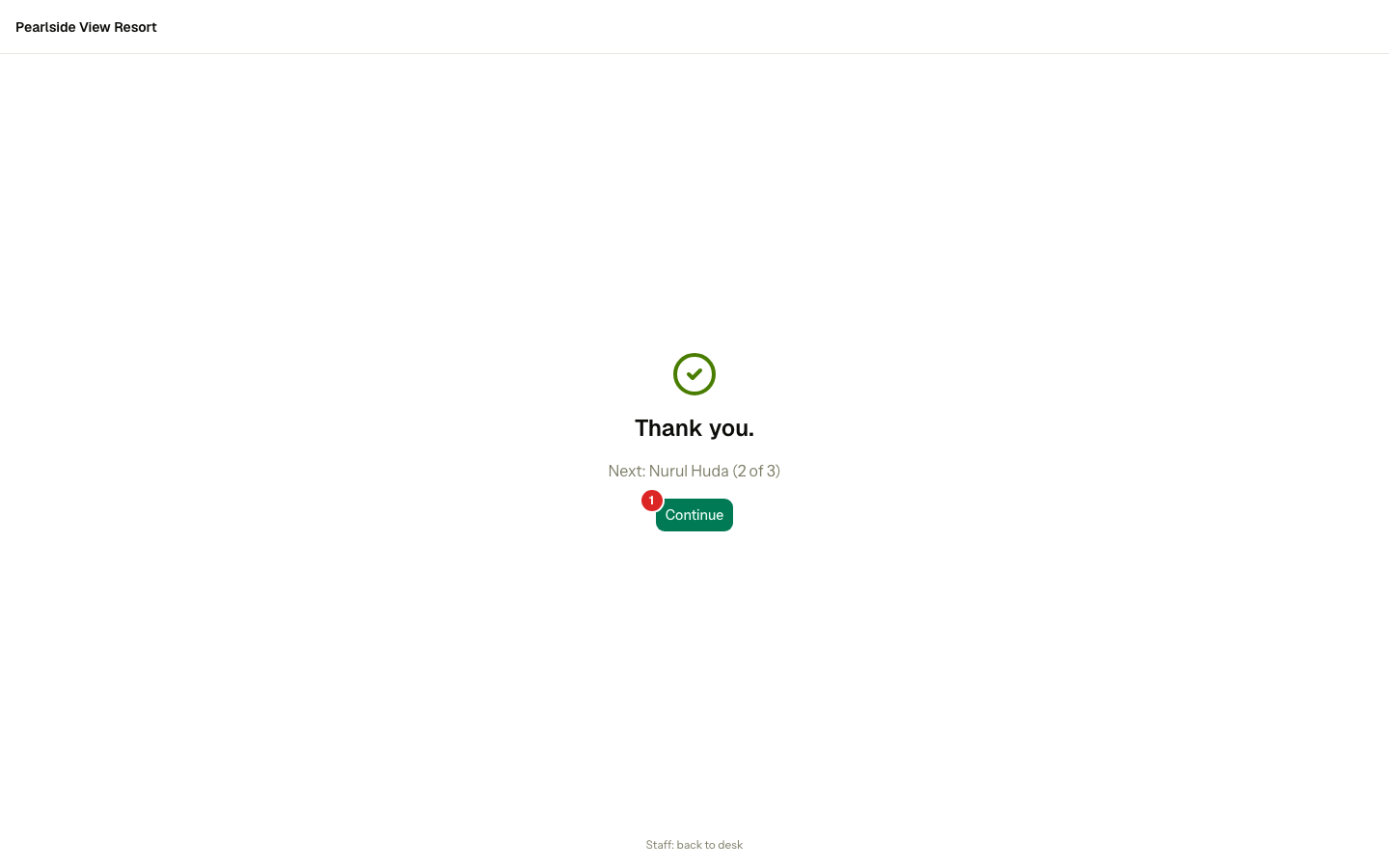
The thank-you screen shows no details of the guest who signed, so the next person cannot read them. The list of who is next comes from the unsigned cards. A card signed elsewhere drops out of the list.
Print a blank form
Use this for a guest who signs on paper.
- On the card page, select Print blank form. A PDF opens in a new tab.
- Print it. It lists every field that shows, empty, with unticked boxes and a line for the signature. It is in the language open on the card page.
The card stays a Draft. Estatell does not read the paper form. To check in a guest who signed on paper, check in without a card if you may, and keep the paper form. See Check in.
Special cases
| Situation | What happens | What to do |
|---|---|---|
| The guest changes the language | The terms and labels change. The guest's typed details stay. The ticks reset, because the wording changed. | The guest ticks the boxes again. |
| Estatell says "The card could not be signed" | The message says "Tick every box, sign in the box, and try again." | Tick every box, sign in the box, and select Sign card again. |
| A required field is empty | The field shows an error. | The guest fills it in. |
| The ID document is already chosen on the card page | The guest sees it masked and read only. | Nothing. |
| No ID document is chosen and it is required | The guest types the document on their screen. | The guest types the type and the number. |
| The card is already signed | Opening the guest screen goes to the thank-you. | Nothing. To sign again, void the card first. See Signed cards. |
| The guest is under 18 and Every adult is on | Estatell does not ask for a card if the date of birth is known. | Nothing. |
| The unit is cancelled, a no-show or checked out | "This guest cannot have a registration card now." | Reinstate the unit first, if it was a mistake. |
| The property has no published terms | "Publish the registration terms first, in Settings." | See Terms. |
| You select Save on a signed card | Estatell says "Only an unsigned card can be changed." | Void the card and sign again. |
| Print blank form is not there | The card is signed. The form is only for a draft. | Use Download PDF. |
| You close the guest tab by mistake | Nothing is lost. The card stays a draft. | Select Hand to guest again. |