
VIP and blacklist
Mark a guest as VIP, blacklist a guest with a reason, and take a guest off the blacklist.
Two flags help your team treat a guest the right way. VIP marks a guest you want to look after. Blacklisted marks a guest your property does not want to host again, and keeps the reason.
A flag is a warning for your staff. It does not stop a booking. Staff see the flag in the guest list, on the guest page and when they pick the guest for a booking.
Before you start
- Permission: Add and edit guests to mark or unmark VIP. Blacklist guests to blacklist a guest or remove one from the blacklist. See who can do what.
- You cannot change the flags of an archived guest.
Mark a guest as VIP
- Open the guest.
- Select Mark as VIP.
The button changes to Remove VIP, and a star shows next to the name. Estatell shows "Name is now a VIP." There is nothing to confirm.
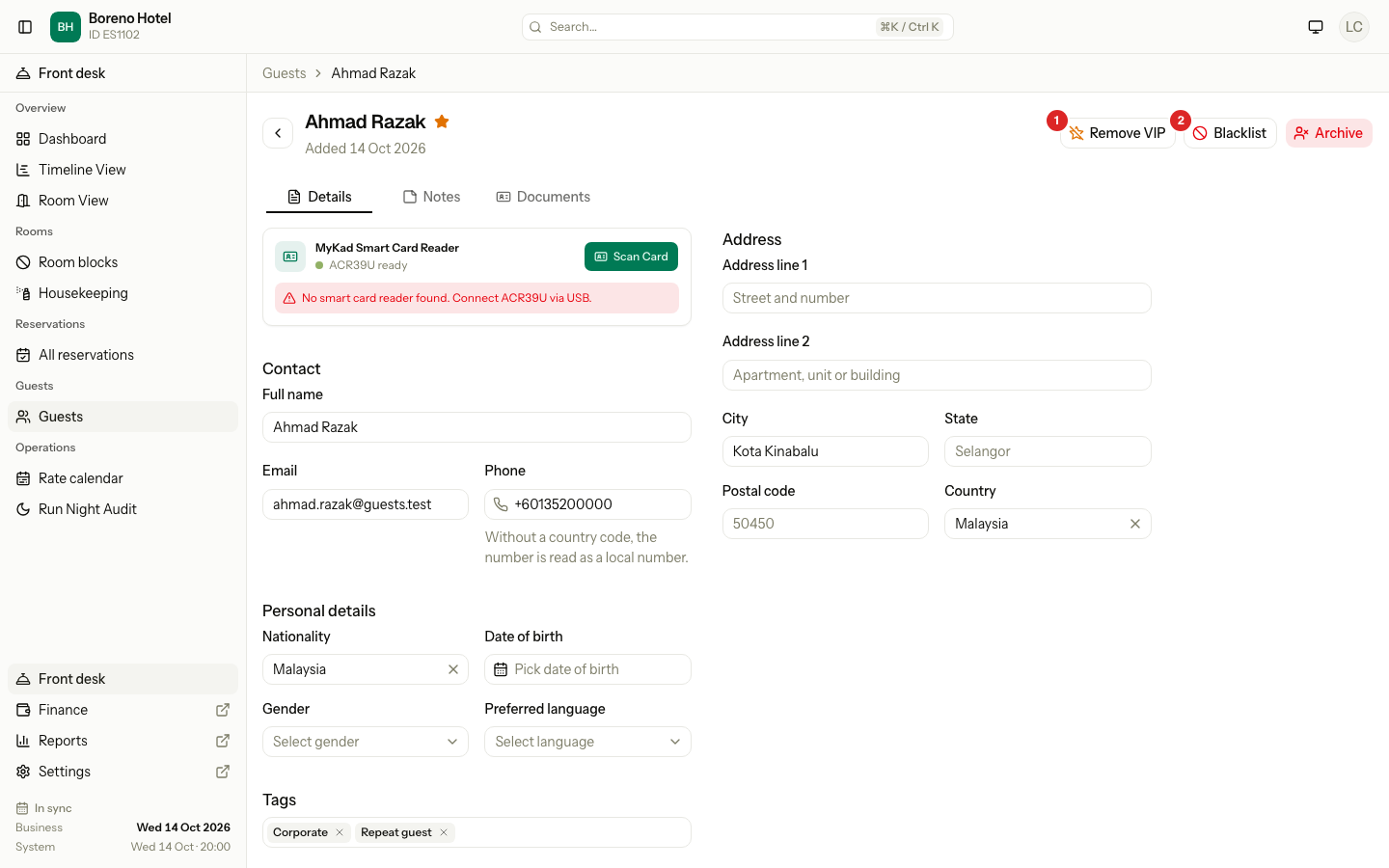
| Number | What it is |
|---|---|
| 1 | Remove VIP. Takes the mark off. |
| 2 | Blacklist. Opens the blacklist dialog. |
To take the mark off, select Remove VIP. Estatell shows "Name is no longer a VIP."
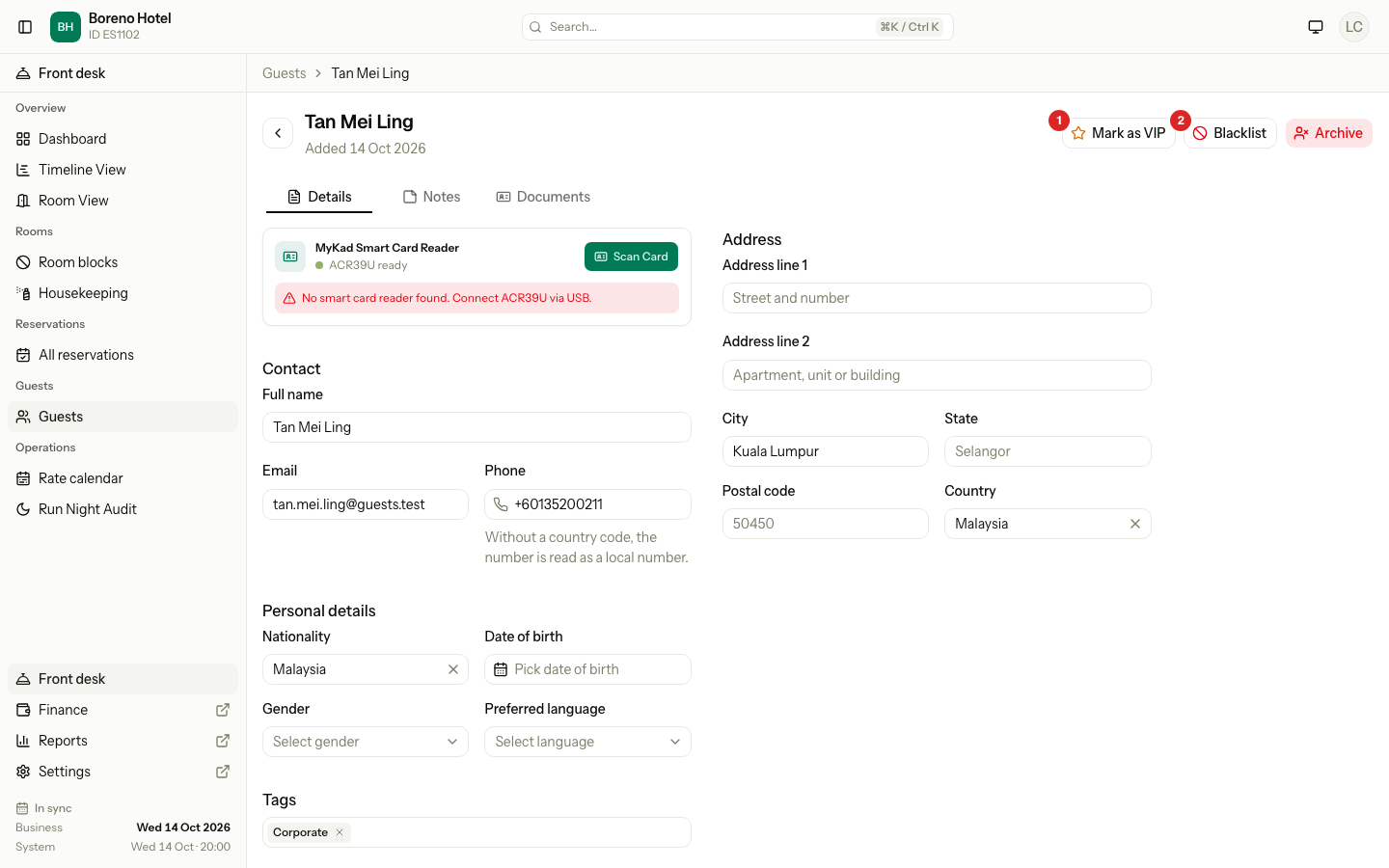
To mark many guests at once, see Guest list.
Blacklist a guest
You must write a reason. Staff see the reason on the guest page.
- Open the guest.
- Select Blacklist.
- Type the Reason. It can have up to 500 characters.
- Select Blacklist guest.
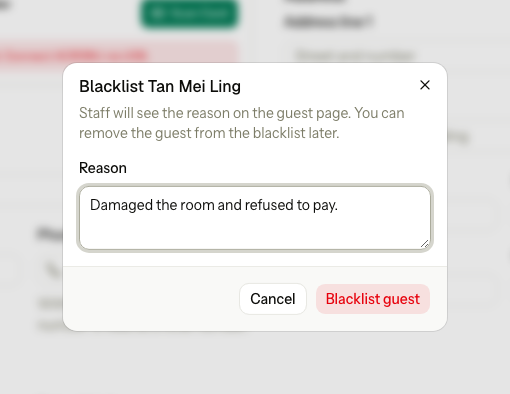
Estatell shows "Name blacklisted." The guest page now has a red box with the word Blacklisted and the reason. A red circle shows next to the name in the guest list.
Write facts that your team can check, such as "Left without paying the minibar bill." Every staff member who can open the guest sees the reason.
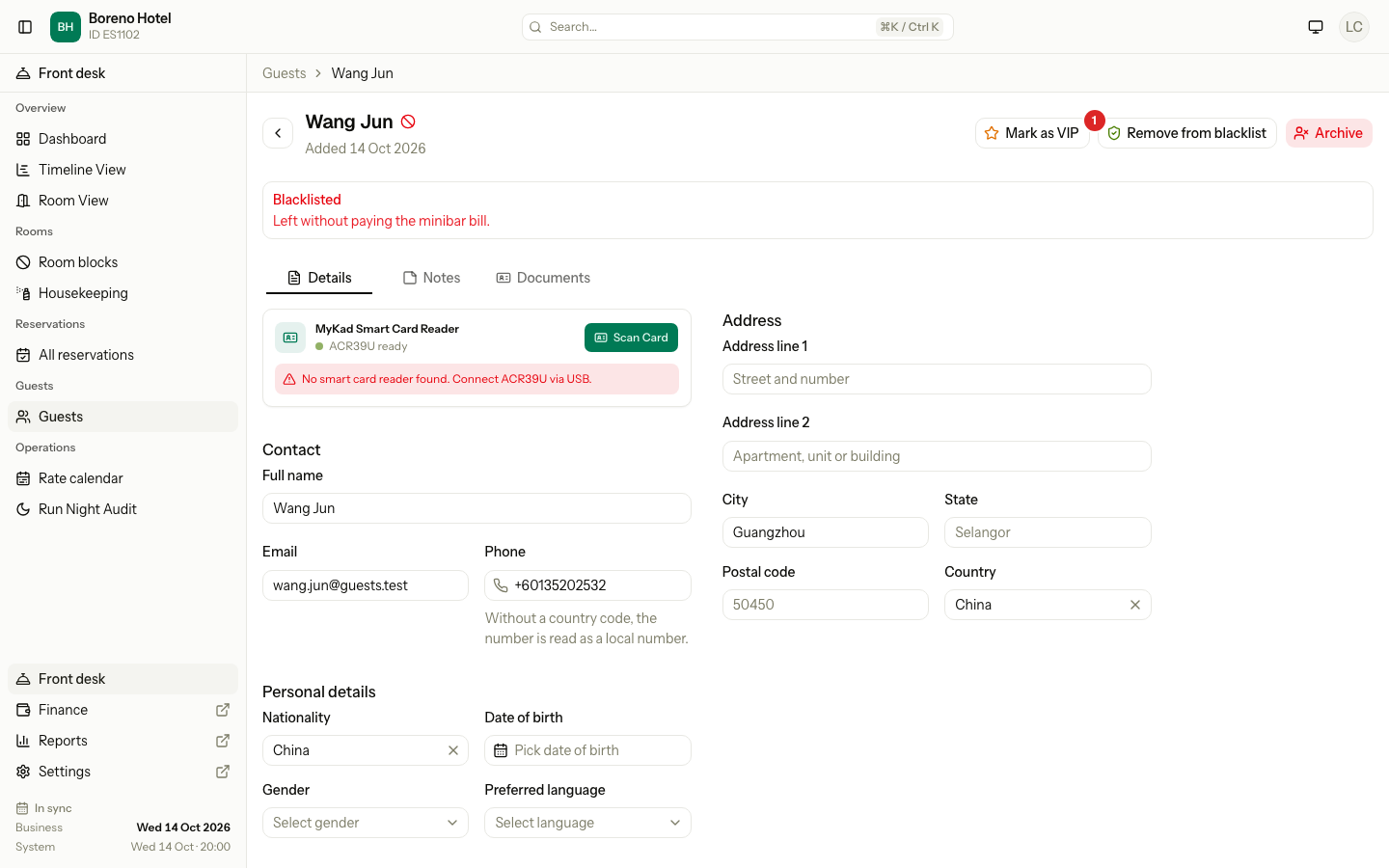
| Number | What it is |
|---|---|
| 1 | Remove from blacklist. Replaces the Blacklist button. |
Remove a guest from the blacklist
- Open the guest.
- Select Remove from blacklist.
- Select Remove from blacklist to confirm.
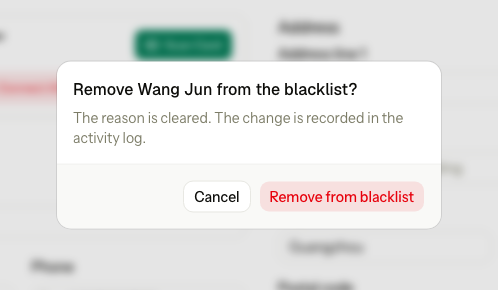
The reason is cleared and the red box goes. Estatell shows "Name removed from the blacklist." The change is kept in the activity log.
If you blacklist the guest again, you must write a new reason.
A blacklisted guest still shows as a duplicate
When someone adds a guest, estatell checks the list for the same person. It includes blacklisted guests in that check. This is on purpose. A guest who comes back with a new profile is not hidden.
The warning shows the blacklisted guest's name, and a Blacklisted label. The warning is red. You can still save the new guest, but you should check first.
If it is the same person, you can merge the two profiles. The blacklist and its reason move to the guest you keep. If you keep a guest who is already blacklisted, that guest keeps its own reason.
Special cases
| Situation | What happens | What to do |
|---|---|---|
| You blacklist without a reason | • Estatell asks for a reason and does not save. | • Type the reason. |
| Someone else blacklisted the guest a moment ago | • Estatell says "Name is already blacklisted." | • Nothing. |
| You remove a guest who is not blacklisted | • Estatell says "Name is not blacklisted." | • Nothing. |
| You do not see Blacklist | • You do not have the Blacklist guests permission. | • Ask a manager or an owner. |
| A front desk staff member wants to blacklist a guest | • They cannot. The button does not show. | • Ask a manager or an owner. |
| A blacklisted guest is booked | • Estatell allows the booking and shows the warning. | • Decide as a team. |
| You blacklist many guests together | • They get the same reason. A guest who is already blacklisted keeps the old reason. | • Blacklist one by one if the reasons differ. |
| Two guests are merged, and only one is blacklisted | • The blacklist and the reason go to the guest you keep. | • Nothing. |
| A VIP guest is merged with another guest | • The guest you keep becomes VIP. | • Nothing. |