
Merge guests
See when two guests may be the same person, and join them into one guest. A merge cannot be undone.
The same person often gets two guest records: one made at a booking, one made at the front desk. Estatell warns you while you type, and lists possible duplicates on the guest page. When two records are the same person, you merge them into one.
A warning never stops you from saving. Only a merge joins two guests, and only a person with the right permission can do it.
Before you start
- Permission to merge: Merge duplicate guests. Owners and managers have it by default. Front desk staff do not.
- Warnings need View guests. Matching by ID number also needs View and manage guest ID documents.
- Decide which guest to keep. You start the merge from the guest you keep.
How Estatell finds a match
Estatell compares the details you typed with the guests of the same property. It never looks at other properties.
| Reason on the screen | How it matches | Strength |
|---|---|---|
| Same phone | The same phone number. A number with no country code is read as a Malaysian number. | Strong |
| Same email | The same email. Capital letters and spaces do not matter. | Strong |
| Same ID number | The same ID number on a document. Dashes and spaces do not matter. Only staff with View and manage guest ID documents see this reason. | Strong |
| Same name and date of birth | The same name, by the rules below, and the same date of birth. | Strong |
| Same name | The same name, by the rules below. | Weak |
A name alone is weak, because two people can share a name. Estatell says "A guest with the same name exists" for a weak match, and "Possible duplicate guest" when any reason is strong.
Two names match when they are the same after Estatell tidies them:
- Capital letters, accents and punctuation do not matter.
- The words bin, binti, bte, bt, b., a/l and a/p are ignored.
- The order of the words does not matter.
So "Aisyah binti Rahman" and "Rahman, Aisyah" are the same name. Estatell does not find spelling mistakes: "Aisha" and "Aisyah" are different.
Some rules for the list:
- It shows the best matches first: more strong reasons, then more reasons, then the name. It shows 10 guests at most.
- A Blacklisted guest still shows, so you notice a blacklisted guest who comes back under a new record. See VIP and blacklist.
- A guest who was merged or archived never shows.
Warnings while you type
| Where | When the warning shows | What you can do |
|---|---|---|
| Add guest on the guest list, and the Details tab of a guest | After you leave the name, phone, email or date of birth field. | Select a name in the warning to open that guest in a new tab. Your form stays as it is. |
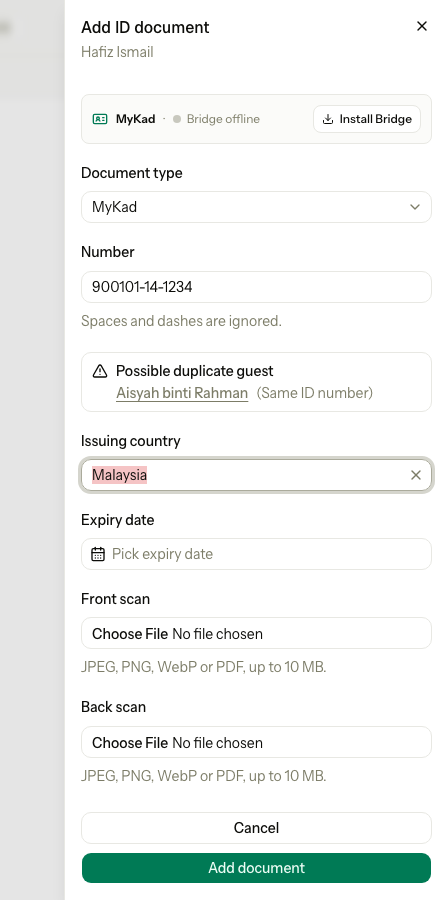
| The sheet to add or edit an ID document | After you leave the Number field, when the number is on another guest. | Open the other guest, and merge them if they are the same person. |
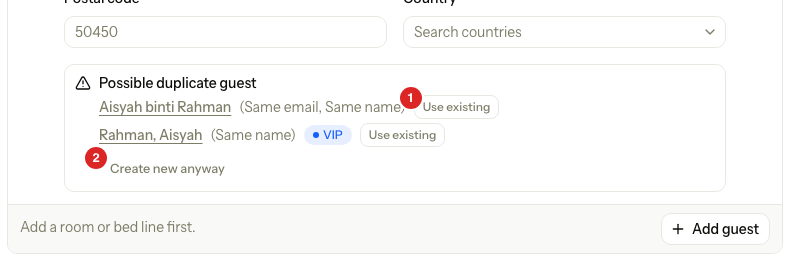
| The guests section of New reservation and Walk-in | After you type the name or other details of a new guest. | Select Use existing to fill the form from that guest. Select Create new anyway to hide the warning. |
| The Details tab of a guest | Always, as a list called Possible duplicates. See below. | Select Merge. |
The warning is red when one of the matches is blacklisted.
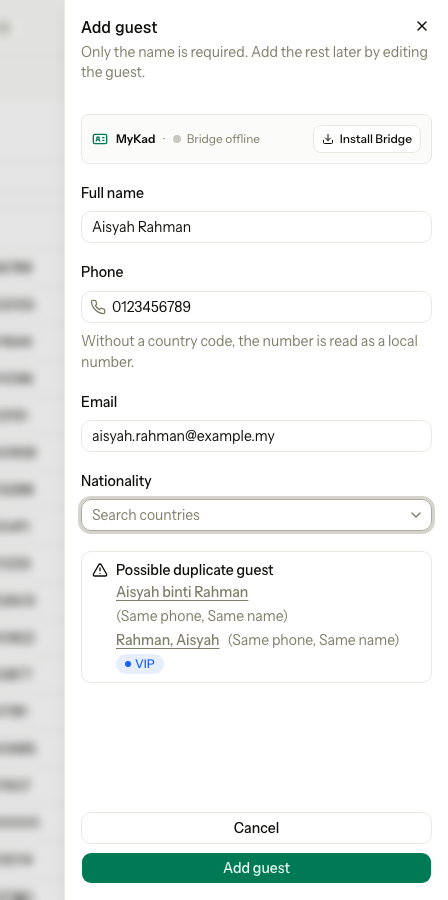
On a booking, each match has Use existing (1). Create new anyway (2) hides the warning and keeps the new guest.
Possible duplicates on a guest
Open a guest. On the Details tab, under the form, the Possible duplicates list shows guests that look like this one. It uses the guest's own details and ID numbers. If nothing matches, the list is not there.
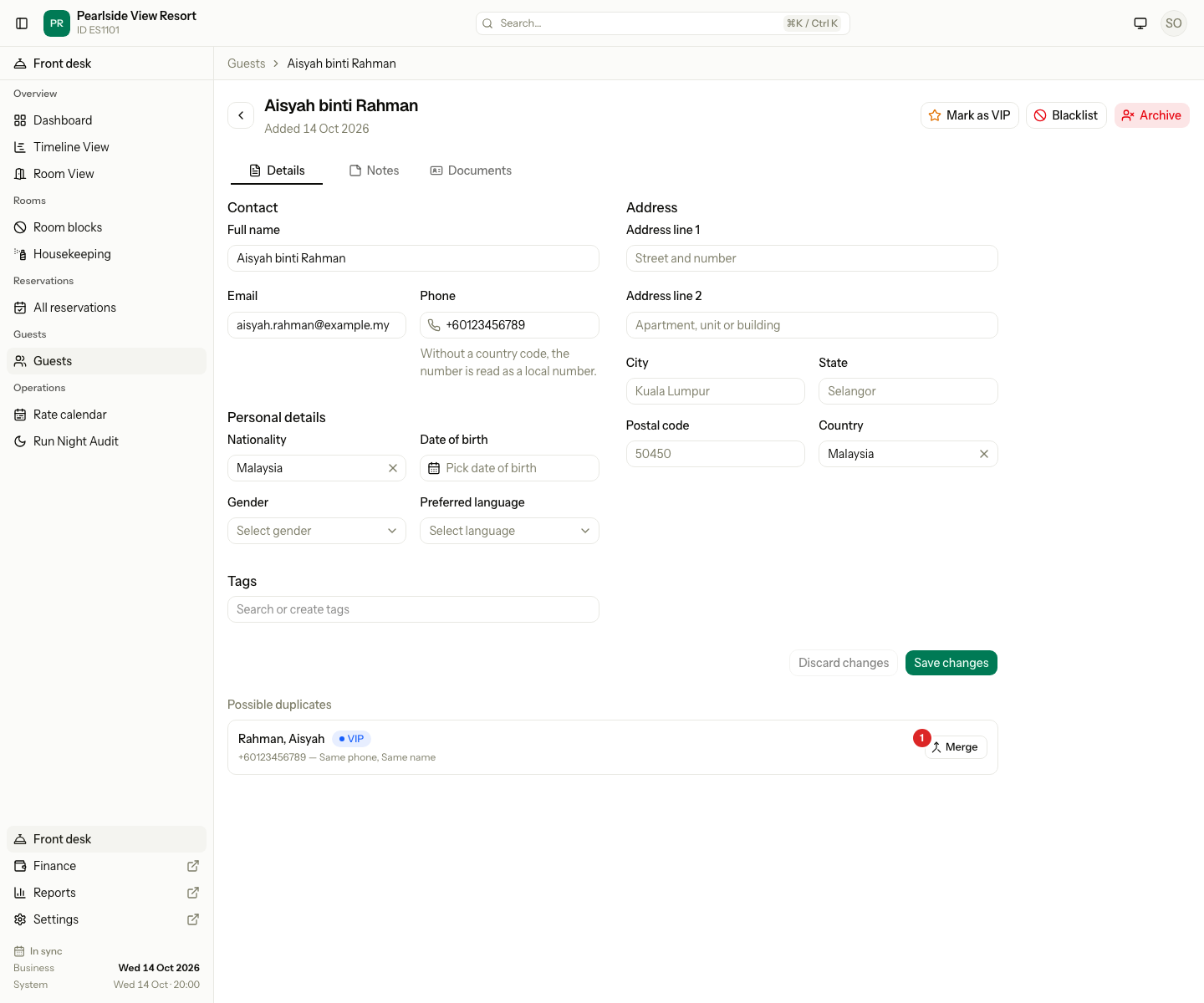
Each row shows the name, any VIP or Blacklisted badge, the phone and email, and the reasons, for example "Same phone, Same name". If you can merge, the row has a Merge button.
Merge two guests
- Open the guest you want to keep.
- On the Details tab, find the other guest under Possible duplicates.
- Select Merge.
- Read the message, then select Merge guests.
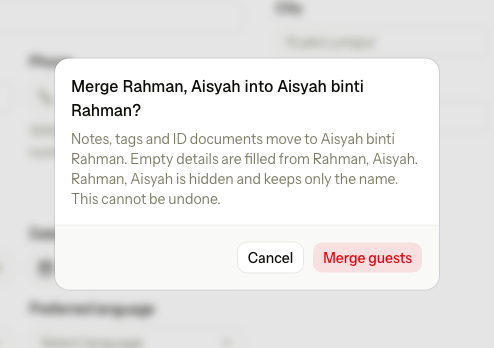
The dialog reads "Merge Rahman, Aisyah into Aisyah binti Rahman?" The first name is the guest that goes away. The second is the guest you keep.
Estatell shows "Name merged into Name." The page you are on is the guest you kept.
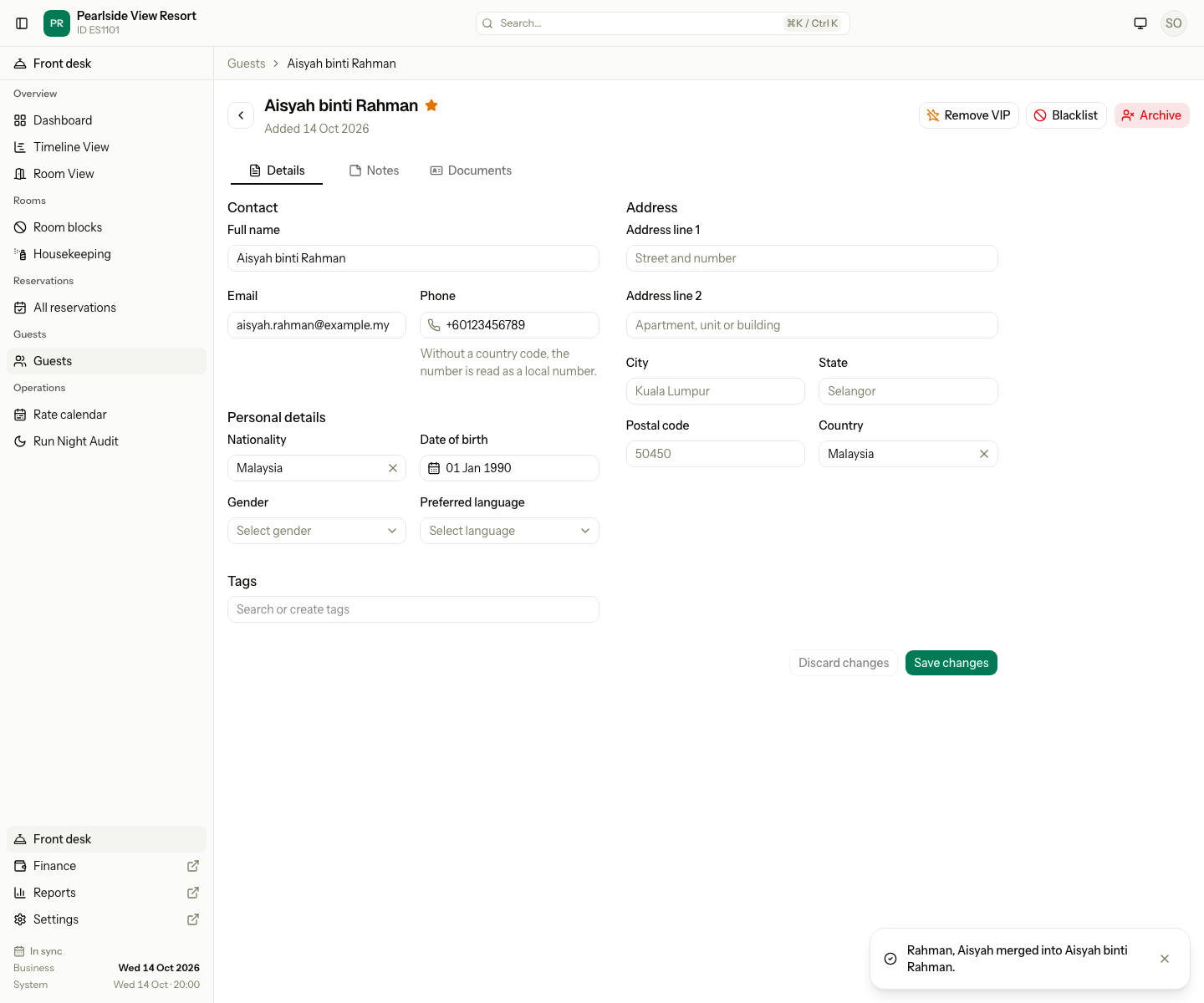
A merge cannot be undone. Check both guests before you select Merge guests.
What changes
| The guest you keep | The guest that goes away | |
|---|---|---|
| Notes | Gets all the notes. | Has none. |
| Tags | Gets the tags. A tag it already has is not added twice. | Has none. |
| ID documents | Gets the documents, with their scans. | Has none. |
| Email, phone, nationality, date of birth, gender, language, address | Keeps what it has. An empty field is filled from the other guest. | Cleared. |
| VIP | VIP if either guest was VIP. | Not VIP. |
| Blacklist | If only the other guest was blacklisted, the blacklist and its reason move over. If both were, it keeps its own reason. | Not blacklisted. |
| Marketing consent | Takes the other guest's consent date if it had none. | Cleared. |
| Reservations | Gets the reservations where the other guest was the booker, and the units where they were a guest. | Has none. |
| Folios | Gets the folios the other guest paid. | Pays none. |
| The record | Stays as it is. | Stays hidden, with only its name, so the history shows what was merged. |
If both guests stayed in the same unit, the unit keeps one entry for the person. When the guest that goes away was the primary guest of the unit, the guest you keep becomes the primary guest.
If you open the page of a guest that was merged, Estatell takes you to the guest it was merged into and says "Name was merged into Name."
Estatell writes one entry in the activity log. It holds the counts of what moved and the names of the fields it filled. It does not hold the personal details.
Special cases
| Situation | What happens | What to do |
|---|---|---|
| You do not have Merge duplicate guests | • The list shows the duplicates, but there is no Merge button. | • Ask an owner or manager to merge. |
| The two guests have different phones, and both have a value | • The guest you keep keeps its own. The other guest's phone is lost. | • Copy the phone to a note first if you need it. |
| You started from the wrong guest | • The other guest is the one that goes away. You cannot swap them after the merge. | • Check the dialog title. Select Cancel and open the other guest. |
| The duplicate was merged or archived already | • Estatell says "Name cannot be merged into Name." and changes nothing. | • Refresh the page. The guest may be gone from the list. |
| Two guests have the same name and no other detail | • The warning says "A guest with the same name exists". | • Ask the guest for a phone or email. Merge only when you are sure. |
| A blacklisted guest comes back under a new record | • The warning is red and shows Blacklisted. | • Open the old record. Merge the new one into it, so the blacklist stays. See VIP and blacklist. |
| The same ID number is on two guests | • The ID form shows a warning. You can still save. | • Merge the guests if they are the same person. |
| The merge fails | • Estatell says "Name cannot be merged into Name." Nothing changes. | • Refresh the page and try again. |