
The reservation page
Find your way around one reservation, from the header and tabs to the summary and the prints.
Open a reservation from Reservations › All reservations. The page shows everything about one booking: the units, the guests, the extras, the folio and what changed. The summary on the right stays in view while you work.
Before you start
| Task | Who can do it |
|---|---|
| Open and read a reservation | Owner, Manager, Front desk, Finance |
| Add a unit, add a guest, add an add-on, edit the group | Owner, Manager, Front desk |
| Edit a guest's details | Staff who can manage guests |
| Change a night's price | Staff with the Change the price of booked nights permission |
An owner can change these in Settings › Roles.
The page at a glance
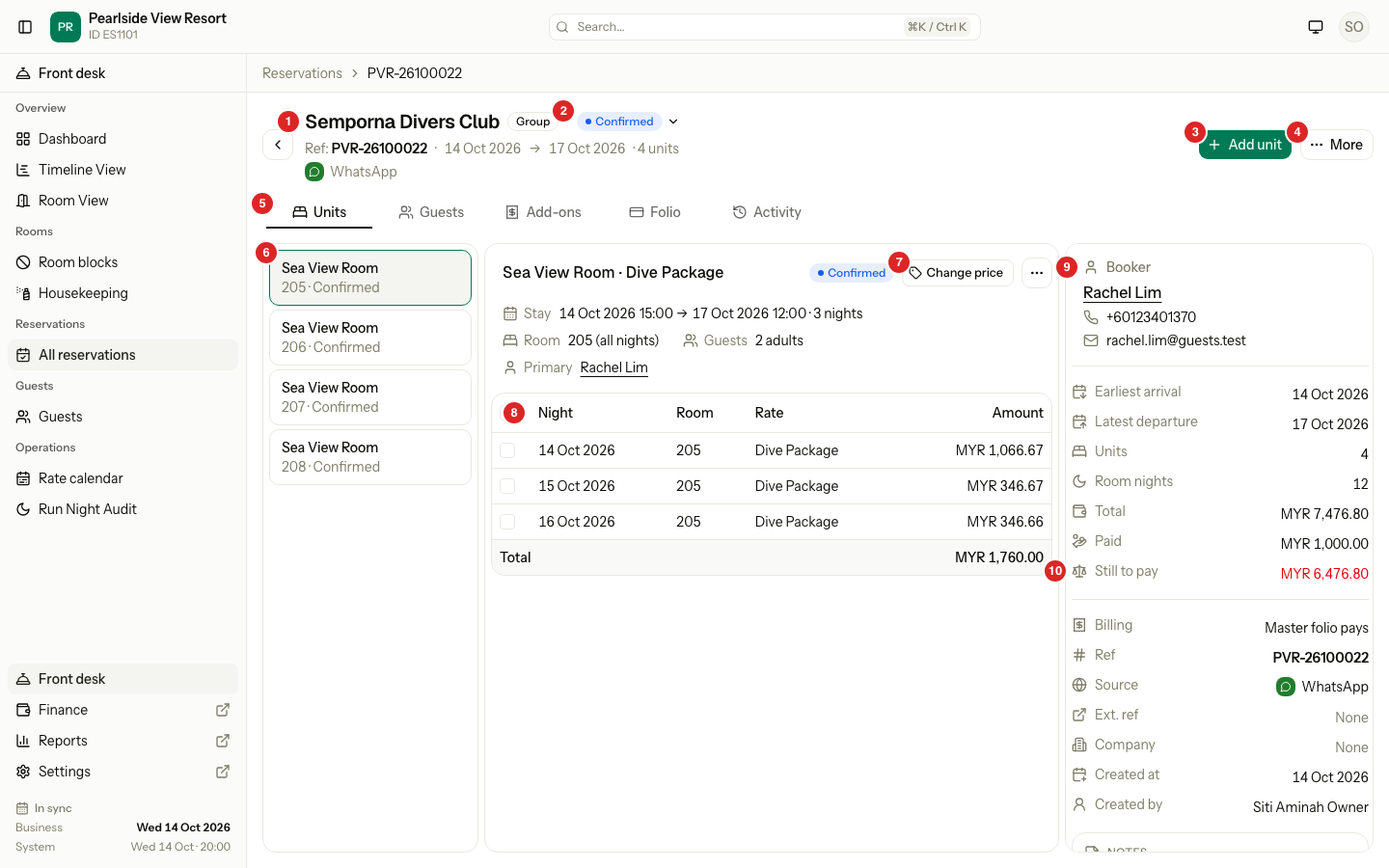
| # | Part | What it shows or does |
|---|---|---|
| 1 | Title | The group name, or the booker's name when there is none. A Group label shows with two or more units. |
| 2 | Status | The reservation status. Select it to see the status of each unit, with its room or bed. |
| 3 | Add unit | Adds one room or bed. See Group bookings. |
| 4 | More | Edit group, change company, group check-in and check-out, prints and cancel. See The More menu. |
| 5 | Tabs | Units, Guests, Add-ons, Folio and Activity. |
| 6 | Unit list | One card for each unit, with its room or bed and status. Hidden when there is one unit. |
| 7 | Change price | Changes the price of the nights you tick. See Change a night's price. |
| 8 | Night table | One row for each night: the date, room or bed, rate plan and amount. |
| 9 | Booker | The booker's name, phone and email. The name opens the guest in a new tab. |
| 10 | Money | Total, Paid and Still to pay. |
Under the title, the reference number, the dates, the number of units and the booking source show in a smaller type. An OTA booking also shows its external reference.
The tabs
Units
Pick a unit in the list. The panel shows the room type and rate plan, the status, the Stay with its expected times, the Room or bed, the Guests and the Primary guest.
| What you see | Meaning |
|---|---|
| Room shows Not assigned | No room yet. |
| Room shows Auto | Your property assigns a room at check-in. |
| A reason under a night | The price was changed by hand. The reason is shown. |
The ⋯ menu on the unit lists only the actions that fit the unit's status:
| Action | When it shows |
|---|---|
| Check in | The unit is Confirmed. You need the check-in permission. |
| Check out | The unit is in house. You need the check-out permission. |
| Late check-out | The unit is in house. You need the check-out permission. |
| Undo check-in, Undo check-out | A check-in or check-out was a mistake and the business date has not closed. |
| Assign room, Move room, Move bed | The unit is Confirmed or in house, before its departure date. |
| Change dates | The unit is open and has nights. |
| Cancel unit, Mark no-show | The unit is Confirmed. |
| Reinstate | The unit was cancelled or marked no-show. |
Guests
One table lists every guest, with the Guest, Phone, Stays in and Role columns. The role is Booker, Primary or Guest.
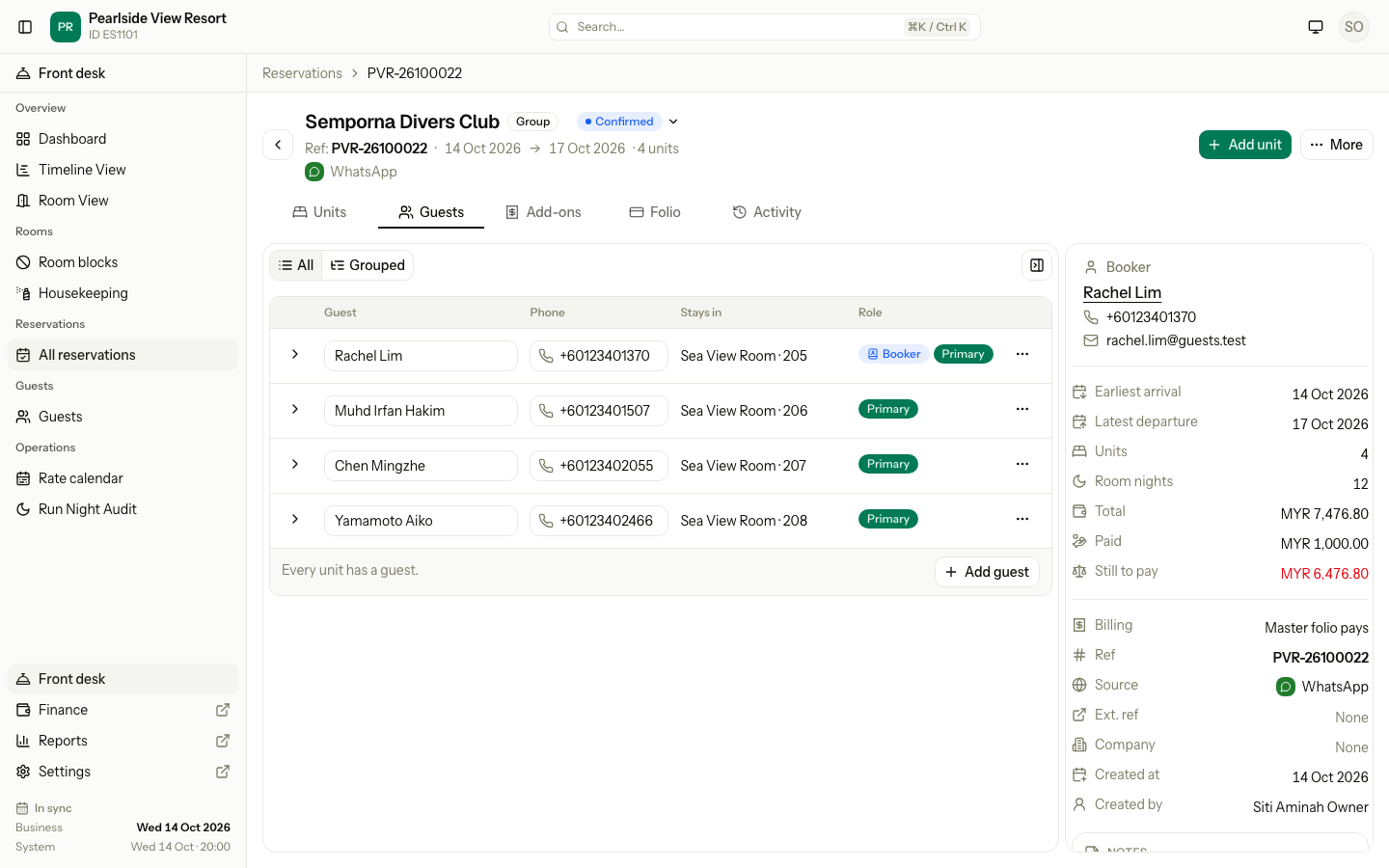
-
Switch All and Grouped to see every guest in one list, or one unit at a time. Grouped adds a list of units on the left and shows the guests of the unit you pick.
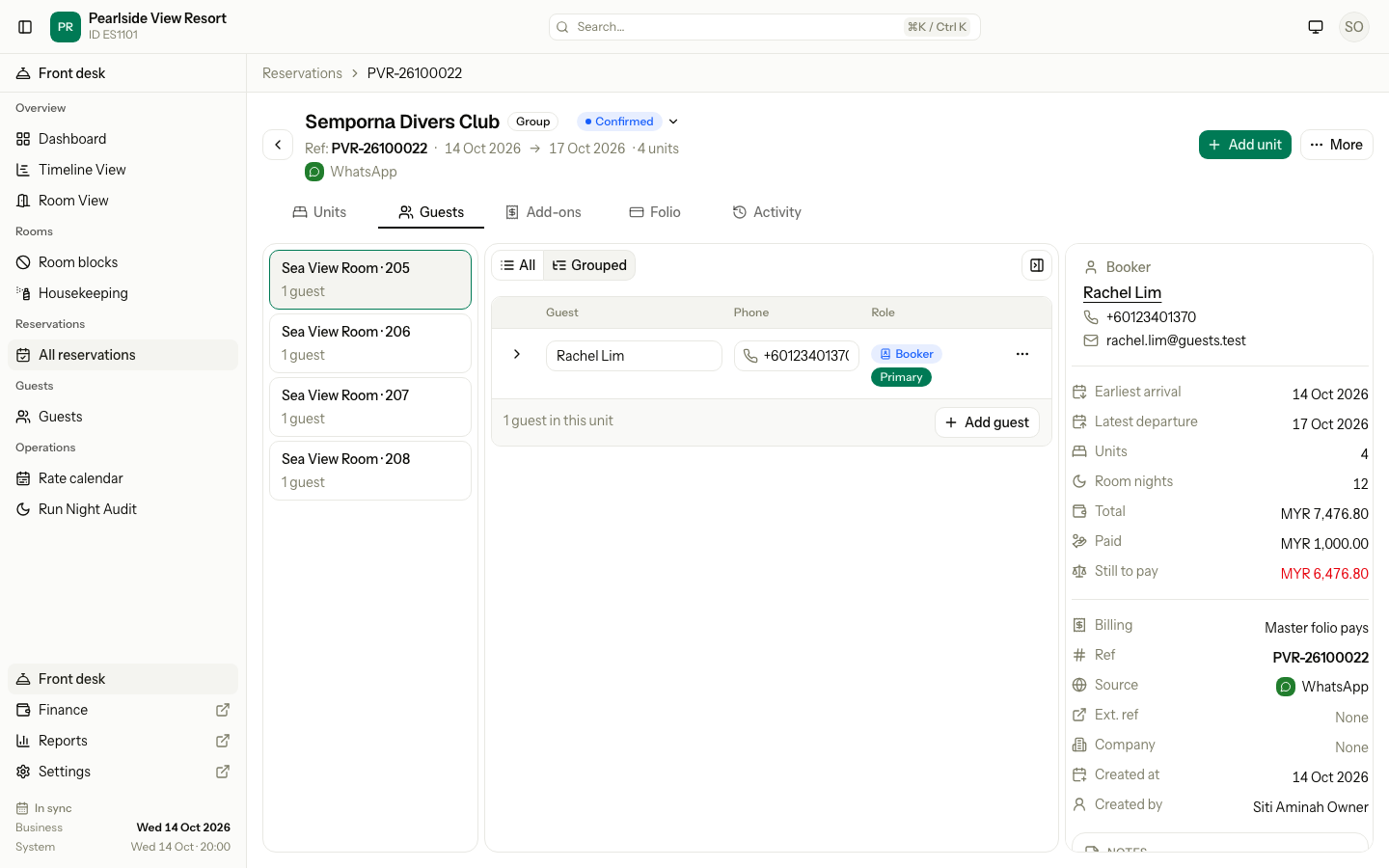
-
Select the arrow on a row to see the email and the guest's details.
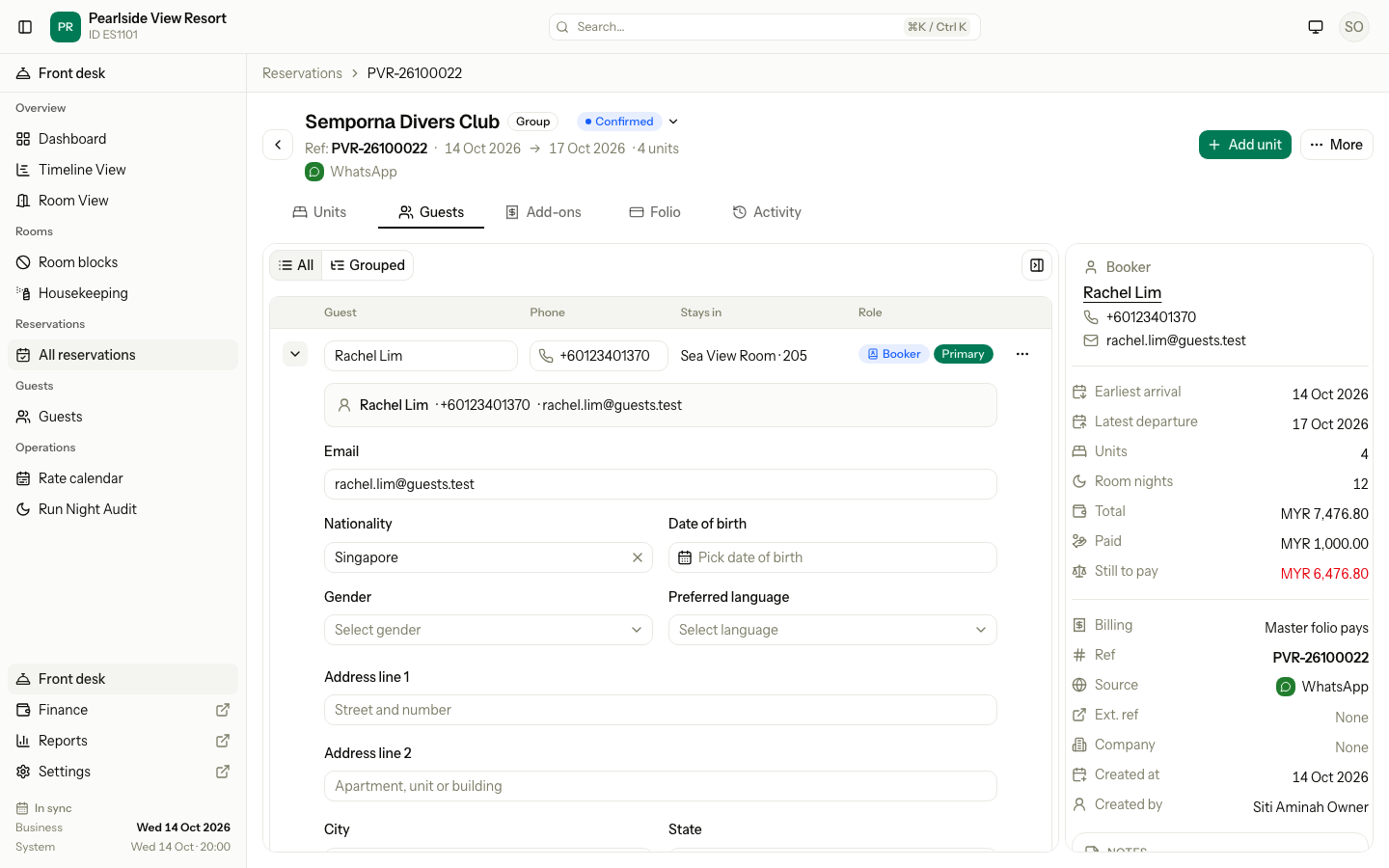
-
To add a guest, select Add guest, or Add on a unit that says "No guest yet".
-
Type a name or phone. Pick a match, or keep typing to create a new guest.
-
Select Save. Select Discard to drop a new row.
Changes to a saved guest update the guest's profile everywhere. See Guest profiles.
Add-ons
A table of the extras sold with each unit: the charge item, quantity, service date, unit amount and total. Select Add add-on to add one. Select Remove on a row to take it off. See Add-ons.
The Billing column shows where each extra is charged:
| Icon | Meaning |
|---|---|
| Tick | Posted to a folio. The tooltip names the folio and the date. |
| Clock | Not posted yet. It posts at check-in or in a night audit. |
| Clock and arrow | Not posted yet, and it goes to another folio, such as the Master folio. |
Folio
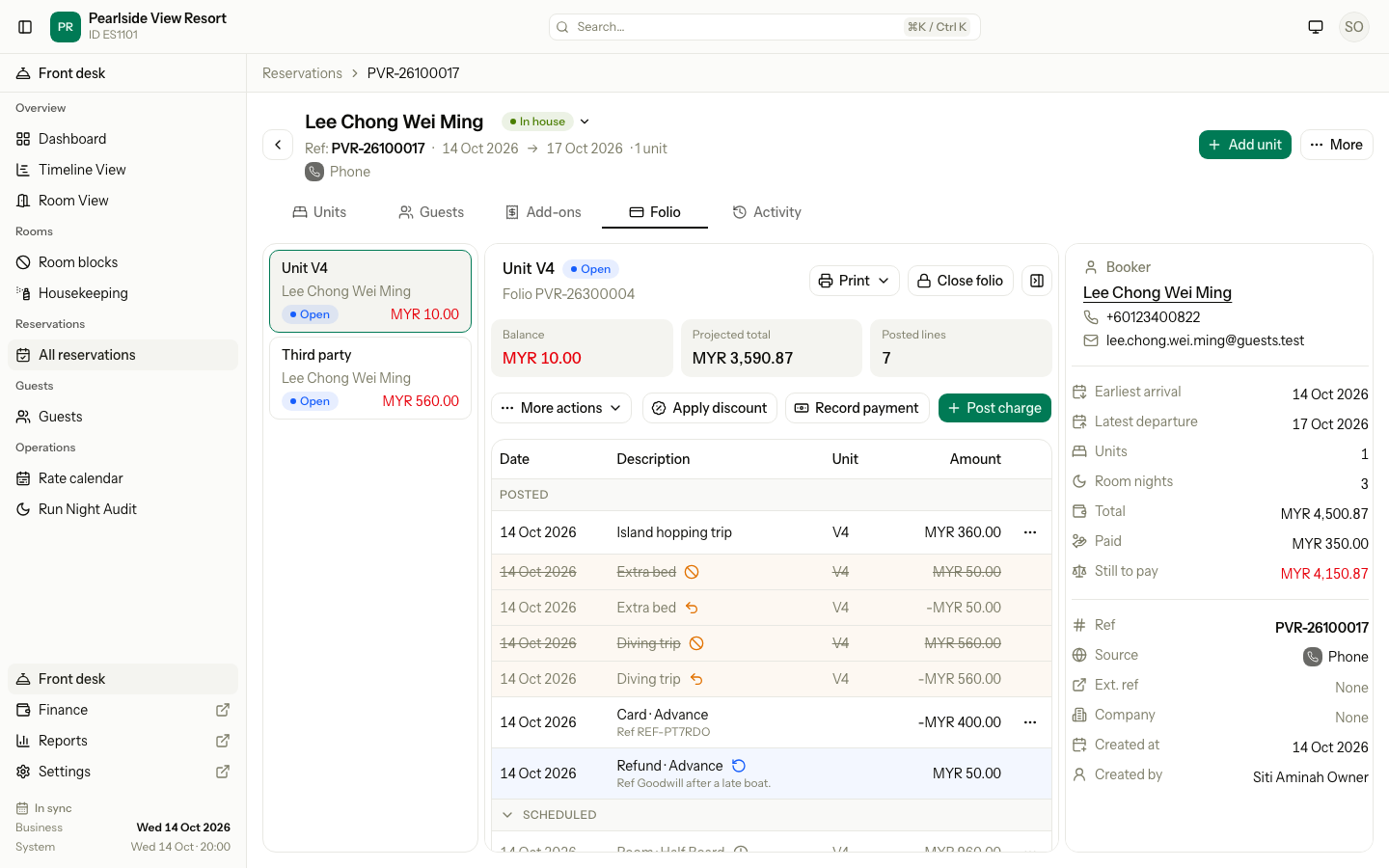
The folios of the reservation are on the left: the Master folio, any third-party folios, and one folio for each unit. Pick one to see it. Its balance, projected total and number of posted lines show on top, with the buttons Apply discount, Record payment and Post charge.
The lines are in two groups:
| Group | What it holds |
|---|---|
| Posted | Charges and payments already on the folio. A charge shows as a positive amount. A payment shows as a negative amount, because it lowers the balance. |
| Scheduled | Charges that have not posted yet, such as the room nights still to come. They post at check-in or in the night audit. |
In the screenshot above:
- The island hopping trip is a posted charge of MYR 360.00.
- Extra bed and Diving trip were posted by mistake. Posted lines never change. The old line is crossed out, and a second line of the opposite amount cancels it. That is a reversal.
- The Card · Advance line is a payment of MYR 400.00.
- The Refund · Advance line returns MYR 50.00 of it, with its reason.
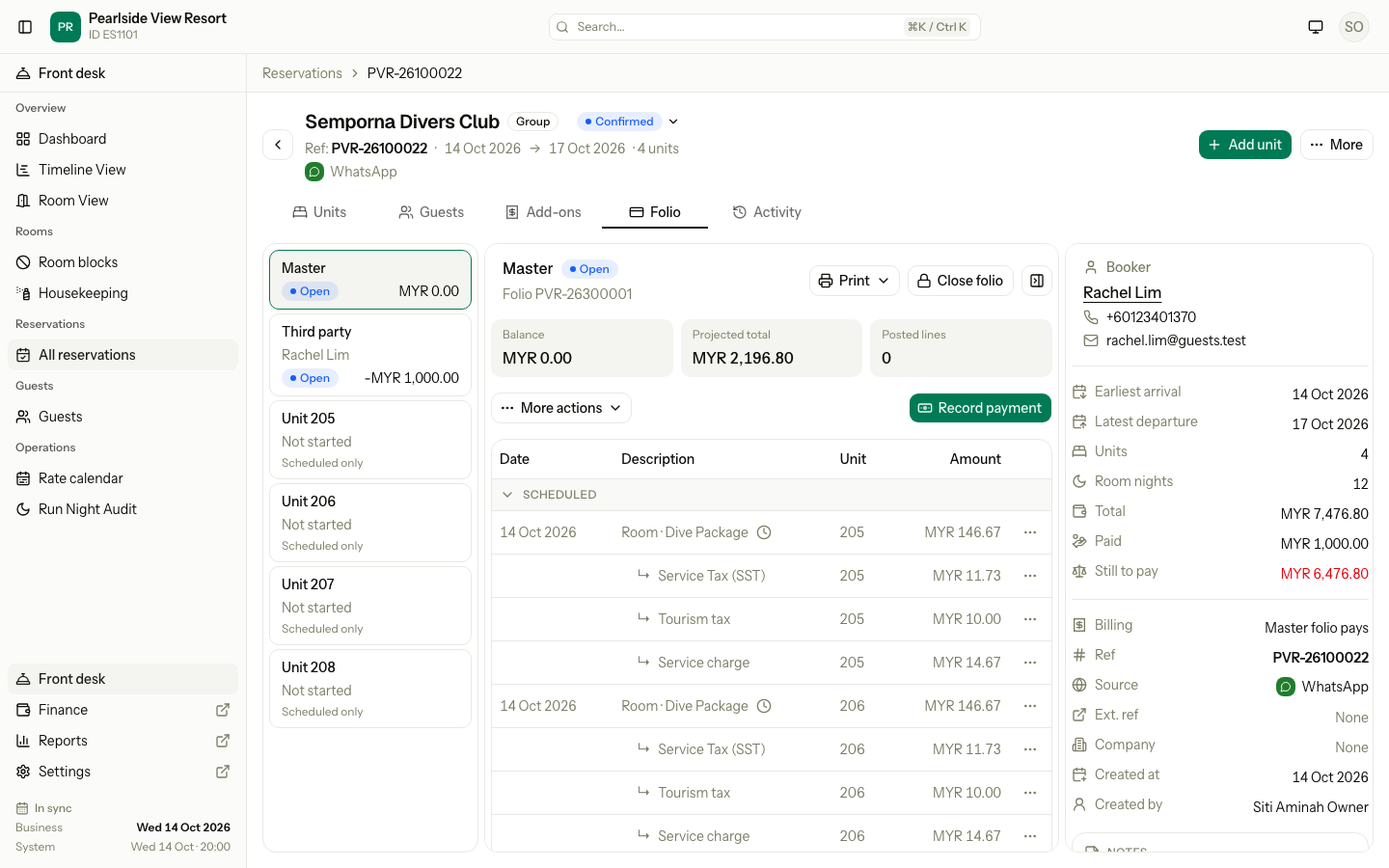
A booking that has not started has only Scheduled lines. Here the room nights of a group still to arrive show with the tax and service charge under each one. The clock beside a line means it has not posted. The balance is MYR 0.00 until check-in, but the projected total shows what the folio will hold.
See Folio to post, reverse and move charges.
Activity
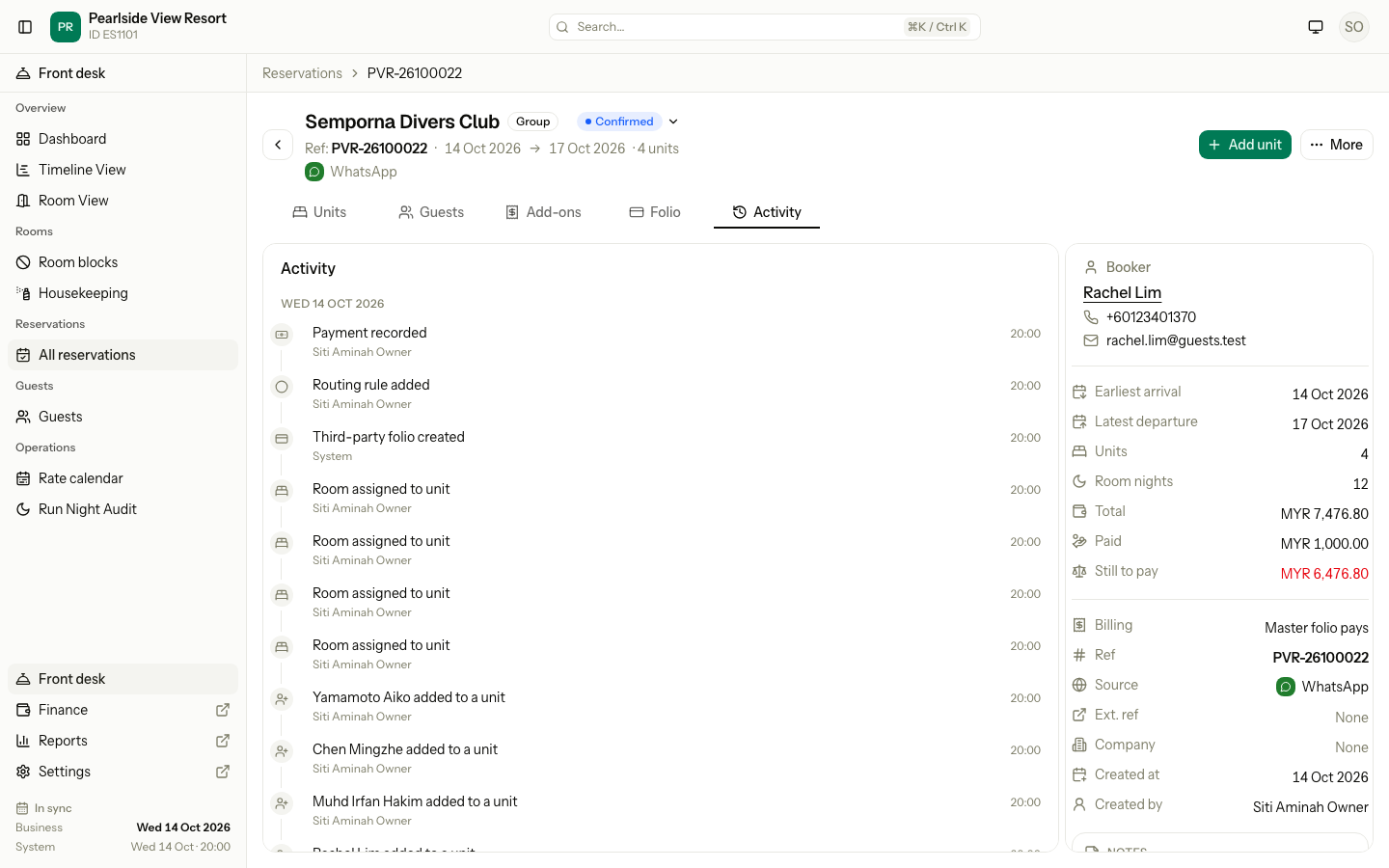
The history of the reservation, newest first, grouped by day. Each entry shows what happened, who did it and when. It includes payments, rooms assigned, guests added and price changes with their reasons.
The summary
The card on the right shows on every tab. On the Folio and Guests tabs, use the icon at the top right of the panel to hide it.
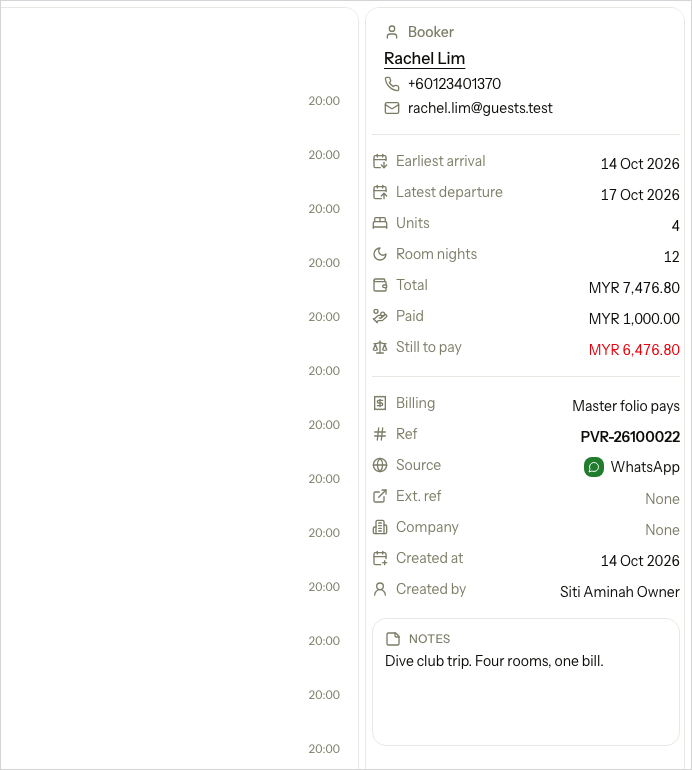
| Row | Meaning |
|---|---|
| Booker | Name, phone and email. |
| Earliest arrival, Latest departure | The first arrival and the last departure of all units. |
| Units, Room nights | How many units, and the total nights. |
| Total | Every charge, posted and scheduled, with tax and discounts. |
| Paid | Payments received, less refunds. |
| Billed to company | The amount sent to a company's account. It shows only when above zero. |
| Still to pay | Total less Paid and Billed to company. A red amount is still due. It reads Credit when the guest has overpaid. |
| Billing | Who pays, for two or more units. See Group bookings. |
| Ref, Source, Ext. ref | The reference number, the booking source and the OTA booking number. |
| Company | The company, with a link for staff who can see companies. |
| Created at, Created by | The date, and the user, or System for an automatic booking. |
| Notes | The notes and special requests entered when booking. |
Where there is nothing to show, the page says so: Not assigned, None, No folio or Not started.
The More menu
| Item | What it does |
|---|---|
| Check in, Check out | For a reservation with one unit. They work as the unit's own menu does. |
| Check in all | Checks in every unit that is ready. Shows for two or more units. |
| Check out all | Checks out the units that are ready. Needs the check-out permission. See Group check-out. |
| Edit group | Changes the group name and who pays. |
| Change company | Changes the company. Needs permission to see companies. Hidden once the reservation is closed. |
| Print booking summary | Opens a printable summary. See below. |
| Print without prices | The same summary without prices. Shows for a reservation with a company. |
| Cancel reservation | Cancels the units that are still Confirmed. See Cancel and no-show. |
| Print receipts | Prints one PDF with a receipt for each payment. |
The booking summary print
The booking summary is a proforma. It is not a tax invoice. Guests, travel agents and companies ask for it before arrival and during the stay.
- It shows who pays, the stay, every room, every charge (posted and still to come), the payments and the balance due.
- Each print shows the state of the reservation now. It says "As at" with the date and time.
- It has no number of its own. Use the reservation reference.
- It does not change anything in Estatell.
- For the tax invoice of a stay, use the folio invoice.
Special cases
| Situation | Example | What happens | What to do |
|---|---|---|---|
| One unit only | A couple books one Garden Room. | • The unit list is hidden. • Check in and Check out are in More. | • Nothing. This is normal. |
| The room is not assigned | A guest books a Deluxe King and no room is picked. | • The unit shows Not assigned, or Auto. | • Assign a room before check-in, or let auto-assign pick it. See Assign rooms and beds. |
| The guest overpaid | The guest paid MYR 1,000.00 deposit on a MYR 800.00 stay. | • Still to pay reads Credit. | • Refund the difference, or keep it as a deposit. See Payments and refunds. |
| The reservation is closed | A group that checked out yesterday. | • Add unit and Change company are hidden. • Edit group and the prints still work. | • Make a new booking for new rooms. |
| A company and Each unit pays | Semporna Marine is the company and billing is Each unit pays. | • Nothing is billed to the company. | • Change Billing to Master folio pays. |
| A second guest on a bed | You add a guest to a dorm bed that has one. | • "A bed unit holds one guest." | • Add the guest to another bed. |
| The same guest twice | You add Rachel Lim to unit 205 again. | • "This guest already stays in this unit." | • Pick another guest or another unit. |
| The unit is closed | You add a guest to a cancelled unit. | • "This unit is closed, so it cannot change." | • Reinstate the unit first. |
| A blacklisted guest | You add a guest with a blacklist note. | • The guest is added. • A warning shows the reason. | • Check with your manager first. |
| An add-on is posted | A minibar item posted yesterday. | • The row has no Remove. | • Reverse the line on the Folio. |
| Change price is missing | A front desk user opens a confirmed unit. | • The checkboxes and the button are hidden. | • Ask a user with the Change the price of booked nights permission. |
| Cancel reservation is missing | Every unit is already in house. | • The item is hidden. | • Cancel units one by one while they are Confirmed. After check-in, check out. |
| The folio has not started | A booking made today with no charges yet. | • The balance reads Not started. | • Nothing. Charges post at check-in or in the night audit. |
| A guest asks for a copy of the booking | A travel agent wants a summary before arrival. | • The print shows today's state and "As at" the time. | • Print it again if something changes. |