
Assign rooms and beds
How a booking gets its room or bed, and how to assign one by hand when it has none.
Every unit needs a room or bed before the guest checks in. Estatell can pick one for you when the booking is saved. Use this page when a unit still has no room, or when you turned automatic assignment off.
To move a guest who already has a room, see Move room.
Before you start
- Permission: Manage reservations. Owners, managers and front desk staff have it by default.
- Setting: Assign rooms automatically, on the General tab of the property settings. It is on by default. See Check-in and check-out.
How a unit gets its room
| When | With the setting on | With the setting off |
|---|---|---|
| The booking form | The room box reads Auto-assign. Leave it, or pick a room yourself. | The room box reads Select later. |
| The booking is saved | Estatell picks a free room for the whole stay. A room you picked always wins. | The unit has no room. |
| An OTA booking arrives | Estatell picks a free room, as for a new booking. | The unit has no room. |
| Check-in | If the unit still has no room, check-in picks one. | You must assign a room first. |
Estatell picks rooms in the order of your room groups, then rooms, then beds, as set in Rooms. A dirty room is picked only when no clean or inspected room is free.
A day use is not assigned automatically. You pick its room on the booking form. A past stay keeps the rooms you enter.
Find units with no room
A unit with no room shows in three places.
| Where | What you see |
|---|---|
| The reservation page | The unit's Room reads Not assigned, or Assigned when you check in when the setting is on. Each night shows Unassigned. |
| The Timeline View | A lane at the top, Unassigned and the room type, with the number of units waiting. |
| The Check in dialog | Not assigned for tonight, or Assigned when you check in when the setting is on. |
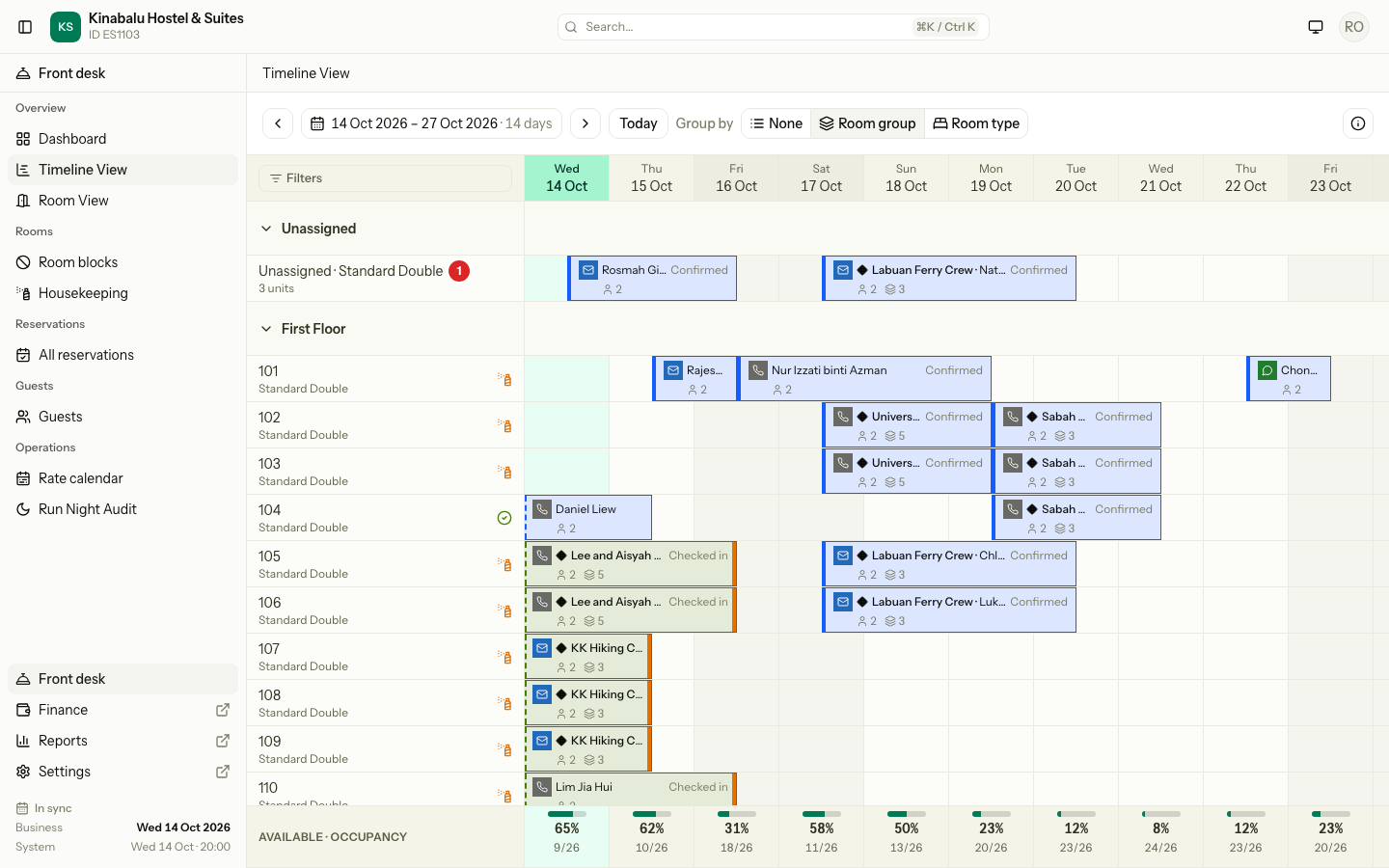
- The lane is not a room. You cannot drop a bar on it or book from its cells.
- The footer counts an unassigned night as sold, so Available is correct.
Assign a room
-
Open the reservation.
-
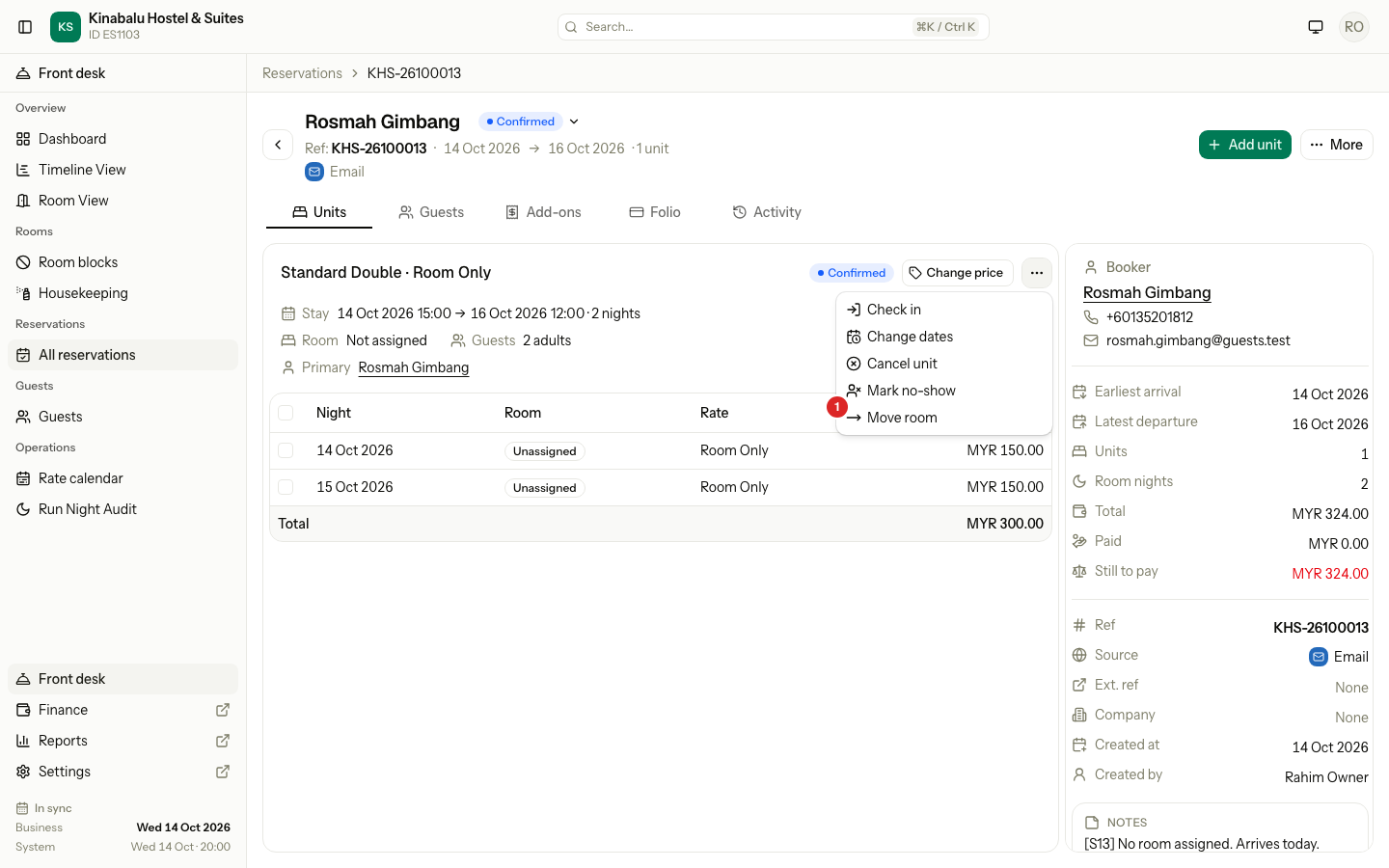
Select the ⋯ menu on the unit, then Move room.
-
Check First night. The room is assigned from this night to the departure.
-
Optional: choose another Room type. This needs the arrival night as the first night, and keeps the booked prices.
-
Choose the Room. The list shows only rooms that are free for those nights.
-
Optional: enter a Reason.
-
Select Assign room.
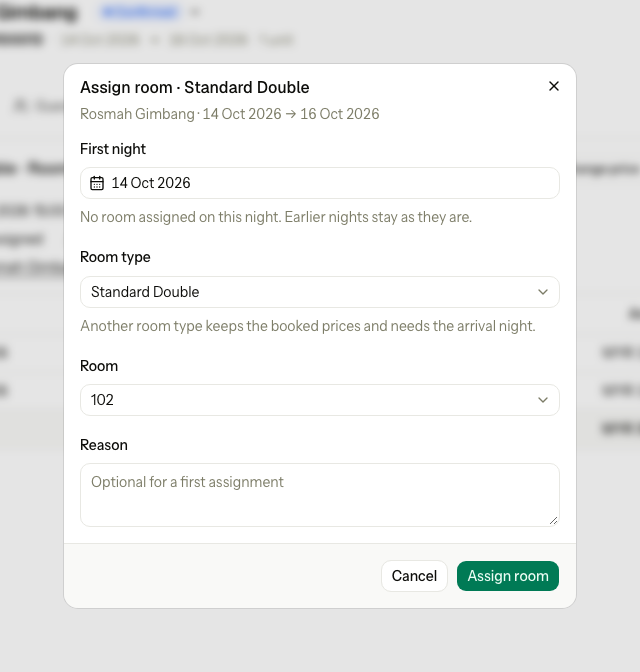
- The dialog reads Assign room because the first night has no room yet, so the reason is optional. For a night that has a room, it reads Move room and needs a reason.
- For a bed unit, the dialog reads Assign bed and lists free beds.
- From the Check in dialog, Assign a room opens the same dialog.
Assign on the Timeline
- Open Timeline View.
- Drag a bar from the Unassigned lane to a room row.
- Check the room and the nights in the dialog. The reason is optional.
- Confirm.
- Only a booking that has not arrived drags from the lane. For a guest in house, use the reservation page.
- Dragging does not work on a phone. Use the reservation page.
What happens
- Per night: the room is set on each night from the first night onward. Earlier nights keep theirs.
- One guest per room per night: Estatell never gives the same room or bed to two units on one night.
- Prices: nothing changes. A room, or another room type, keeps the booked prices. To change a price, see Change a night's price.
- Cancel or no-show: the unit gives its rooms back, so they are free to sell.
- Check-out: the past nights keep their rooms for the history.
- Activity: the assignment is logged with the room and the reason.
Special cases
| Situation | Example | What happens | What to do |
|---|---|---|---|
| Nothing free when the booking is saved | Every Standard Double is assigned on 18 Oct. | • The booking saves with no room. It shows in the Unassigned lane. | • Free a room, or assign one when one is free. Check-in tries again. |
| Nothing free at check-in | The guest arrives and every Standard Double is taken. | • "Assign a room or bed for tonight before checking in." | • Move another guest, or assign another room type from the arrival night. |
| The room was taken meanwhile | Someone else assigned room 102 while your dialog was open. | • "This room is not free on 15 Oct." | • Choose another room. |
| A date change leaves a night with no room | A guest extends, and the room is booked on the new night. | • The new night has no room. The bar shows in the lane for that night. | • Assign a room for that night, with that night as the first night. |
| A first night in the past | You pick yesterday as the first night. | • "A move cannot start before the business date." | • Pick today or later. |
| The same room again | You choose the room the unit already has. | • "The unit is already there from this night." | • Choose another room, or close the dialog. |
| Another room type, mid-stay | The first night is not the arrival night. | • "A move to another room type must start on the arrival night." | • Set the first night to the arrival. |
| A room type not on the plan | The rate plan does not sell Family Suites. | • "This room type is not sold on the unit's rate plan." | • Choose a room type the plan sells. |
| A day use | A 4-hour day use with no room. | • "The room of a day use unit is chosen at booking." | • Cancel it and book the day use again with a room. |
| A guest in house with no room | A night after a date change has no room. | • The night audit cannot run until the unit has a room. | • Assign a room before the night audit. |
| A checked-out, cancelled or no-show unit | You open the unit menu. | • Move room is not in the menu. | • Nothing to do. |