
The room status board
Read the Housekeeping board, the room status and who can change it, the grey line under a room, and the views, filters and sort order.
The Housekeeping page is a board with one row for each active room. It shows which rooms are dirty, clean or inspected today, who is in them, and who arrives or leaves. Housekeepers and the front desk use it to decide which room to do next.
The board always shows the open business date. There is no date picker, because only today's rooms can be worked on. See Business date.
Before you start
- Open it: select Housekeeping in the Front desk sidebar, under Rooms.
- Permission: you need
housekeeping.viewto see the board. Each change needs more. See Who can change a status. - Rooms: the board lists active rooms only. An archived room does not show. See Rooms and room groups.
The board
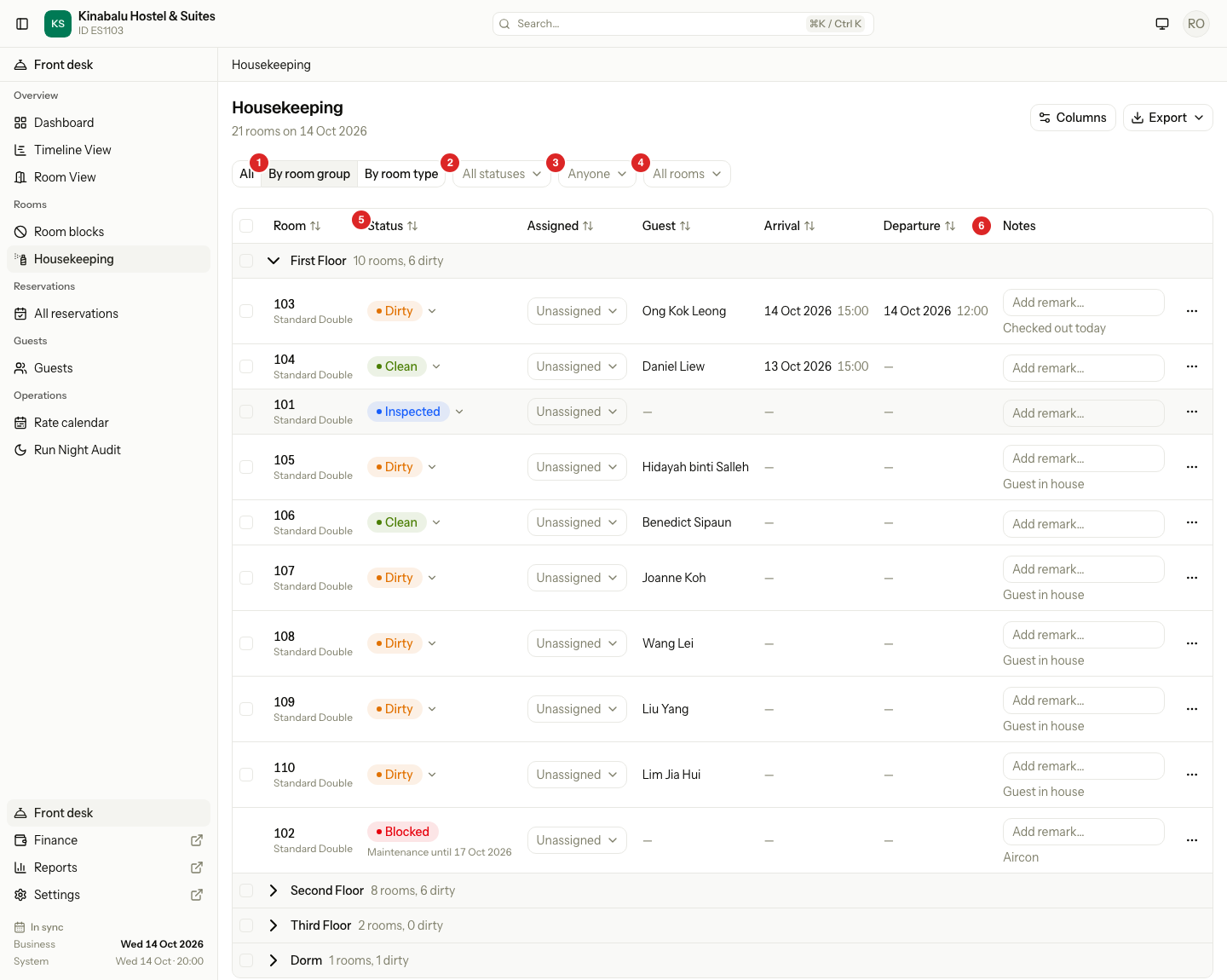
| # | What it shows |
|---|---|
| 1 | The view buttons: All, By room group and By room type. |
| 2 | The Status filter. It starts on All statuses. |
| 3 | The Assigned to filter. It starts on Anyone. Only staff who can change rooms see it. |
| 4 | The movement filter. It starts on All rooms. |
| 5 | The Status column, with the status badge of each room. |
| 6 | The Notes column, with remarks and the grey line. |
The title says how many rooms are on the board and for which date, for example "21 rooms on 14 Oct 2026".
Columns
| Column | What it shows |
|---|---|
| Tick box | Picks the room for a bulk action. Shows only to staff who can change rooms. A blocked room has no tick box. |
| Room | The room number, and the room type under it. A star next to the number means the room has priority. |
| Status | The status badge. See The room status. |
| Assigned | The housekeeper who cleans the room. |
| Guest | The main guest of the room today. A guest who leaves today shows first, then a guest in the room, then a guest who is due to arrive. |
| Arrival | The date and the expected time of a guest who is due to arrive and has not checked in. |
| Departure | The date and the expected time of a guest who leaves today. |
| Notes | A remark, a Do not disturb or Priority tag, the block notes, and the grey line. |
The times are the expected times from the booking, not the times the guest really came or left. An empty cell shows a dash.
To change a room, see Update rooms.
The room status
A room is Dirty, Clean or Inspected. Housekeeping moves a room forward in that order, and any room can go back to Dirty.
Check-out marks the room Dirty, and so does the night audit for each room that is occupied. You do not do it by hand. See Check out and What the night audit does.
Badges
Every badge has a colored dot and a word, so the color is never the only sign.
| Badge | Color | What it means | Can move to |
|---|---|---|---|
| Dirty | Orange | The room needs cleaning. | Clean |
| Clean | Green | The room is cleaned and not checked yet. | Inspected, Dirty |
| Inspected | Blue | A supervisor checked the room. | Dirty |
| Blocked | Red | The room is out of service. | None. See Blocked rooms. |
A Dirty room cannot go straight to Inspected. Clean it first.
Who can change a status
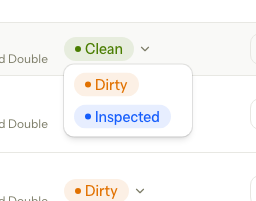
The badge is also the control. Select it to open a menu. The menu lists only the moves you may make, and each choice looks like the badge it will give the room.
| Move | Permission | Owner | Manager | Front desk | Housekeeping |
|---|---|---|---|---|---|
| See the board | housekeeping.view | Yes | Yes | Yes | Yes |
| Dirty to Clean, any room back to Dirty | housekeeping.update | Yes | Yes | Yes | Yes |
| Clean to Inspected | housekeeping.inspect | Yes | Yes | Yes | No |
The Housekeeping role cannot mark a room Inspected. Give housekeeping.inspect to a supervisor, or use the Manager or Front desk role. See Roles and permissions.
If you can see the board but cannot change rooms, the badge is plain with no menu, the tick boxes are gone, and the Assigned and Notes cells are read only. A room with no move left, such as a Blocked room, also shows a plain badge.
If two people change the same room at once, or a room is blocked a moment ago, Estatell refuses the second change with a short message and the row goes back to what it was. Picking the status the room already has does nothing and gives no error.
The grey line
Under a Dirty room's remark, a grey line says why the room is dirty. It is worked out each time the board loads, and nobody types it.
| Grey line | When |
|---|---|
| Checked out today | A guest checked out of the room today. |
| Guest in house | A guest has checked in and is still in the room. This includes a guest who leaves today and has not checked out yet. |
The line goes away when the room is Clean or Inspected, so it is never out of date.
For a Blocked room, the grey line shows the notes of the block instead. The reason and the last night show under the red badge, for example "Maintenance until 17 Oct 2026". See Blocked rooms.
Views
The three buttons above the table change how the rooms are grouped.
| View | What it shows |
|---|---|
| All | One list of rooms. |
| By room group | One block for each room group, such as a floor, in the order of the room groups. This is the view the board opens in. |
| By room type | One block for each room type. |
A group row shows the name, how many rooms it holds and how many are dirty, for example "10 rooms, 6 dirty". Select the row to fold the group, and select it again to open it. The tick box on the row picks every room in the group that can be picked.
Estatell does not remember your view, your folded groups or your filters. When you reload the page, the board opens in By room group, with no filter and nothing folded.
Filters
Filters work together. A room shows only if it matches all of them. If no room matches, the board says No rooms match.
| Filter | Choices |
|---|---|
| Status | All statuses, Dirty, Clean, Inspected, Blocked. |
| Assigned to | Anyone, Unassigned, or one member of staff. Shows only to staff who can change rooms. |
| Movement today | All rooms, Arrivals (a guest is due today), Departures (a guest leaves today), Stay-overs (a guest stays another night). |
The filters also decide which rooms go to the print sheet and the spreadsheet. See Print the board.
Sort order
When you open the board, rooms come in the order the day goes:
- Rooms with a departure today, by departure time.
- Rooms with an arrival today, by arrival time.
- All other rooms, in room order.
- Blocked rooms last.
Inside a group, the rooms keep this order too.
To sort in another way, select a column header: Room, Status, Assigned, Guest, Arrival or Departure. Select it once for A to Z, again for Z to A, and a third time to go back to the order above. The arrow in the header shows the sort. Rooms with an empty cell go last. Status sorts by the word on the badge. Notes does not sort.
Special cases
| Situation | What happens | What to do |
|---|---|---|
| A guest leaves and another arrives the same day | The row shows both: the Departure time of the old guest and the Arrival time of the new one. The Guest column shows the guest who leaves. | Clean the room between the two times. The departure time is the sort key. |
| A guest leaves today and has not checked out yet | The room is Dirty, and the grey line says Guest in house. | Wait for the check-out. The line changes to Checked out today. |
| A guest stays another night | The room shows Dirty after the night audit, with Guest in house. The arrival and departure cells are empty. | Clean it as a stay-over. |
| A room is Blocked | The red badge replaces the status. There is no menu and no tick box. | See Blocked rooms. |
| Only one bed of a room is blocked | The room stays workable. A grey Bed A3 blocked tag shows next to the status. | See Blocked rooms. |
| A room is missing from the board | An archived room does not show. | See Rooms and room groups. |
| The board has no rooms | The page says No rooms yet. | Add rooms in Settings. |