
Print the board
Print the Housekeeping board as a work sheet, export it to Excel or CSV, print one housekeeper's rooms, and choose its columns.
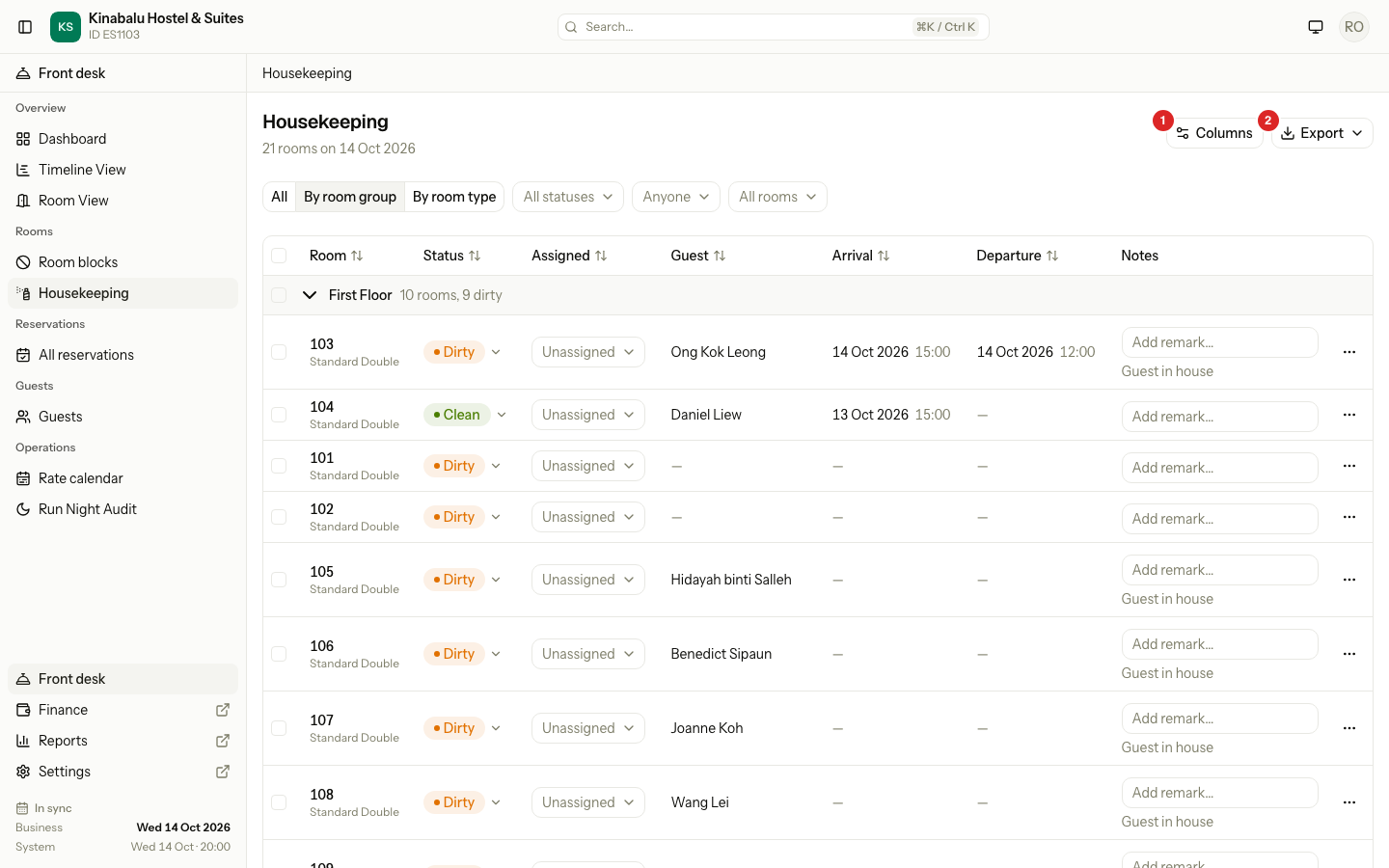
Housekeeping prints the board each morning as a work sheet. Export gives you a PDF, an Excel file or a CSV file of the rooms. Columns sets which columns the sheet has, for the whole property.
The sheet holds today's business date. It lists the same rooms as the board, in the same order.
Before you start
- Permission: View the housekeeping board, to export. Owners, managers, front desk and housekeeping staff have it by default.
- Columns needs Manage property settings. Owners and managers have it by default. Other staff do not see the button.
- The PDF uses the letterhead and footer from the printing settings. See Printing.
- Read Room status board first, for the filters and the order of the rooms.
Export the board
-
Open Housekeeping.
-
To print some rooms only, filter the board or tick the rooms. See Which rooms are printed.
-
Select Export.
-
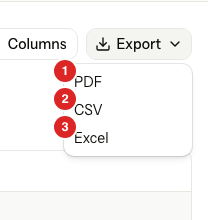
Choose a format.
| Format | What you get |
|---|---|
| The print sheet. It opens in a new tab. Print it from there. | |
| CSV | A plain file of the same rows and columns. |
| Excel | A spreadsheet of the same rows and columns. |
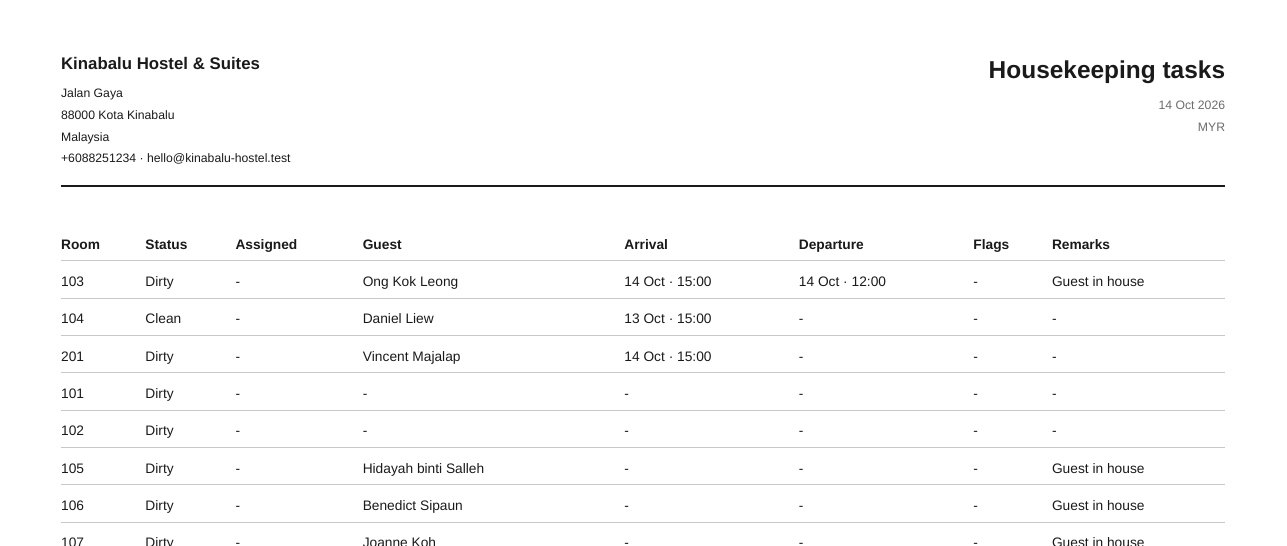
The sheet has the property's letterhead, the title Housekeeping tasks and the date. Excel and CSV files keep the columns and order but not the letterhead.
Which rooms are printed
| What you did | What prints |
|---|---|
| Ticked no rooms | Every room that matches the filters on screen. With no filter, every active room. |
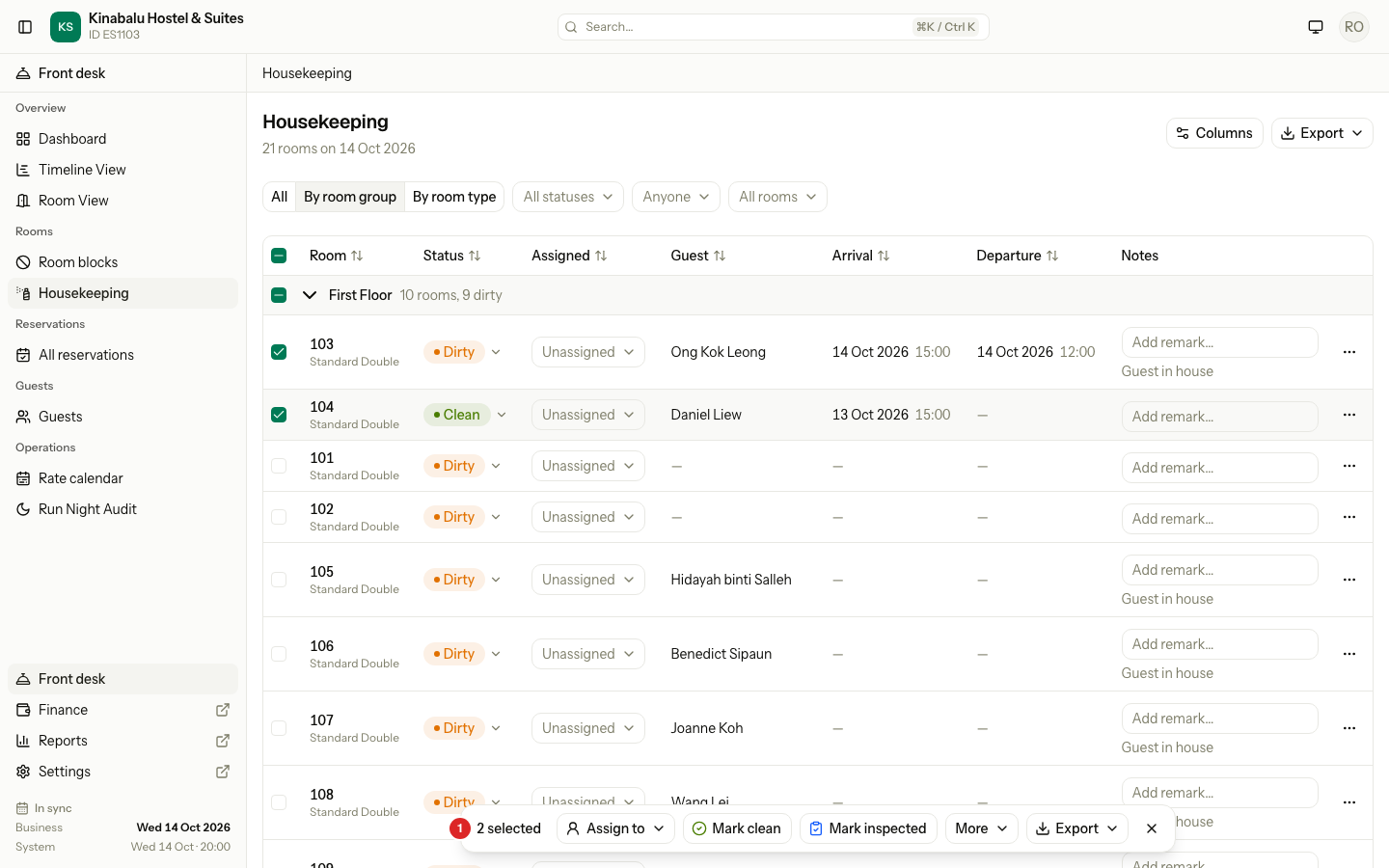
| Ticked some rooms | Only the ticked rooms. The filters do not matter. |
When you tick a room, a bar shows at the bottom of the screen. It has its own Export button, with the same three formats.
Rooms with a Blocked badge have no tick box, so you cannot tick them. They print when you tick nothing and they match the filters. See Blocked rooms.
Print one housekeeper's sheet
- In the Assigned filter (it reads Anyone until you choose), pick the housekeeper.
- Select Export, then PDF.
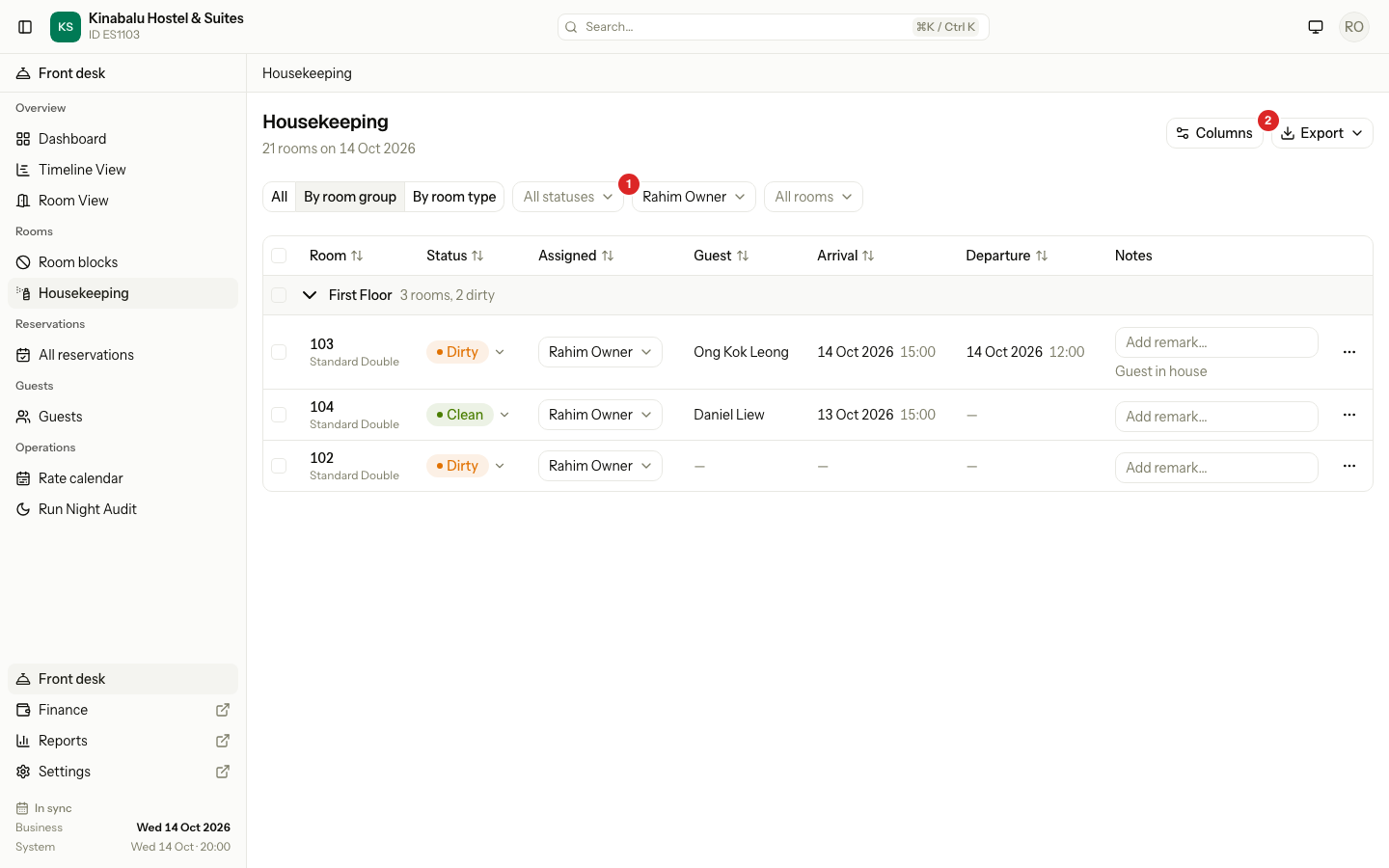
The sheet holds that person's rooms only. Pick Unassigned in the same filter to print the rooms nobody has yet. To give rooms to someone first, see Update rooms.
The order of the rooms
Rooms print in the order of the board: departures first, then arrivals, then the other rooms by room number, and blocked rooms last. The group views (By room group, By room type) do not change the print order. The PDF is one list with no group headers.
If you click a column header on the board, for example Room, the sheet follows that sort instead. Click the header a third time to go back to the board order.
Choose the columns
- Select Columns.
- In the Layout · Housekeeping tasks sheet, choose Portrait or Landscape under Orientation. The sheet starts in Landscape.
- Under Columns, show or hide each column with its switch, change its order, and choose Left, Center or Right alignment.
- To see the paper version, select Preview PDF. It opens in a new tab and saves nothing.
- Select Save.
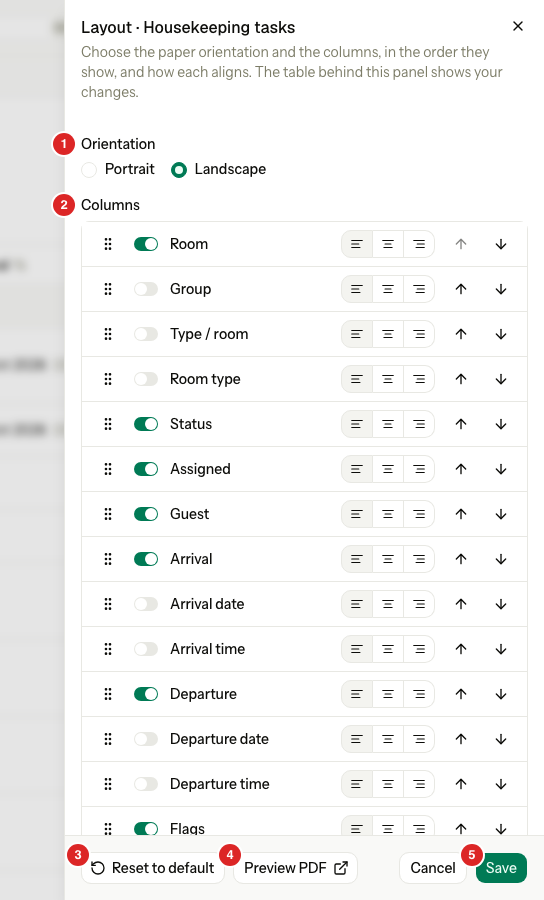
One layout serves the whole property. When you save, every user prints the same sheet. The layout changes the PDF, the Excel file and the CSV file. The board on screen has fixed columns and does not change.
The Layout sheet works as it does for every report. See Report layout for dragging columns, Reset to default and the rest.
The columns you can show
Some columns put two values in one cell. Each has split columns, hidden at first. Show them if you need them apart.
| Column | Shown at first | What it holds | Split columns |
|---|---|---|---|
| Room | Yes | The room number. | |
| Group | No | The room group. | |
| Type / room | No | The room type and number, for example "Deluxe Twin / 203". | Room type |
| Status | Yes | Dirty, Clean, Inspected or Blocked. | |
| Assigned | Yes | The housekeeper. | |
| Guest | Yes | The guest who departs or stays, otherwise the one who arrives. | |
| Arrival | Yes | The date and expected time, for example "14 Oct · 15:00". | Arrival date, Arrival time |
| Departure | Yes | The date and expected time. | Departure date, Departure time |
| Flags | Yes | Priority, Do not disturb and Maint., separated by dots. | Priority, Do not disturb, Maintenance |
| Remarks | Yes | The remark and the grey reason line. | Remark, Reason |
A split column sits right after the column it comes from. You can show both, or hide the merged column.
Special cases
| Situation | What happens | What to do |
|---|---|---|
| You have no Columns button | You do not have Manage property settings. | Ask an owner or manager. You can still export. |
| You ticked rooms, then filtered the board | The export holds the ticked rooms that you can still see. | Clear the ticks to print every room that matches the filters. |
| A filter shows no rooms | There is nothing to export. | Change the filter. |
| You save a new layout | Everyone sees it on their next print, not only you. | Ask first if others print the sheet. |
| You choose Landscape and the Excel file looks the same | Orientation only affects the PDF. | Use Preview PDF to check the paper. |
| The PDF does not show your latest remark | You exported before the remark was saved. | Click out of the remark cell, then export again. |
| The letterhead is wrong | It comes from the printing settings, not from the board. | Change it under Settings, then Printing. See Printing. |
| Housekeeping staff cannot open Reports | They can still export from the board. | None. |
| A room is blocked | It prints last, with Blocked in the Status column. | None. |