
Identity documents
Add, edit and remove a guest's MyKad or passport, see the number, open the scans, and learn who can see them.
An identity document is a guest's MyKad, passport or other ID. Estatell keeps its number and up to two scans (front and back) on the guest's Documents tab. Use it when a guest shows an ID at check-in, or when you want to find a guest by ID number.
ID numbers are private. Estatell hides the number until you ask to see it, and it writes down every time someone looks.
Before you start
- Permission: View and manage guest ID documents to open the Documents tab and see numbers and scans. You also need Add and edit guests to add, edit or remove a document.
- Owners, managers and front desk staff have both by default. Finance and housekeeping staff have neither, so they do not see the Documents tab.
- A guest who was merged into another guest, or who was archived, cannot get or change documents. See Merge guests and Privacy.
| Role | Sees the Documents tab | Adds, edits and removes |
|---|---|---|
| Owner | Yes | Yes |
| Manager | Yes | Yes |
| Front desk | Yes | Yes |
| Finance | No | No |
| Housekeeping | No | No |
| A custom role with only View and manage guest ID documents | Yes | No. The Add document, Edit and Remove buttons are missing. |
The Documents tab
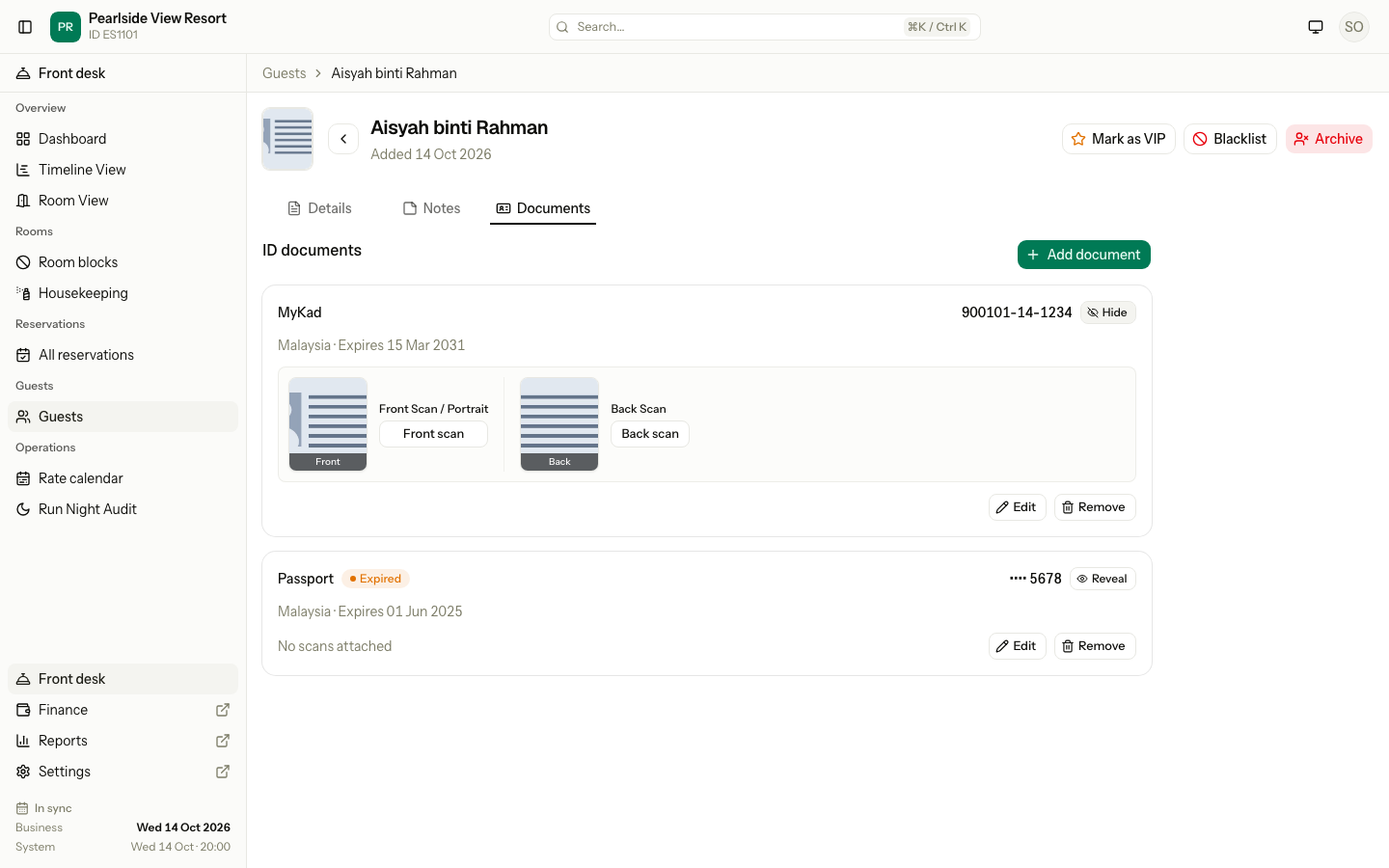
Open Guests, select a guest, then select the Documents tab.
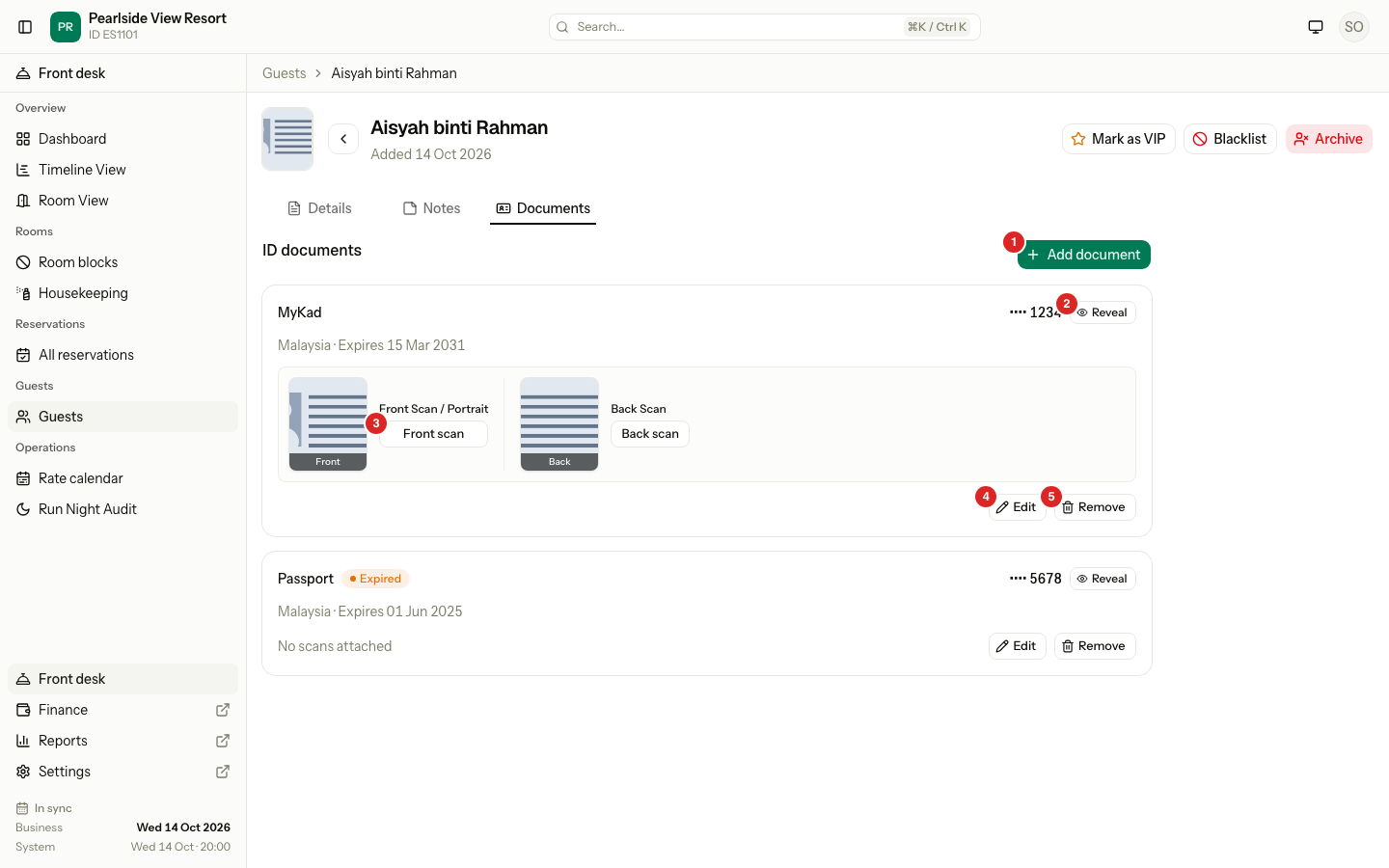
| # | What | What it does |
|---|---|---|
| 1 | Add document | Opens the sheet to add a document. |
| 2 | Reveal | Shows the full number. The tab shows only the last four characters, for example •••• 1234. |
| 3 | Front scan | Opens the front scan in a new tab. Back scan does the same for the back. |
| 4 | Edit | Opens the sheet to change the document. |
| 5 | Remove | Deletes the document after you confirm. |
Each document is one card. It shows the type, the masked number, the issuing country, and the expiry date or No expiry date. A card with no scans says No scans attached. A guest with no documents sees No ID documents yet.
If the property keeps scans for a limited time, the tab says so, for example "Scans are deleted 90 days after they are uploaded. The number stays." See Privacy.
Document types
| Type | Number rules | How it shows |
|---|---|---|
| MyKad | Exactly 12 digits. Dashes and spaces are ignored. | 900101-14-1234 |
| Passport | 4 to 40 letters and digits. | A12345678 |
| Other | 4 to 40 letters and digits. | As typed, in capital letters |
Estatell keeps only capital letters and digits. 900101-14-1234 and 900101141234 are the same number.
Add a document
- Open the guest and select the Documents tab.
- Select Add document.
- Choose the Document type.
- Type the Number.
- Check the Issuing country. It starts as the guest's nationality, or Malaysia.
- Pick an Expiry date, if the document has one.
- Choose a Front scan and a Back scan, if you have them.
- Select Add document.
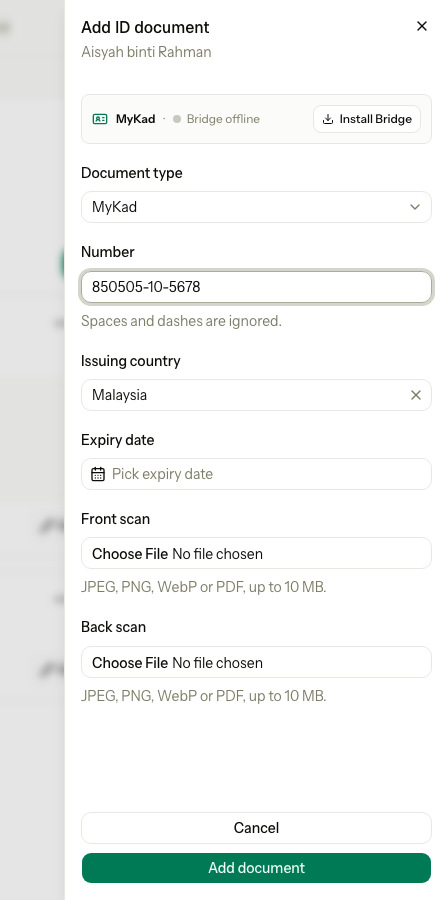
Estatell shows "ID document added." The sheet also has a MyKad box at the top. If a reader is plugged in, it fills the document for you. See MyKad reader.
| Field | Rule |
|---|---|
| Number | Required. A MyKad needs 12 digits. Other types need at least 4 characters. |
| Issuing country | Optional. |
| Expiry date | Optional. |
| Front scan and Back scan | Optional. JPEG, PNG, WebP or PDF, up to 10 MB each. |
If the number is already on another guest, Estatell shows a warning under the field. It does not stop you. See Merge guests.
Edit a document
- On the Documents tab, select Edit on the document.
- Change what you need.
- Select Save document.
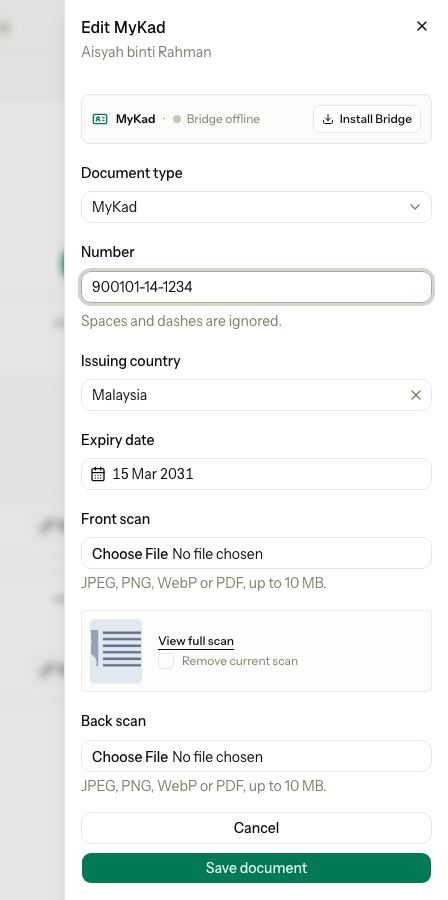
Estatell shows "ID document saved." The sheet opens with the full number, so opening it counts as looking at the number (see Who looked).
Each side keeps one scan:
- To replace a scan, choose a new file. The old file is deleted.
- To delete a scan without a new one, tick Remove current scan.
- View full scan opens the current scan in a new tab.
If you change something and then select Cancel, Estatell asks "Discard this document?". Select Keep editing to go back, or Discard to lose the changes.
Remove a document
- Select Remove on the document.
- Select Remove document to confirm.
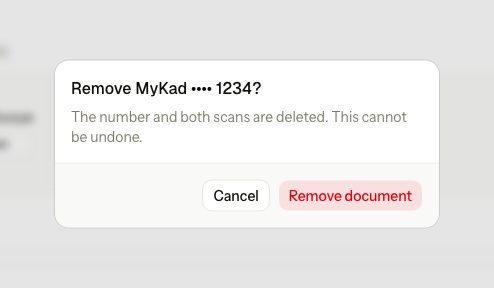
The number and both scans are deleted. This cannot be undone. Estatell shows "ID document removed."
A signed registration card keeps its own copy of what the guest signed, so removing a document does not change a card that is already signed.
See the full number
- Select Reveal on the document.
- Read the number.
- Select Hide when you are done.
The number is hidden again when you leave the page.
The Expired badge
A document with an expiry date before today shows an Expired badge next to its type. Today means the property's business date, not the date on your computer. The badge is a warning only. Estatell does not change anything else.
Who looked
Estatell writes an entry in the activity log each time someone:
- selects Reveal, or opens Edit (it loads the full number),
- opens a front or back scan,
- adds, changes or removes a document.
An entry says who did it, when, and which guest. It never holds the number. Owners and managers can read the entries in Reports, under Activity log. Search for "ID number viewed" or "ID scan viewed".
Staff who do not have View and manage guest ID documents cannot see the tab or the numbers. The guest list can also find a guest by an exact ID number, but only for staff who have this permission. Other staff cannot learn that a number exists.
Special cases
| Situation | What happens | What to do |
|---|---|---|
| A MyKad number has fewer or more than 12 digits | • Estatell refuses to save and shows an error under Number. | • Check the number. Type the 12 digits. |
| The scan is larger than 10 MB, or is not JPEG, PNG, WebP or PDF | • Estatell refuses the file and shows an error under the scan. | • Make the file smaller, or save it as one of the allowed types. |
| The number is already on another guest | • A warning shows. You can still save. | • Open the other guest. If it is the same person, merge the guests. |
| You add a second document of the same type | • Estatell accepts it. A guest can have many documents. | • Remove the old one if it is no longer needed. |
| The guest was merged or archived | • Estatell says "Name cannot be edited." | • Work on the guest that was kept. |
| A guest has no Documents tab | • You do not have View and manage guest ID documents. | • Ask an owner to change your role. |
| The property sets a retention time | • Estatell deletes the scans after that many days. The document and its number stay. | • Add the scan again if you need it. |
| A scan link stops working | • A scan stored on cloud storage opens through a link that lasts 5 minutes. | • Close the tab and select the scan again. |