
Update rooms
Change the status of a room, assign it, flag it, add a remark, or do the same for many rooms at once from the Housekeeping board.
Use the Housekeeping board to change a room as work gets done. You can change one room in its row, or tick many rooms and change them together with the bulk bar.
The board shows today's business date. You change today's rooms only.
Before you start
- Permission: Update housekeeping. Owners, managers, front desk and housekeeping staff have it by default.
- Mark inspected also needs Inspect rooms. Owners, managers and front desk have it. Housekeeping staff do not.
- Maintenance fixed (dismissing the Needs maintenance flag) needs Block rooms. Owners, managers and front desk have it.
- Without Update housekeeping, the board is read only: the status is a plain badge and the rows have no tick boxes.
- Read Room status board first, for the columns and the statuses.
Change one room
Everything for one room is in its row. The status and Assigned cells are controls. The Remark field sits in the Notes column. The ⋯ button at the end of the row opens the other actions.
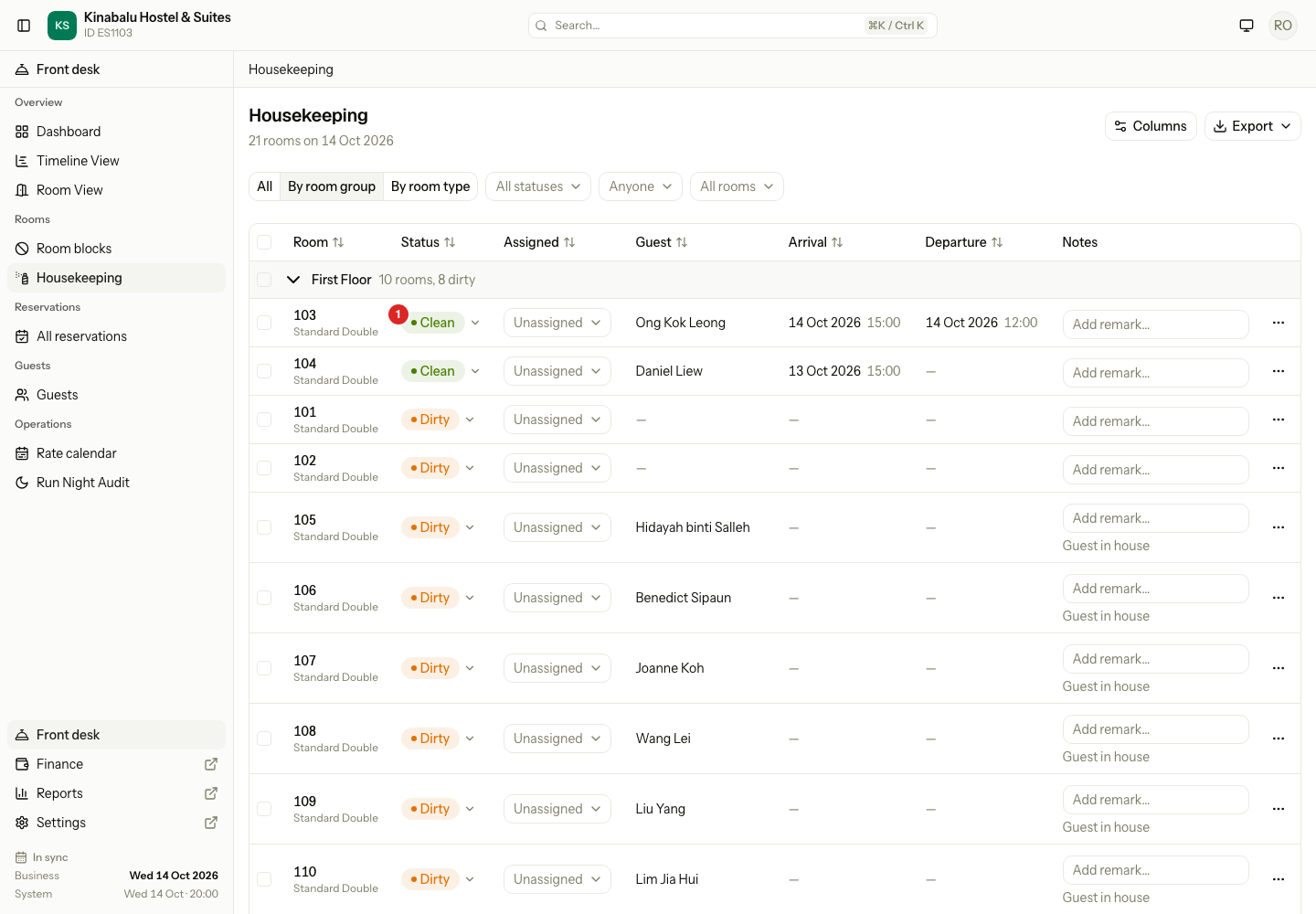
Change the status
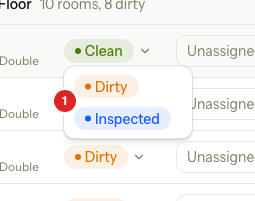
The status badge is a menu. It lists only the moves the room can make.
| Room is | The menu offers |
|---|---|
| Dirty | Clean |
| Clean | Dirty, and Inspected if you have Inspect rooms |
| Inspected | Dirty |
| Blocked | Nothing. The badge is plain. See Blocked rooms. |
- On the room's row, select the status badge.
- Select the new status.
A toast says "Room 103 is now Inspected." The row changes at once. If Estatell refuses, the row goes back and the toast says why. See Why a change is refused.
Assign a housekeeper
- On the room's row, open the Assigned menu.
- Select a person, or Unassigned to clear it.
The menu lists the active staff of the property who have Update housekeeping. Nothing else changes, and no toast shows.
Set priority
Priority puts a room at the top of someone's mind. The row turns amber, a star shows next to the room number, and Priority shows in the Notes column.
- On the room's row, select ⋯.
- Select Set priority.
To remove it, select ⋯, then Clear priority.
The board has no field to type a priority note. Set priority keeps a note the room already has. Clear priority removes the flag and the note.
Do not disturb
Use this when a guest asks not to be disturbed. It holds for today's business date only, so tomorrow the room is normal again.
- On the room's row, select ⋯.
- Select Do not disturb today.
Do not disturb shows in the Notes column. To remove it early, select ⋯, then Clear do not disturb.
Add a remark
A remark is a note for the next person, for example "Extra towels". It is plain text, up to 500 characters.
- In the Notes column, select Add remark… on the room's row.
- Type the text.
- Select outside the field, or press Enter.
The remark saves when you leave the field. Press Esc to undo what you typed. To remove a remark, delete the text and leave the field.
A remark stays until someone removes it. Making the room Clean does not clear it.
Raise Needs maintenance
Use Needs maintenance when something is broken but the room can still be sold. It is only a flag: it changes neither the status nor what you can book.
- On the room's row, select ⋯.
- Select Needs maintenance.
An amber Needs maintenance badge shows under the status.
- Anyone with Update housekeeping can raise the flag.
- Only someone with Block rooms can dismiss it. They select ⋯, then Maintenance fixed. Housekeeping staff do not see that option.
- To take the room out of service, use Block room… instead. See Blocked rooms.
Change many rooms
Tick the rooms you want to change. A bar appears at the bottom of the board with the number of rooms and the actions.
- Tick the box on each room. Tick a group header to tick all its rooms, or the box in the table header to tick every room you can see.
- Pick an action in the bar.
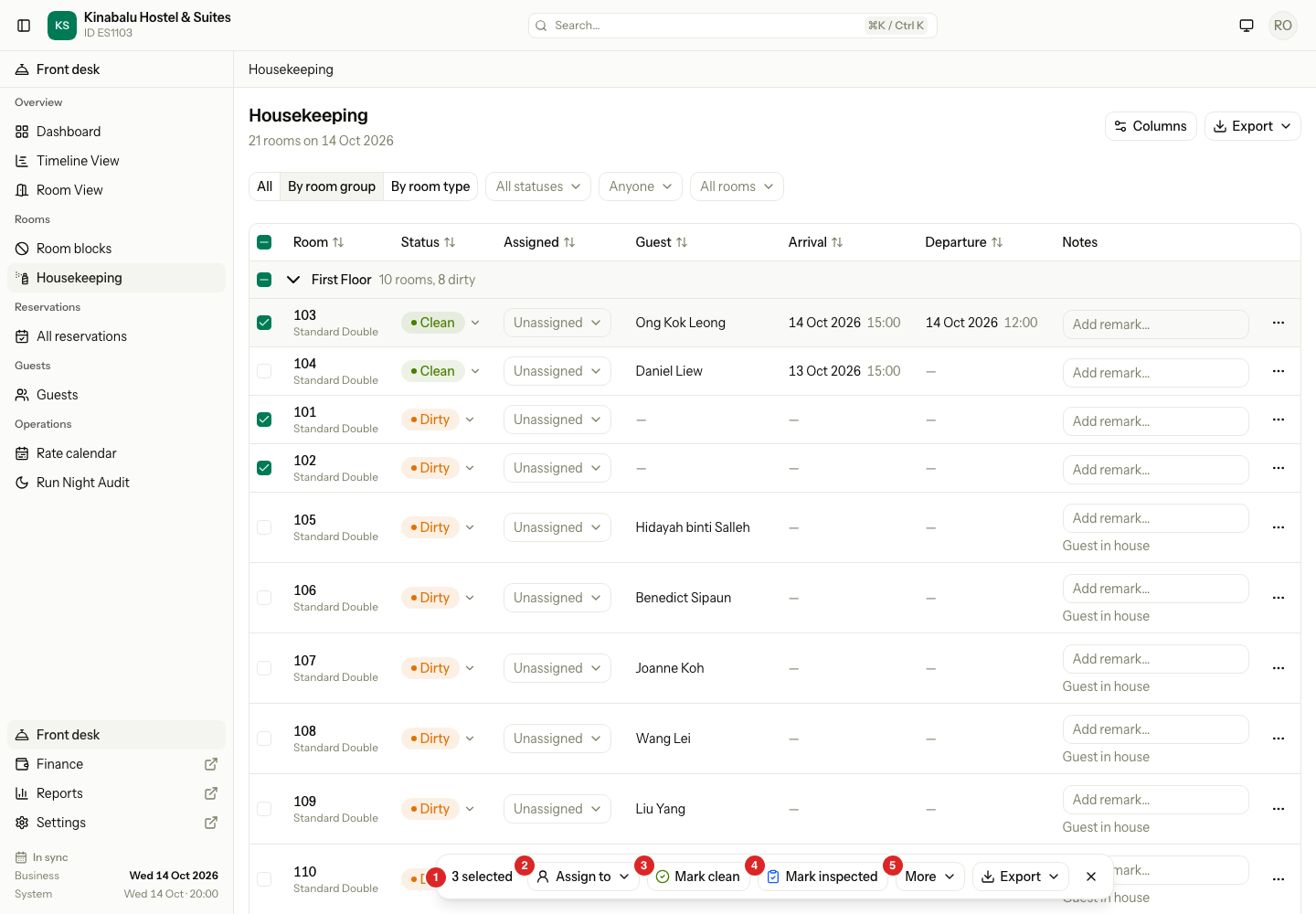
The table header ticks only the rooms that match the filters and that you can pick. A Blocked room has no tick box.
To clear the ticks without doing anything, select the X at the end of the bar, or press Esc.
Bulk actions
| Action | What it does | Rooms it skips |
|---|---|---|
| Assign to | Assigns every room to the person you pick. Unassign clears it. | None. |
| Mark clean | Moves Dirty rooms to Clean. A room that is already Clean counts as done. | Inspected rooms. |
| Mark inspected | Moves Clean rooms to Inspected. A room that is already Inspected counts as done. | Dirty rooms. |
| More, Set priority | Sets priority. Keeps a note a room already has. | None. |
| More, Clear priority | Clears priority and the note. | None. |
| More, Needs maintenance | Raises the flag. | None. |
| More, Add remark… | Opens Add remark. Adds your text on a new line after the room's remark, cut at 500 characters. | None. |
| Export | Prints or exports the ticked rooms. See Print the board. | None. |
- Mark inspected shows only if you have Inspect rooms.
- The bar has no way to dismiss Needs maintenance. Do that room by room.
- You can act on up to 200 rooms at once.
Add a remark to many rooms
- Tick the rooms.
- Select More, then Add remark….
- Type the Remark.
- Select Add remark.
The button is off until you type something.
Read the result
A toast tells you what happened. Rooms that cannot take the action are skipped. The others still change.
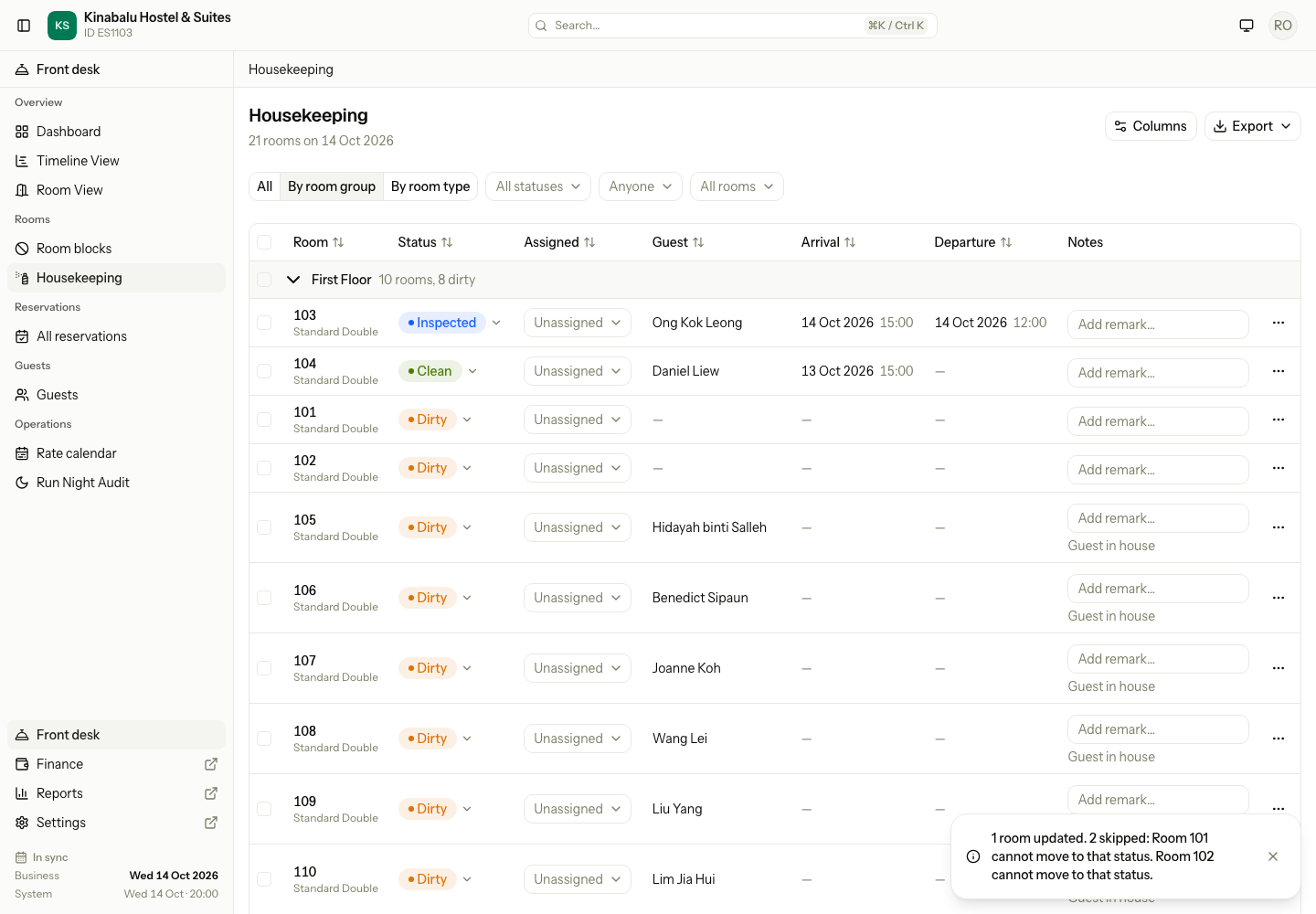
- If every room worked, the toast reads "3 rooms updated."
- If some were skipped, it reads "2 rooms updated. 1 skipped: Room 104 cannot move to that status."
- It gives the reason for the first three skipped rooms, then "and N more."
- If nothing changed, it reads "No rooms updated." and then the skipped count.
When the action works, Estatell clears all the ticks, skipped rooms too. So a second click cannot repeat the action. To retry a skipped room, tick it again.
Running the same action again changes nothing. A room already in the wanted status counts as updated and is not logged twice. The one exception is Add remark…: it adds the text again.
Why a change is refused
A refusal changes nothing. In a bulk action it only skips that room.
| What the toast says | Why | What to do |
|---|---|---|
| "Room 203 is out of service." | The room is Blocked, or was blocked a moment ago. | End the block first, or leave the room. See Blocked rooms. |
| "Room 102 cannot move to that status." | The room cannot take that move, for example Dirty to Inspected. | Pick a move the menu offers. Clean the room first. |
Special cases
| Situation | What happens | What to do |
|---|---|---|
| The room is Blocked | It has no tick box and its status badge is plain. | See Blocked rooms. |
| You have Update housekeeping but not Inspect rooms | Inspected is not in the status menu and Mark inspected is not in the bar. | Ask an owner, a manager or front desk to inspect. |
| You ticked rooms, then set a filter that hides some | The bar counts and acts on the ticked rooms you can still see. | Clear the filter to see them again. |
| You make a room Clean that has a remark | The remark stays. | Delete the text to remove it. |
| You select Add remark… twice | The text is added twice. | Edit the remark in the room's row. |
| A room already has Needs maintenance | Needs maintenance is not in its ⋯ menu. In the bar it changes nothing. | Nothing. |
| You select Mark clean on an Inspected room | The room is skipped. | Make it Dirty first, in the status menu. |
| You have Update housekeeping only and want to dismiss Needs maintenance | Maintenance fixed is not in the menu. | Ask someone with Block rooms. |